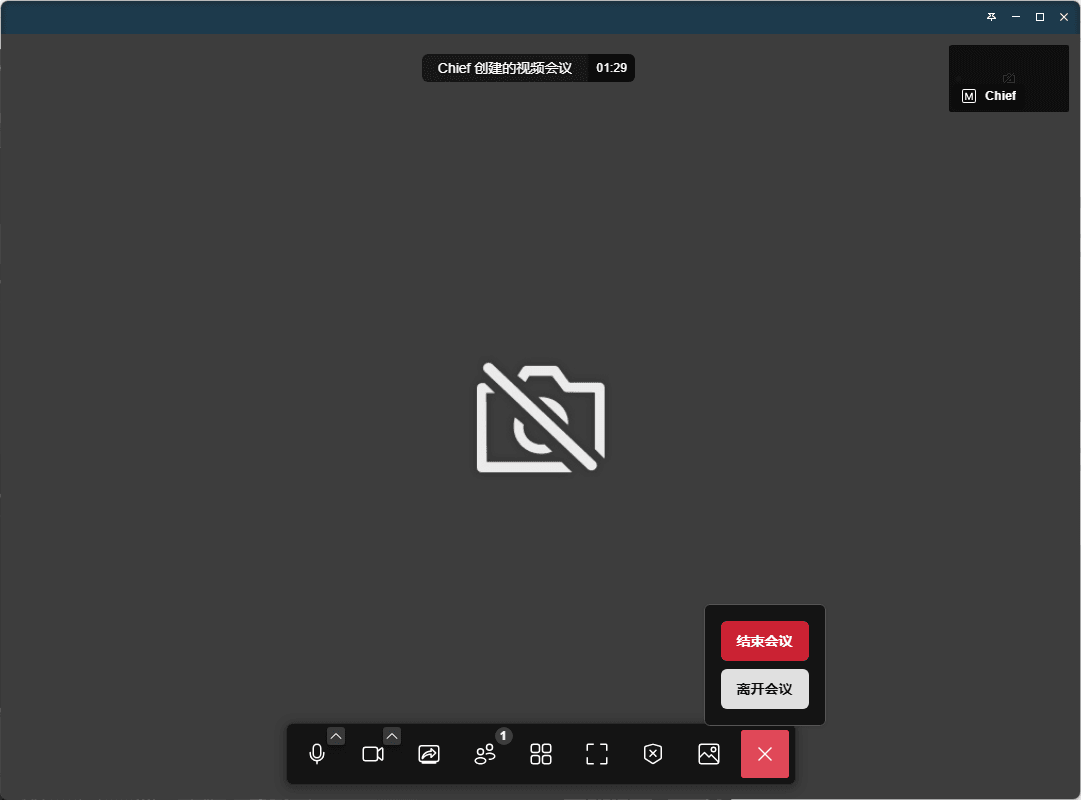
Initiate Conference
Initiate Conference
Open the DuliDuli PC client and log in, click on the Application Center on the left side, select the Video Conference app, and create a meeting.
Open the DuliDuli mobile client and log in, tap on the Workbench at the bottom, select the Video Conference app, and create a meeting.
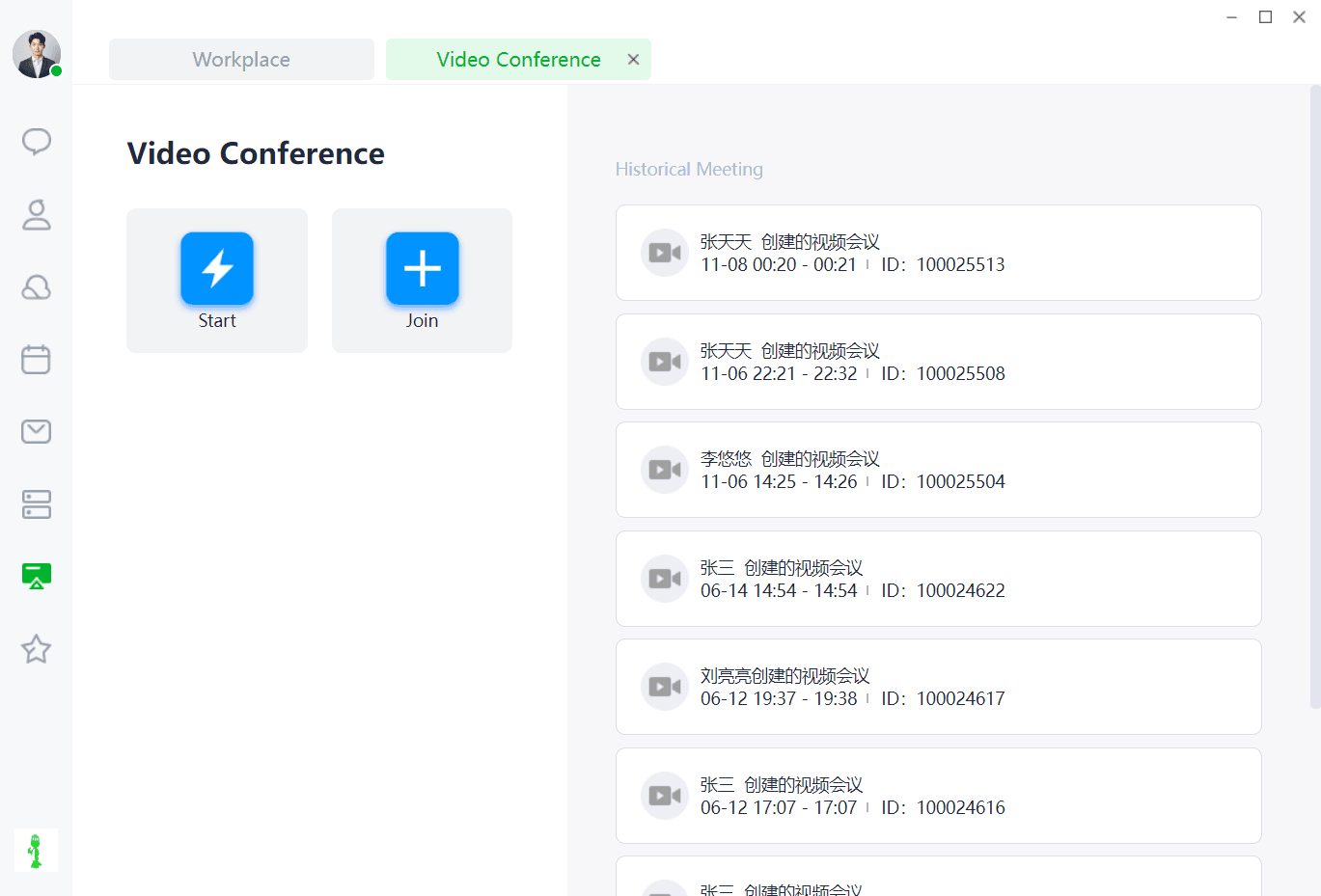
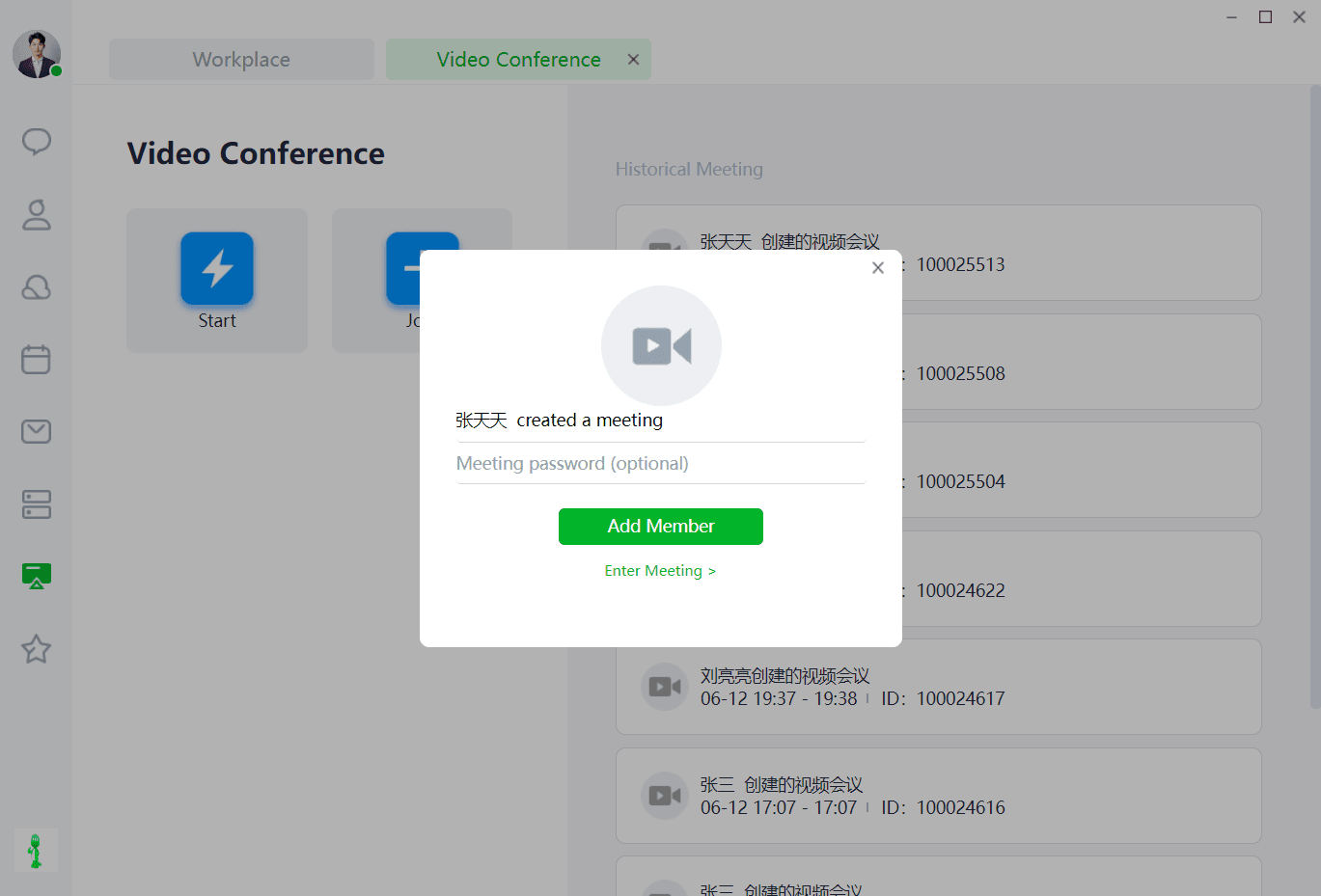
When creating a meeting, enter a video conference topic or optionally set a room password, and invite meeting participants to join the video conference. You can also choose to invite users later by entering the meeting first. Invited users will receive real-time video conference invitations on both the DuliDuli PC and mobile clients.
Conference Settings
Microphone Settings:You can choose to enable or disable the microphone function.
Camera Settings:You can choose to enable or disable the camera function.
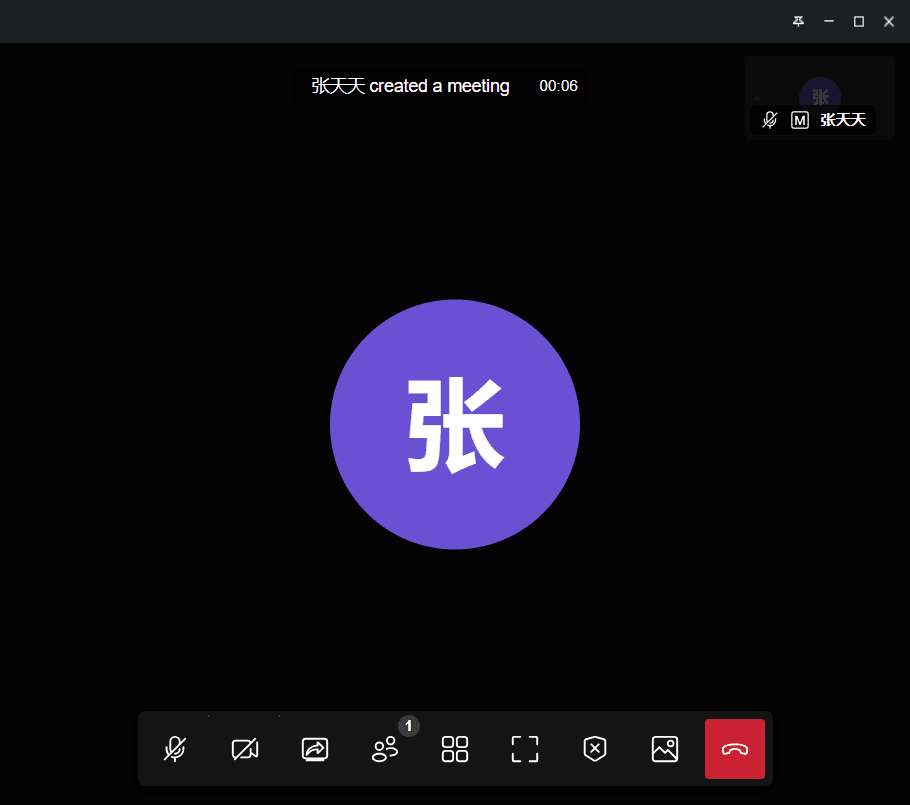
- Screen Sharing Function:Screen sharing is one of the indispensable functions in video conferences. It allows you to present your entire desktop content to all participants and offers more refined sharing options, such as selecting specific application windows to share. This means you can share entire documents, presentations, or videos as needed without worrying about exposing other sensitive information. This flexibility ensures precise information delivery while protecting your privacy.
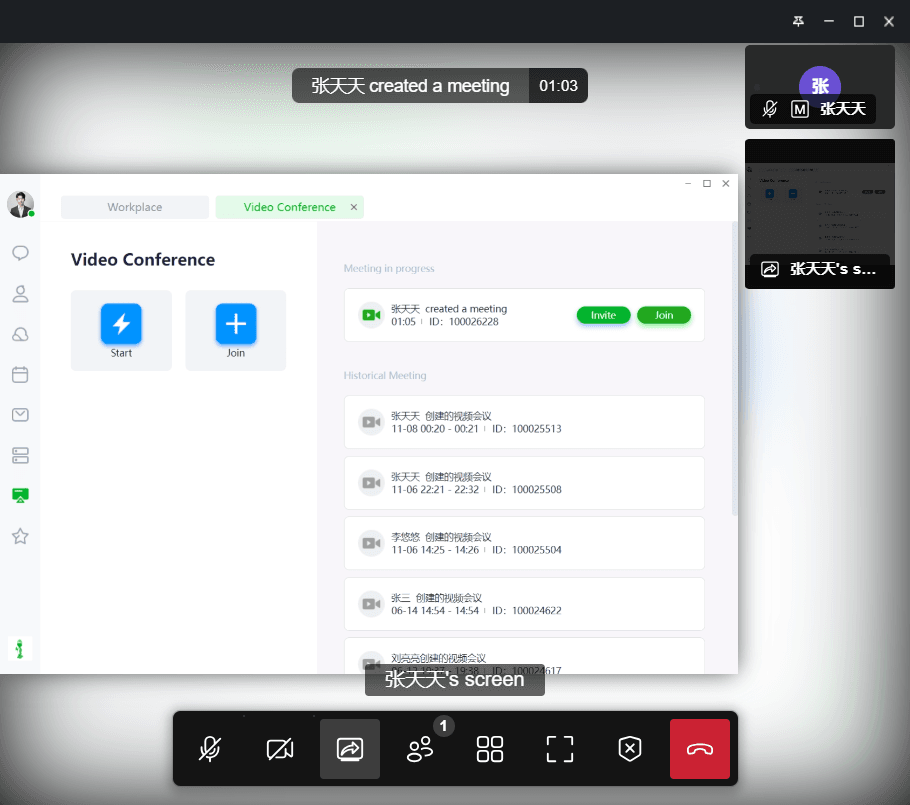
- Real-Time Participant List View:During the meeting, you can clearly see who has joined by viewing the real-time participant list. As the meeting host, you can also use this feature to monitor participant engagement and ensure the meeting proceeds smoothly. Additionally, you can enable or disable participants' microphones and cameras based on the meeting's specifics.
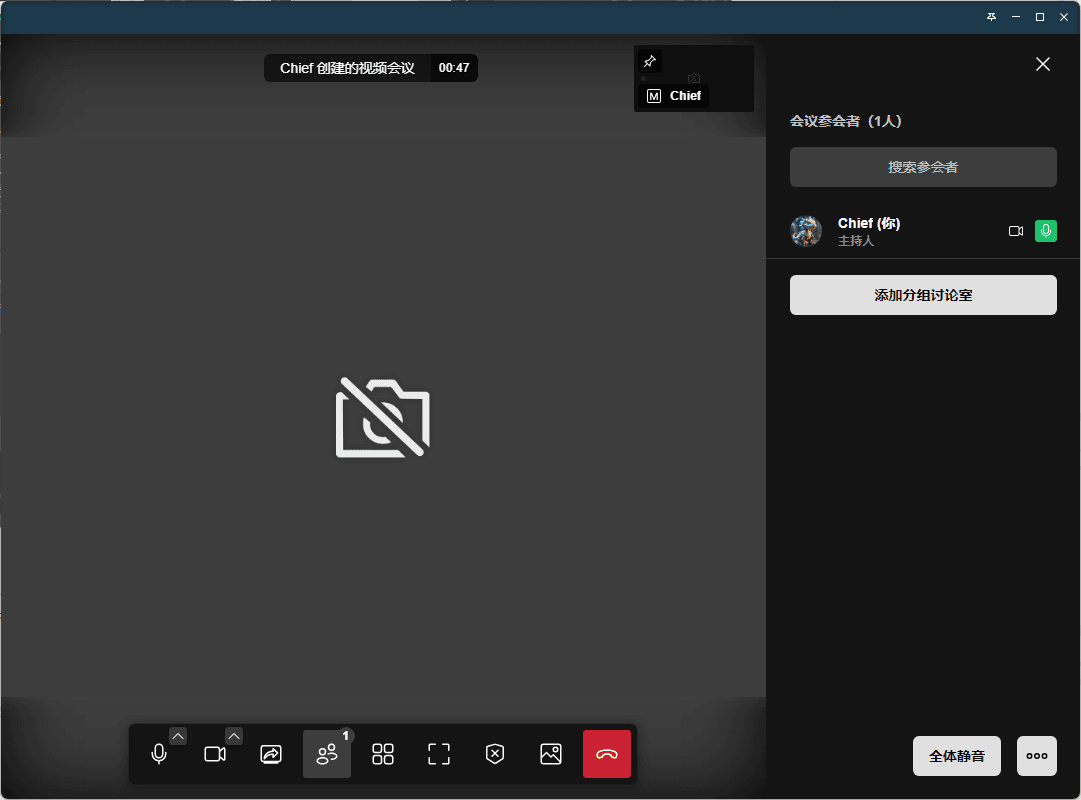
- Personalize Your Video Conference Background:Personalizing your video background is crucial for enhancing the meeting experience. By selecting an appropriate background image, you can subtly protect your privacy and security. You can also choose a background that suits the meeting content to create a professional atmosphere.
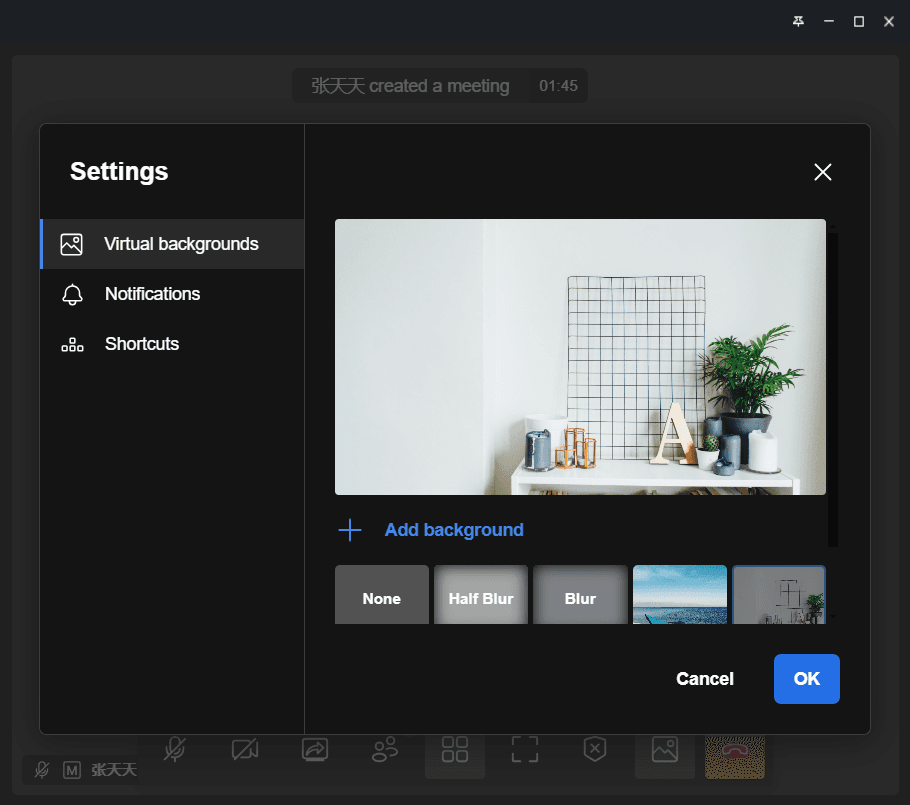
- Flexible Options at Meeting End:At the end of the meeting, you can choose to end the meeting directly or leave temporarily. Ending the meeting directly means you will close the meeting and disconnect all participants. Leaving temporarily allows you to keep the meeting space open for later rejoining or for other participants to continue the discussion. This flexibility ensures a smooth and efficient meeting process.
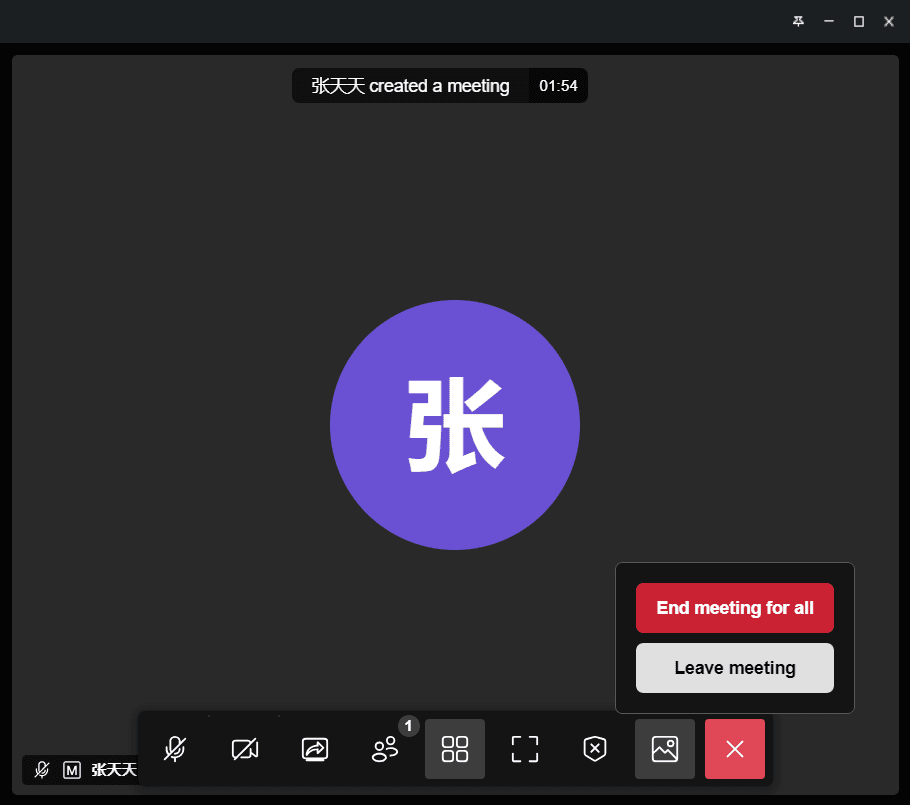
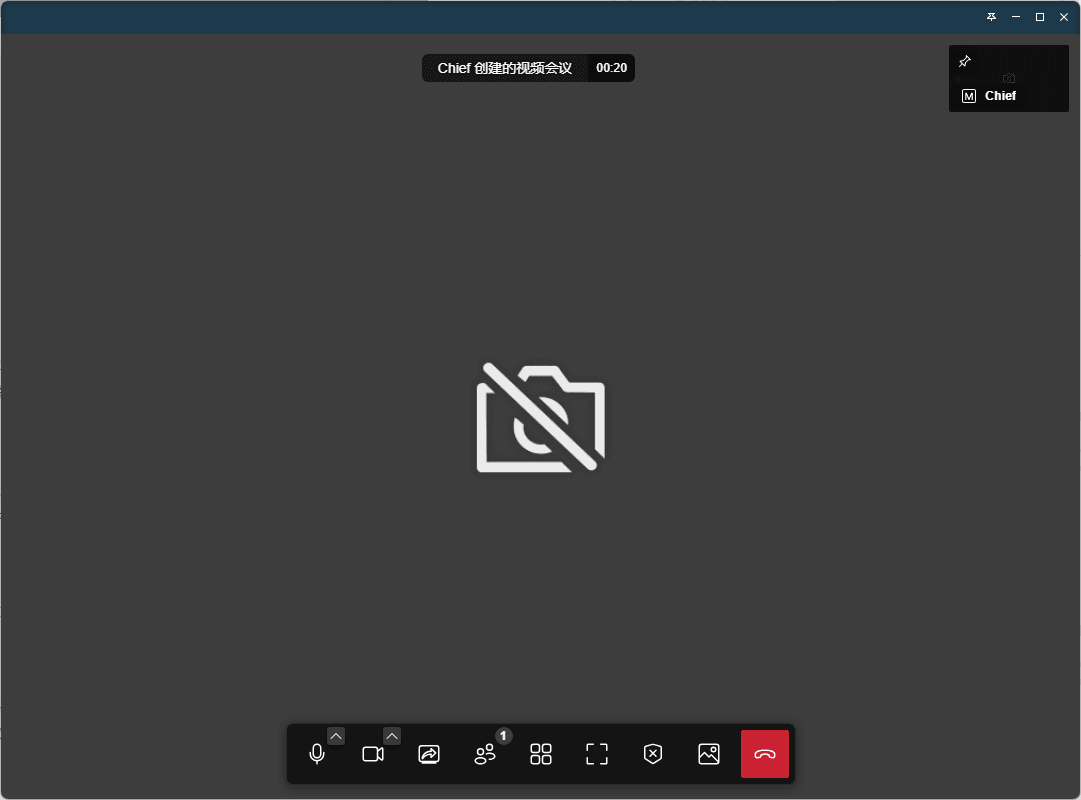
- Screen Sharing Function:Screen sharing is one of the indispensable functions in video conferences. It allows you to present your entire desktop content to all participants and offers more refined sharing options, such as selecting specific application windows to share. This means you can share entire documents, presentations, or videos as needed without worrying about exposing other sensitive information. This flexibility ensures precise information delivery while protecting your privacy.
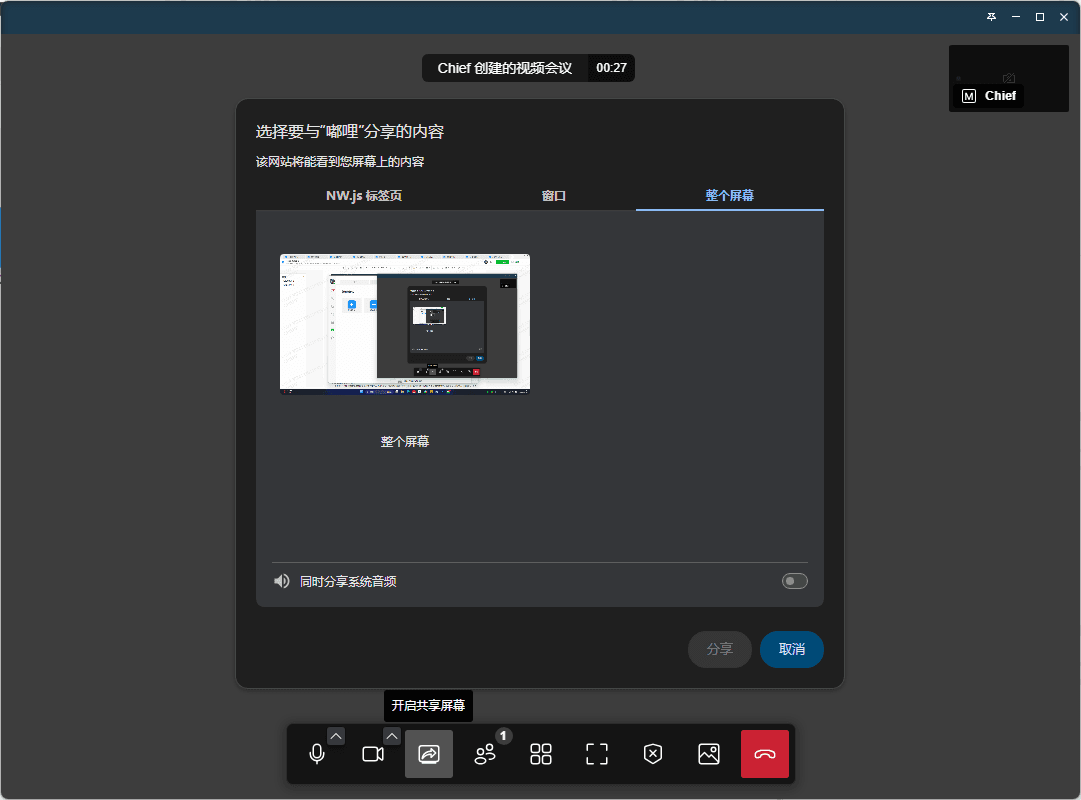
- Real-Time Participant List View:During the meeting, you can clearly see who has joined by viewing the real-time participant list. As the meeting host, you can also use this feature to monitor participant engagement and ensure the meeting proceeds smoothly. Additionally, you can enable or disable participants' microphones and cameras based on the meeting's specifics.
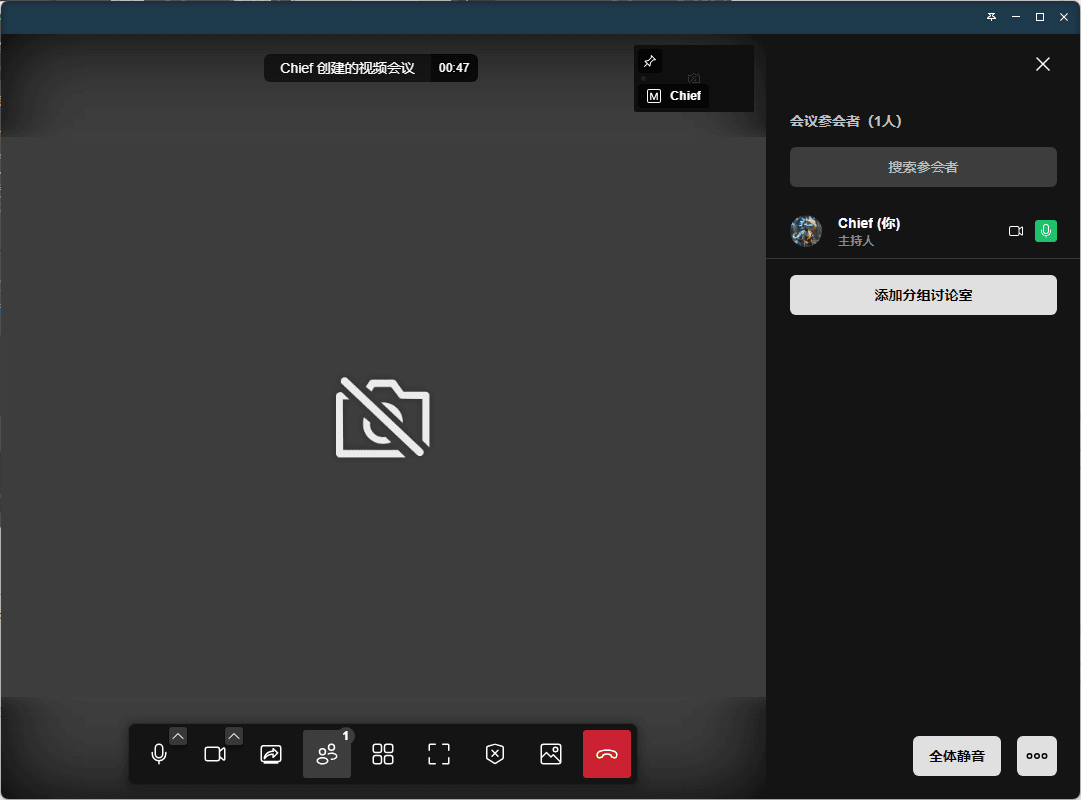
- Personalize Your Video Conference Background:Personalizing your video background is crucial for enhancing the meeting experience. By selecting an appropriate background image, you can subtly protect your privacy and security. You can also choose a background that suits the meeting content to create a professional atmosphere.
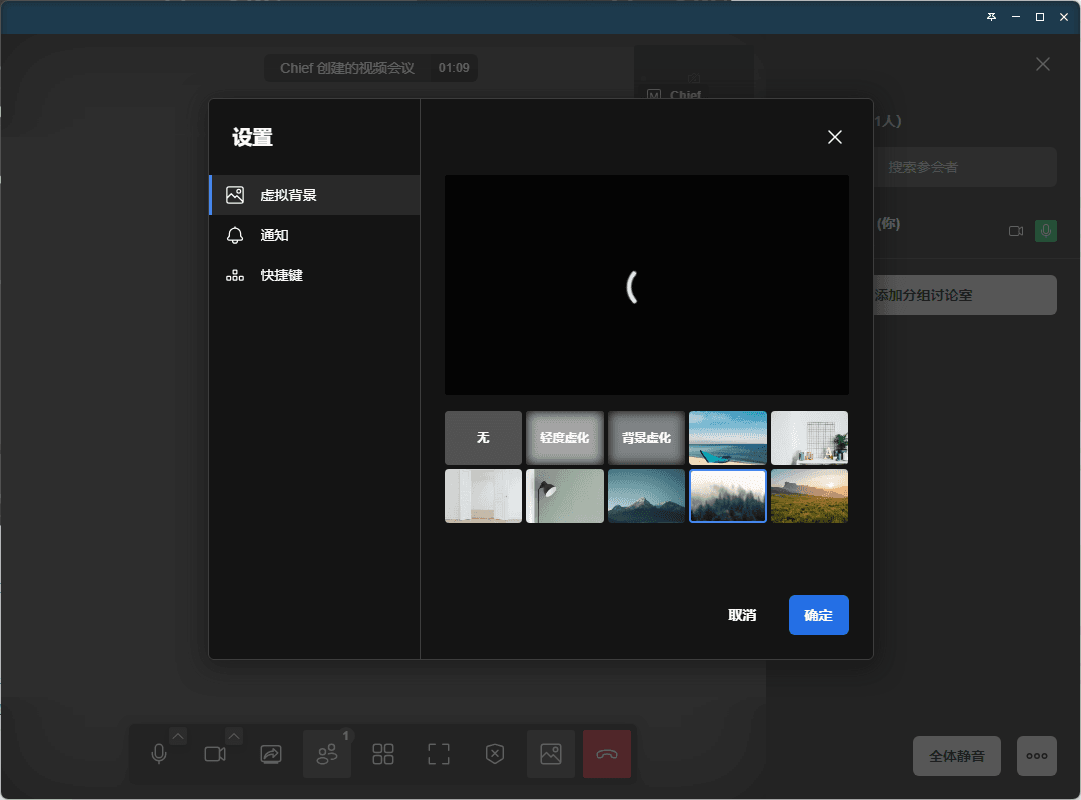
- Flexible Options at Meeting End:At the end of the meeting, you can choose to end the meeting directly or leave temporarily. Ending the meeting directly means you will close the meeting and disconnect all participants. Leaving temporarily allows you to keep the meeting space open for later rejoining or for other participants to continue the discussion. This flexibility ensures a smooth and efficient meeting process.
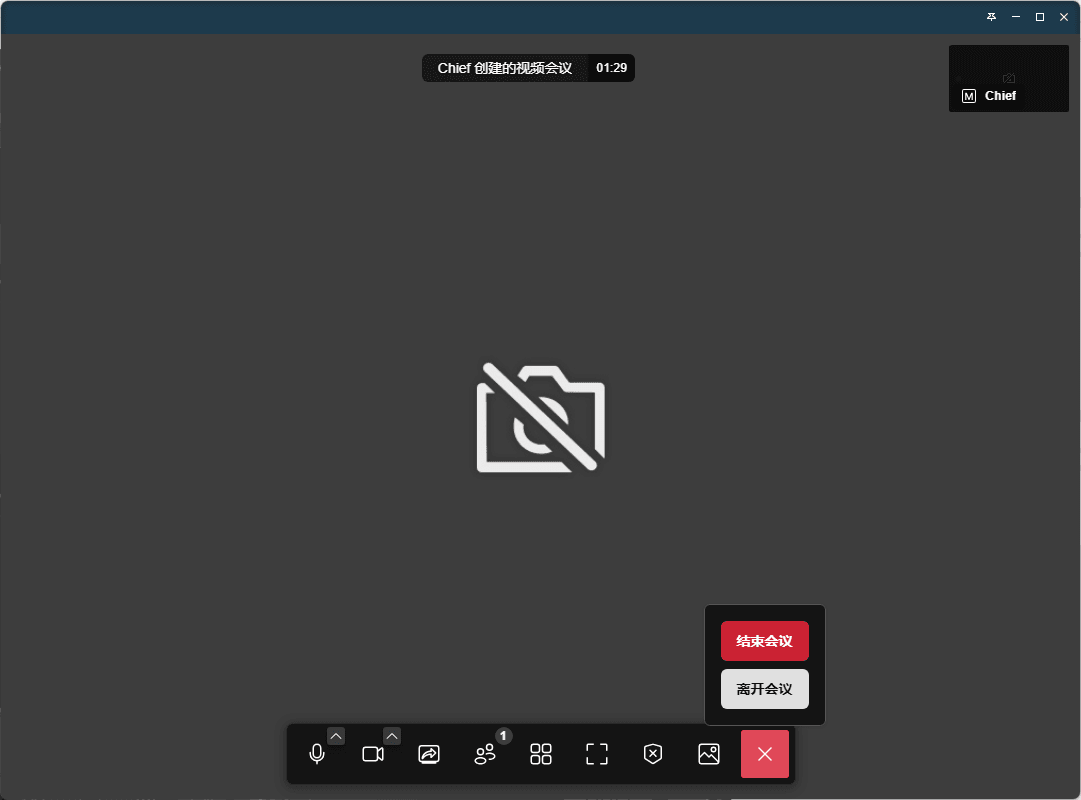
- Microphone Settings:You can choose to enable or disable the microphone function.
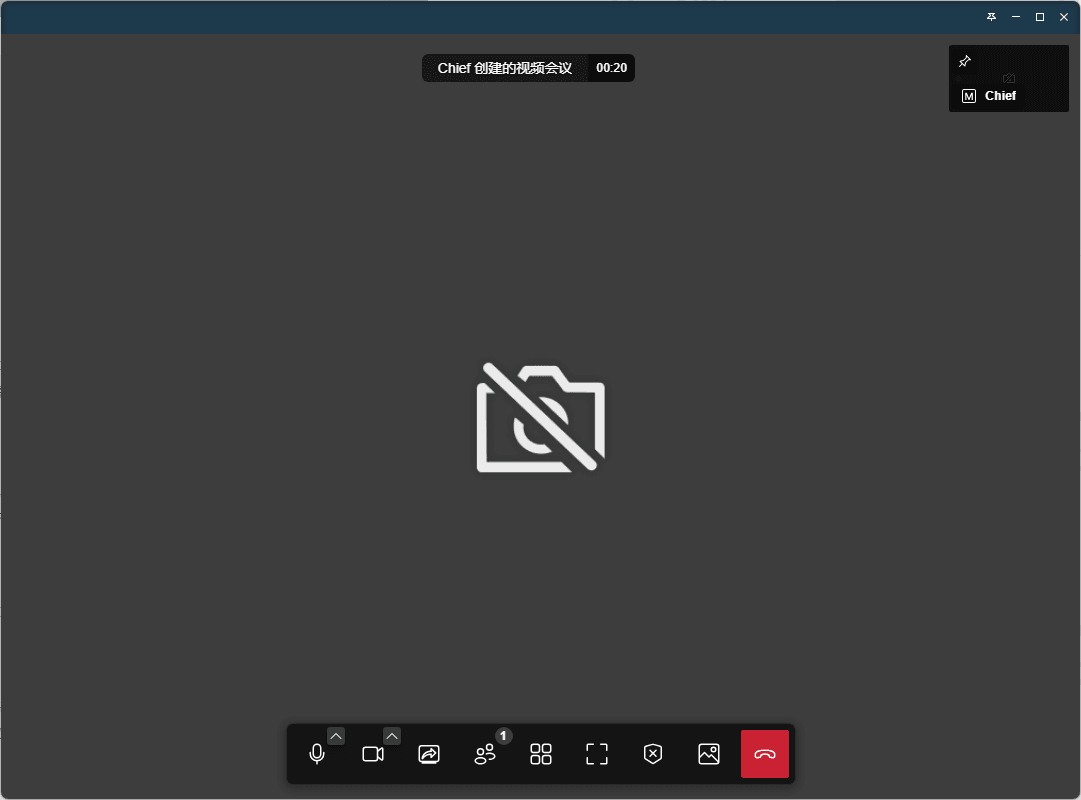
- Camera Settings:You can choose to enable or disable the camera function.
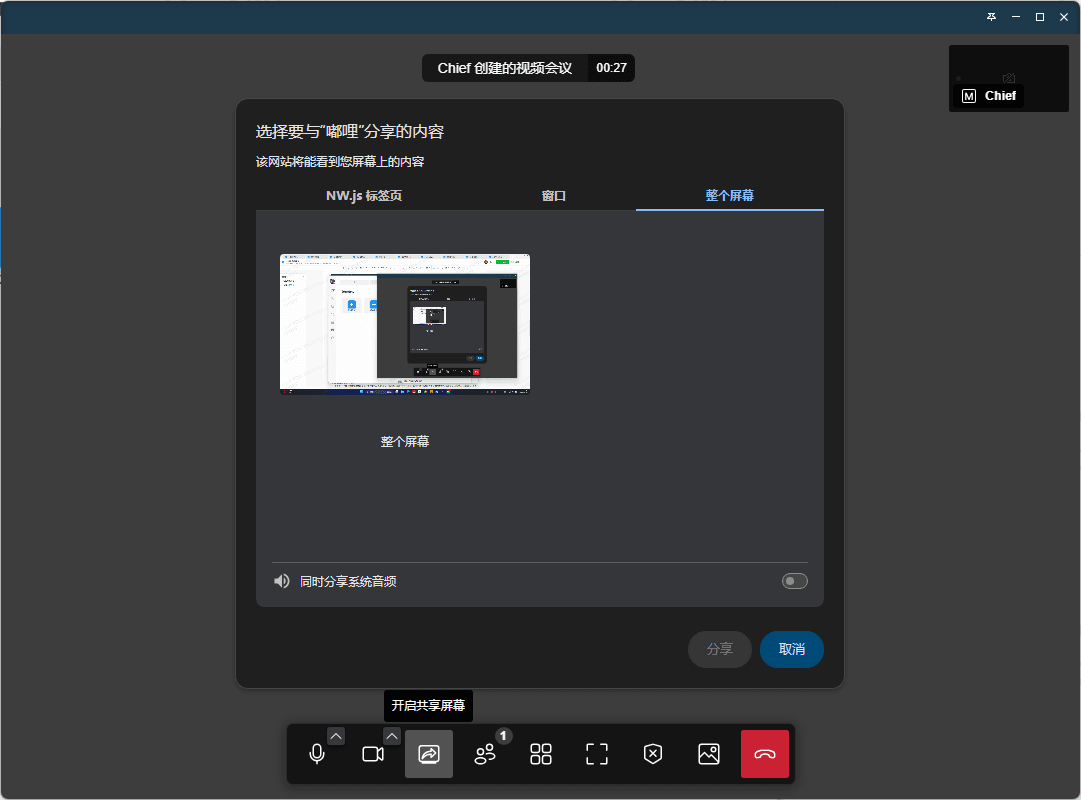
- Screen Sharing Function:Screen sharing is one of the indispensable functions in video conferences. It allows you to present your entire desktop content to all participants and offers more refined sharing options, such as selecting specific application windows to share. This means you can share entire documents, presentations, or videos as needed without worrying about exposing other sensitive information. This flexibility ensures precise information delivery while protecting your privacy.
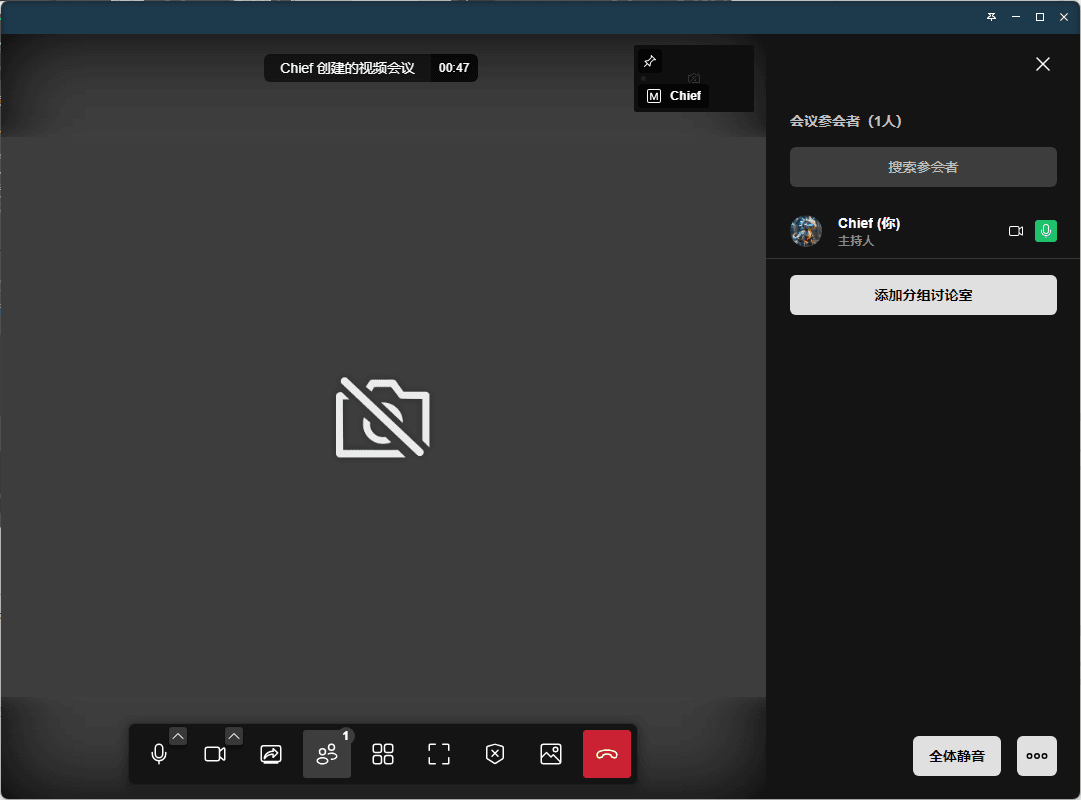
- Real-Time Participant List View:During the meeting, you can clearly see who has joined by viewing the real-time participant list. As the meeting host, you can also use this feature to monitor participant engagement and ensure the meeting proceeds smoothly. Additionally, you can enable or disable participants' microphones and cameras based on the meeting's specifics.
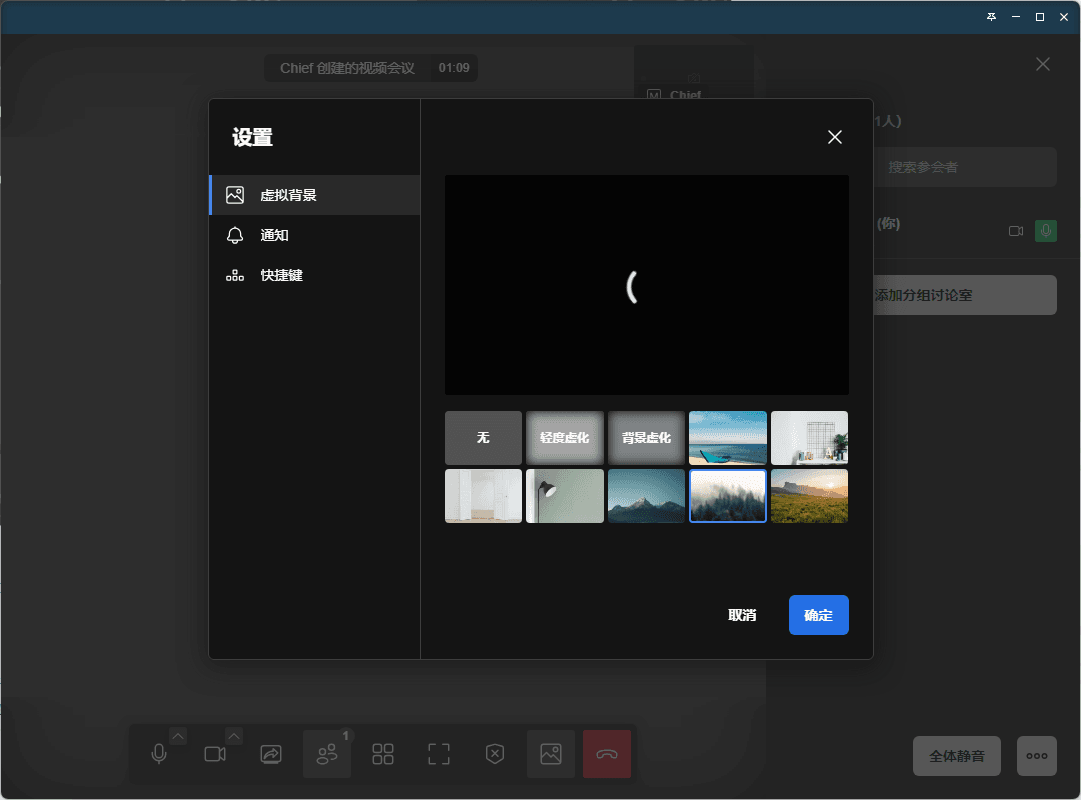
- Personalize Your Video Conference Background:Personalizing your video background is crucial for enhancing the meeting experience. By selecting an appropriate background image, you can subtly protect your privacy and security. You can also choose a background that suits the meeting content to create a professional atmosphere.
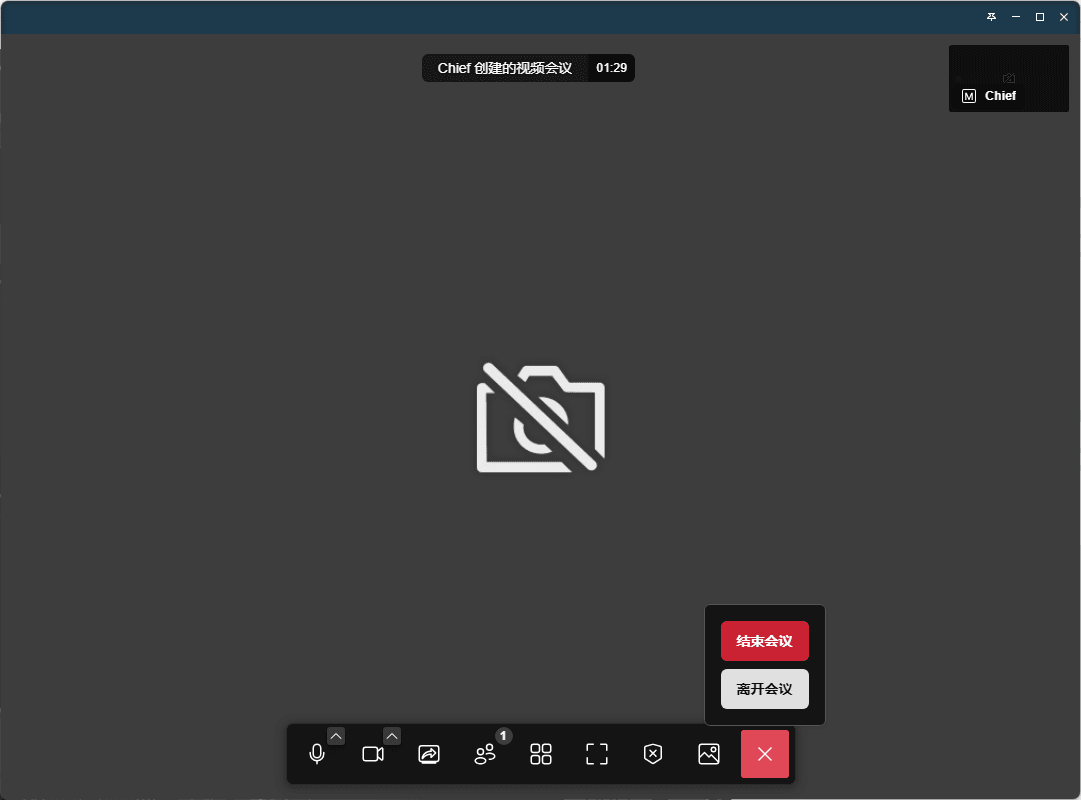
- Flexible Options at Meeting End:At the end of the meeting, you can choose to end the meeting directly or leave temporarily. Ending the meeting directly means you will close the meeting and disconnect all participants. Leaving temporarily allows you to keep the meeting space open for later rejoining or for other participants to continue the discussion. This flexibility ensures a smooth and efficient meeting process.
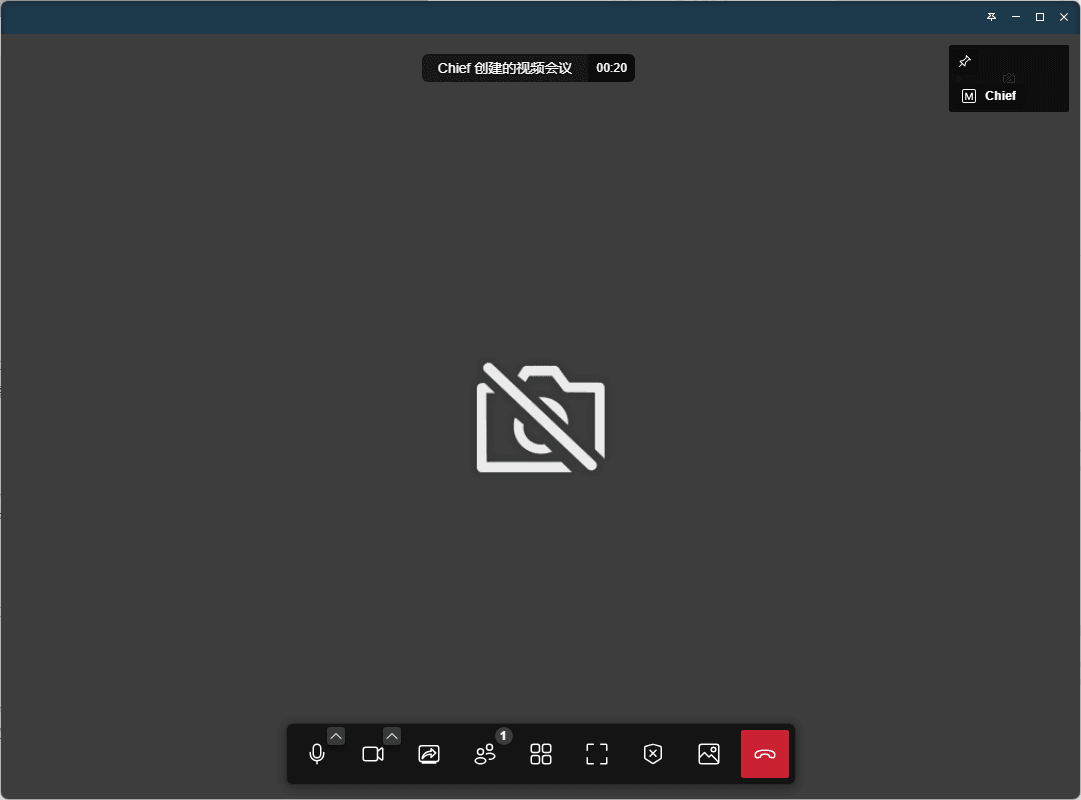
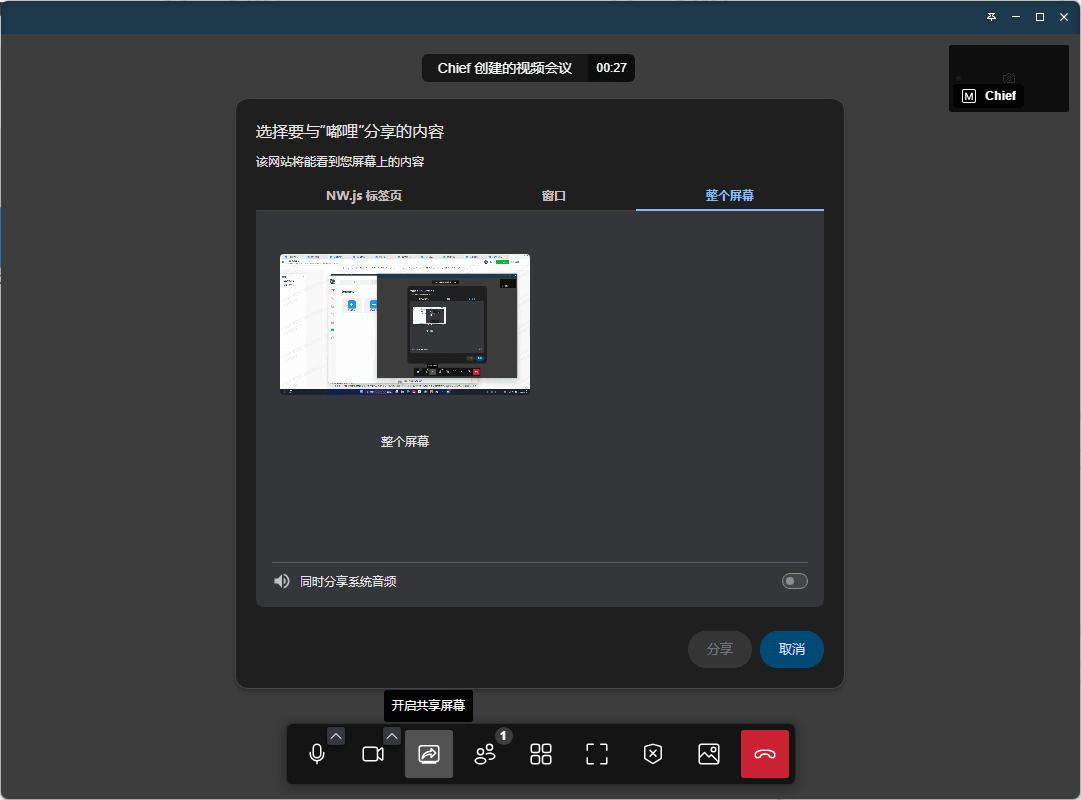
- Screen Sharing Function:Screen sharing is one of the indispensable functions in video conferences. It allows you to present your entire desktop content to all participants and offers more refined sharing options, such as selecting specific application windows to share. This means you can share entire documents, presentations, or videos as needed without worrying about exposing other sensitive information. This flexibility ensures precise information delivery while protecting your privacy.
- Real-Time Participant List View:During the meeting, you can clearly see who has joined by viewing the real-time participant list. As the meeting host, you can also use this feature to monitor participant engagement and ensure the meeting proceeds smoothly. Additionally, you can enable or disable participants' microphones and cameras based on the meeting's specifics.
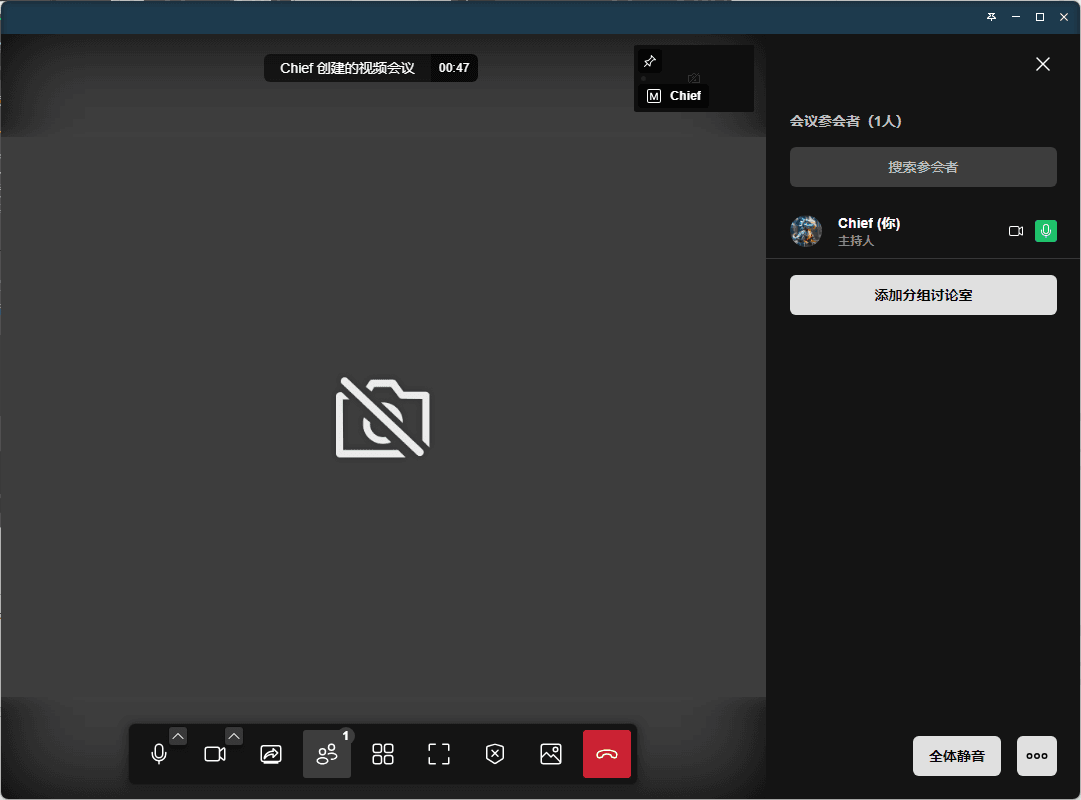
- Personalize Your Video Conference Background:Personalizing your video background is crucial for enhancing the meeting experience. By selecting an appropriate background image, you can subtly protect your privacy and security. You can also choose a background that suits the meeting content to create a professional atmosphere.
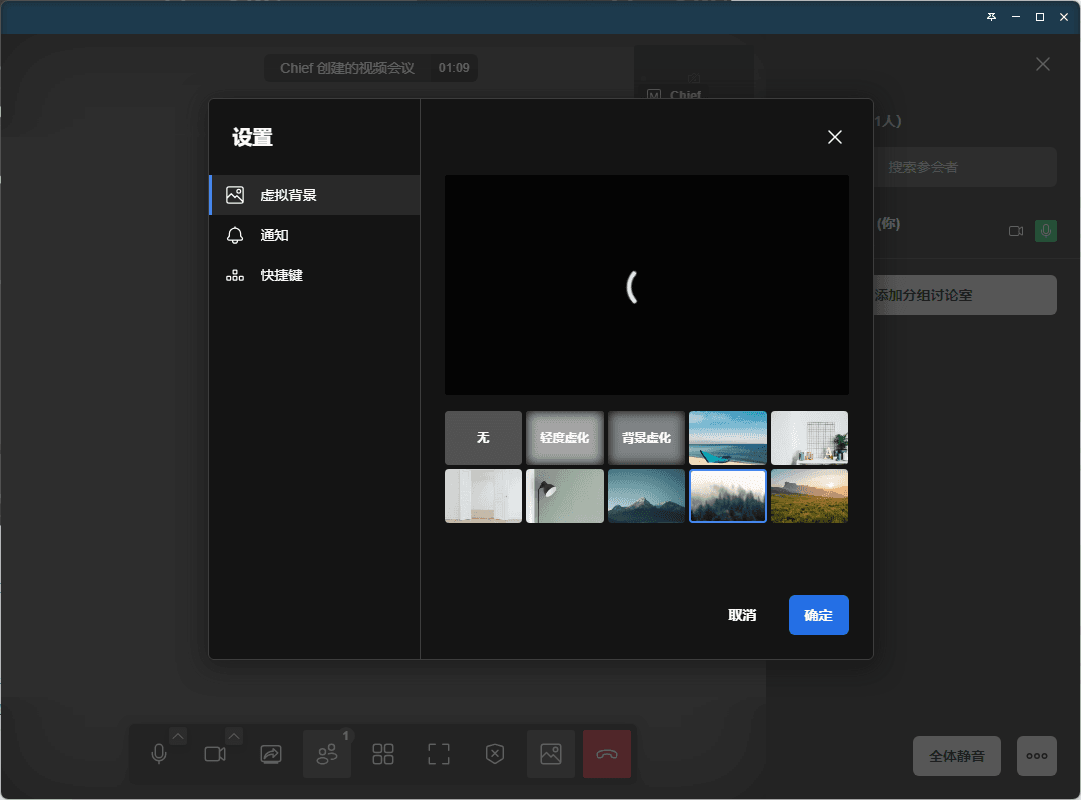
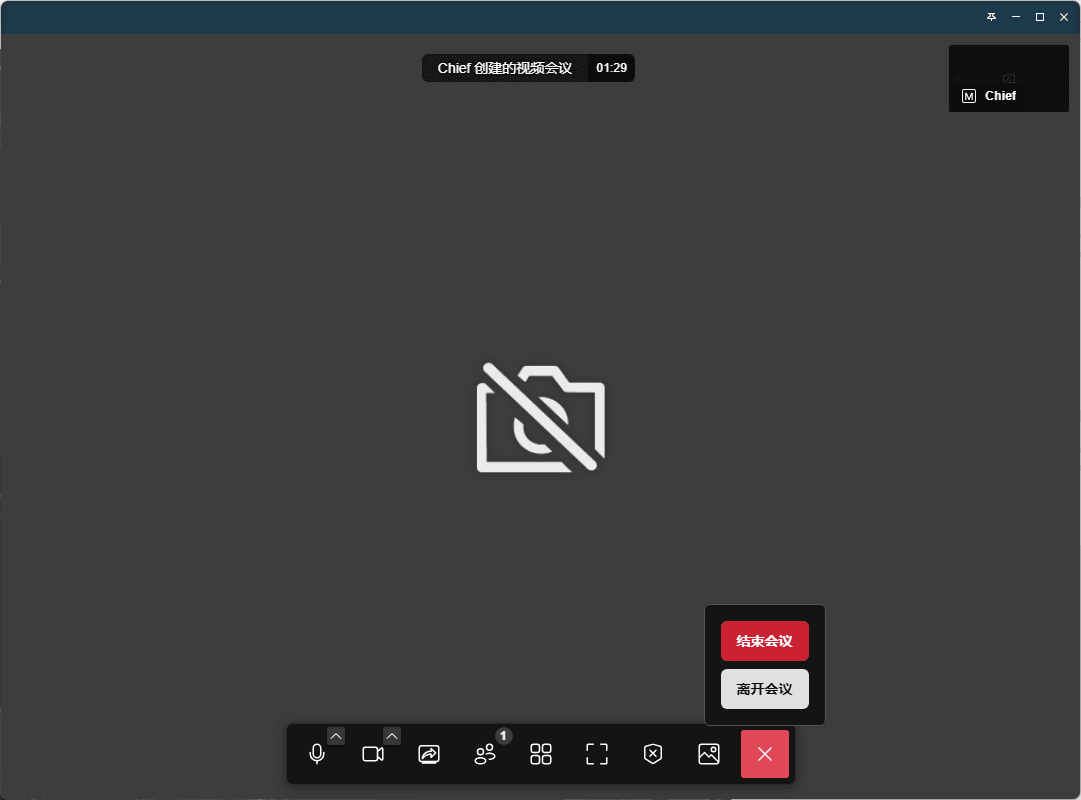
- Flexible Options at Meeting End:At the end of the meeting, you can choose to end the meeting directly or leave temporarily. Ending the meeting directly means you will close the meeting and disconnect all participants. Leaving temporarily allows you to keep the meeting space open for later rejoining or for other participants to continue the discussion. This flexibility ensures a smooth and efficient meeting process.
- Microphone Settings: You can choose to enable or disable the microphone function.
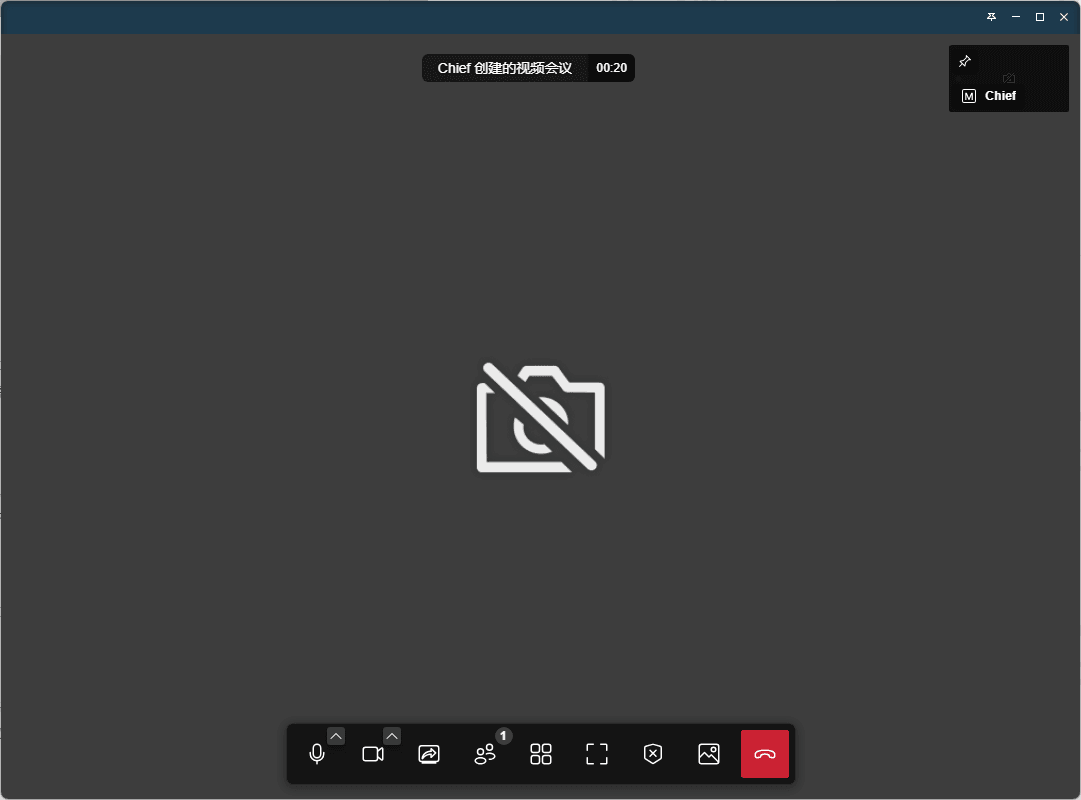
- Camera Settings: You can choose to enable or disable the camera function.
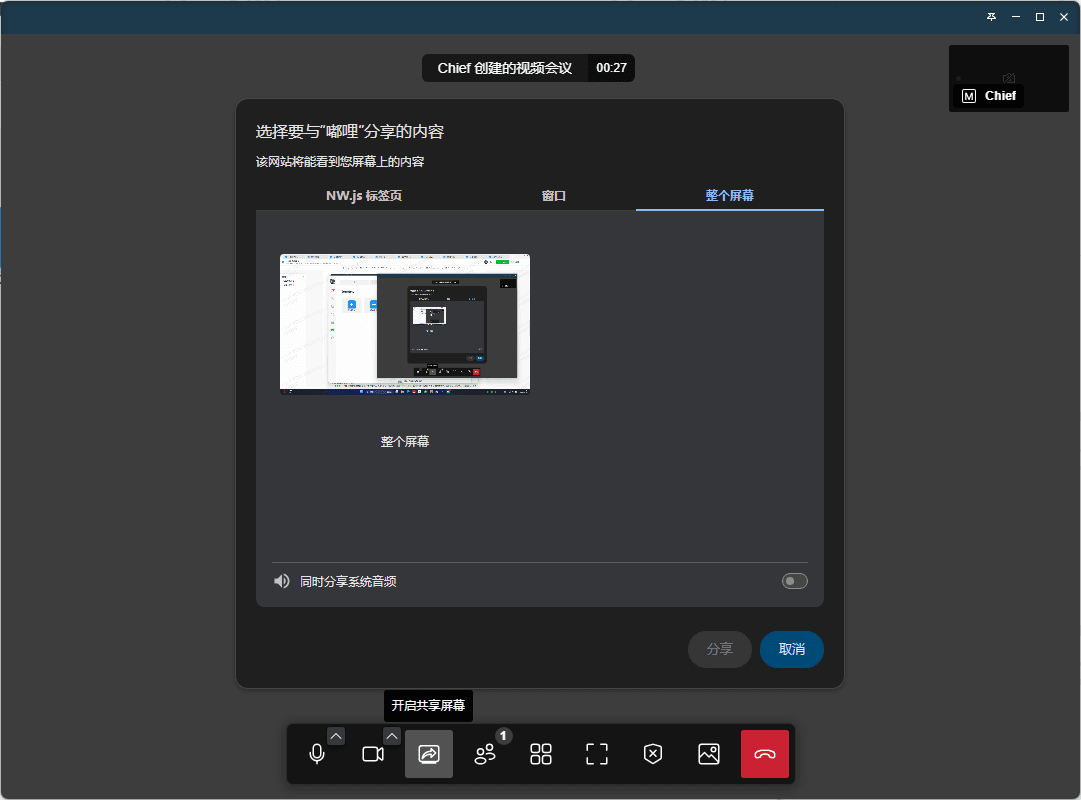
- Screen Sharing Function: Screen sharing is one of the indispensable functions in video conferences. It allows you to present your entire desktop content to all participants and offers more refined sharing options, such as selecting specific application windows to share. This means you can share entire documents, presentations, or videos as needed without worrying about exposing other sensitive information. This flexibility ensures precise information delivery while protecting your privacy.
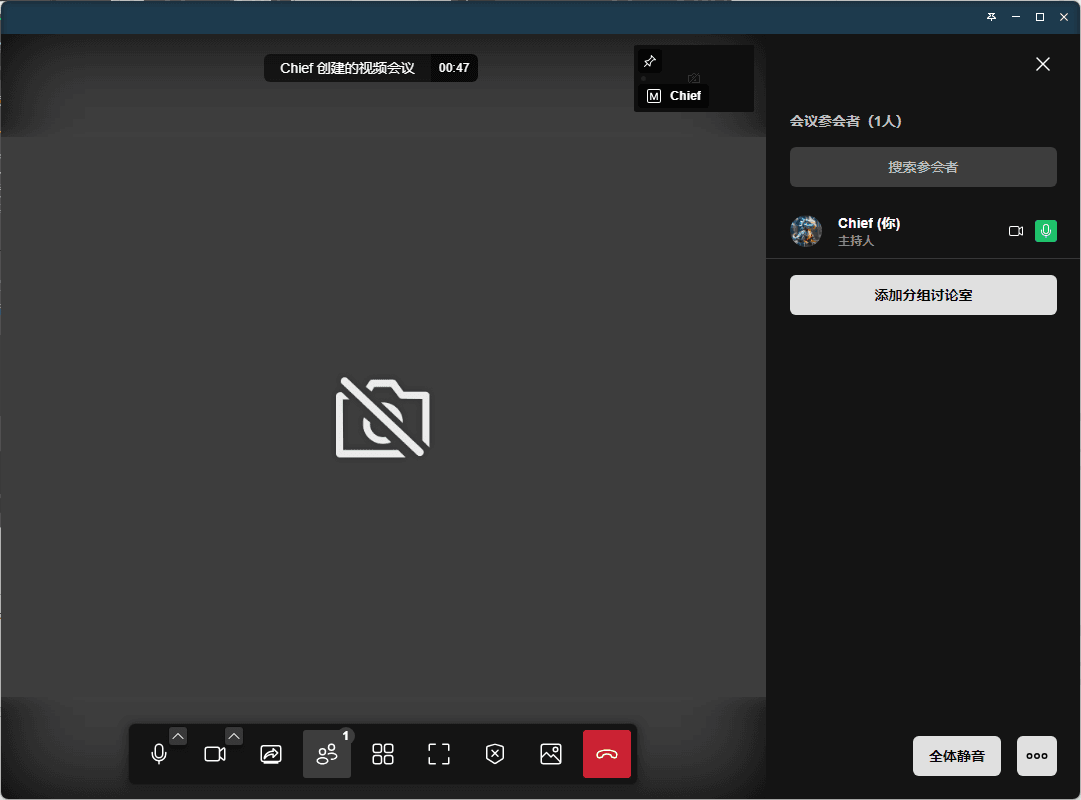
- Real-Time Participant List View: During the meeting, you can clearly see who has joined by viewing the real-time participant list. As the meeting host, you can also use this feature to monitor participant engagement and ensure the meeting proceeds smoothly. Additionally, you can enable or disable participants' microphones and cameras based on the meeting's specifics.
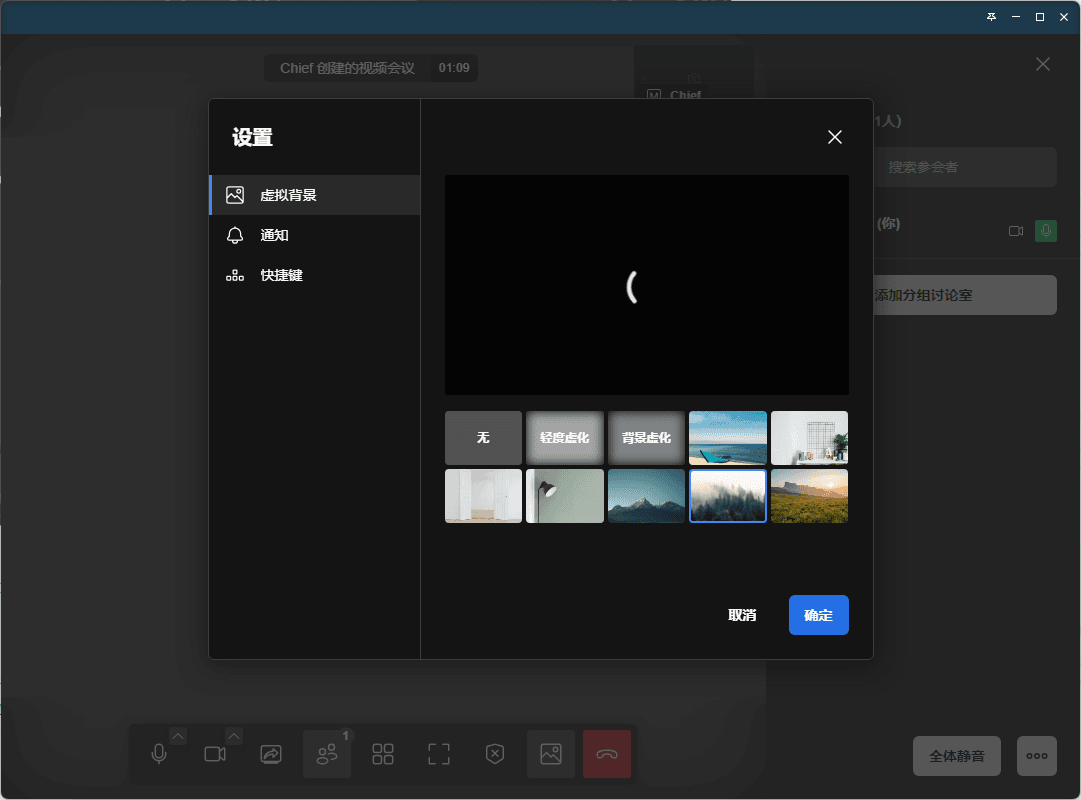
- Personalize Your Video Conference Background: Personalizing your video background is crucial for enhancing the meeting experience. By selecting an appropriate background image, you can subtly protect your privacy and security. You can also choose a background that suits the meeting content to create a professional atmosphere.
- Flexible Options at Meeting End: At the end of the meeting, you can choose to end the meeting directly or leave temporarily. Ending the meeting directly means you will close the meeting and disconnect all participants. Leaving temporarily allows you to keep the meeting space open for later rejoining or for other participants to continue the discussion. This flexibility ensures a smooth and efficient meeting process.