
BE-Permissions
Permissions
1.Data Leak Prevention
Device Management:
I. Function Introduction
Administrators can manage devices here.
II. Operation Process
- Go to Duli admin dashboard > Security & Permissions > Data Leak Prevention > Device Management
- Trusted Device List: Here, you can add trusted devices and perform batch deletion, disable/enable, edit, and other operations on already added devices.
- Unknown Devices: View devices that are not on the trusted device list and have accessed Duli. You can quickly add devices from the action field.
Visible Watermark
I. Function Introduction
Administrators can set parameters related to visible watermarks here.
II. Operation Process
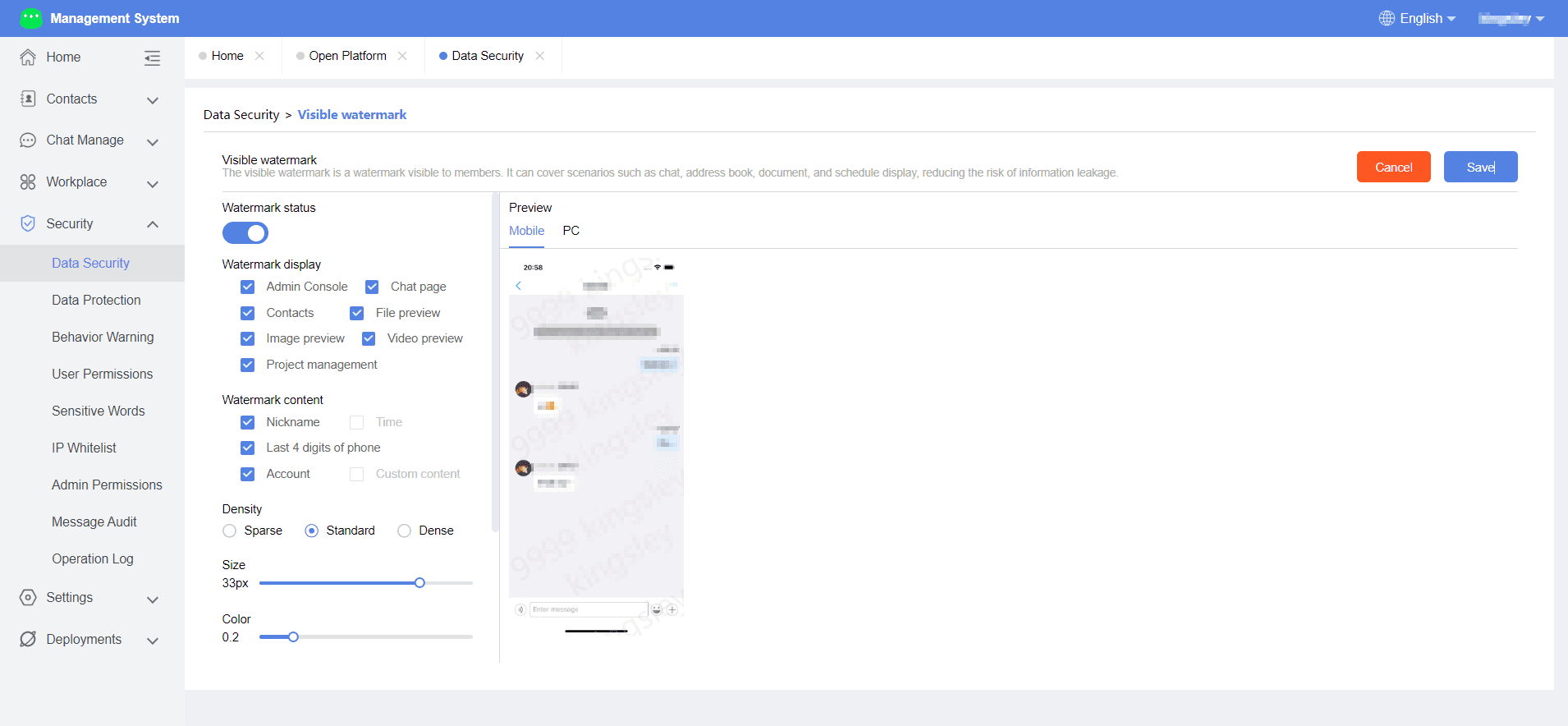
- Go to Duli admin dashboard > Security & Permissions > Data Leak Prevention > Visible Watermark Settings
- Click the edit button to configure watermark toggle, watermark control, watermark content, density, watermark size, watermark transparency, watermark angle, and watermark scope.
- Watermark Scope: The current admin dashboard, chat page, address book, files, image and video previews, project management, and other modules all support watermark control.
- After setting, click save to successfully save the settings. You can preview the current watermark effect on the left.
Invisible Watermark
I. Function IntroductionAdministrators can set parameters related to invisible watermarks here.
II. Operation Process
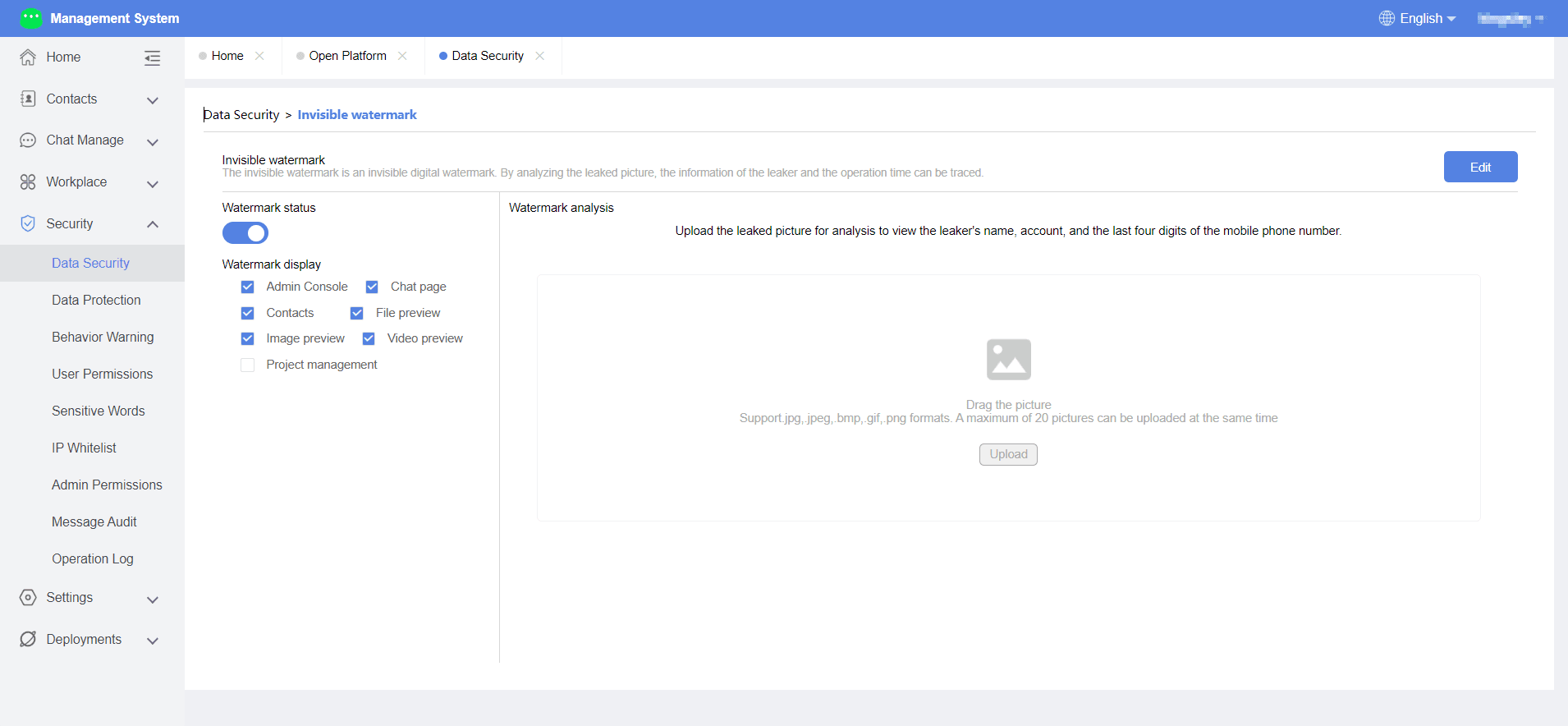
- Go to Duli admin dashboard > Security & Permissions > Data Leak Prevention > Invisible Watermark Settings
- Click the edit button to configure the watermark toggle and application scope.
- Watermark Scope: The current admin dashboard, chat page, address book, files, image and video previews, project management, and other modules all support watermark control.
- You can upload leaked images for analysis to view the name, account, and last four digits of the phone number of the person who leaked the information.
File Leak Prevention
Permission Group Settings
Screenshot/Screen Recording
I. Function Introduction
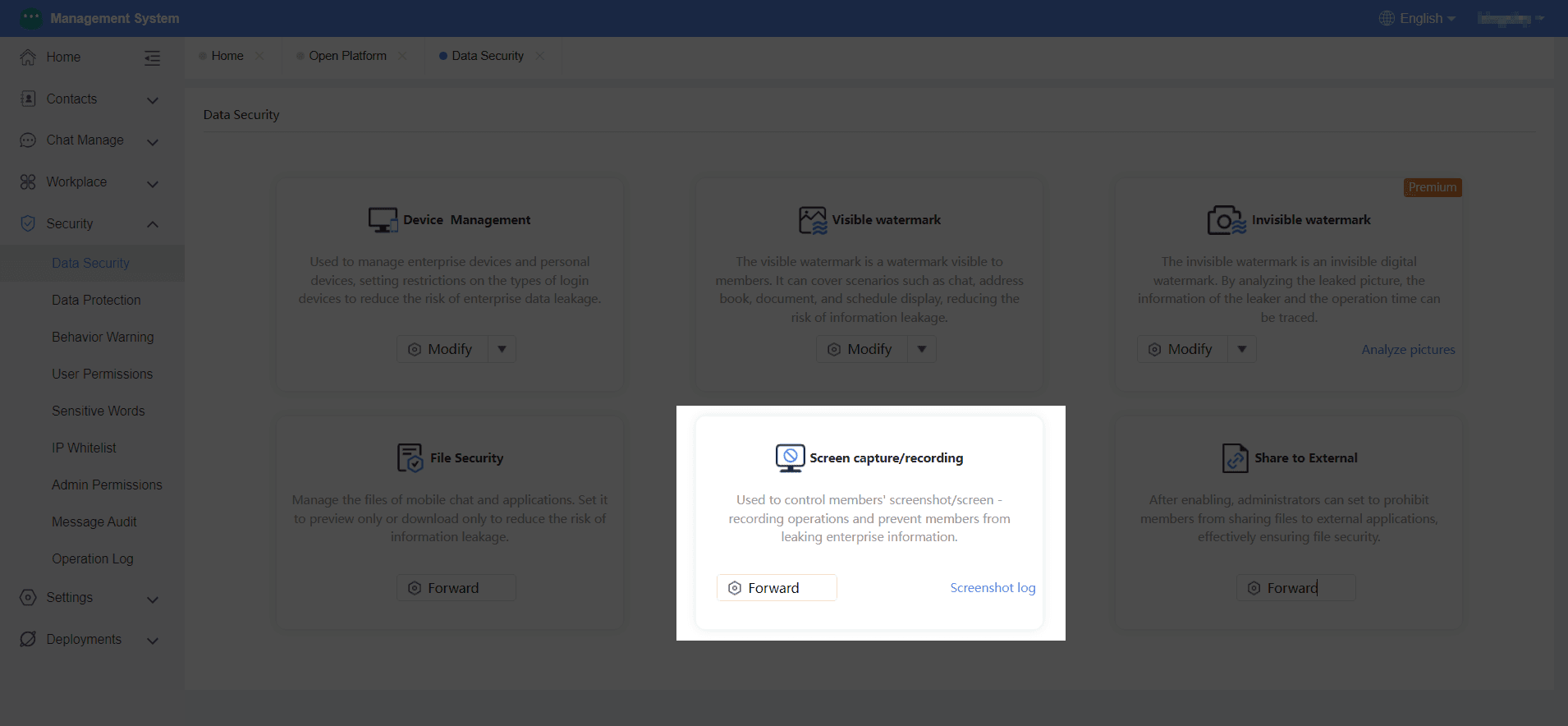
Administrators can view members' screenshots under this organization, including time, nickname, account, operating system, scenario, operation content, and screenshot images.
II. Operation Process
Go to Duli admin dashboard > Security & Permissions > Data Leak Prevention > Screenshot/Screen
Recording Management
External Sharing Management
2.Data Protection Plan
- Chat Data Recovery
- Message Retraction Recovery
I. Function Introduction
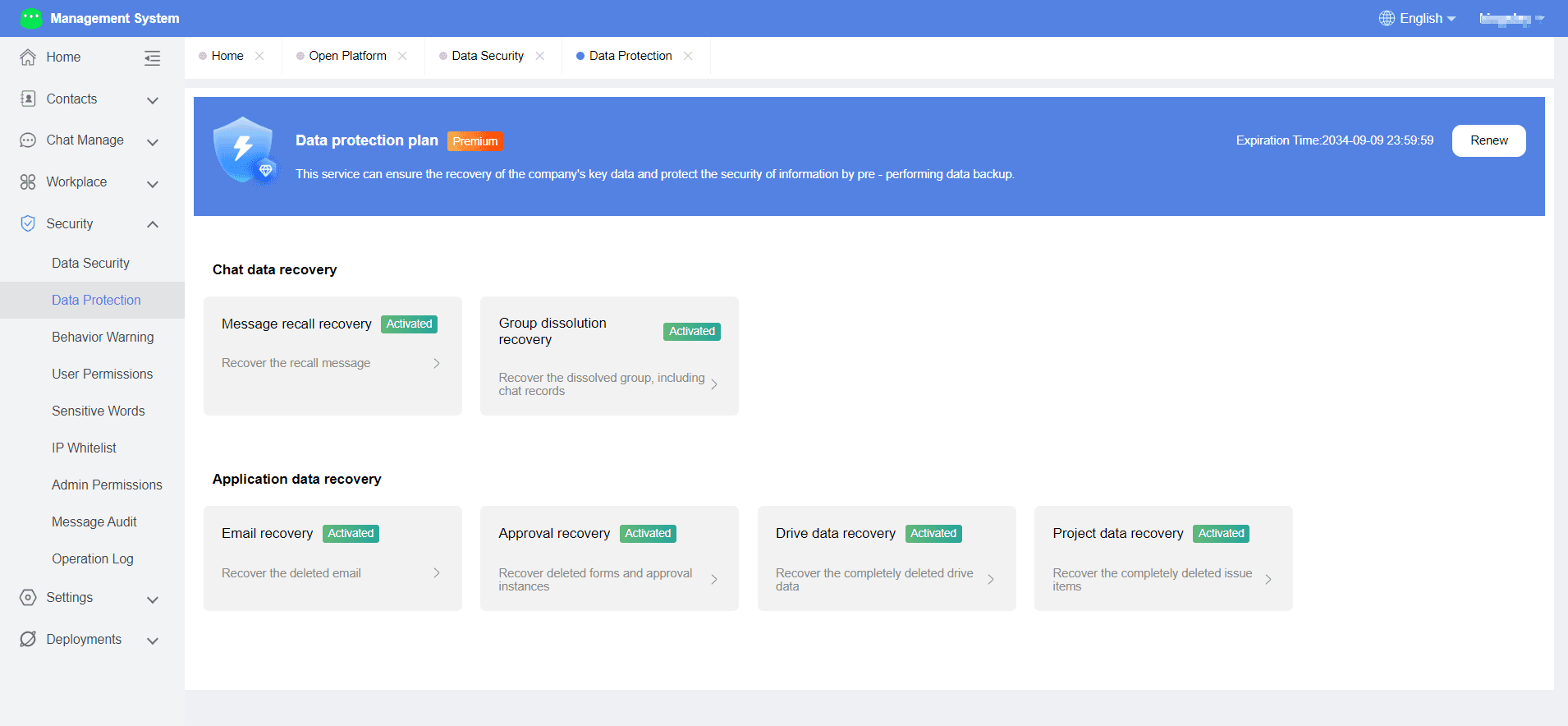
Administrators can recover retracted messages here.
II. Operation Process
Go to Duli admin dashboard > Security & Permissions > Data Protection Plan > Message Retraction
Group Dissolution Recovery
I. Function IntroductionAdministrators can restore dissolved groups, including chat records, here.II. Operation Process
- Go to Duli admin dashboard > Security & Permissions > Data Protection Plan > Group Dissolution Recovery
APPs Recovery
Email Recovery
I. Function IntroductionAdministrators can restore dissolved groups, including chat records, here.II. Operation Process
- Go to Duli admin dashboard > Security & Permissions > Data Protection Plan > Email Recovery
Approval Recovery
I. Function IntroductionAdministrators can restore deleted approvals here.II. Operation Process
- Go to Duli admin dashboard > Security & Permissions > Data Protection Plan > Approval Recovery
Drive Data Recovery
I. Function IntroductionAdministrators can restore deleted cloud drive data here.II. Operation Process
- Go to Duli admin dashboard > Security & Permissions > Data Protection Plan > Company Cloud Drive Data Recovery
Project Data Recovery
- I. Function IntroductionAdministrators can restore deleted work items here.II. Operation Process
- Go to Duli admin dashboard > Security & Permissions > Data Protection Plan > Project Management Data Recovery
Sensitive Behavior
File Sensitive Behavior
I. Function Overview
Administrators can set file sensitive behavior rules here. When members trigger these rules, alert notifications will be sent to reduce the risk of corporate information leakage.
II. Operation Process
Go to Duli admin dashboard > Security & Permissions > Sensitive Behavior Alerts > File Sensitive Behavior Alert
Account Behavior
I. Function Overview
Administrators can set admin dashboard account abnormal behavior rules here. When members trigger these rules, alert notifications will be sent.
II. Operation Process
Go to Duli admin dashboard > Security & Permissions > Sensitive Behavior Alerts > Account Abnormal Behavior Alert
Message Behavior
I. Function Overview
Administrators can set message sensitive behavior rules here. When members send messages containing specific sensitive words, alert notifications will be sent.
II. Operation Process
Go to Duli admin dashboard > Security & Permissions > Sensitive Behavior Alerts > Message Sensitive Behavior Alert
3.Permission Group Settings
I. Function Overview
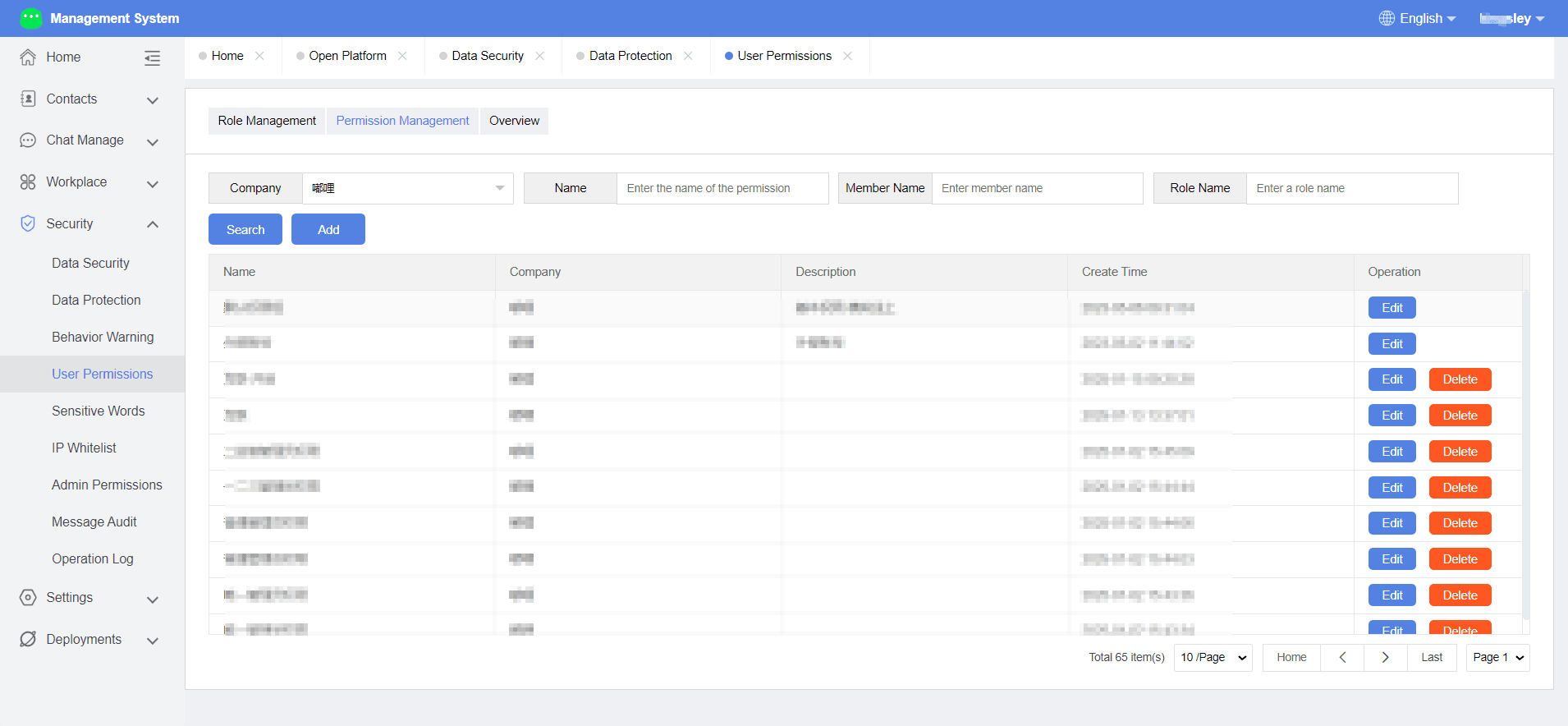
Administrators can set members' permissions for various applications in Duli here.
II. Operation Process
Permission Group
- Go to Duli admin dashboard > Security & Permissions > Member Permissions > Permission Group Management
- Click to add a permission group and enter the permission group name, description, and select the company.
- Assign permissions by checking the user permissions for corresponding applications, including Enterprise Cloud Drive, Enterprise Email, Attendance, Video Conferencing, Calendar, Smart Customer Service Management, Smart Service Group, File Transfer Assistant, Approvals, Project Management, Custom Applications, and Third-Party Applications.
Permission Descriptions:
(1) Enterprise Cloud Drive:
Enterprise Cloud Drive: Controls access to the cloud drive in Duli. When checked, users can use the corresponding cloud drive.
- Allow Use of My Documents: When enabled, users can use My Documents in the cloud drive.
- My Documents Allow Link Sharing: Controls whether users can use external link sharing in My Documents.
- Allow Sharing: Controls whether users can use the "Share" function in My Documents.
- Allow New Space Creation: When enabled, users can create new shared spaces through Enterprise Cloud Drive > More > New Space.
- Allow Root Directory Creation in Enterprise Space: When enabled, users can create new folders in the root directory of shared spaces.
- Is Template Administrator: Template administrators can manage templates through Enterprise Cloud Drive > My Documents > Template Library, including uploading/deleting/renaming.
- Allow Mobile Access: When enabled, users can access the Enterprise Cloud Drive on mobile devices.
- Allow Download: Controls whether users can download files from the cloud drive to their local devices on mobile.
- Allow Upload: Controls whether users can upload local files to the cloud drive on mobile.
- Allow PC Access: When enabled, users can access the Enterprise Cloud Drive on PCs.
- Allow Download: Controls whether users can download files from the cloud drive to their local devices on PC.
(2) Enterprise Email
Enterprise Email: Controls users' access to email in Duli. When checked, users can use Enterprise Email for receiving, sending, and managing multiple accounts.
(3) Attendance
Attendance: Controls users' access to attendance in Duli. When checked, users can use attendance tracking.
(4) Video Conferencing
Video Conferencing: Controls users' access to video conferencing in Duli. When checked, users can use video conferencing.
(5) Calendar
Calendar: Controls users' access to the calendar in Duli. When checked, users can use the calendar.
(6) Smart Customer Service Management
- Smart Customer Service Management: Controls users' access to smart customer service in Duli. When checked, users can use smart customer service.
- Report Management: When enabled, users can view data reports in the Smart Customer Service application (Data Overview, Customer Service Report, Team Report, Robot Report).
- Visitor Management: When enabled, users can view visitor management in the Smart Customer Service application (Visitor List, Visitor Form, Visitor Tags, Visitor Blacklist, Visitor Messages).
- Conversation Center: When enabled, users can view the conversation center in the Smart Customer Service application (Chat History, Customer Service Group, Record Quality Inspection).
- Smart Robot: When enabled, users can view smart robots in the Smart Customer Service application (Robot Settings, Knowledge Base).
- Common Phrases: When enabled, users can view common phrases in the Smart Customer Service application (categories and lists).
- Channel Management: When enabled, users can view channel management in the Smart Customer Service application (web channels).
(7) File Transfer Assistant
File Transfer Assistant: Controls users' access to the file transfer assistant in Duli. When checked, users can use the file transfer assistant.
(8) Project Management:
- Project Management: Controls access to project management in Duli. When checked, users can use the corresponding project management.
- System Administrator: When enabled, users can create projects, access the application center, and configuration center in project management.
- Allow Mobile Access: When enabled, users can access project management on mobile devices.
- Allow Viewing: Controls whether users can view projects in project management on mobile.
- Allow Download: Controls whether users can download files from project management to their local devices on mobile.
- Allow Upload: Controls whether users can upload local files to project management on mobile.
- PC Allow External Network Access: Allows downloading attachments from project management.
(9) Enterprise Interconnection:
Enterprise Interconnection: Controls access to project management in Duli. When checked, users can use Enterprise Interconnection.
(10) Custom Applications: Enables custom applications in the workbench.
(11) Third-Party Applications: Enables third-party applications in the workbench.
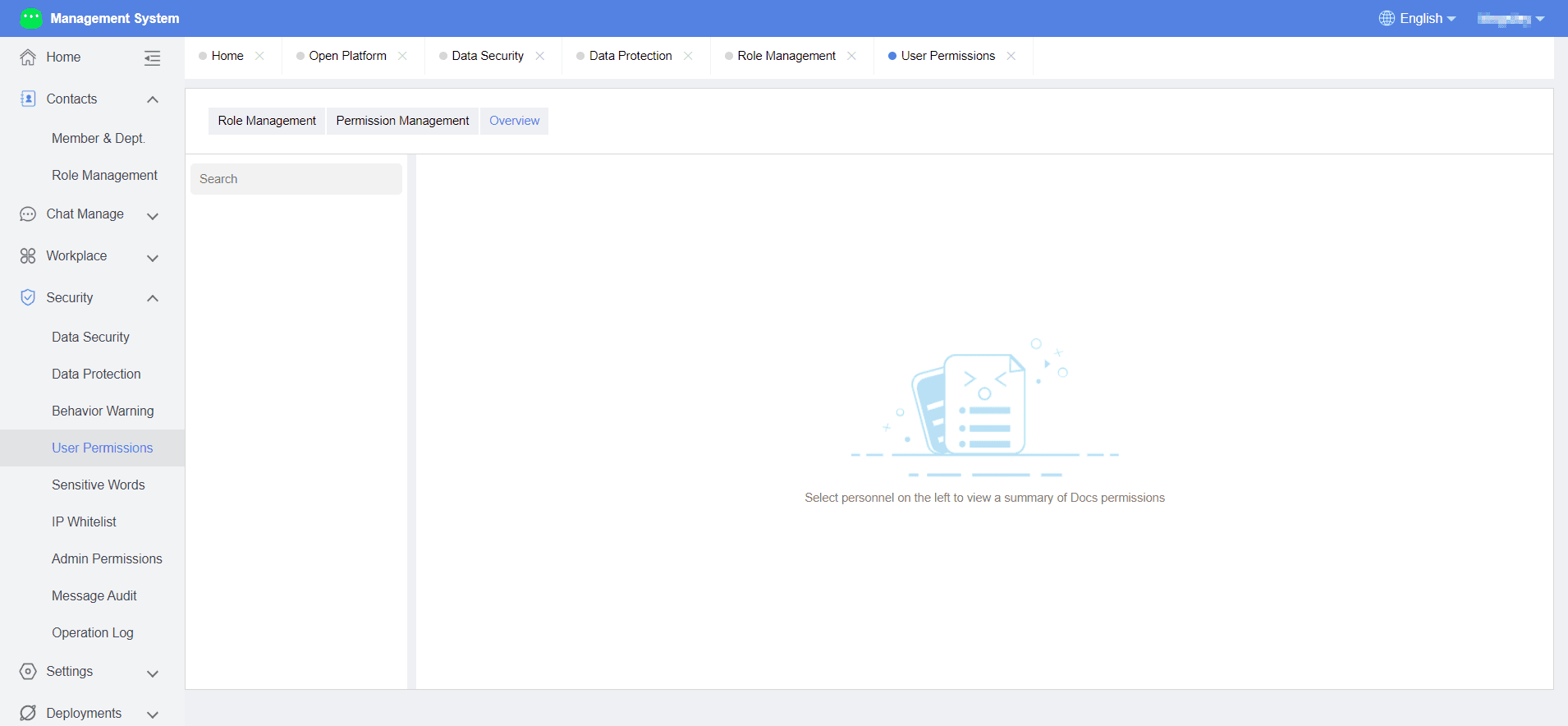
Personal Permissions Overview
- Function Introduction
- Administrators can view an overview of individual user permissions here.
- Operation Process
- Click on "Personal Permissions Overview".
- Select the corresponding user.
- View the permissions held by the user on the right.
4.Sensitive Word
- Function Introduction
- Administrators can view sensitive words set under the organization, query by type, addition date, or keyword, and perform export, import, batch deletion, and addition operations.
- Operation Process
- Enter Duli admin panel > Security & Permissions > Sensitive Word Management.
- Add a sensitive word: Select a type (Political, Religious, Pornographic, Violent, Other) and enter the word.
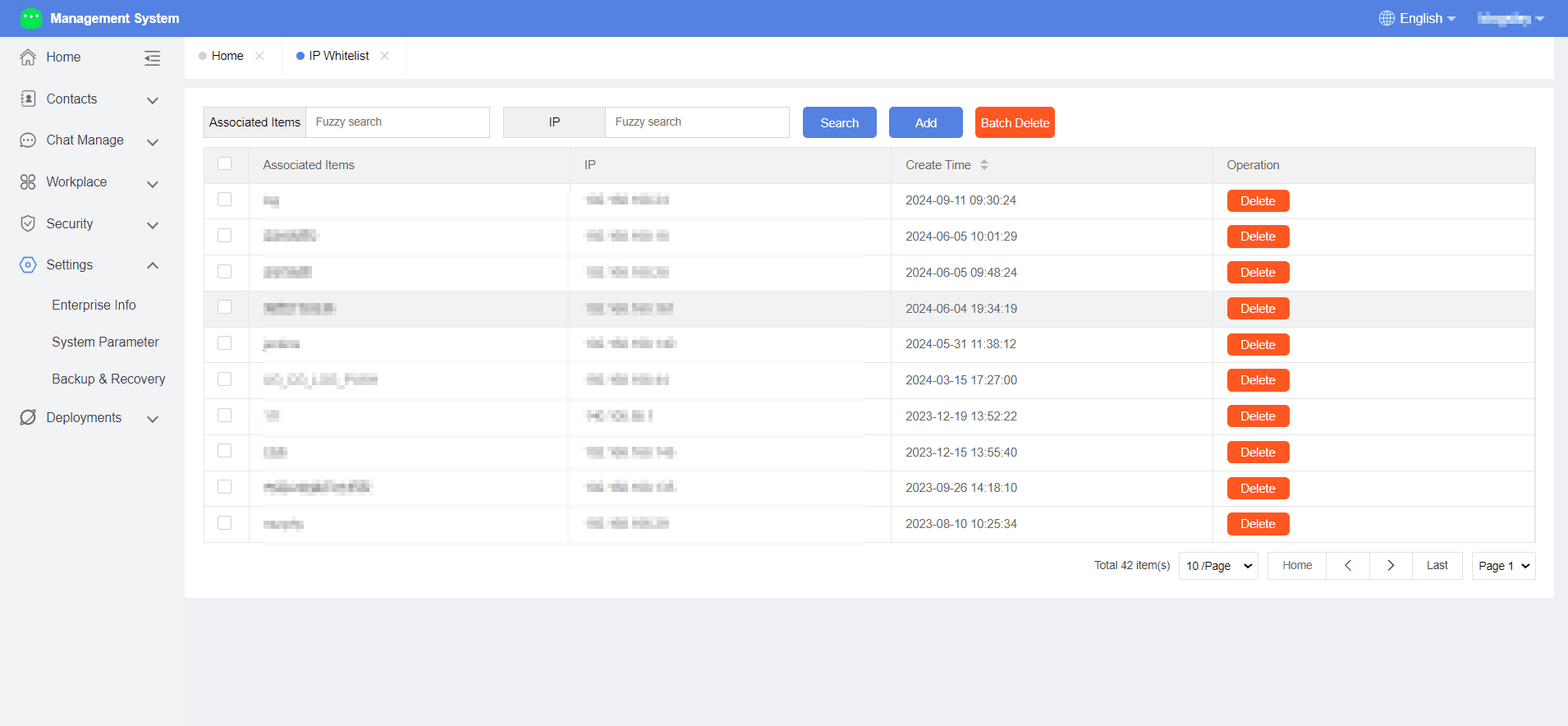
5.Interface Whitelist
- Function Introduction
- Administrators can view interfaces added under the organization, query by management project or IP, and perform batch deletion operations.
- Operation Process
- Enter Duli admin panel > Security & Permissions > Interface Whitelist.
- Add to whitelist: Enter a related project (up to 20 characters) and an IP address (incorrect format will prompt an error).
6.Administrator Permissions
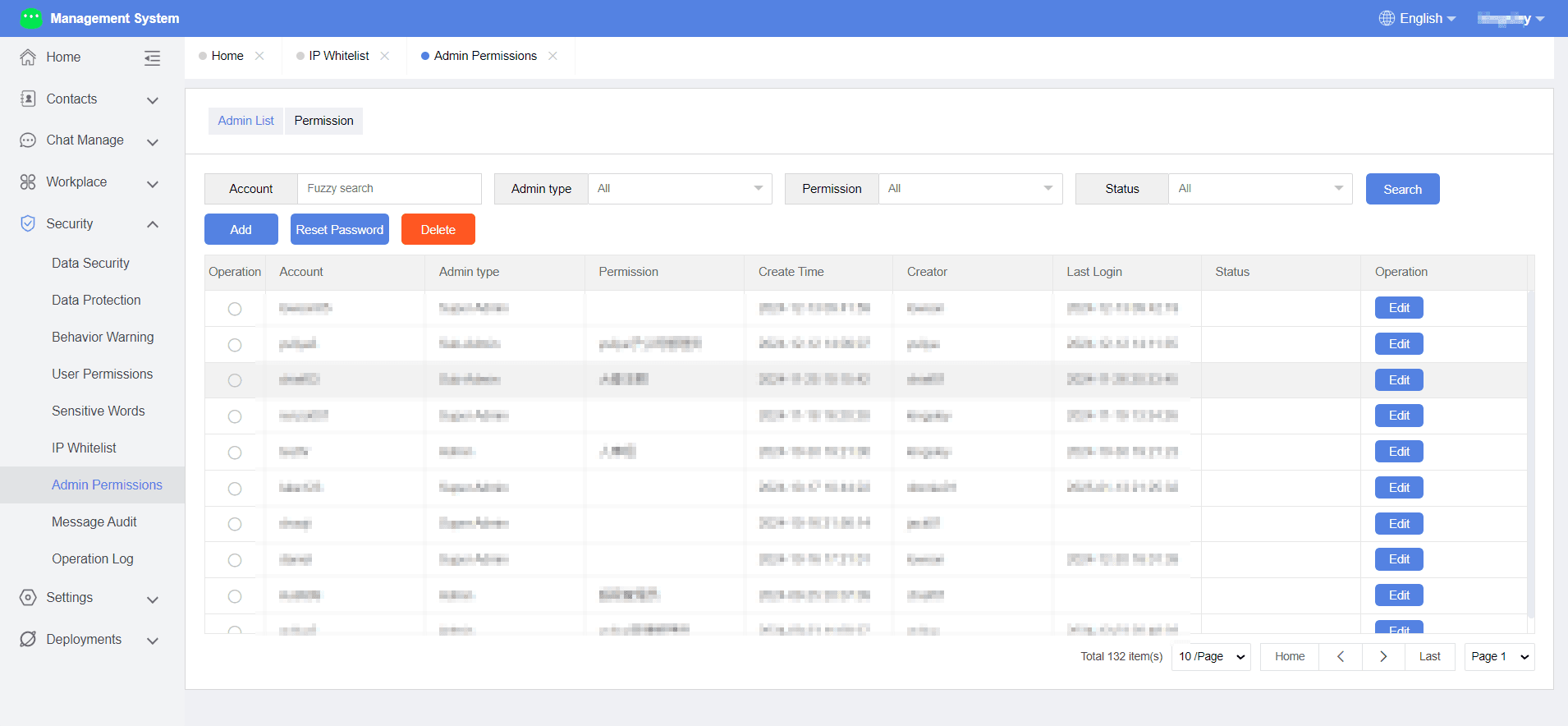
- Function Introduction
- Perform operations on Duli backend administrators here.
- Operation Process
- Enter Duli admin panel > Security & Permissions > Administrator Permissions.
- Click on the administrator list.
- In the list, add, delete, reset passwords, or set roles for administrators.
- To add an administrator, enter the account and select a created role, then submit.
- For role settings, click on the role list to add, edit, or configure permissions for administrators. Permissions include sections like Home, Contacts, Chat Management, Workspace, Security & Permissions, and Enterprise Settings.
7.Message Audit
- Function Introduction
- Perform operations on messages sent by Duli users here.
- Operation Process
- Enter Duli admin panel > Security & Permissions > Message Audit.
- Enter user information and sync to retrieve sent messages.
- Query by keyword to view chat content containing the keyword, and click to view context.
8.Log Audit
- Function Introduction
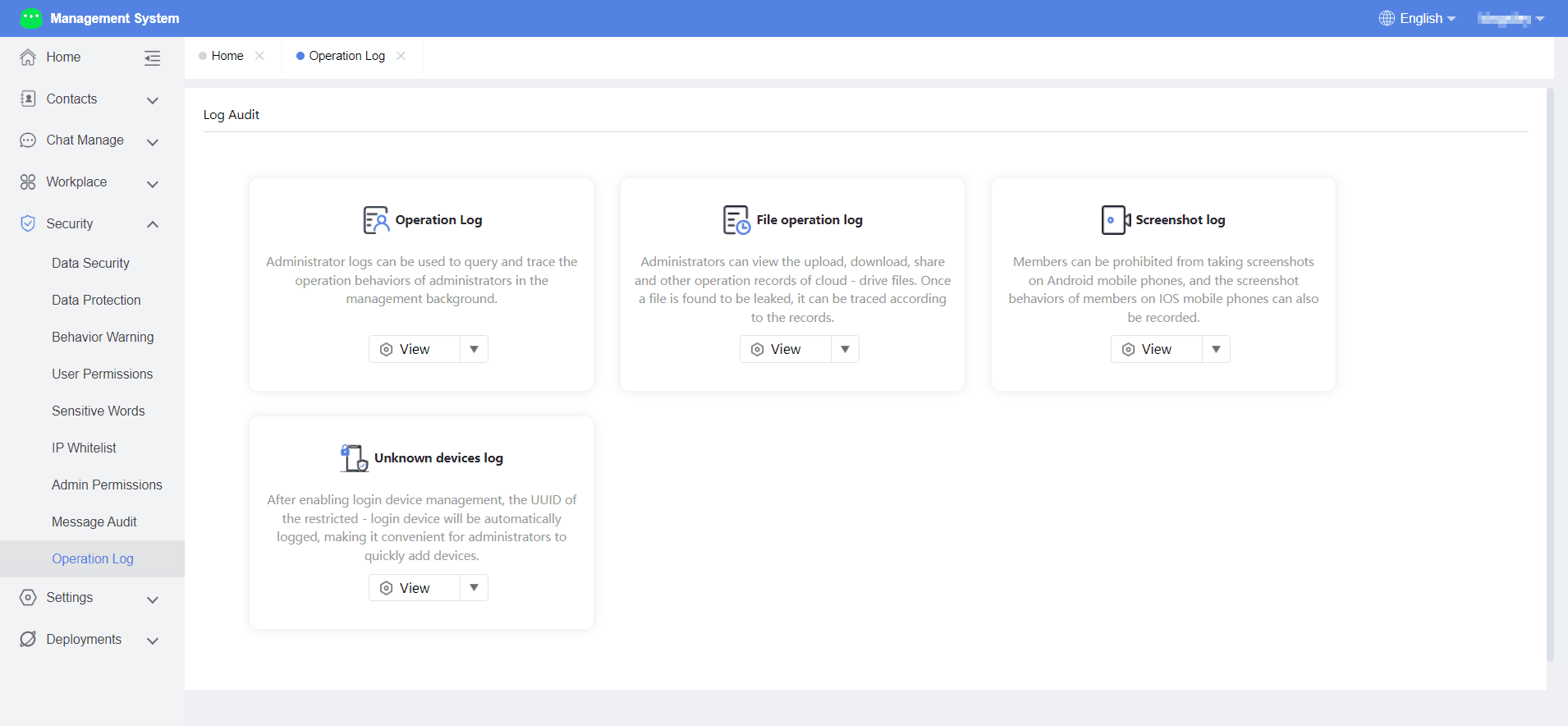
- View operations performed by Duli administrators in the backend here.
- Operation Process
- Enter Duli admin panel > Security & Permissions > Log Audit - Log Audit.
- View administrator operations in the backend.
- File operation logs: Go to Workspace > App Center > Enterprise Cloud Drive.
- Screenshot logs: Navigate to Data Leak Prevention > Screenshot/Screen Recording Management > Screenshot Logs.
- Unknown device login logs: Navigate to Data Leak Prevention > Device Management > Unknown Devices.
File Operation Logs
- Navigate to Workspace > App Center > Enterprise Cloud Drive
Screenshot Logs
- Navigate to Data Leak Prevention > Screenshot/Screen Recording Management > Screenshot Logs
Unknown Device Login Logs
- Navigate to Data Leak Prevention > Device Management > Unknown Devices