Project Settings
Project Management - Configuration: Users can preconfigure a series of standard dimensions, workflows, report formats, etc. It provides a framework for the project team, enabling project initiation, planning, execution, monitoring, and closing stages to proceed according to established standards and processes. It helps ensure that the project team follows unified methods and standards, thereby improving the quality and efficiency of project management.
I. Configuration Center
The Configuration Center includes configurations for common work item types, fields, workflow statuses, and other information in the project management system. Duli provides some pre-made information by default to ensure users can start using it right out of the box.
Configuration Center Access: Only available on PC - Project Management - Configuration Center; if users do not have this access, they can check the "Configuration Center" permission in the User Permissions section of the Merchant Backend.
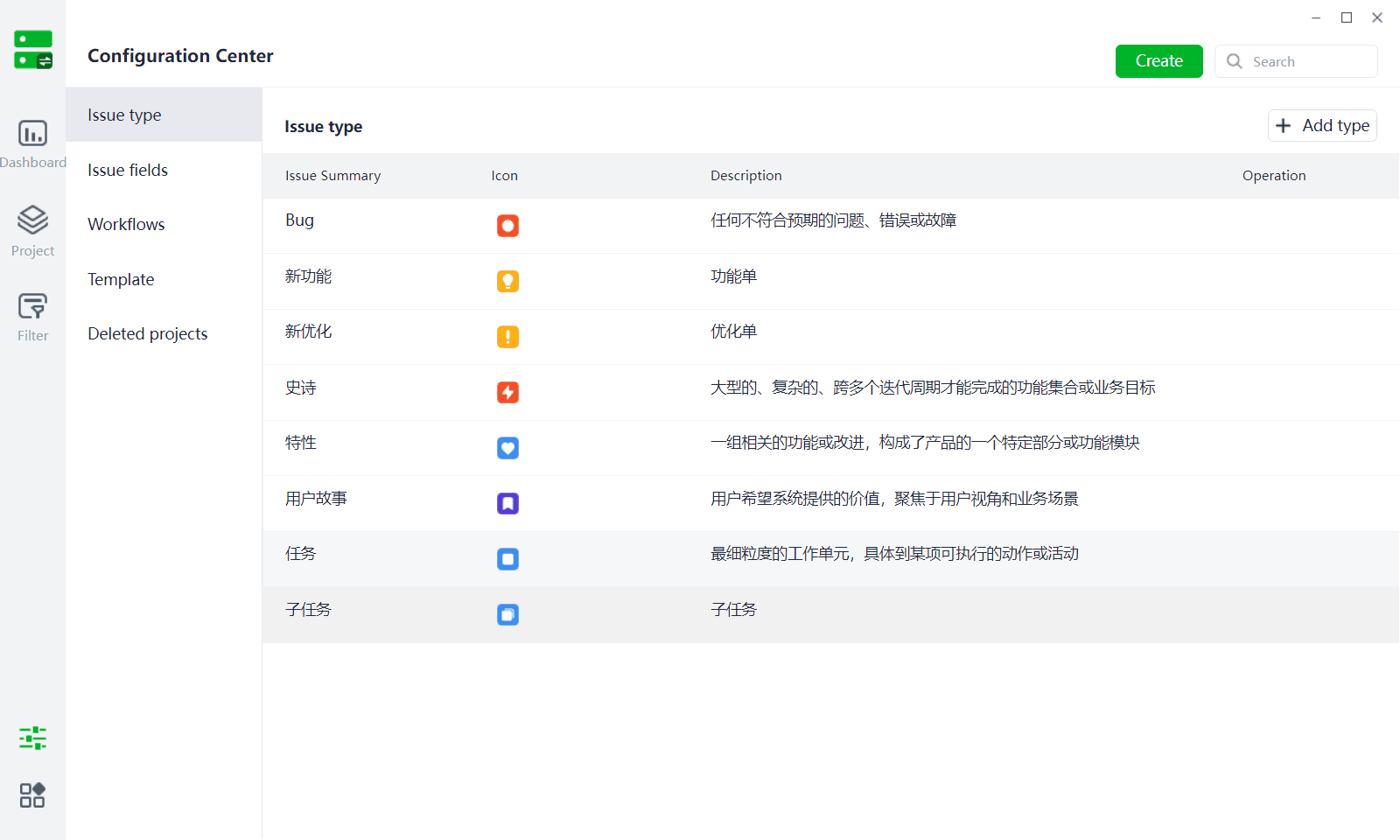
1.1 Work Item Types
Definition: Work item types are used to define and categorize templates or categories for various tasks or activities in project management. Each work item type represents a specific type of work content, determining what information can be tracked and how, as well as process management.
1.1.1 Adding Work Item Types
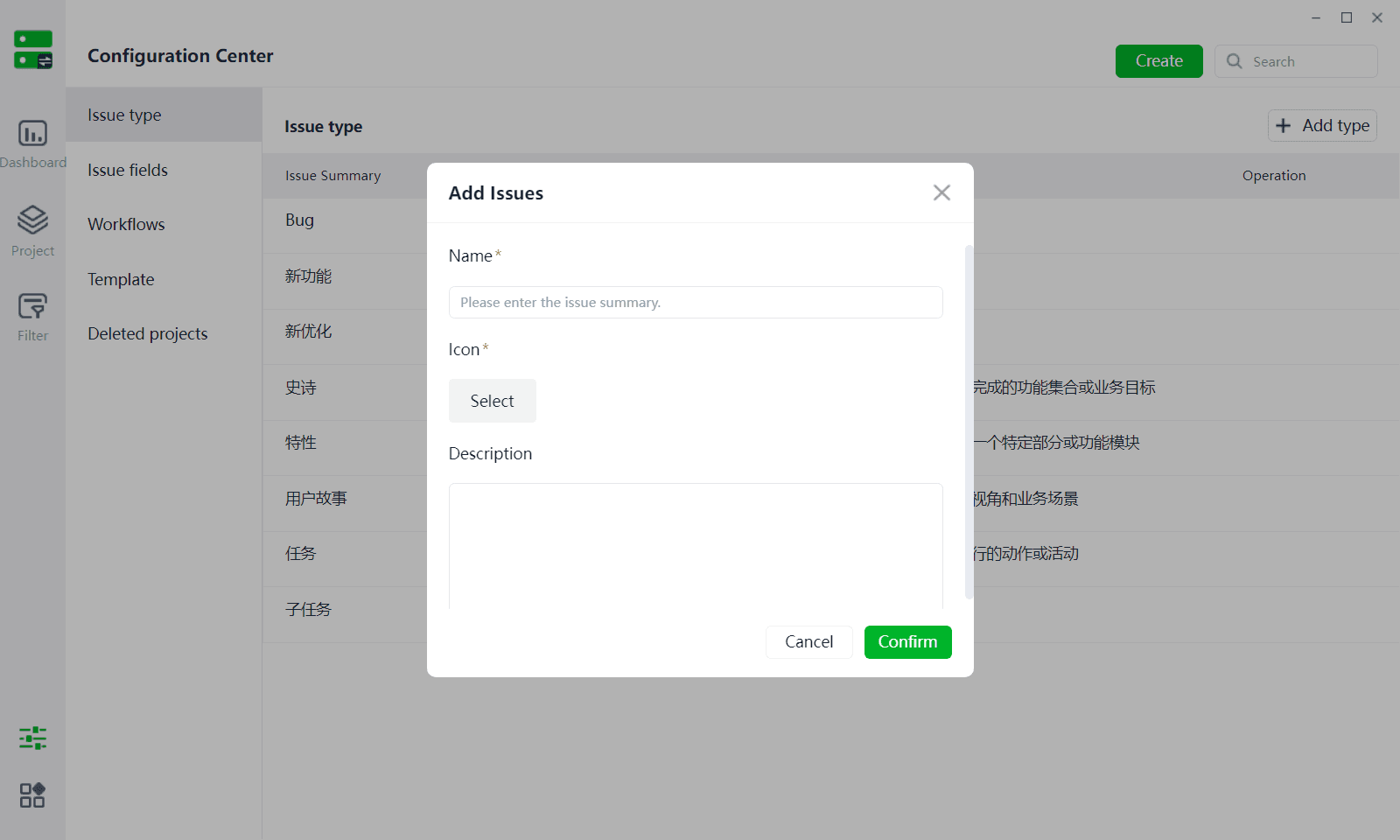
(1) Users can click on PC Client - Project Management - Configuration Center - Work Item Types - Add Type to create a new work item type.
(2) The newly created work item type can be referenced when setting up templates or creating new projects.
(3) Enter the work item name, select a work item icon, enter a work item description, and click "OK" to successfully create it.
1.1.2 Deleting Work Item Types
(1) Users can click on PC Client - Project Management - Configuration Center - Work Item Types - Delete to remove a created work item type (pre-made work item types cannot be deleted).
(2) When deleting, if work items have already been created for the current work item type, they must be transferred or deleted before the work item type can be deleted.
1.2 Work Item Fields
Definition: Used to describe key information about work items. Typically, a work item will have multiple fields, such as title, description, priority, responsible person, etc. These fields can clearly depict the specific content, goals, and requirements of the work item. They can also be used for classifying, tracking, analyzing, and other operations on work items.
1.2.1 Adding Work Item Fields
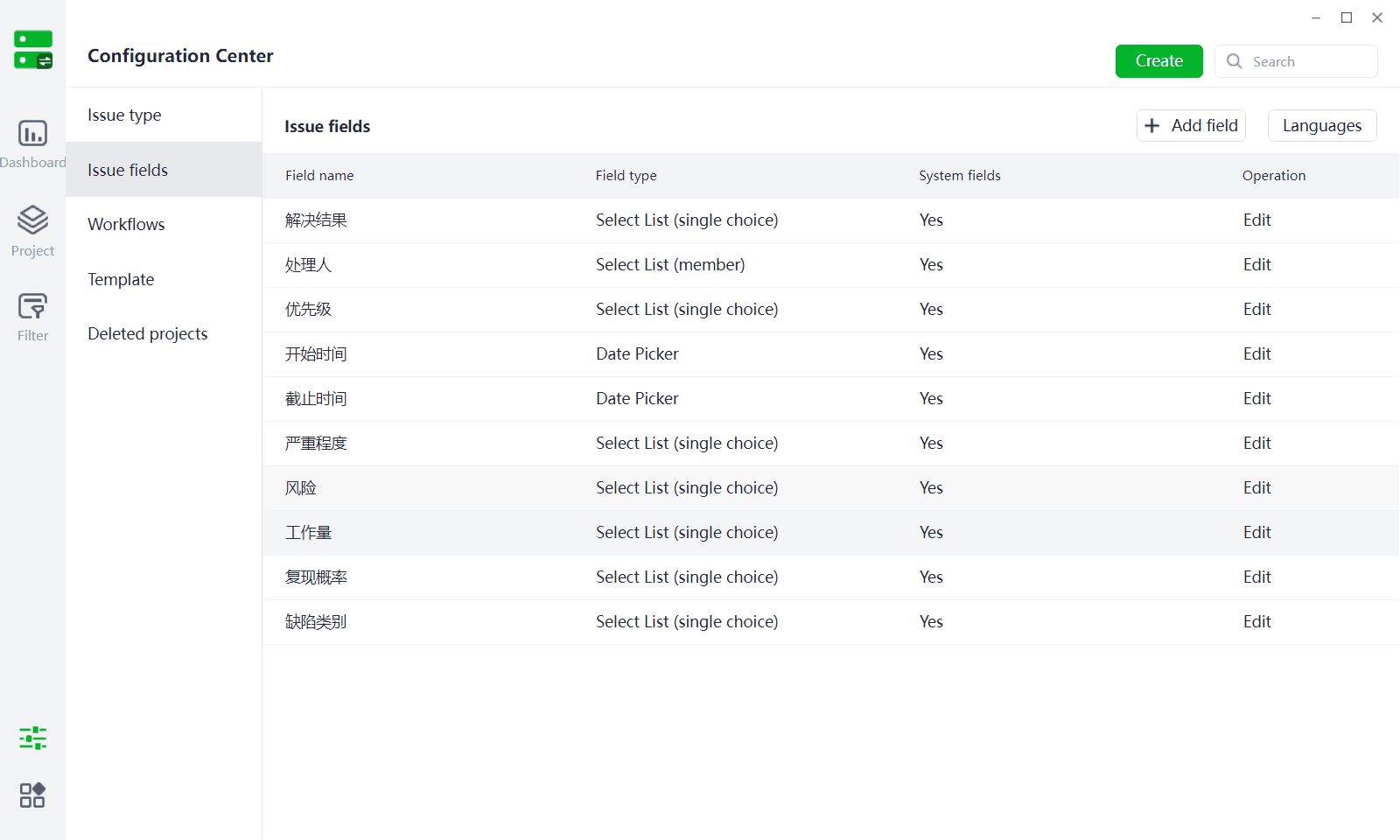
(1) Users can click on PC Client - Project Management - Configuration Center - Work Item Fields - Add Field button to directly add new work item fields.
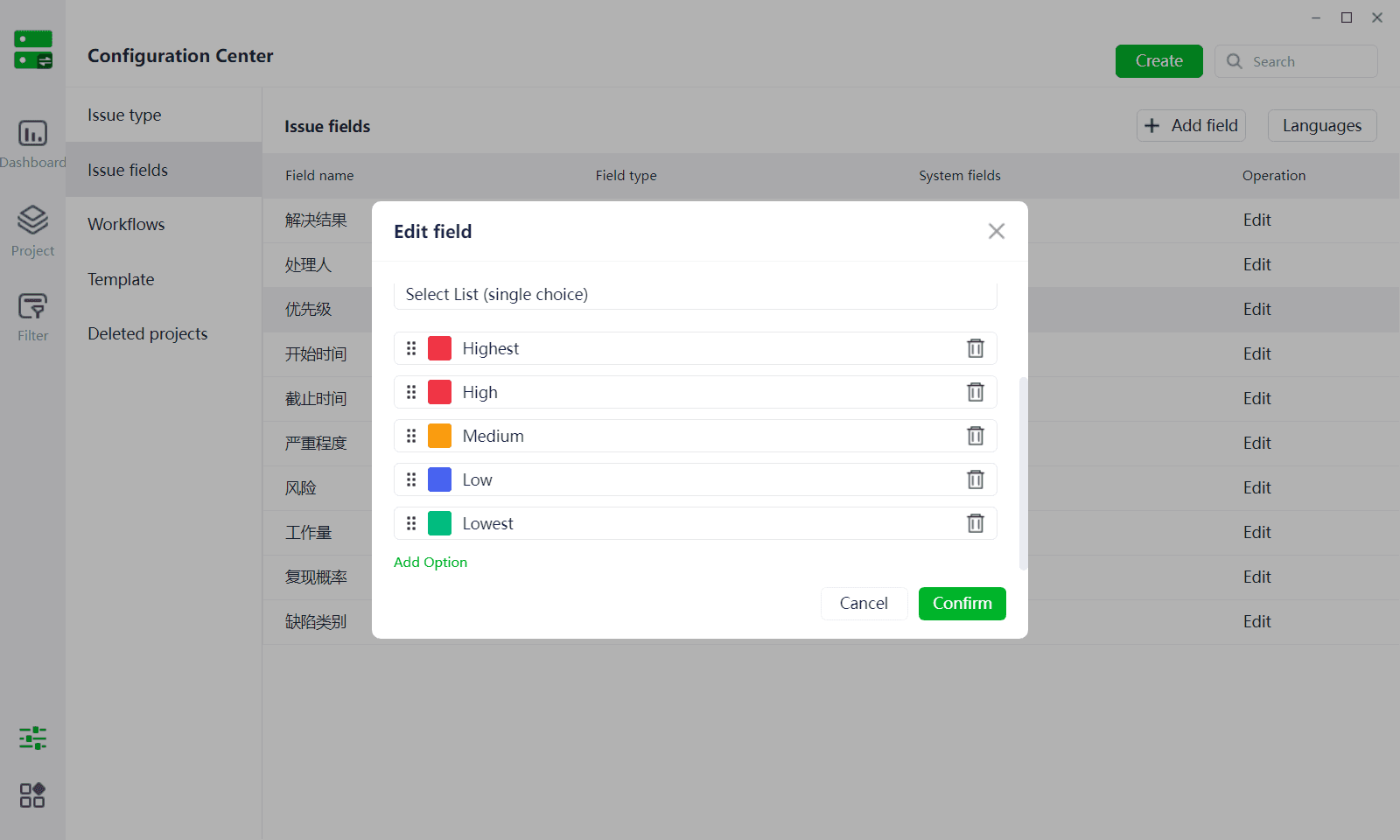
(2) Project management provides basic fields for users, and users can also add custom fields based on the 6 provided field types. The newly added work item fields can be referenced by work items when setting up templates or creating projects.
(3) Follow the prompts, enter the field name, select the field type, and click OK to successfully create it.
(4) Different field types require corresponding settings: single-line text, multi-line text, and person name fields do not require additional settings; single-select dropdown, multi-select dropdown fields require setting corresponding option information; time fields can be set to precise to days or minutes (statistics only calculate to days); numerical values can choose to retain two decimal places or not.
1.2.2 Deleting Work Item Fields
(1) Pre-made fields cannot be deleted, only custom-added fields can be deleted.
(2) If the deleted field has already been used, please remove it in the corresponding project/template before deleting it.
1.3 Workflow Statuses
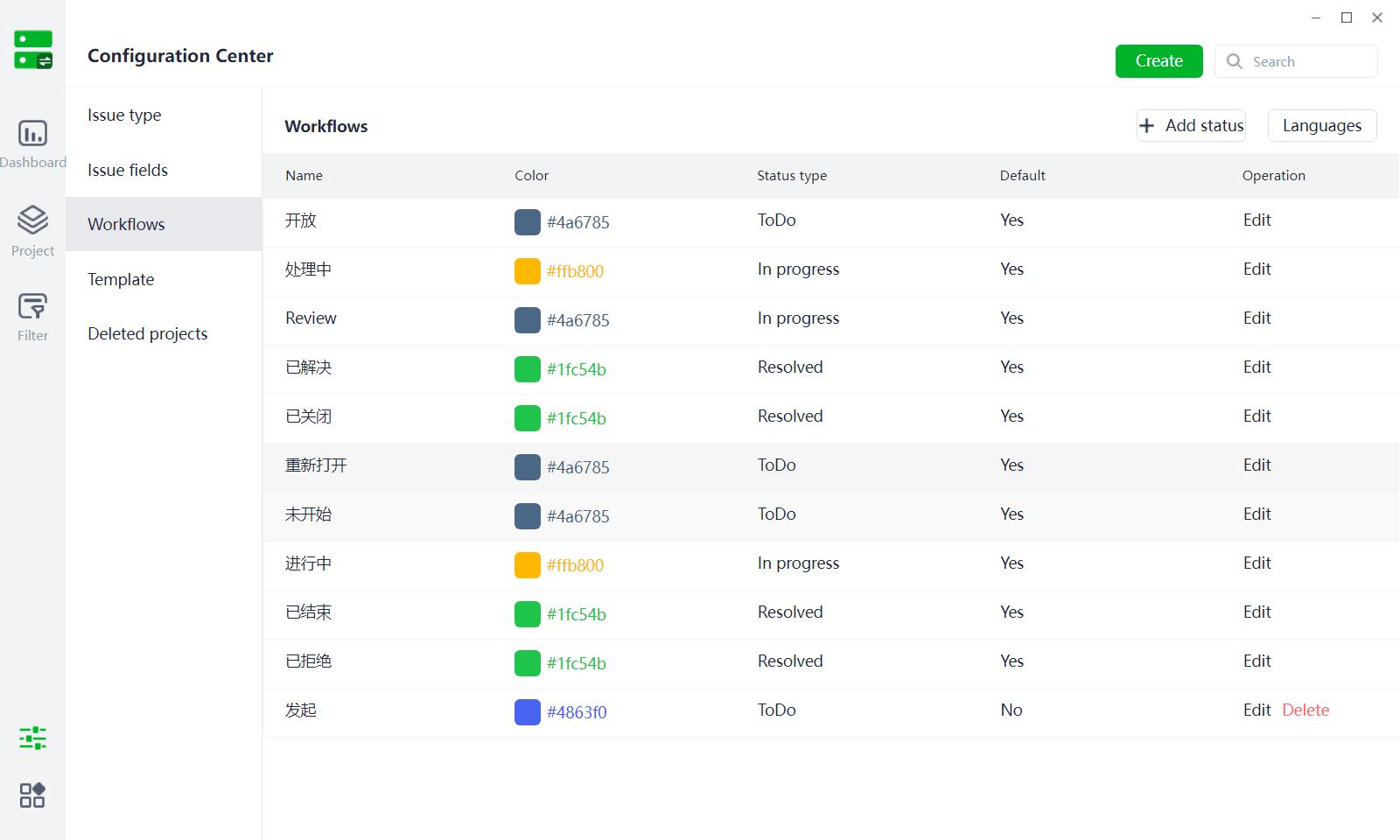
Definition: The stage in which a work item is in the project management process. It helps the project team understand task execution status, monitor project progress, identify issues and risks, and optimize resource allocation and communication efficiency. By effectively managing workflow statuses, the project team can ensure the project proceeds as planned and ultimately achieves project success.
1.3.1 Adding Workflow Statuses
(1) Users can click on PC Client - Project Management - Configuration Center - Workflow Statuses - Add Status button to directly add new workflow statuses.
(2) Project management provides two sets of commonly used process statuses for users, which can be referenced when setting up templates or creating projects - setting work items.
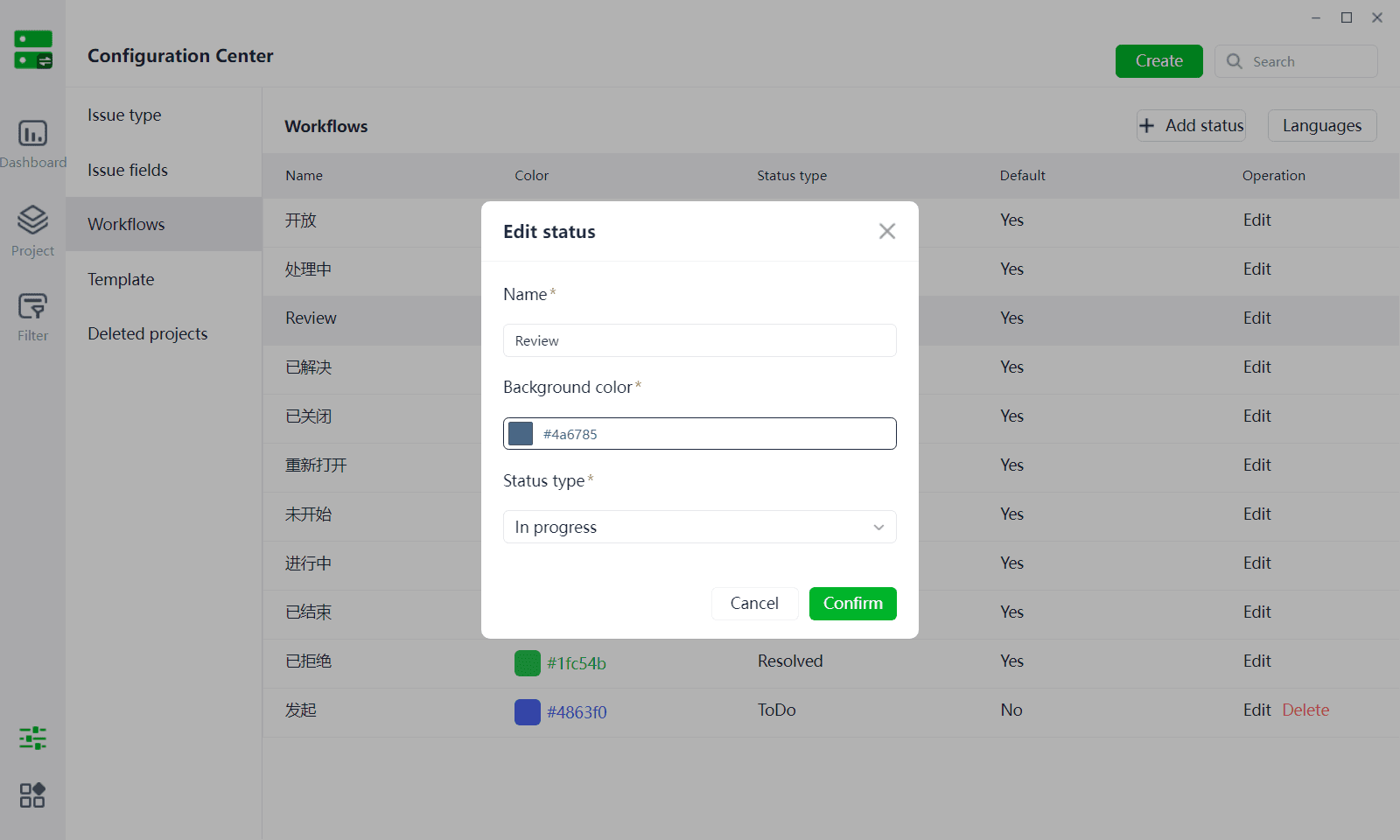
(3) Follow the prompts, enter the status name, select the status background color, set the status type, and click the "OK" button to successfully create it.
1.3.2 Deleting Workflow Statuses
(1) Pre-made statuses cannot be deleted, only custom-added statuses can be deleted.
(2) If the deleted status has already been used, please remove it in the corresponding project/template before deleting it.
1.4 Template Management
Definition: In project management, based on project type, industry characteristics, organizational norms, and other factors, a pre-designed set of project management documents, processes, methods, and tools is created. It aims to improve the efficiency and quality of project management, reduce project risks, promote team collaboration, and knowledge sharing through standardization and normalization.
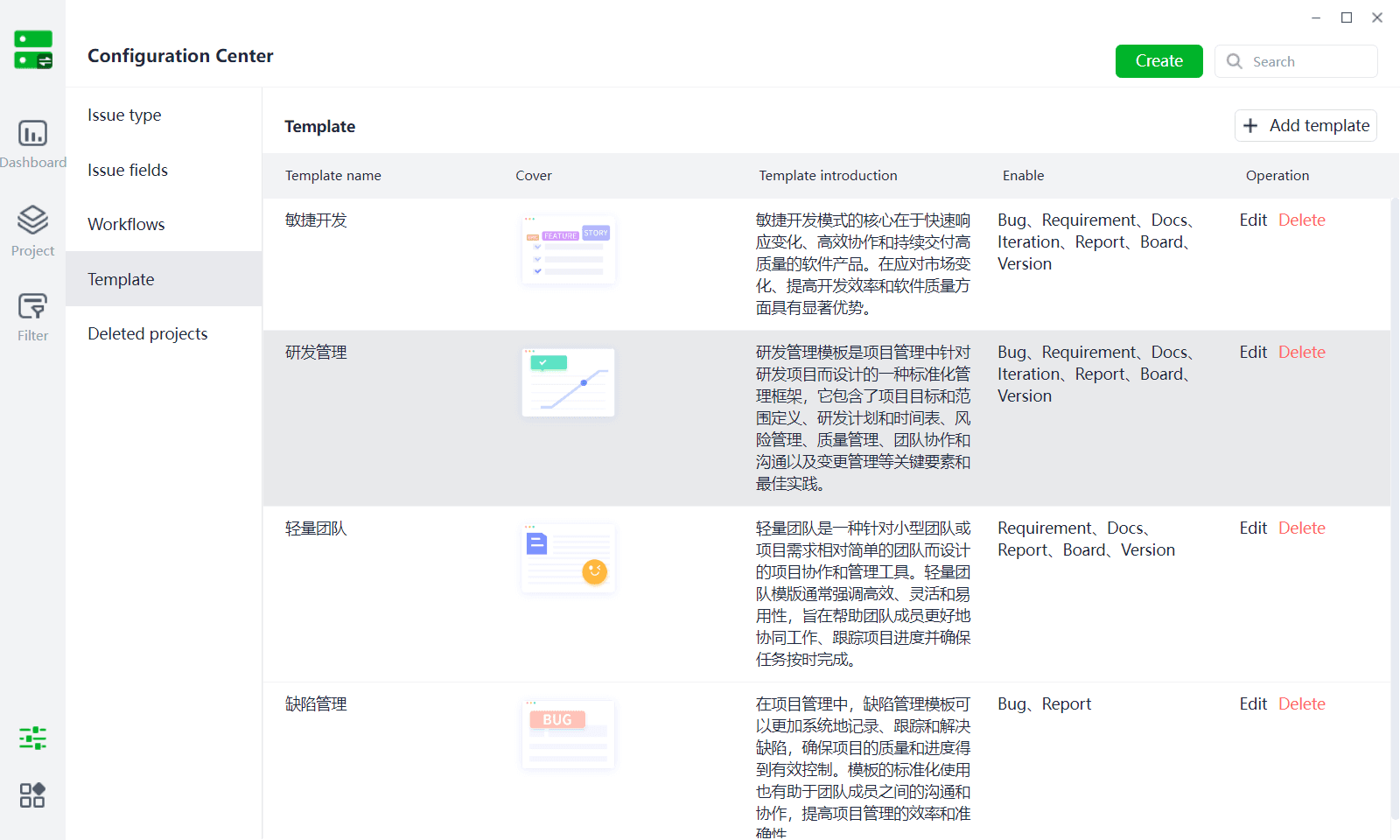
Currently, DuliDuli project management offers four types of templates: Agile Development, R&D Management, Lightweight Team, and Defect Management. It also supports user-defined additions or modifications, enabling flexible and customized project management.
1.4.1 Adding Templates
(1) Users can click on PC - Project Management - Configuration Center - Template Management - Add Template button to add new templates.
(2) Newly added templates can be directly referenced when creating projects, enabling rapid project creation.
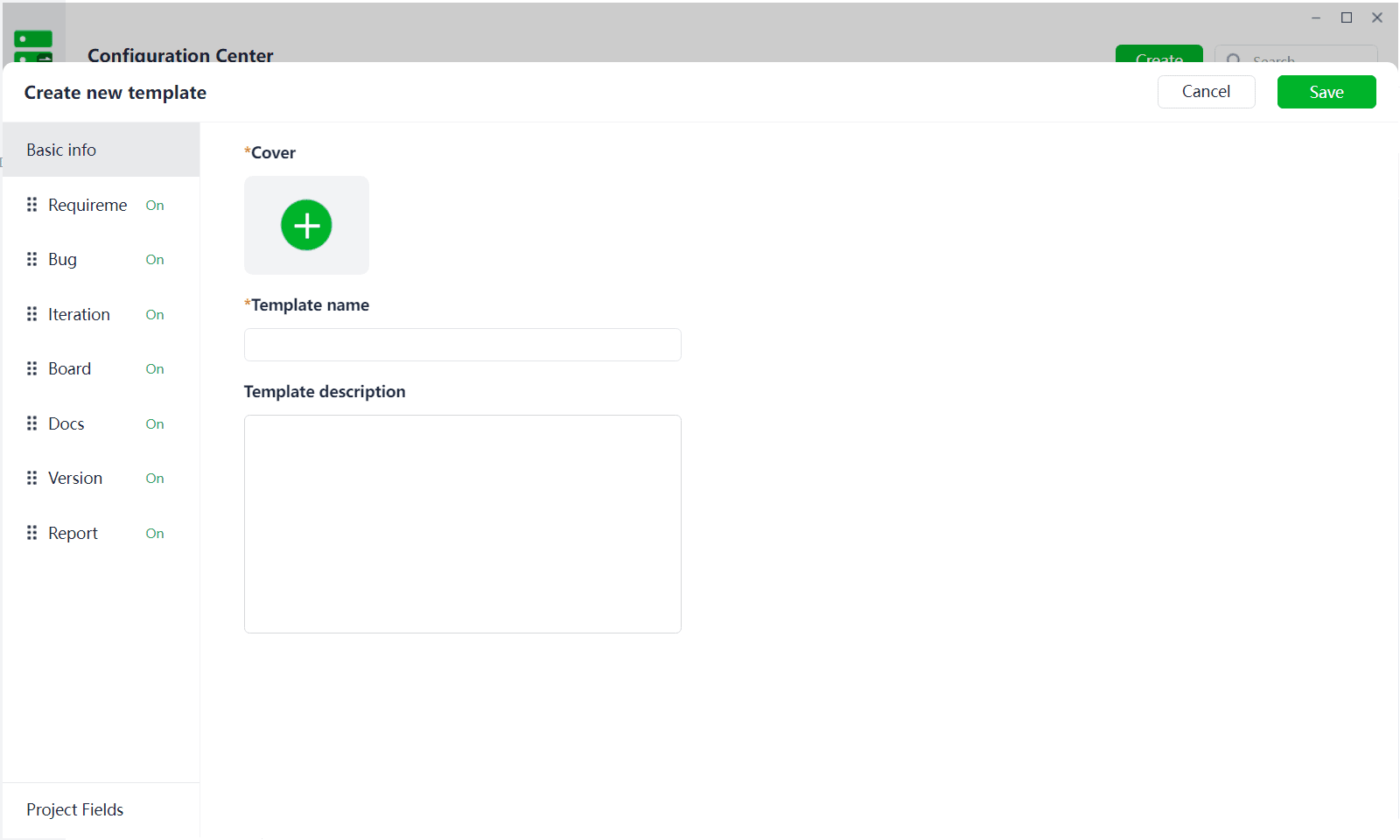
(3) Basic Information Settings: Follow the prompts, select/upload a template cover, enter the template name, and enter the template description.
(4) Duli provides multiple modules for users, including Requirements, Defects, Iterations, Kanban, Documents, Versions, and Reporting modules. Users can enable/disable corresponding modules based on their business scope. Duli will also add more modules in the future to accommodate more business scenarios.
(5) Requirements Module: To enable the Requirements module, at least one work item type must be added. Click "+" to create a work item type.
(6) Defects Module: Enabling the Defects module will automatically add a BUG work item type; no other work item types can be added to the Defects module.
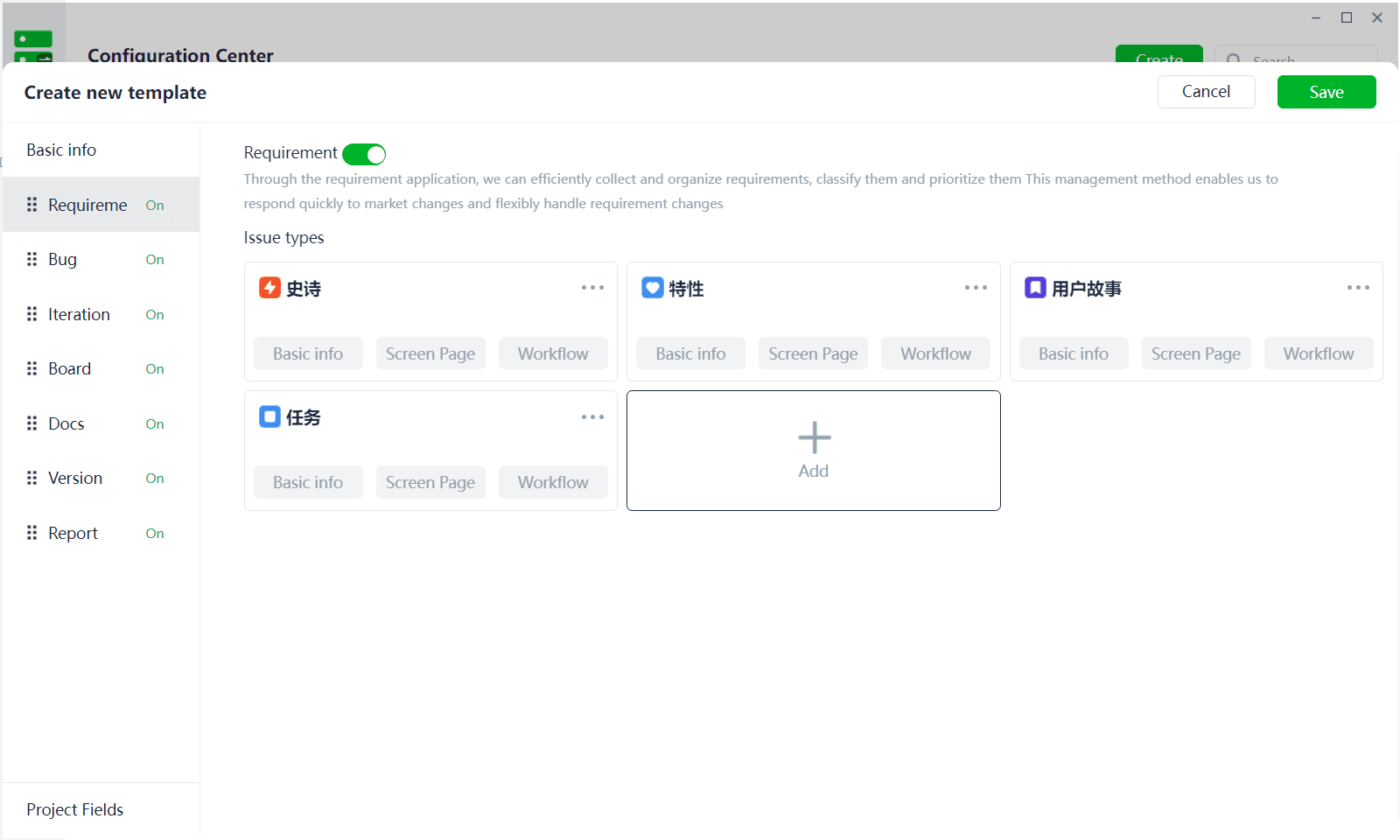
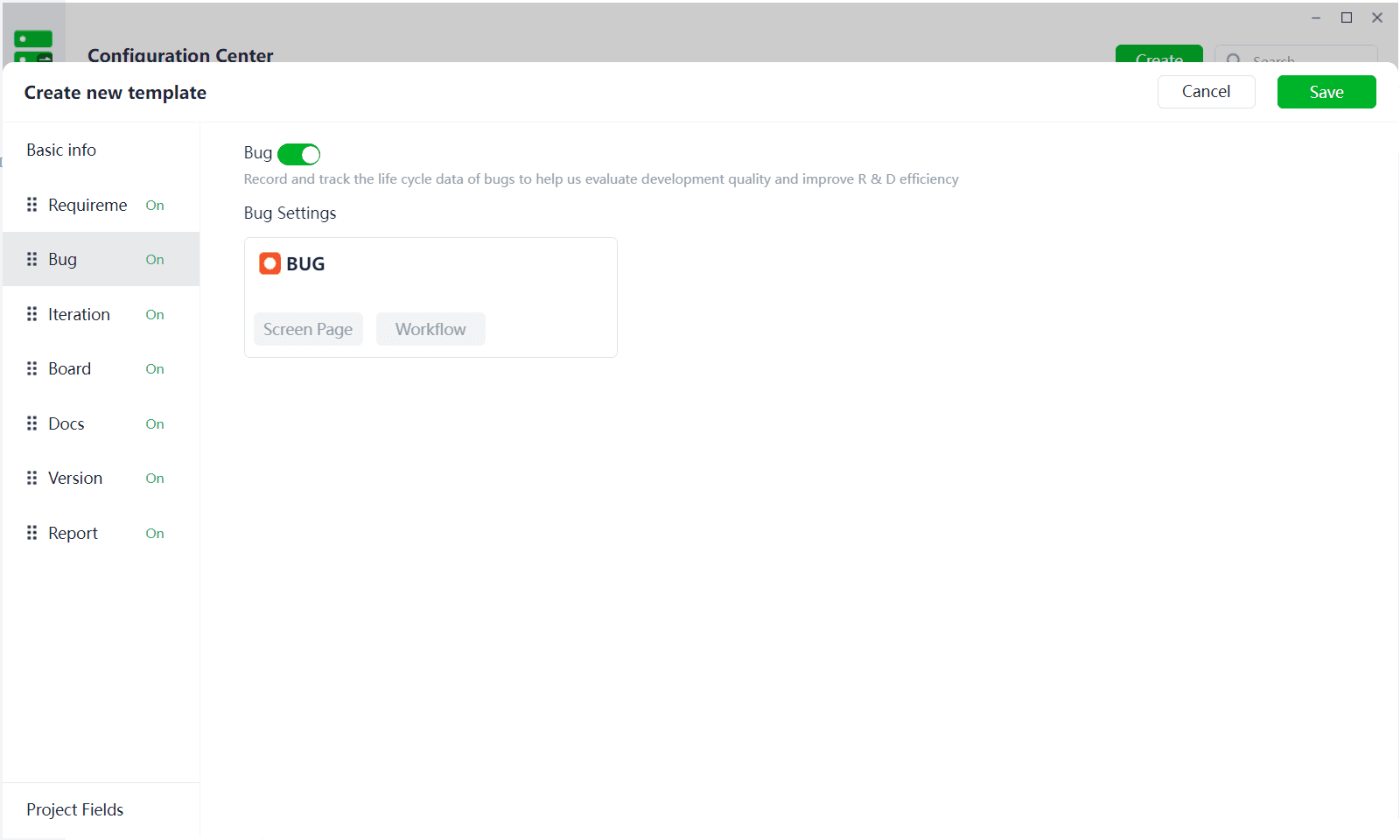
(7) Creating/Editing Work Item Types - Basic Information Settings
- The Requirements module can select corresponding work item types and set whether to enable sub-work item types and corresponding sub-work item types.
- The BUG work item type in the Defects module has no basic information settings and does not allow creating any sub-work item types by default.
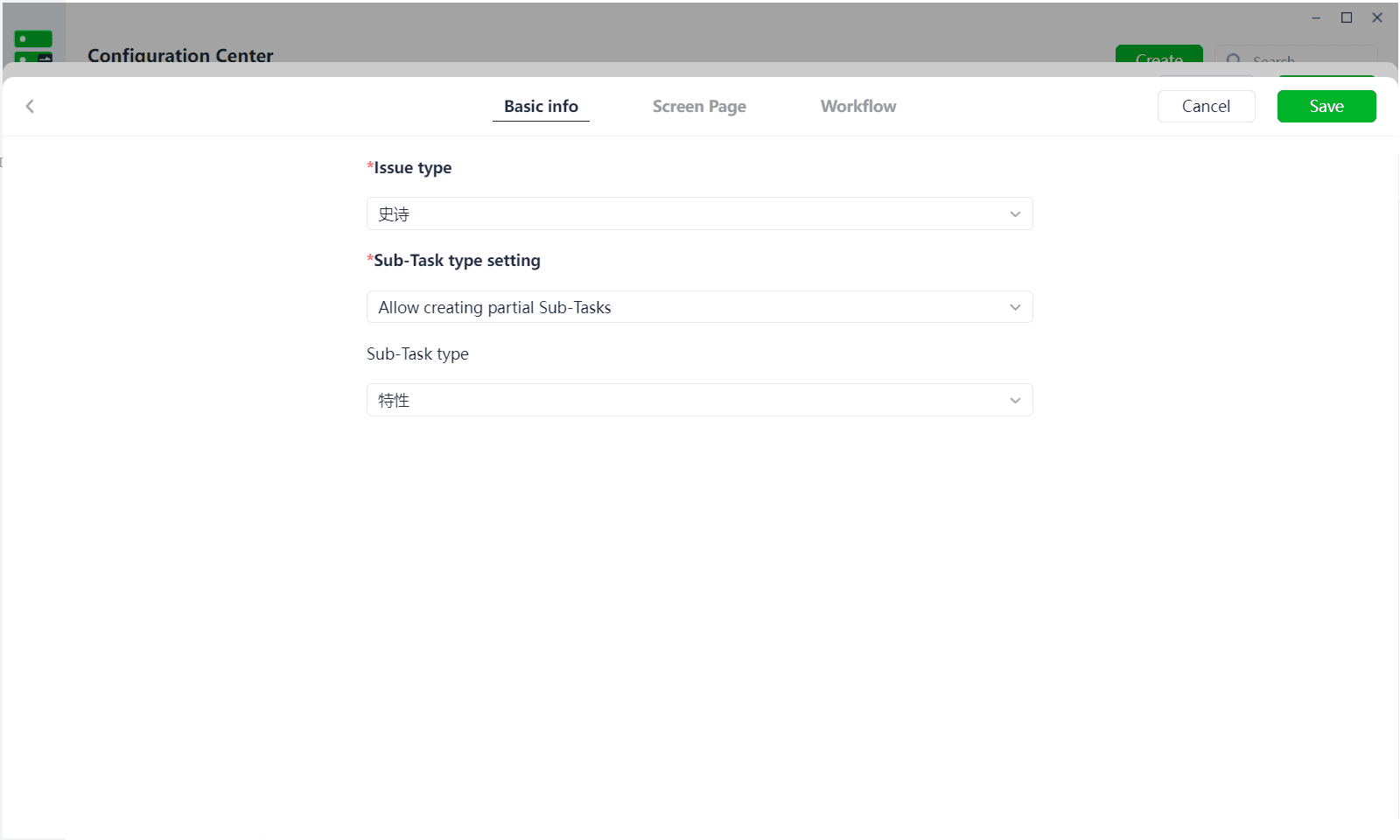
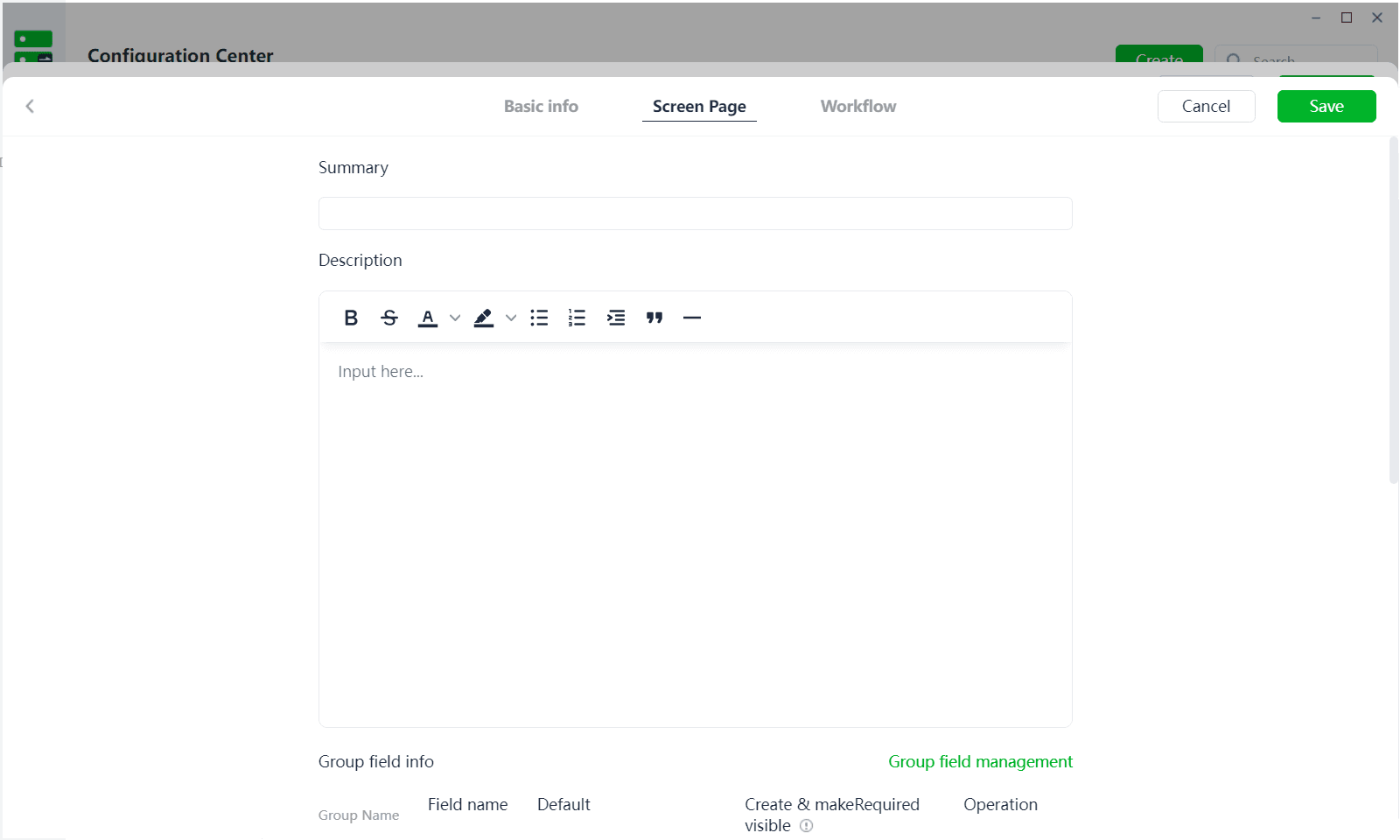
(8) Creating/Editing Work Item Types - Page Information
- Work item types come with pre-made basic fields and groupings; if the Version or Iteration module is enabled, corresponding field data for the module will be automatically added. Users can also freely add or delete custom field information.
- Titles and content allow filling in pre-made format information, so that when creating work items, the pre-made format can be automatically imported.
- Fields can be set with default values and whether they are required.
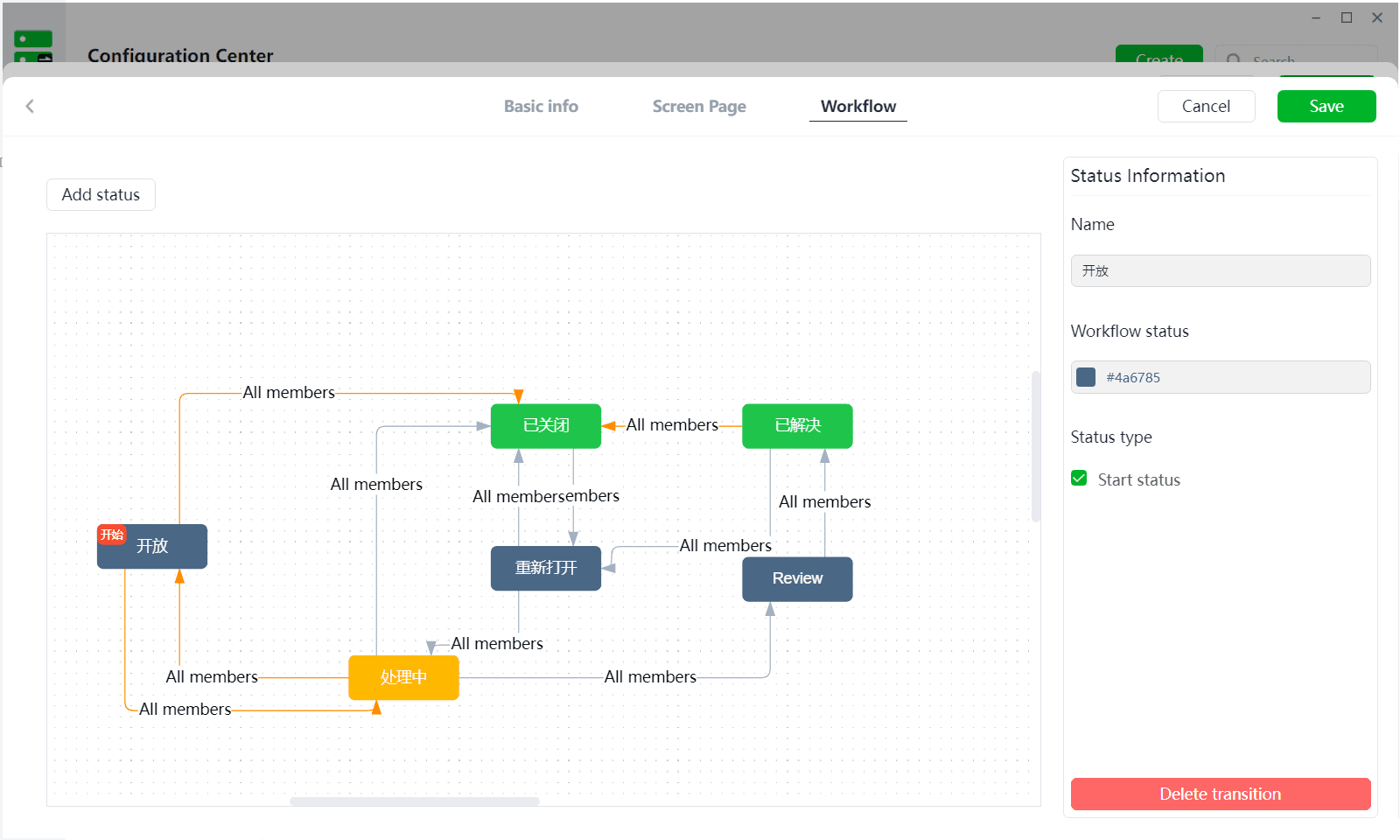
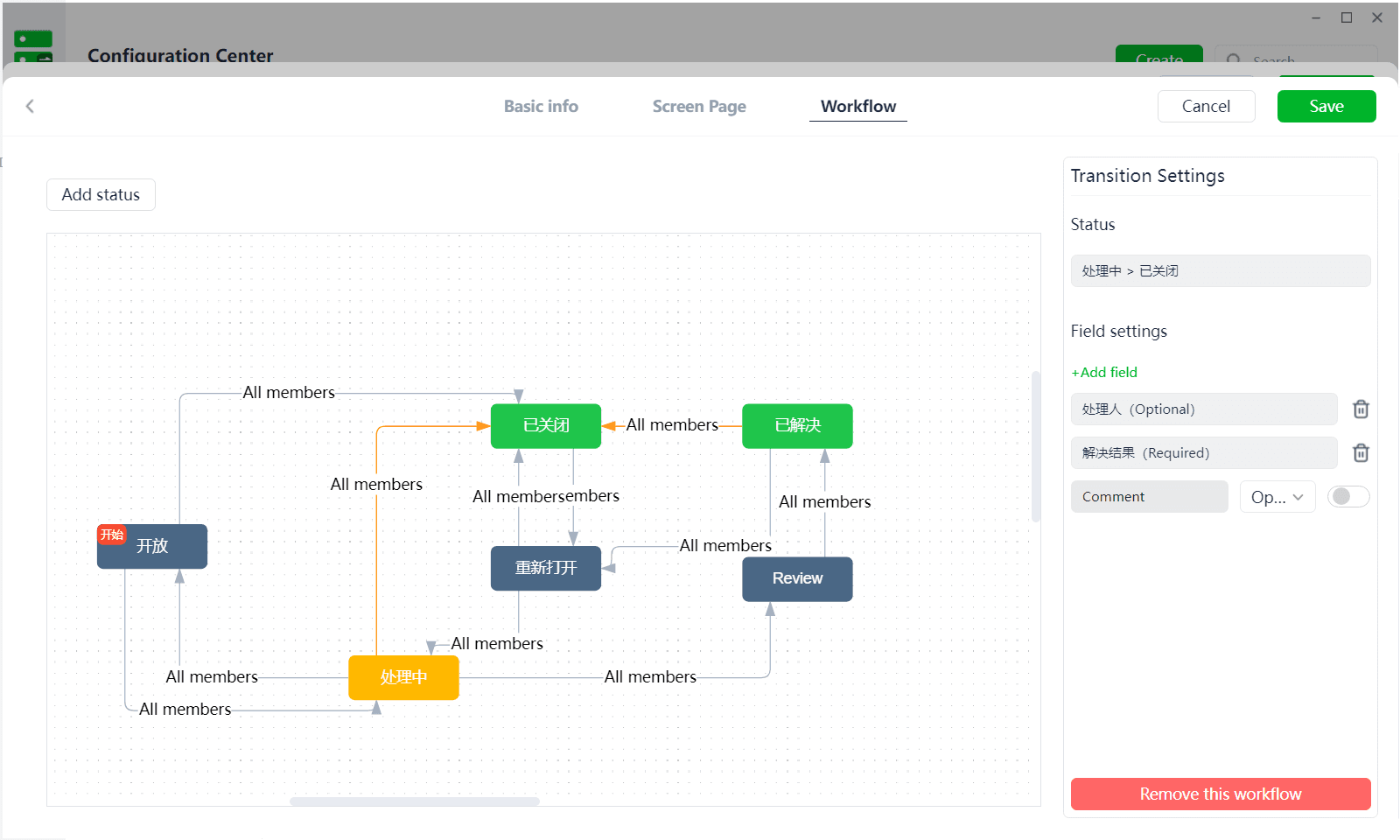
(9) Creating/Editing Work Item Types - Workflow Settings
- If the workflow settings are empty, it is allowed to copy workflow settings directly from already created work items.
- Users can also click the Add Status button to select the required statuses. After adding multiple statuses, the workflow sequence can be set, and one status can be selected as the starting status in the status information settings. This way, when a work item is created, it will follow the starting status and status flow.
- Under transition configuration, it is allowed to restrict specified members from transitioning to corresponding statuses (if not set, everyone can transition by default); it is also possible to set the field information that needs to be filled in during transitions.
(10) Documents Module
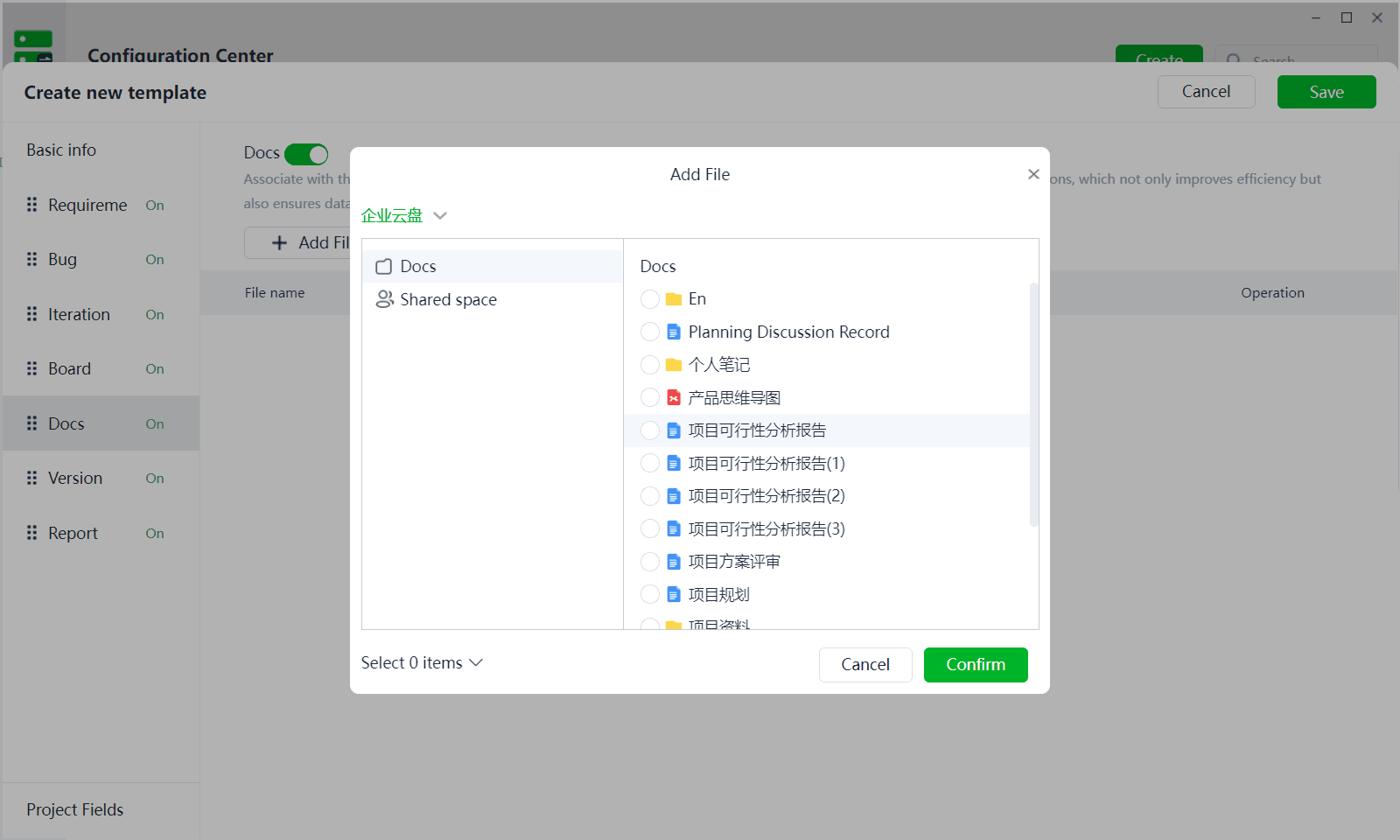
The Documents module supports linking to the enterprise cloud disk. Project members can click the Add Linked Path button to select and link the current project to a specified folder/file in the cloud disk. This way, when creating/viewing work items, users can directly link files from the cloud disk, which facilitates data viewing and ensures data security.
1.5 Deleted Projects
(1) Deleted Projects: All deleted projects will be uniformly displayed here. To delete a project, it must first be "archived" in the project information if it is "in progress".
(2) Deleted projects are only visible to members with Configuration Center access permissions and system administrators; other project members cannot see deleted projects.
(3) Users can restore deleted projects on their own, and after restoration, other project members can view the restored projects.
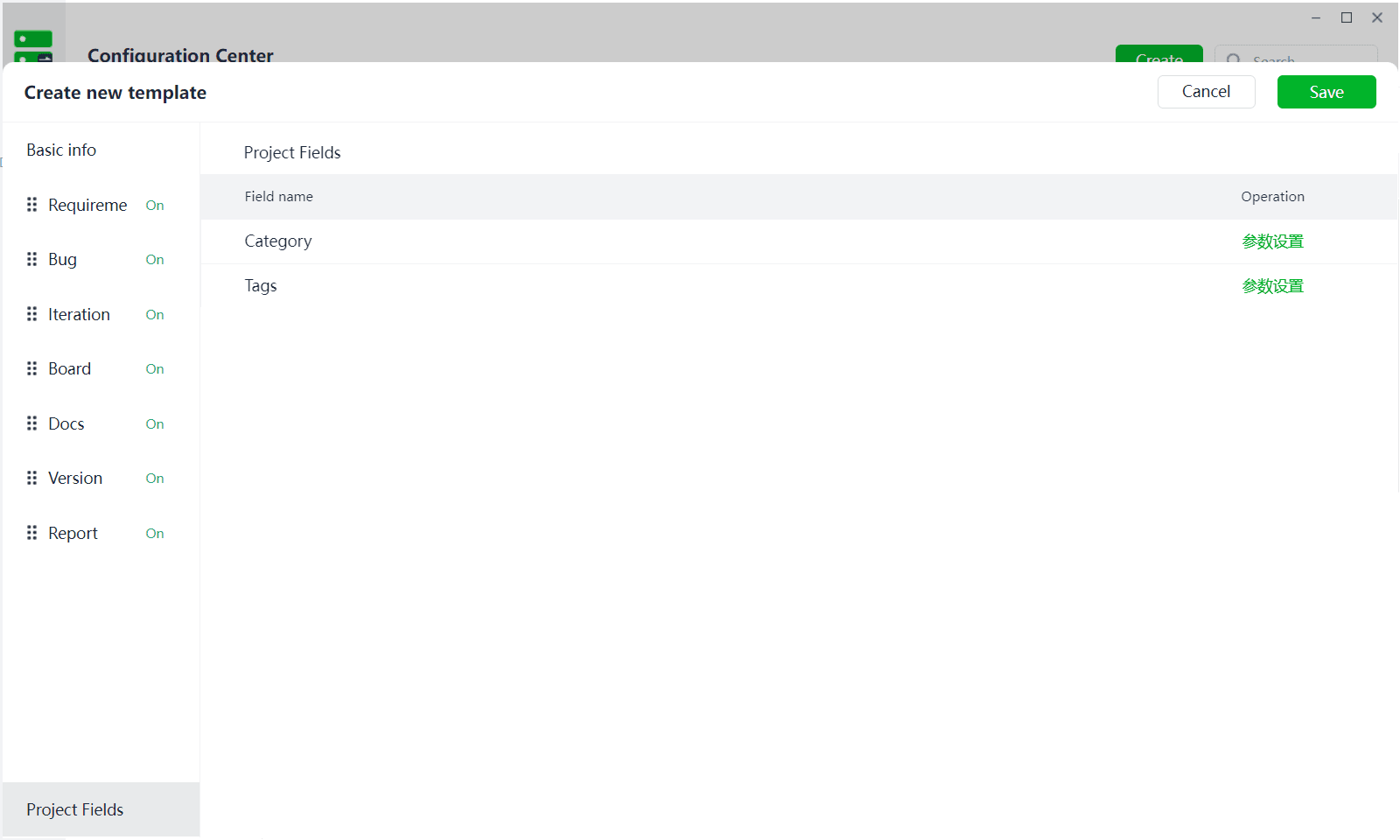
1.6 Project Fields
(1) Module: Pre-made field that allows creating corresponding module parameter information based on the project's unique attributes after the project is created.
(2) Tag: Pre-made field that allows creating corresponding tag parameter information based on the project's unique attributes when creating the project.
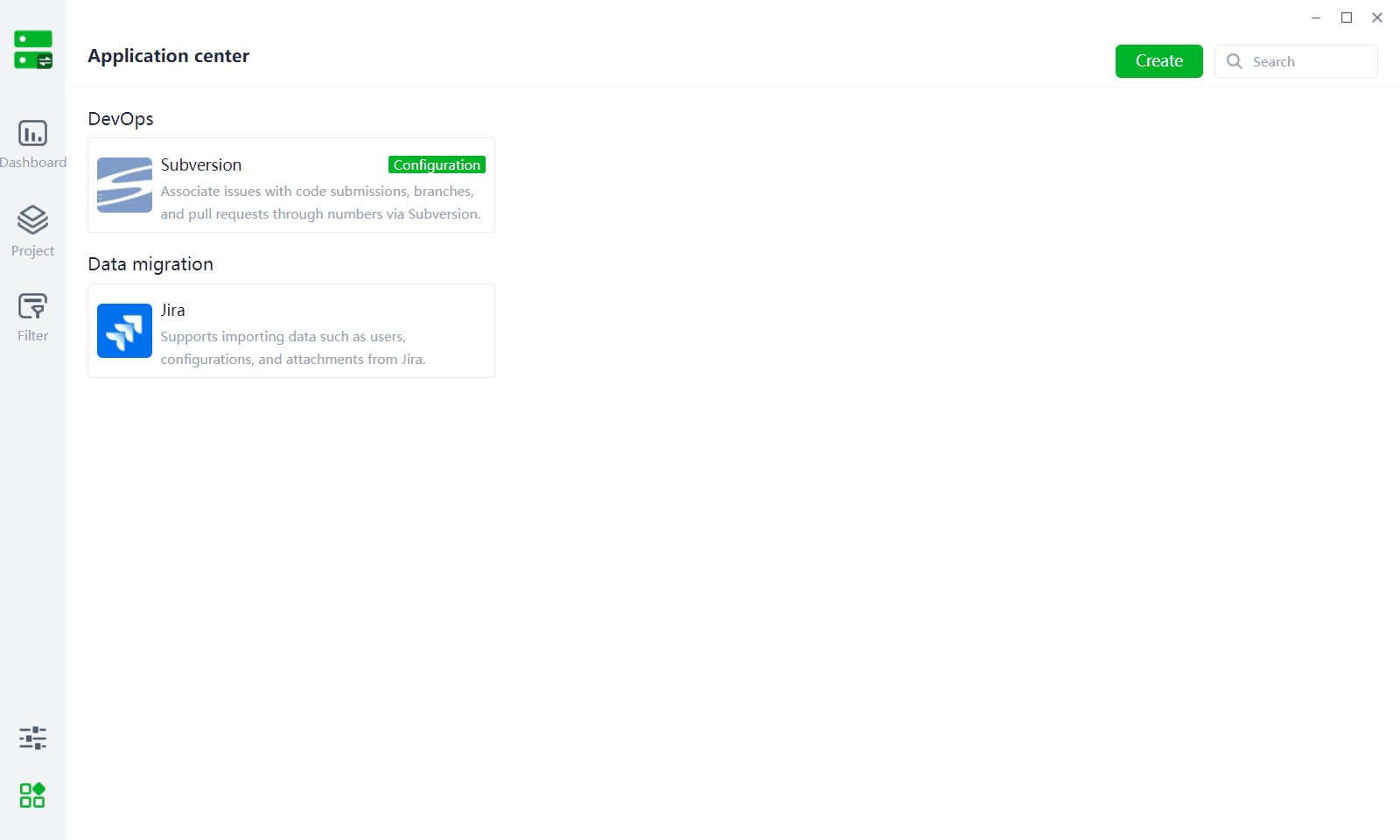
II. Application Center
2.1 Automated Operations and Maintenance
It is possible to integrate code management with projects using the Subversion tool, allowing users to link code submissions to corresponding work items when handling them, facilitating project management.