Private Chat
一、Messaging
DuliDuli's [Chat] is an instant messaging feature that includes "Regular One-on-One Chat," "Private Chat," and "Group Chat." Users can choose different chat modes according to their needs.
1.1 Private Chat
[One-on-One Chat] mode allows users to select a contact from their address book for a 1V1 chat, with messages delivered instantly. Currently, [DuliDuli - One-on-One Chat] supports chat forms including "text messages," "emojis," "file sharing," "screenshots," "video calls," "voice calls," and "sharing business cards."
1.1.1 Text Messages
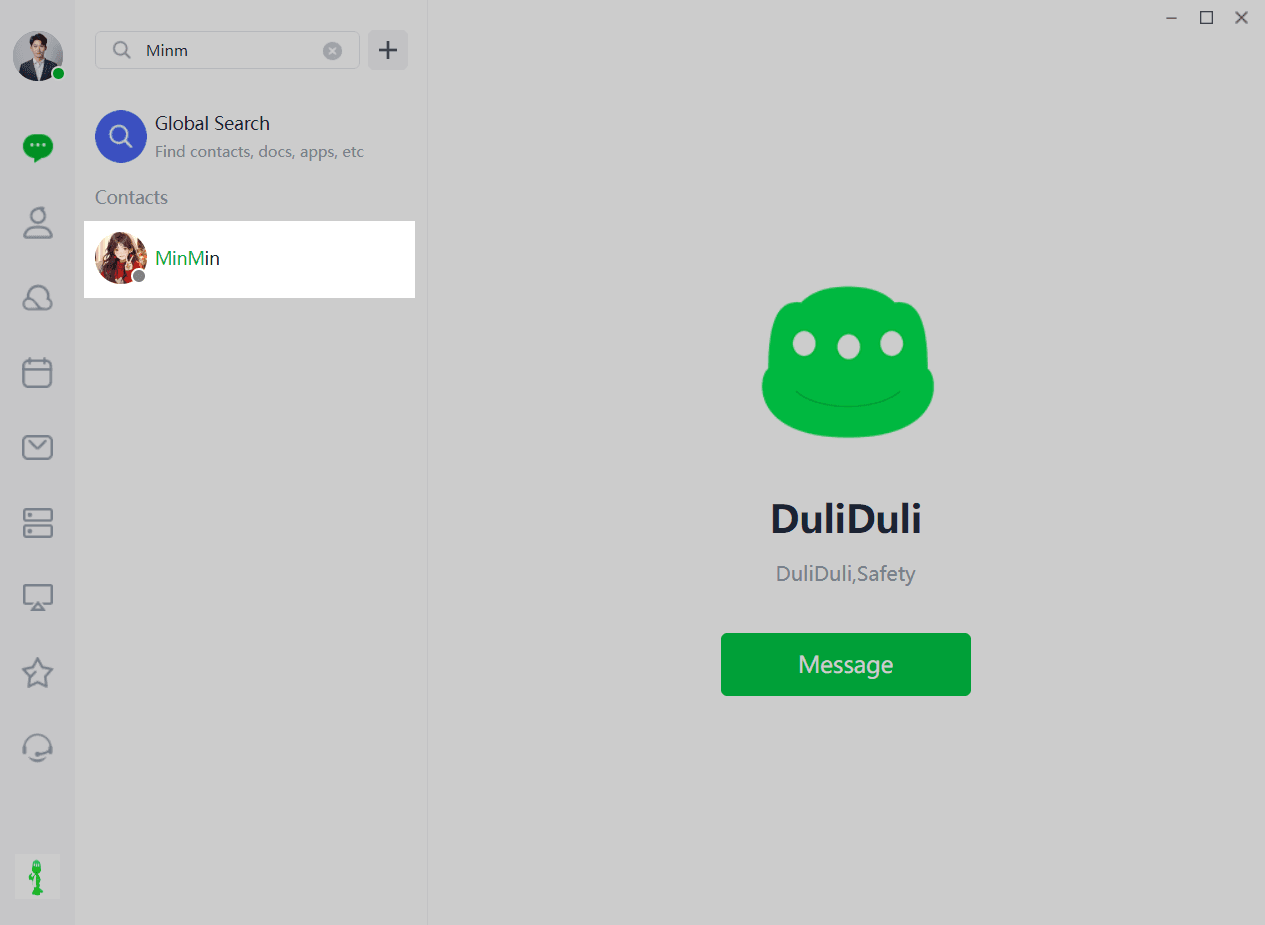
(1) Users can quickly "search" for a chat partner by entering their "username," "nickname," or "phone number" in the [Address Book] or [Chat] list. After selecting the chat partner and choosing the chat mode, they can initiate a chat box to start conversing.
1.1.1.1 Search Contacts
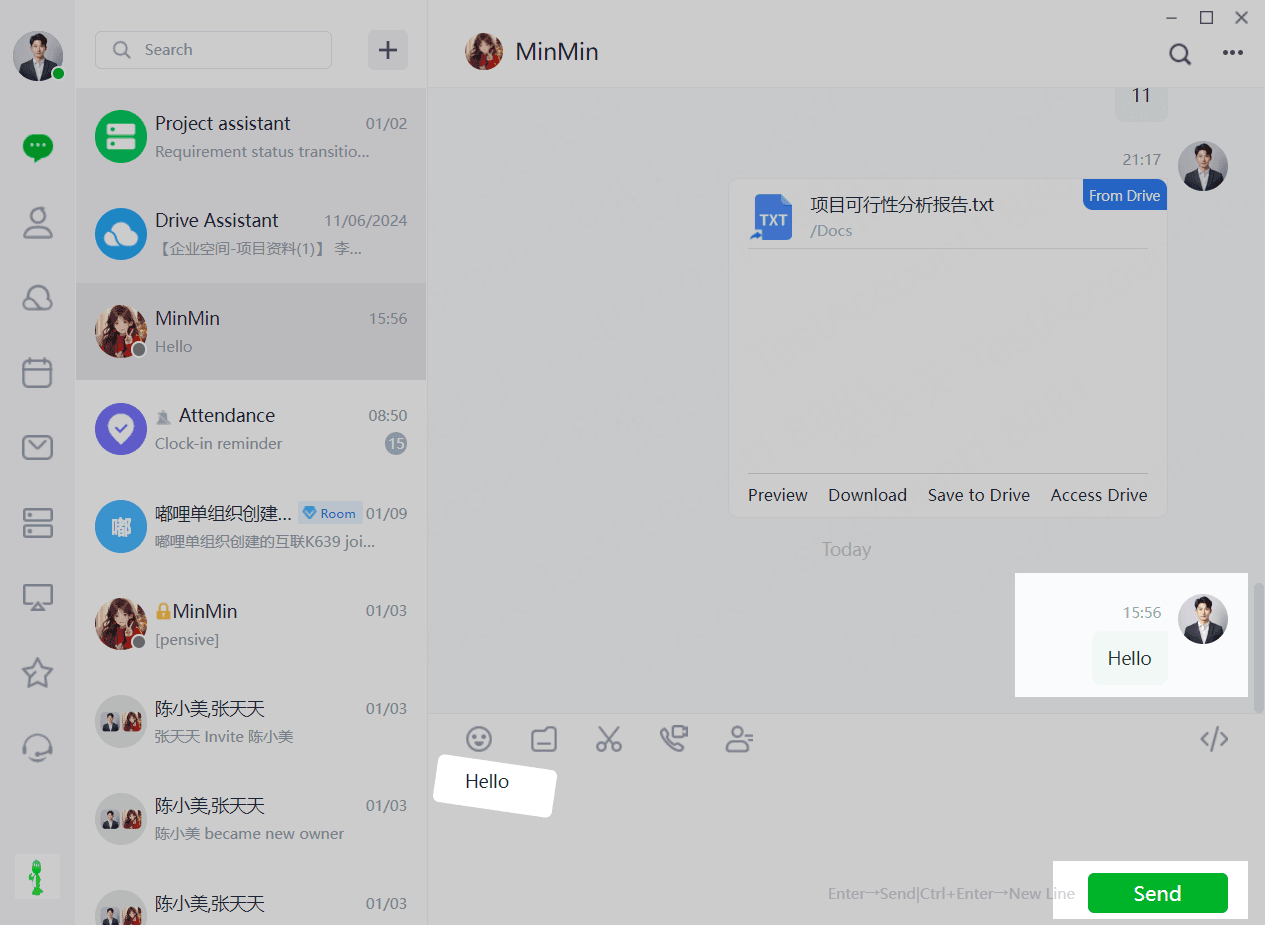
(2)After entering a message in the "text box", press "Enter" to send or "Ctrl+Enter" to start a new line. If the message content is empty, it cannot be sent. The sent message is delivered instantly and displays the time when it was sent by the current user.
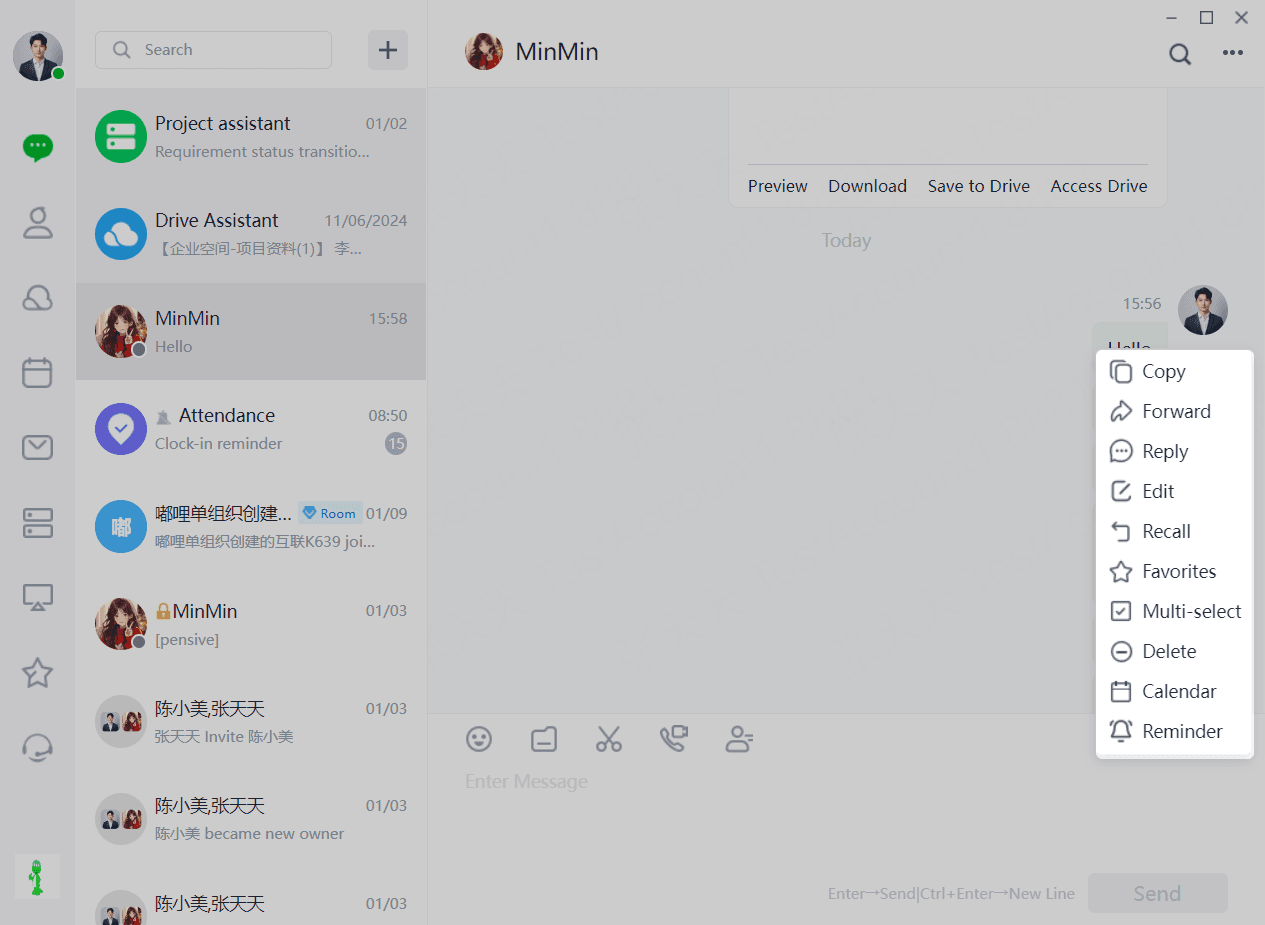
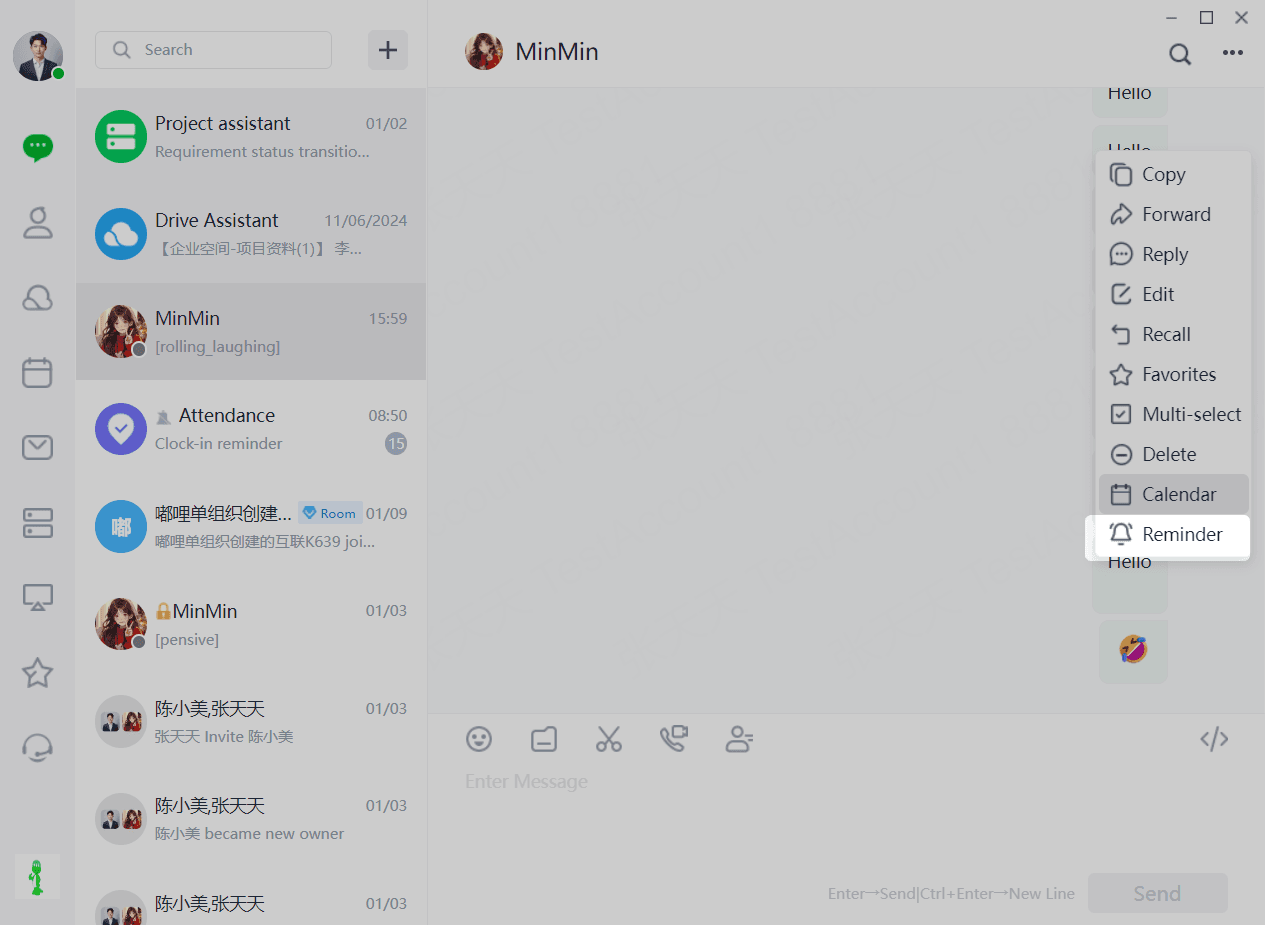
(3)For delivered messages, the sender can right-click on the message to "Copy", "Forward", "Reply", "Edit", "Recall", "Favorite", "Select Multiple", "Delete", "Add Event to Calendar", and "Add Reminder".
1.1.2 Emojis
(1) Users can quickly "find" a chat partner by entering their "username", "nickname", or "phone number" in the [Address Book] or [Chat] list. After selecting the chat partner and choosing the chat mode, they can initiate a chat box to start conversing.
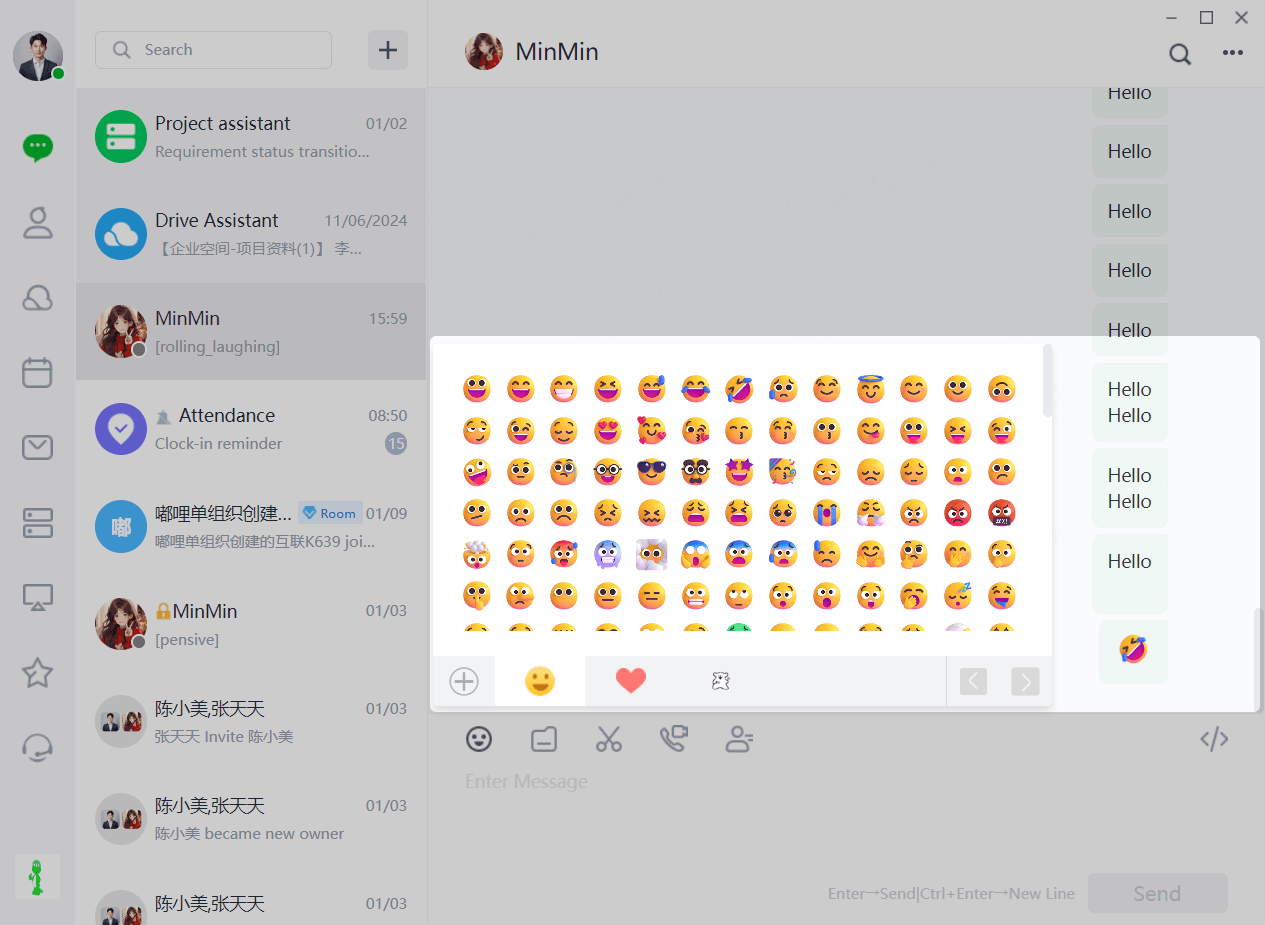
(2)For delivered emojis, the sender can right-click on the emoji to "Copy", "Forward", "Reply", "Edit", "Recall", "Favorite", "Select Multiple", "Delete", "Add Event to Calendar", and "Add Reminder".
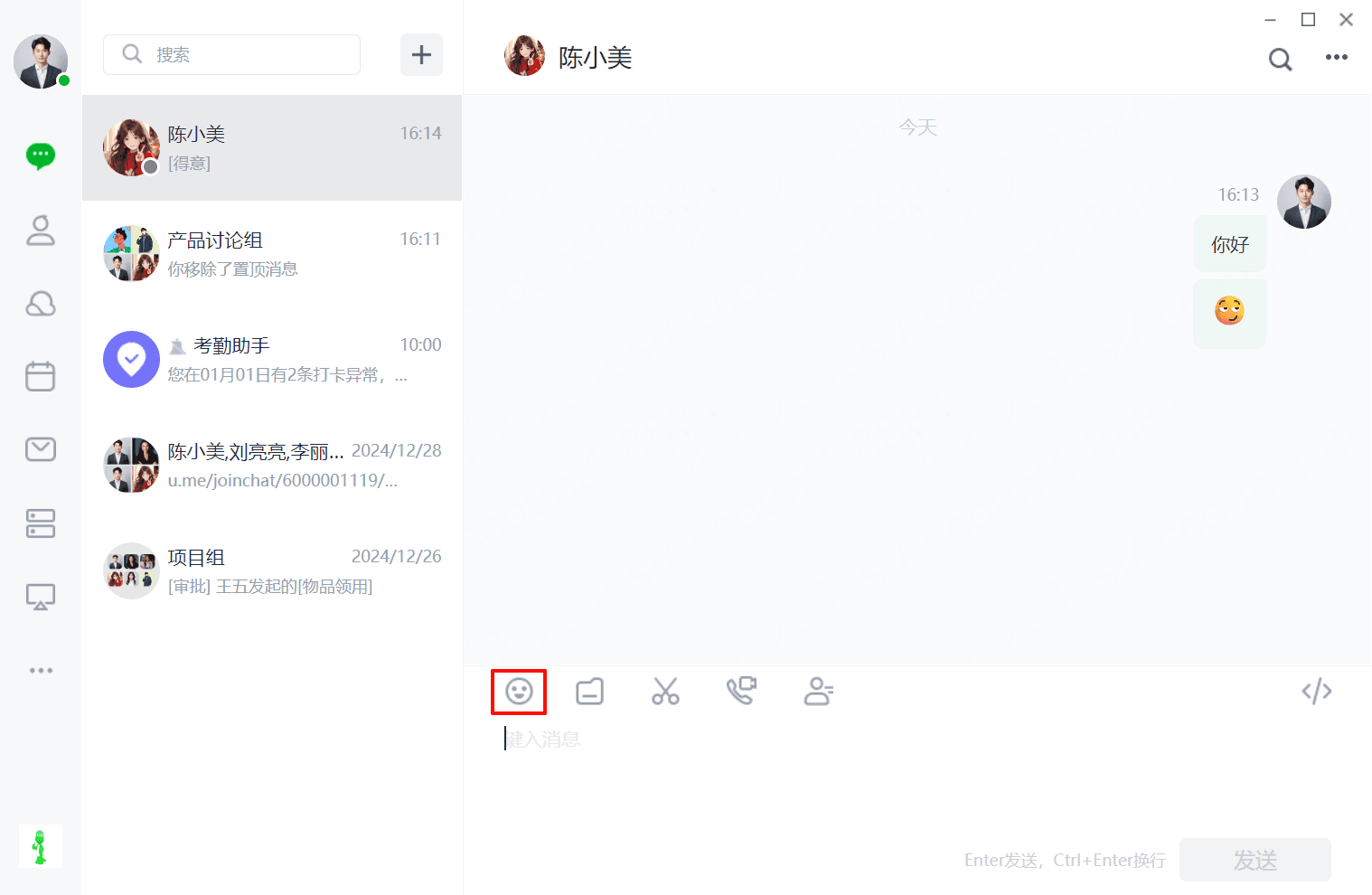
(3)Users can enrich their emoji collection by clicking [Emoji - Add]. On the "chat box" page, click "Emoji".
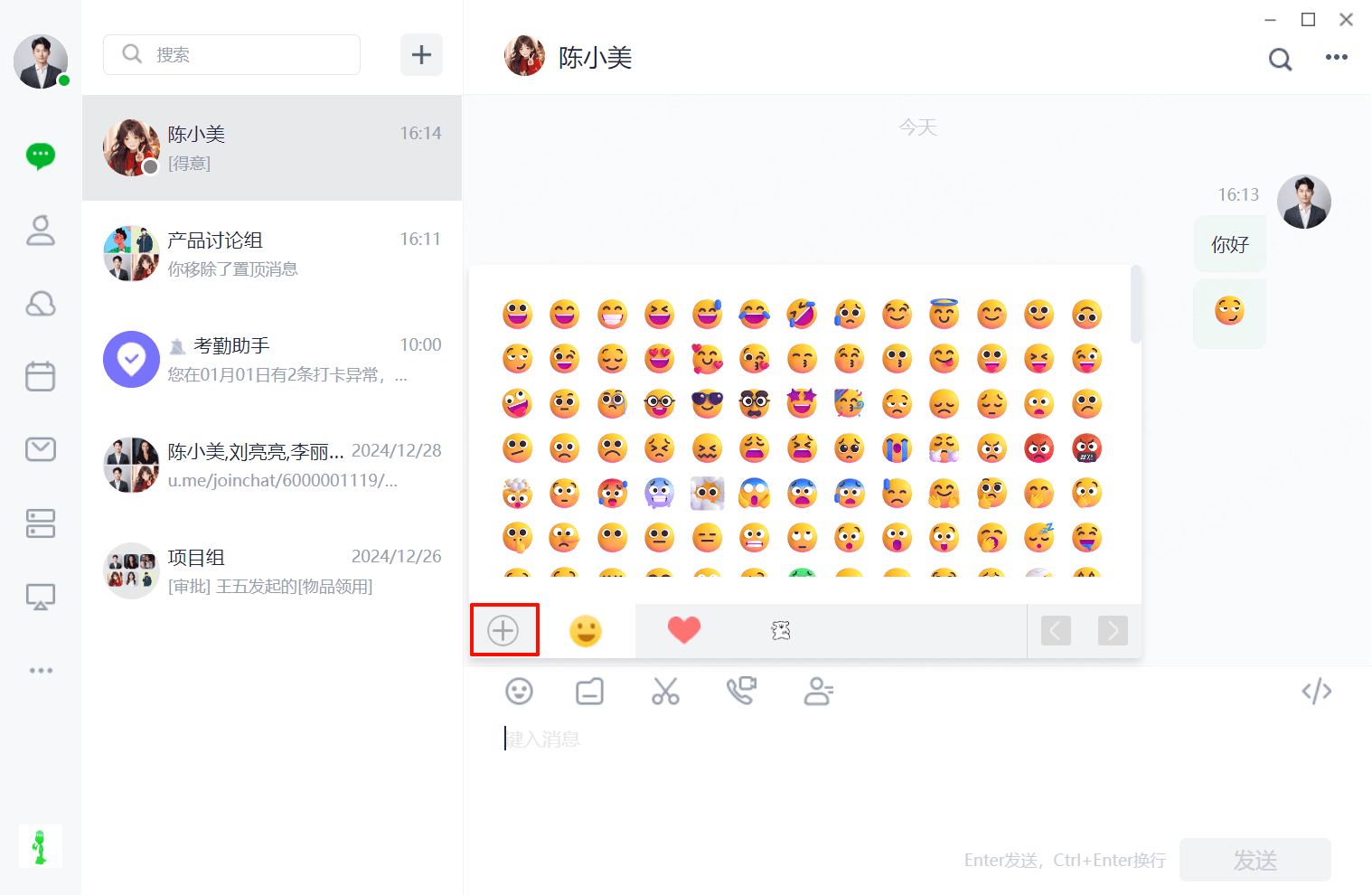
(4)After clicking "Emoji", click the "+" sign as shown in the figure below.
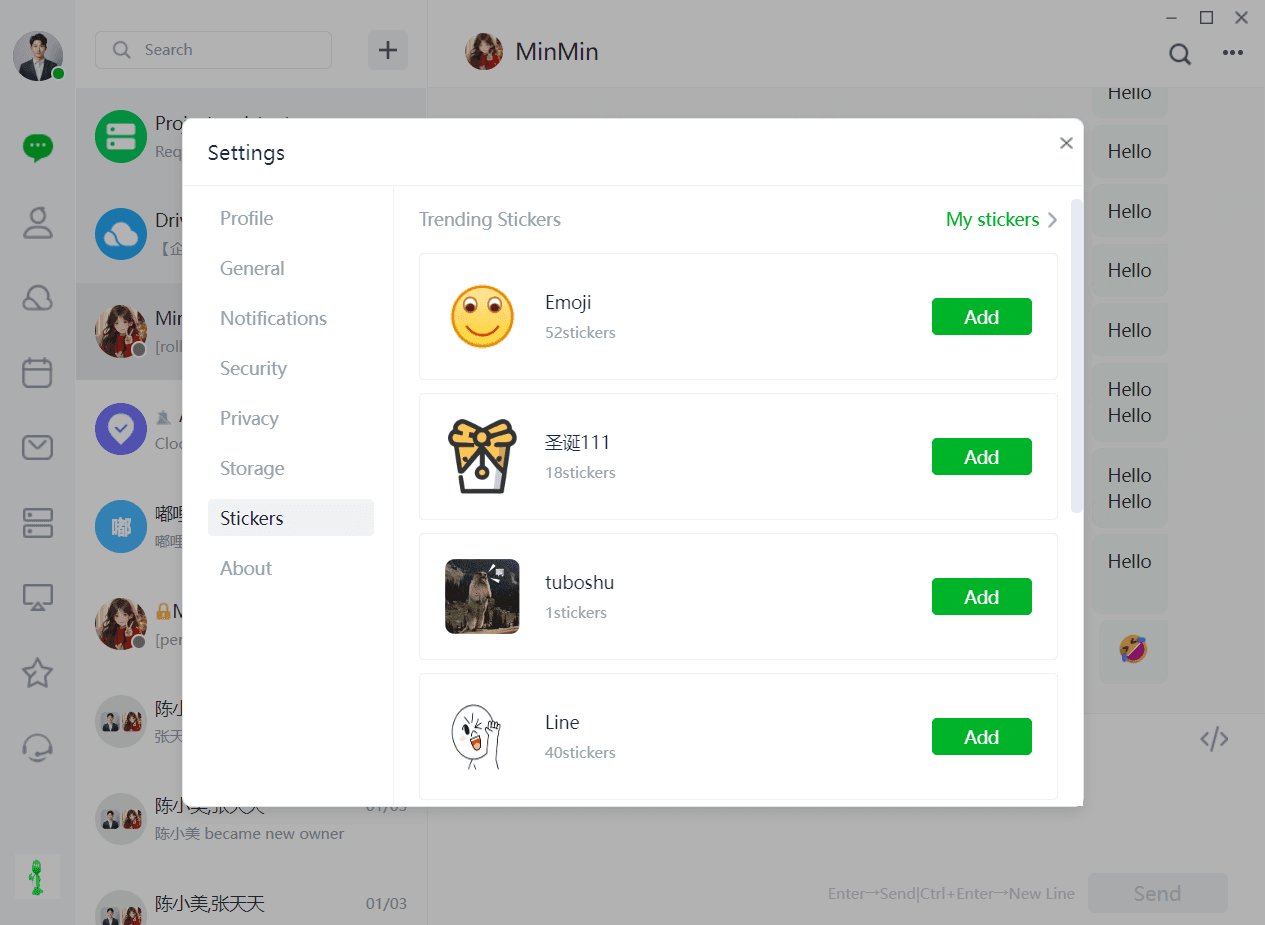
(5)Select the "Emoji Library" and then click "Add" to successfully add emojis.
1.1.3 Files
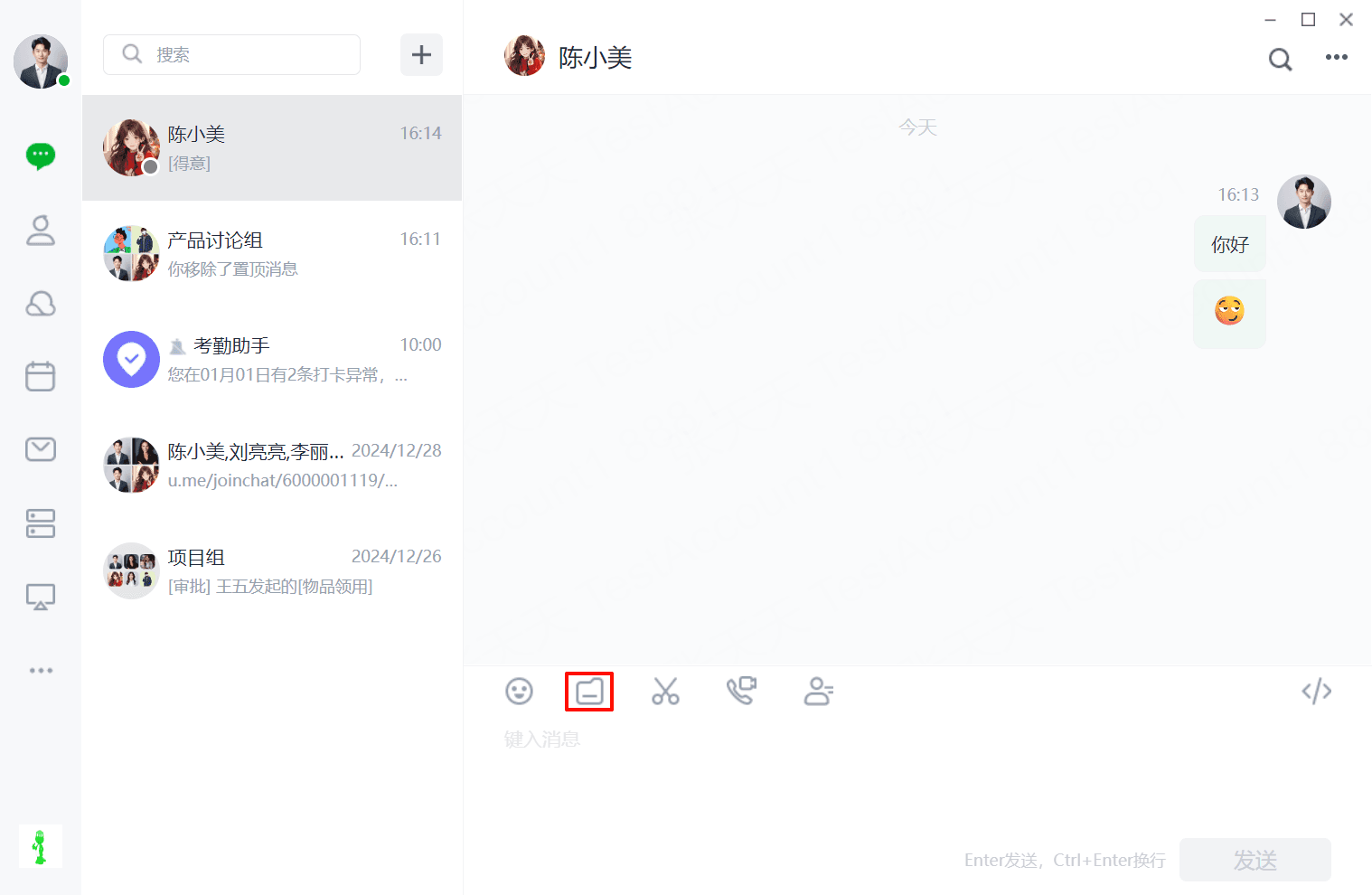
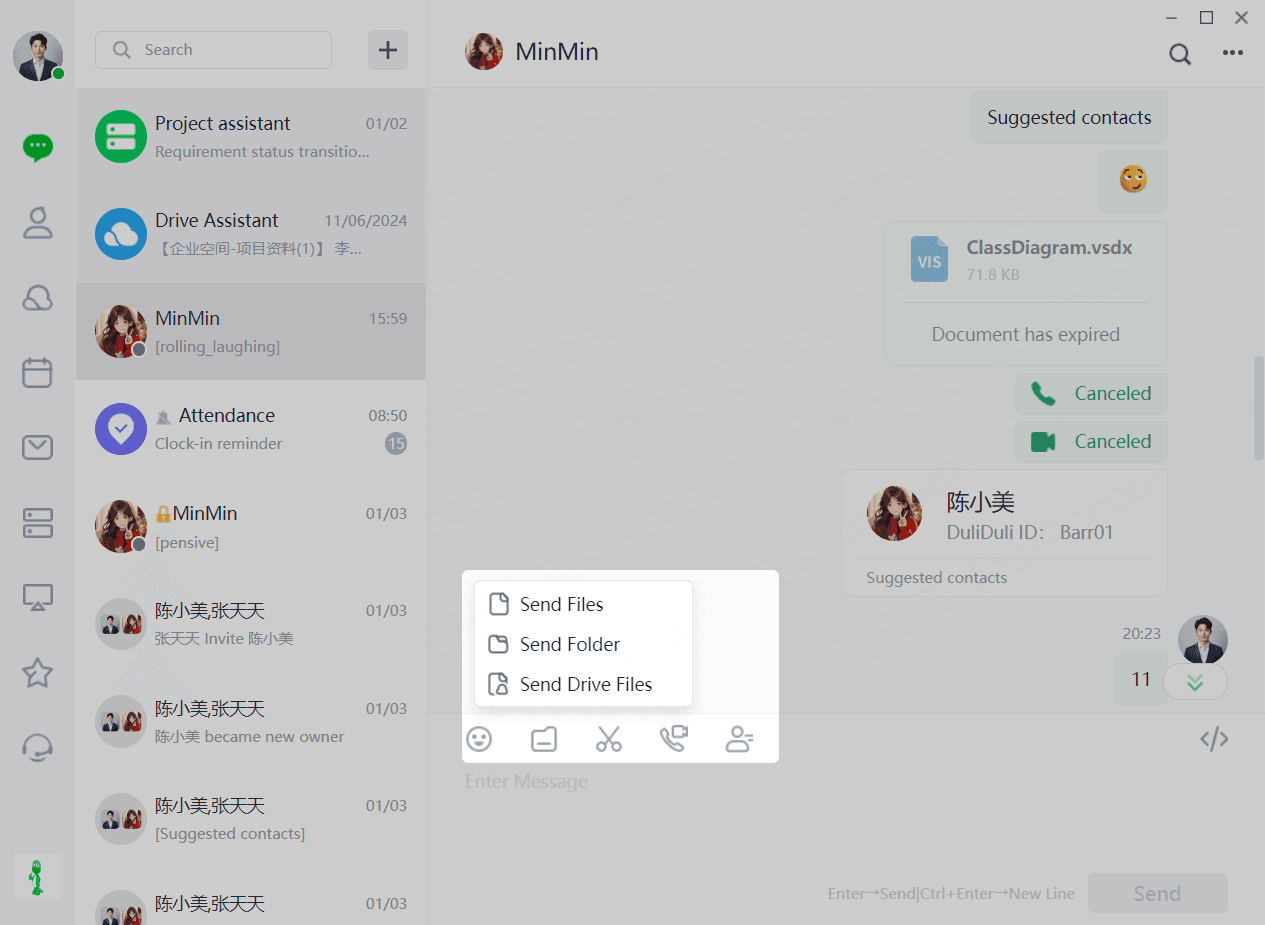
(1)Users can send files by clicking "Chat Box - File". Currently, DuliDuli supports three ways to send files: "Send File", "Send Folder", and "Send Cloud File".
(2)Select the file format and location for sending.
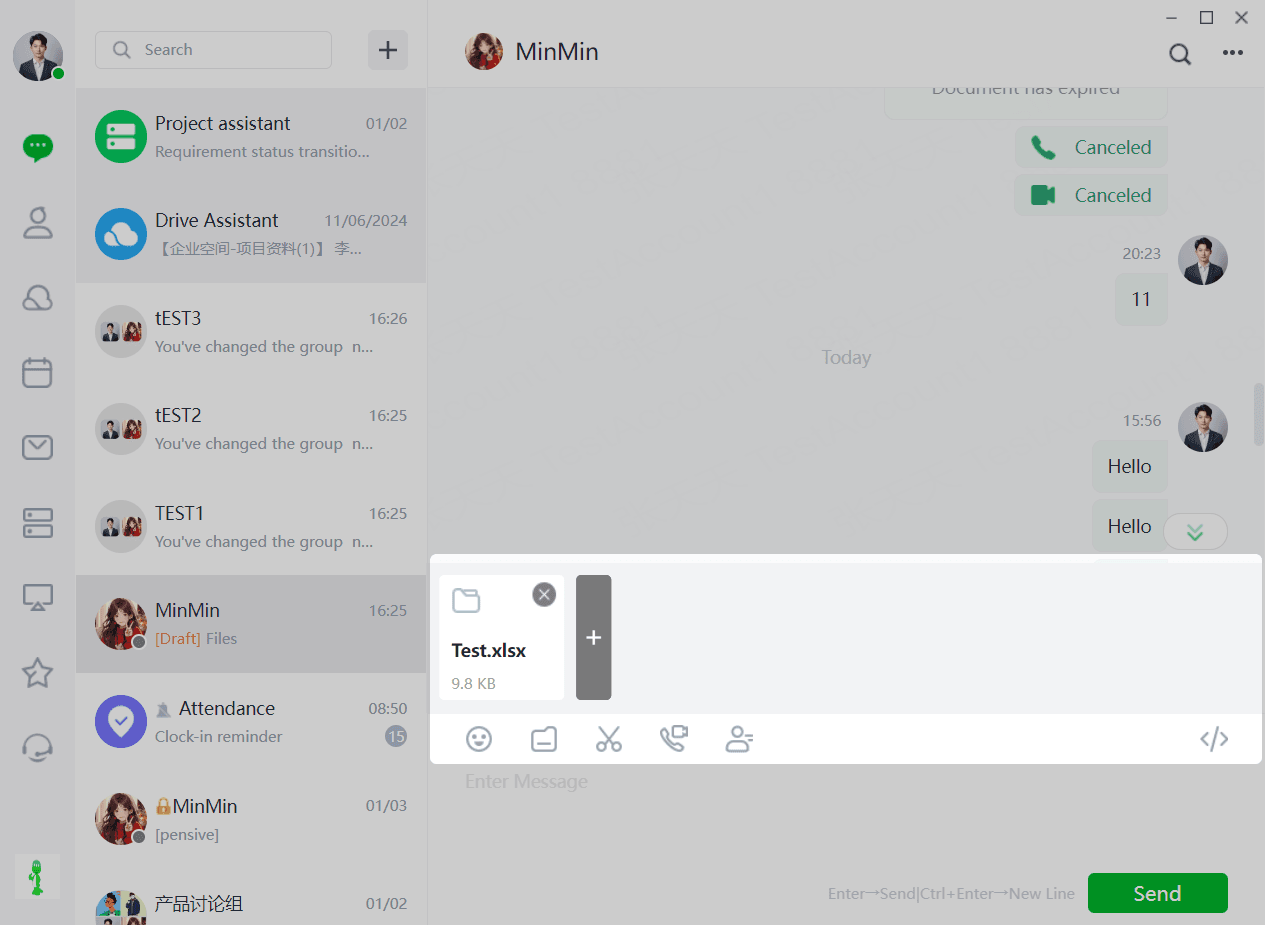
(3)Click [Send] to successfully send the file.
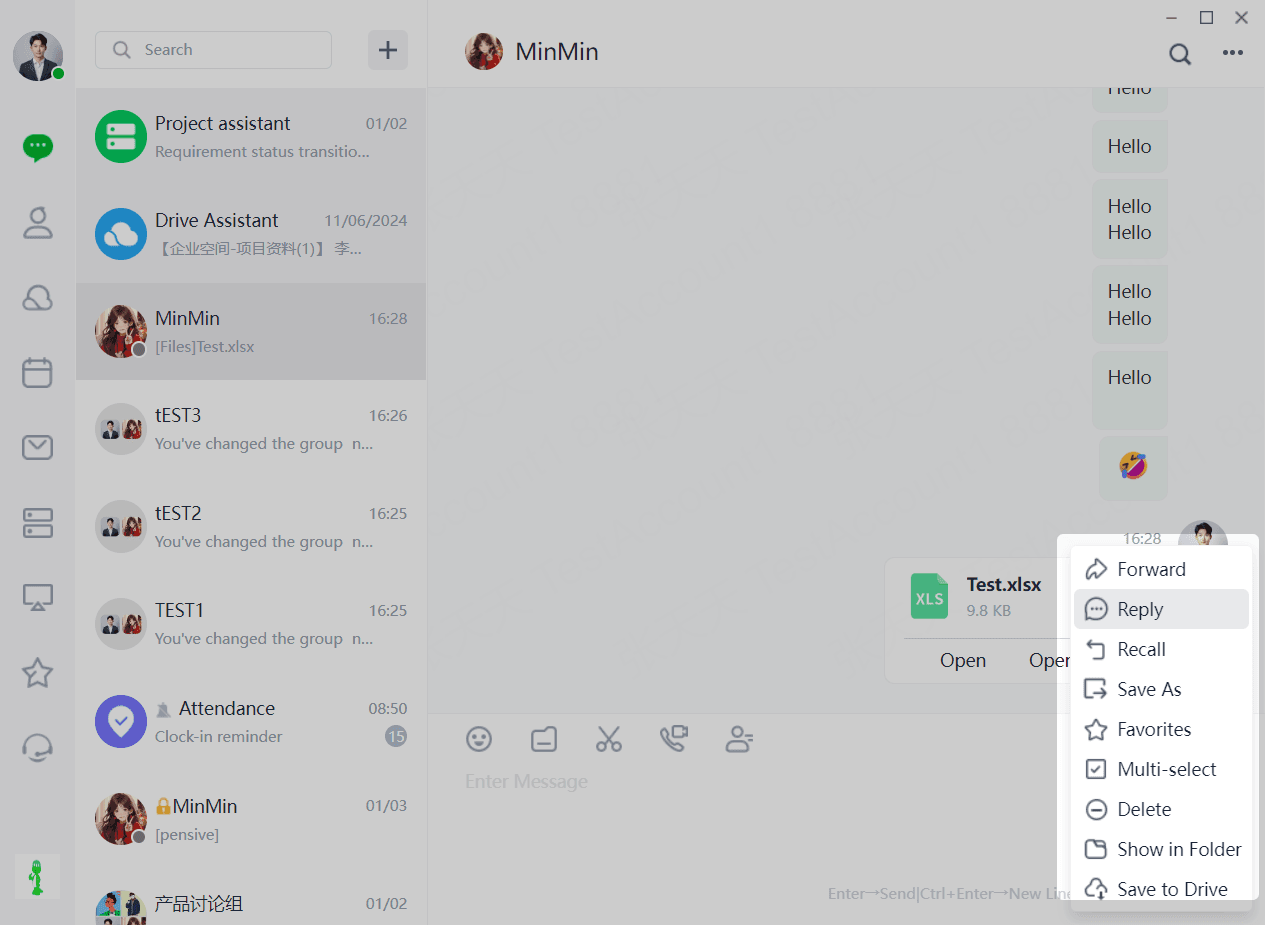
(4)For delivered files, the sender can "View" or "View Folder" directly, or right-click to "Forward", "Reply", "Recall", "Save As", "Favorite", "Select Multiple", "Delete", "Open Folder", and "Save to Cloud".
1.1.4 Screenshot
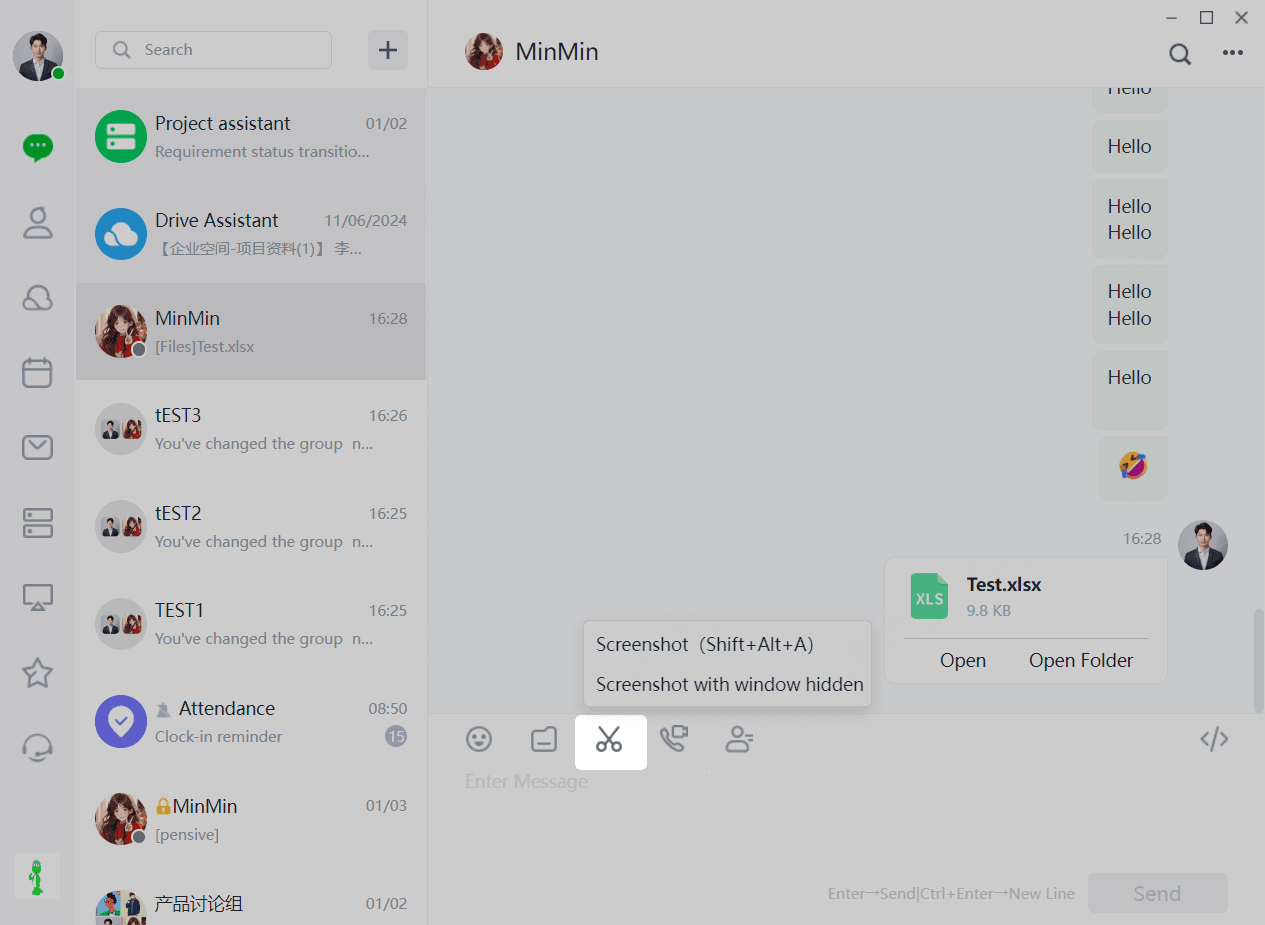
(1) Users can take a screenshot by clicking the "Chat Box - Screenshot" function. Currently, DuliDuli supports two screenshot methods: "Screen Capture" and "Screenshot and Hide Current Window". "Screen Capture" refers to capturing the current screen content, or you can use the "Shift+Alt+A" shortcut key (which can be modified in Settings - General Settings). "Screenshot and Hide Current Window" means hiding the current chat box interface to capture the screen content.
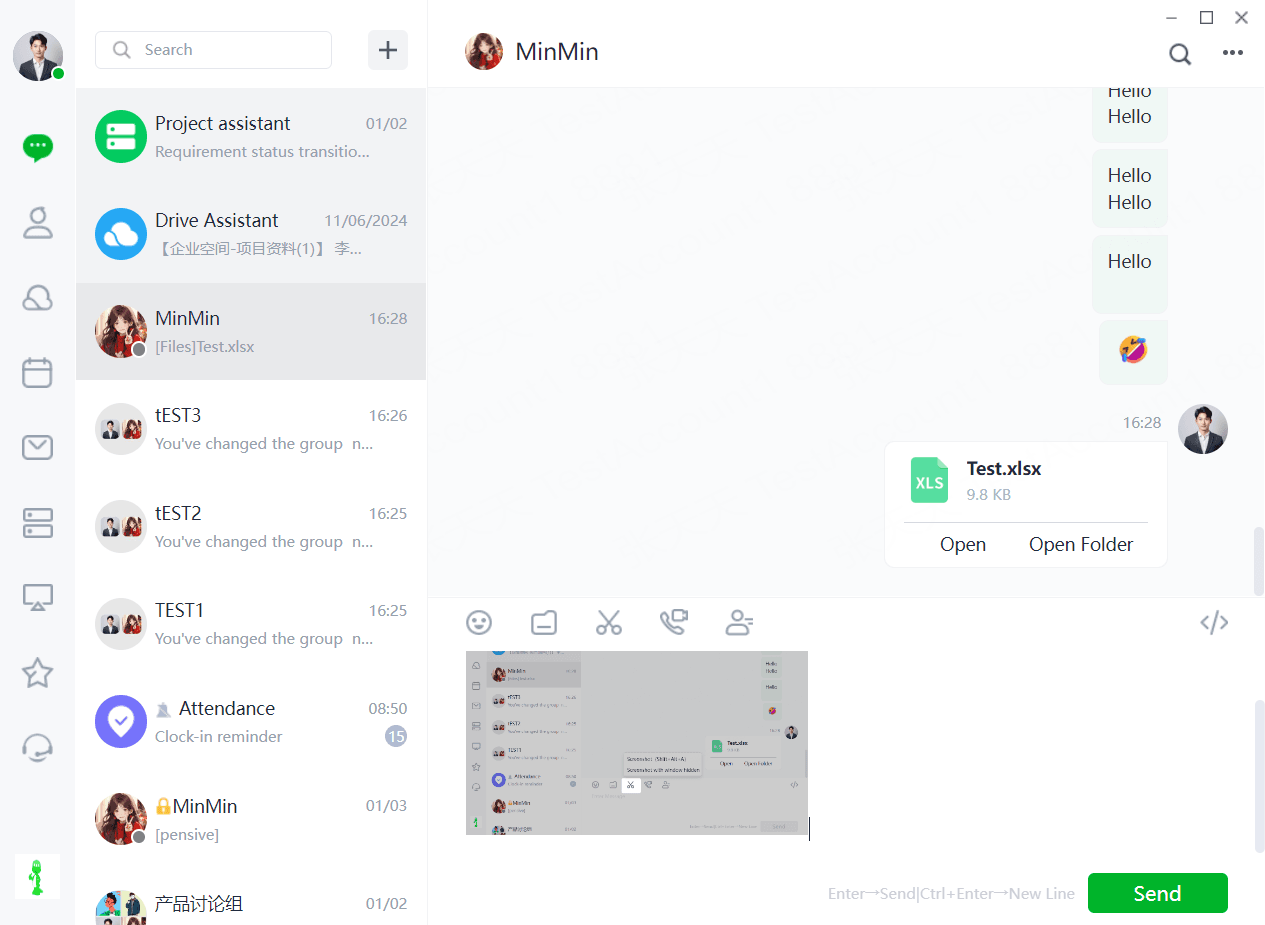
(2) You can perform secondary operations on the screenshot image, such as "Rectangle/Ellipse", "Polyline", "Pen", "Marker", "Mosaic/Blur", "Text", "Eraser", "Undo", "Regroup", "Exit Screenshot", "Pin to Screen", "Save to File", "Copy to Clipboard", "Screenshot", "Sticker" (can directly copy image text), "Long Screenshot", "OCR Text Recognition", "Annotate", "Animated Image (GIF/webp/mp4)", etc.
(3) Click [Send] to successfully send the screenshot.
1.1.5 Audio/Video Calls
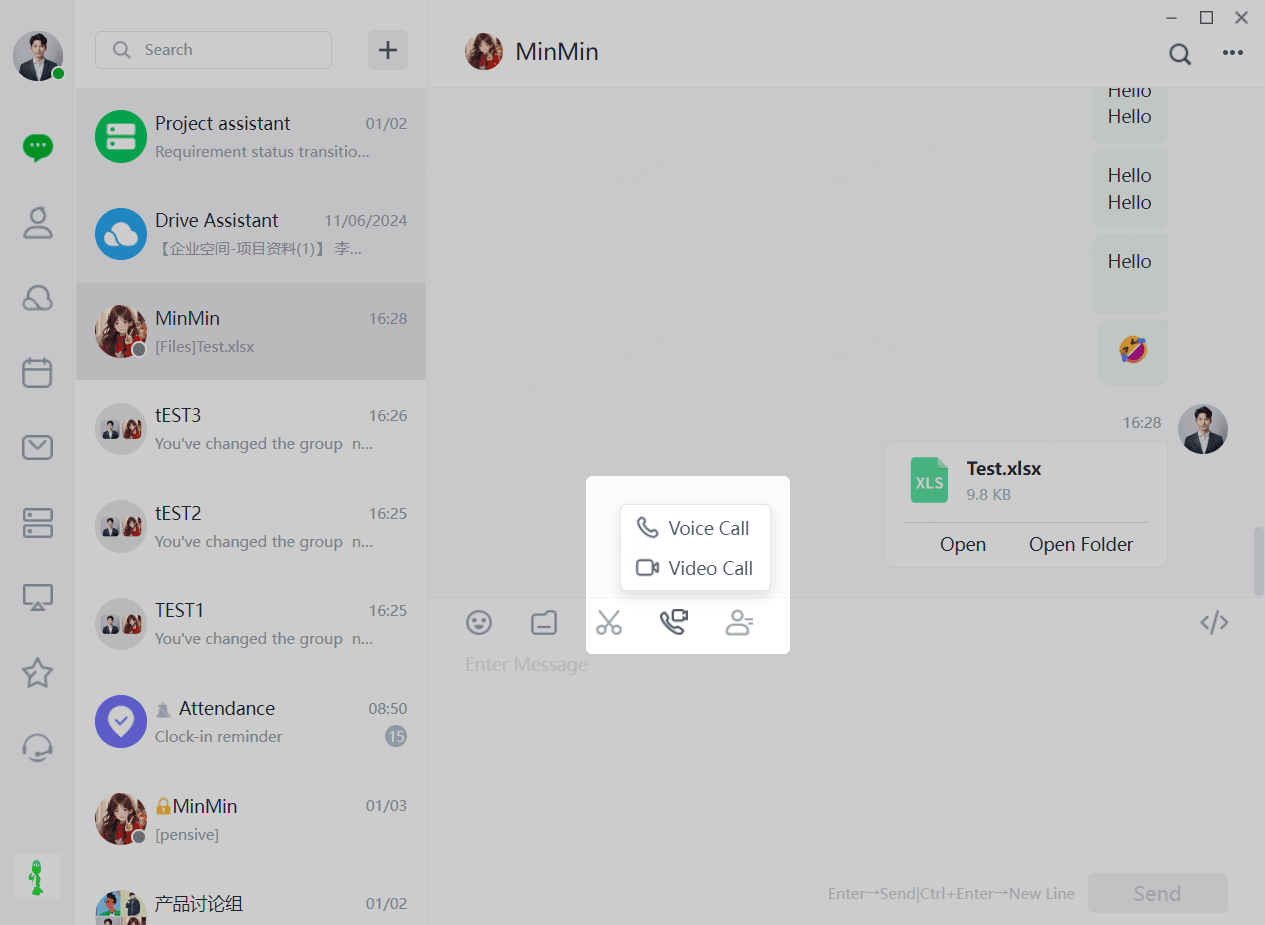
[Audio/Video Chat] includes "Voice Chat" and "Video Chat". "Voice Chat" provides high-quality voice call services to meet users' communication needs in different scenarios. "Video Chat" provides high-quality voice call services for face-to-face communication experiences.
1.1.5.1 Voice Call
(1) Click [Audio/Video Call], select "Voice Call", and the voice chat mode will be initiated.
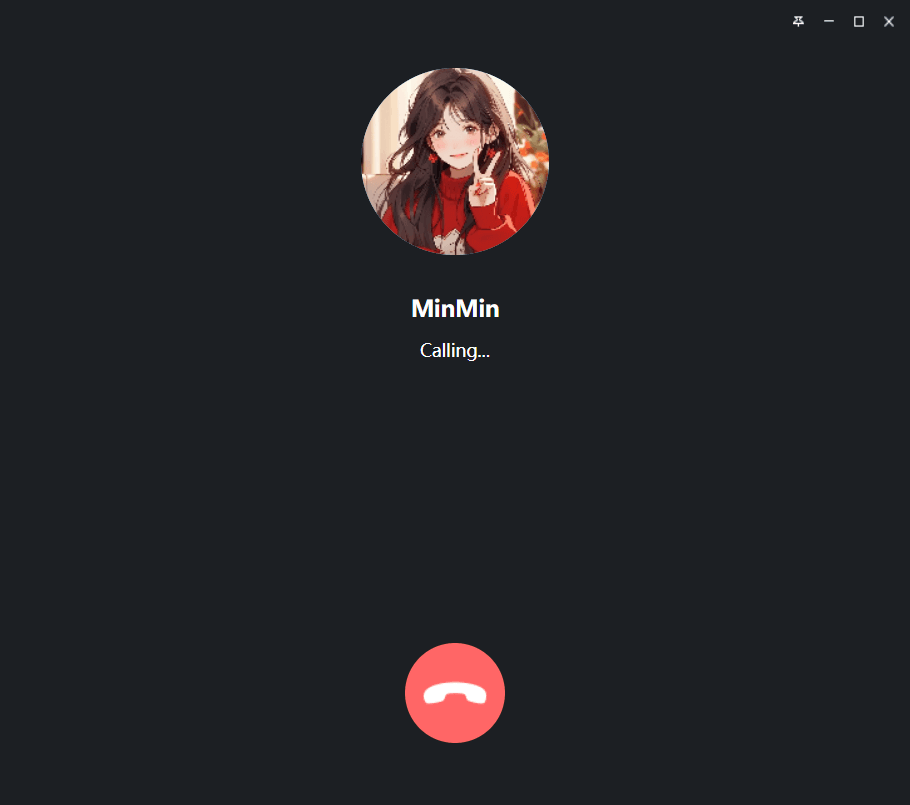
(2) Click the "red" button to end the current call.
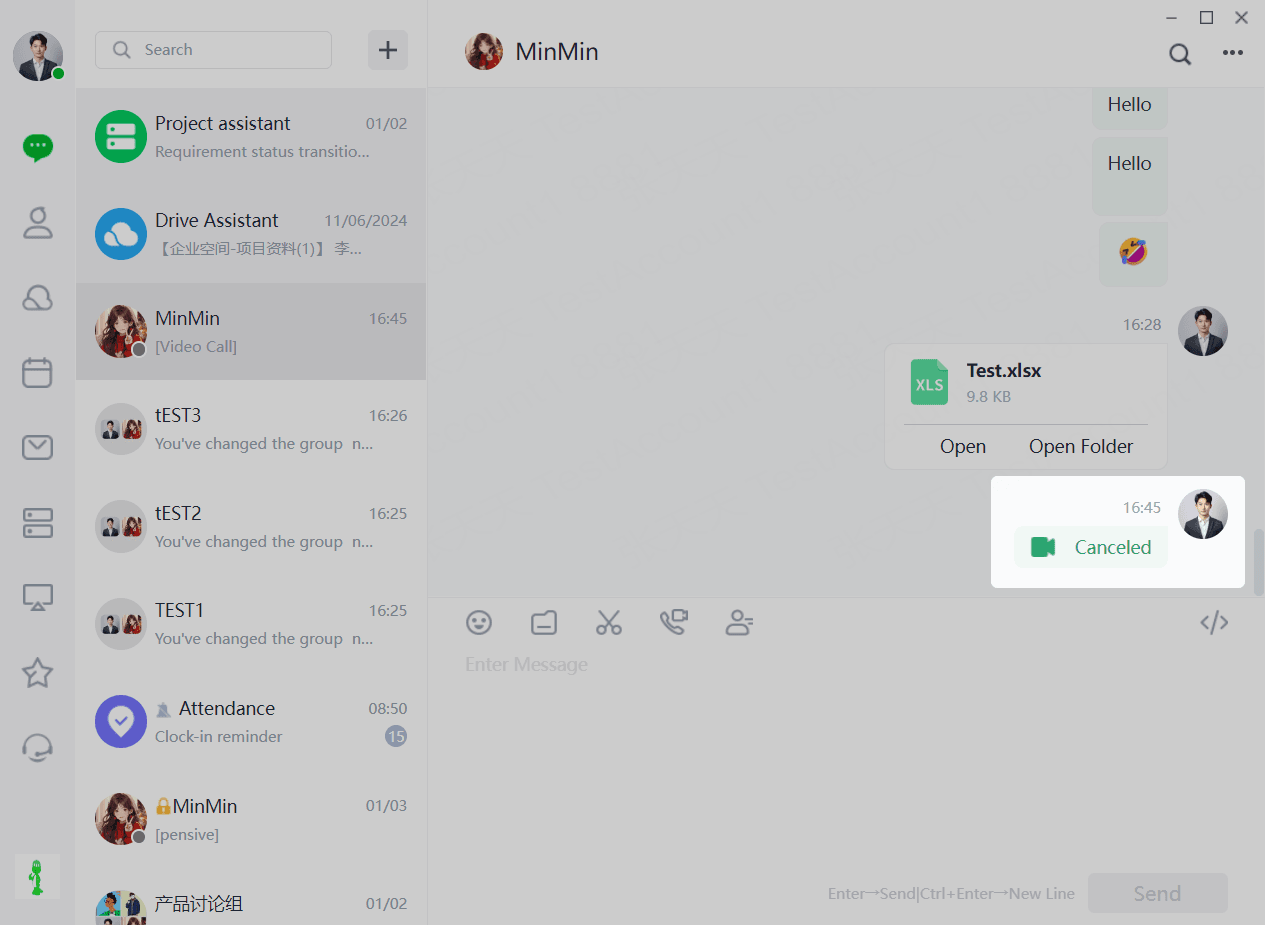
(3) If you click on the voice chat record in the chat box again, you can reinitiate the voice chat.
1.1.5.2 Video Chat
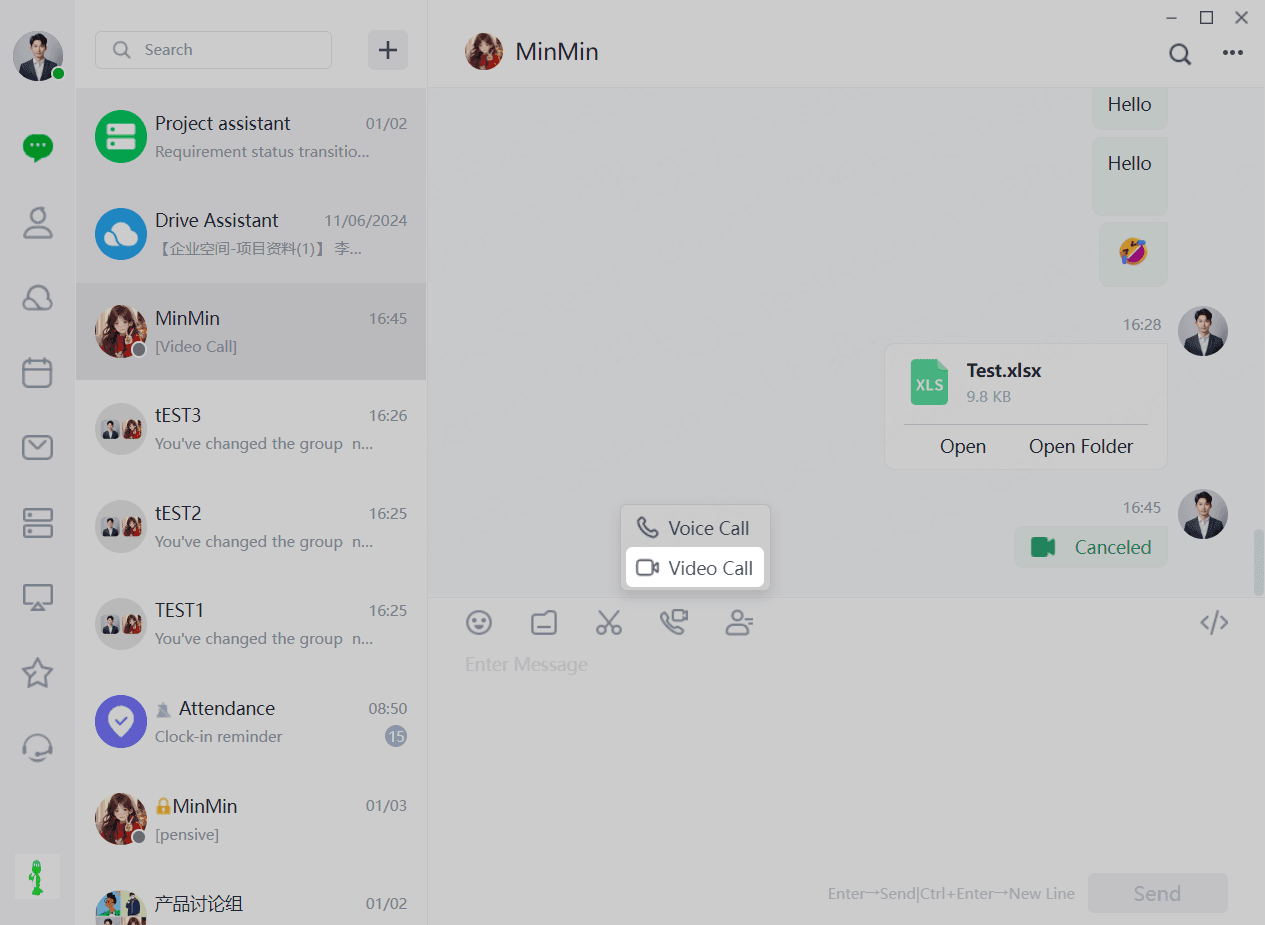
(1) Click [Audio/Video Call], select "Video Call", and the video chat mode will be initiated.
(2) Click the "red hang up" button to end the current call.
(3) If you click on the video chat record in the chat box again, you can reinitiate the video chat.
1.1.6 Sending Contact
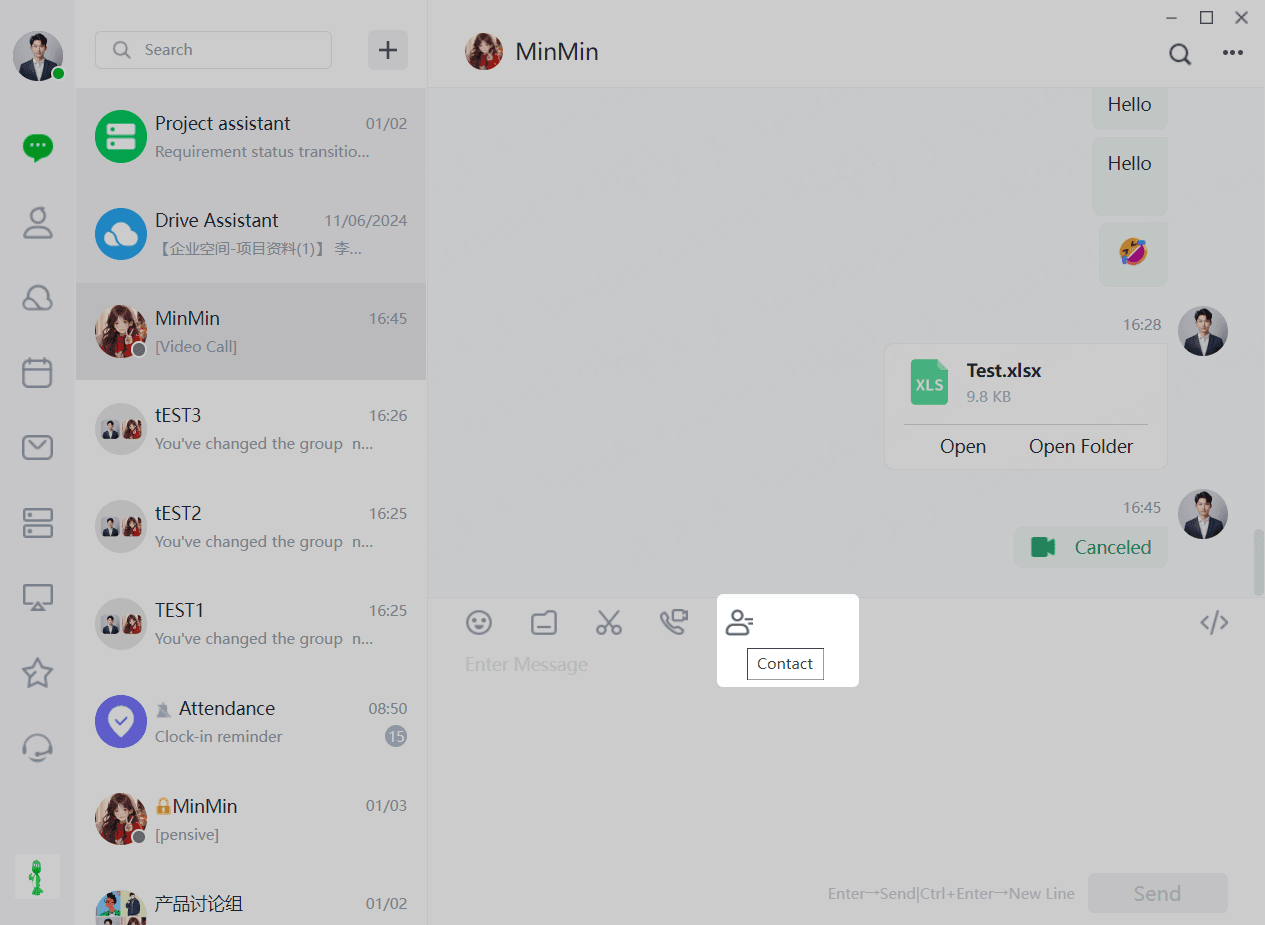
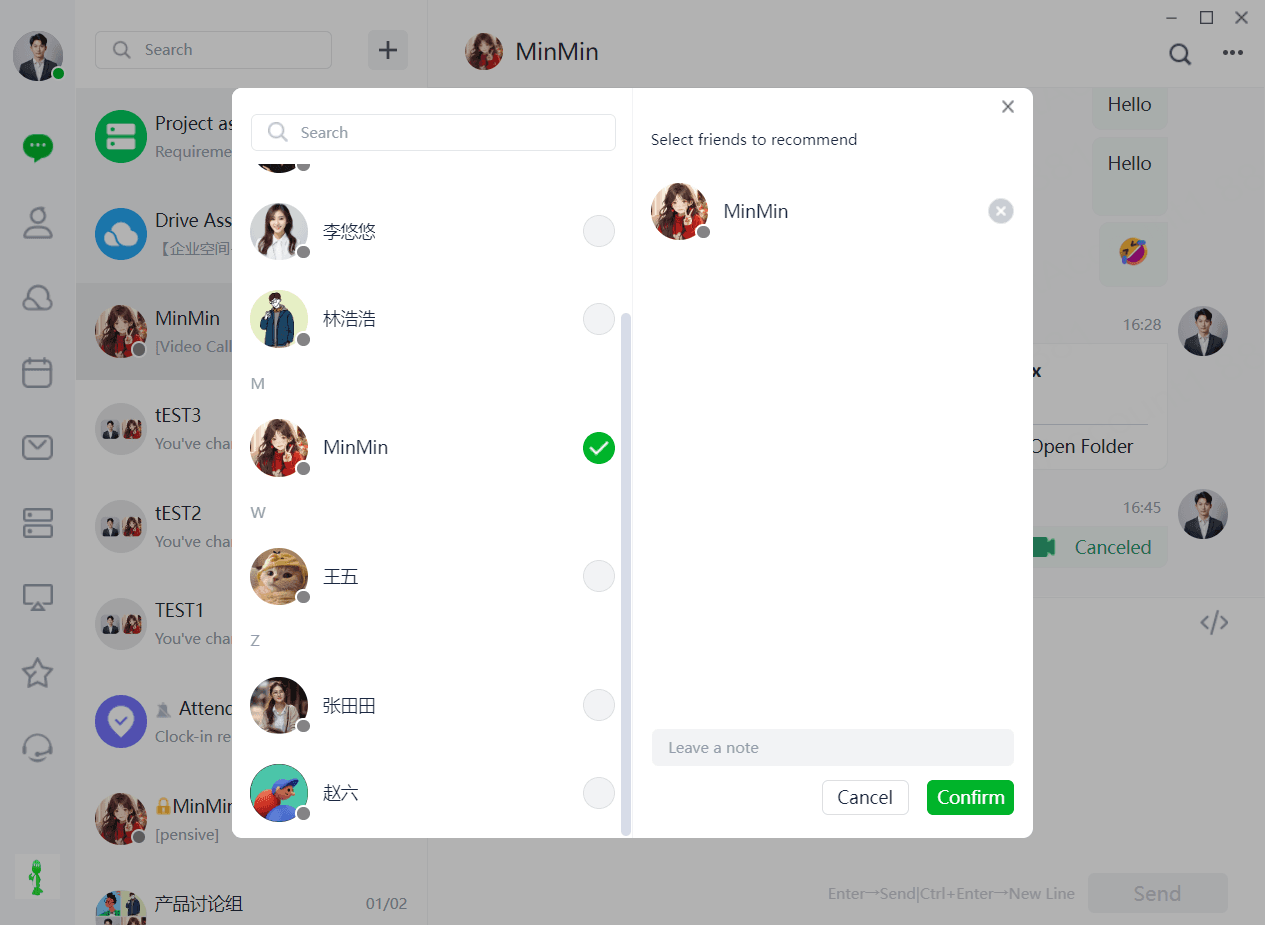
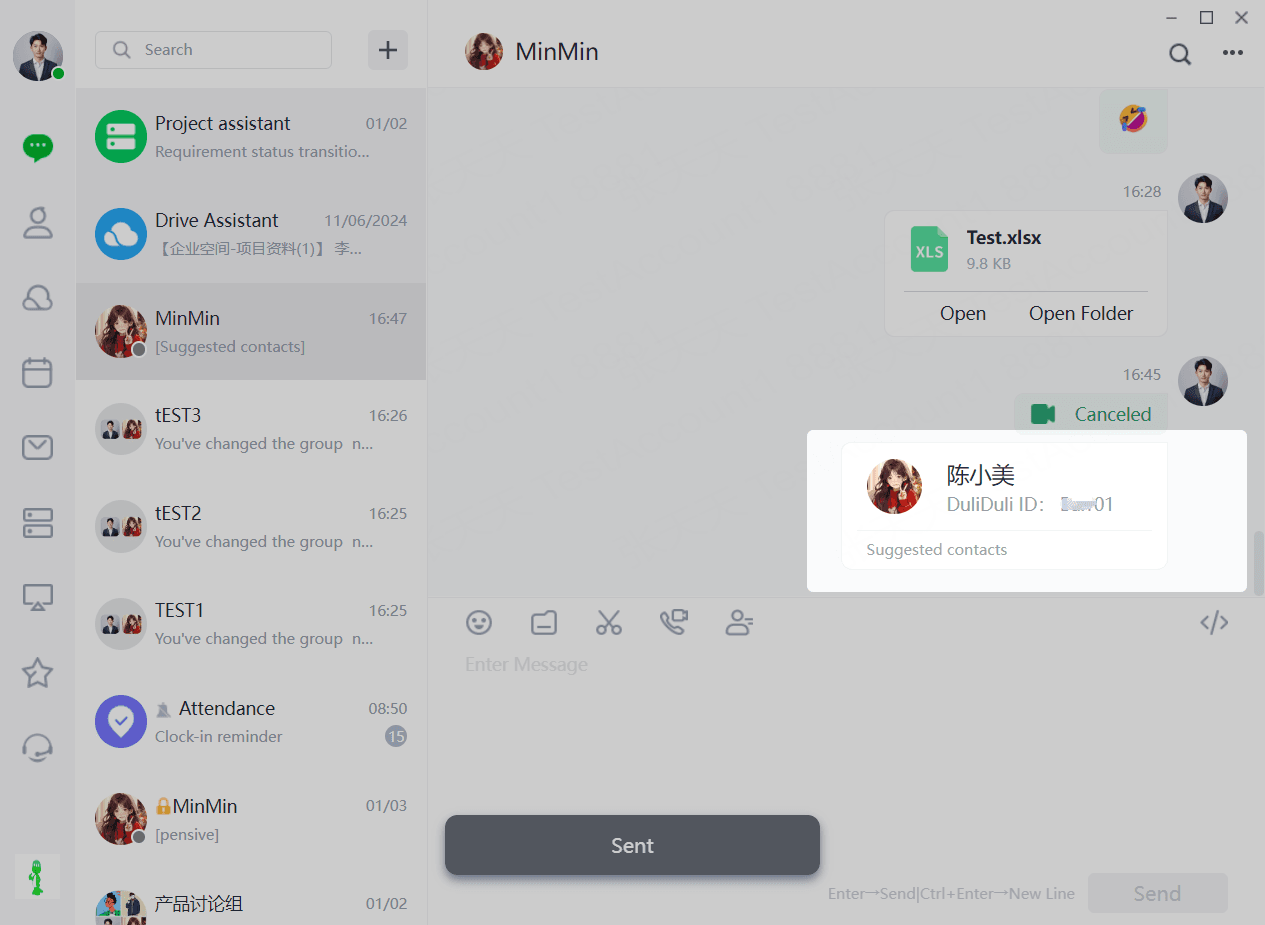
(1) Users can send other users' business cards to chat friends by clicking the "Chat Box - Send Contact Card" function.
(2) Select the users you want to recommend, enter a "message", and click "Confirm" to send the Contact card.
1.1.7 Code Block
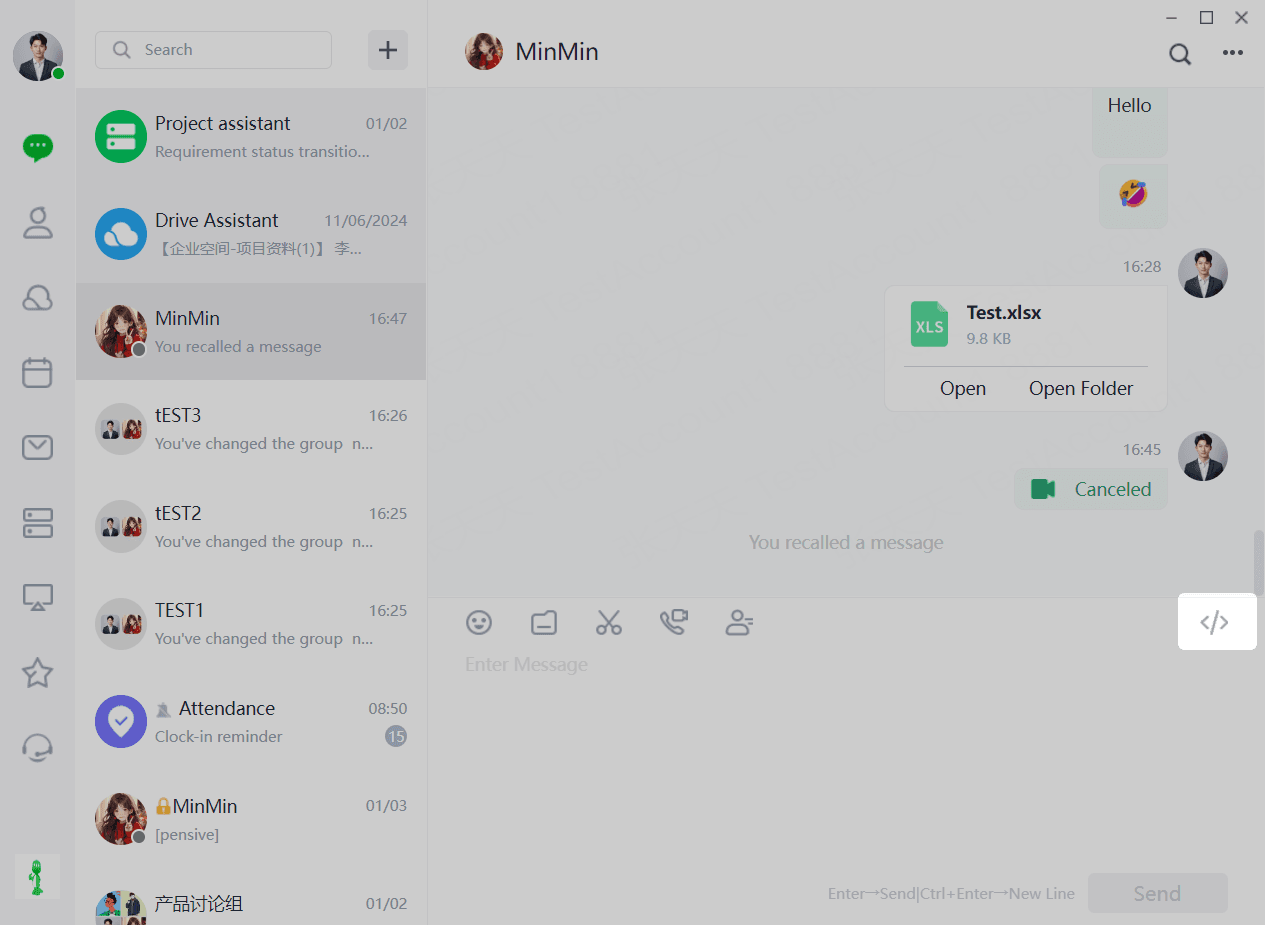
(1) Users can send code to chat friends by clicking the "Chat Box - Send Code Block" function.
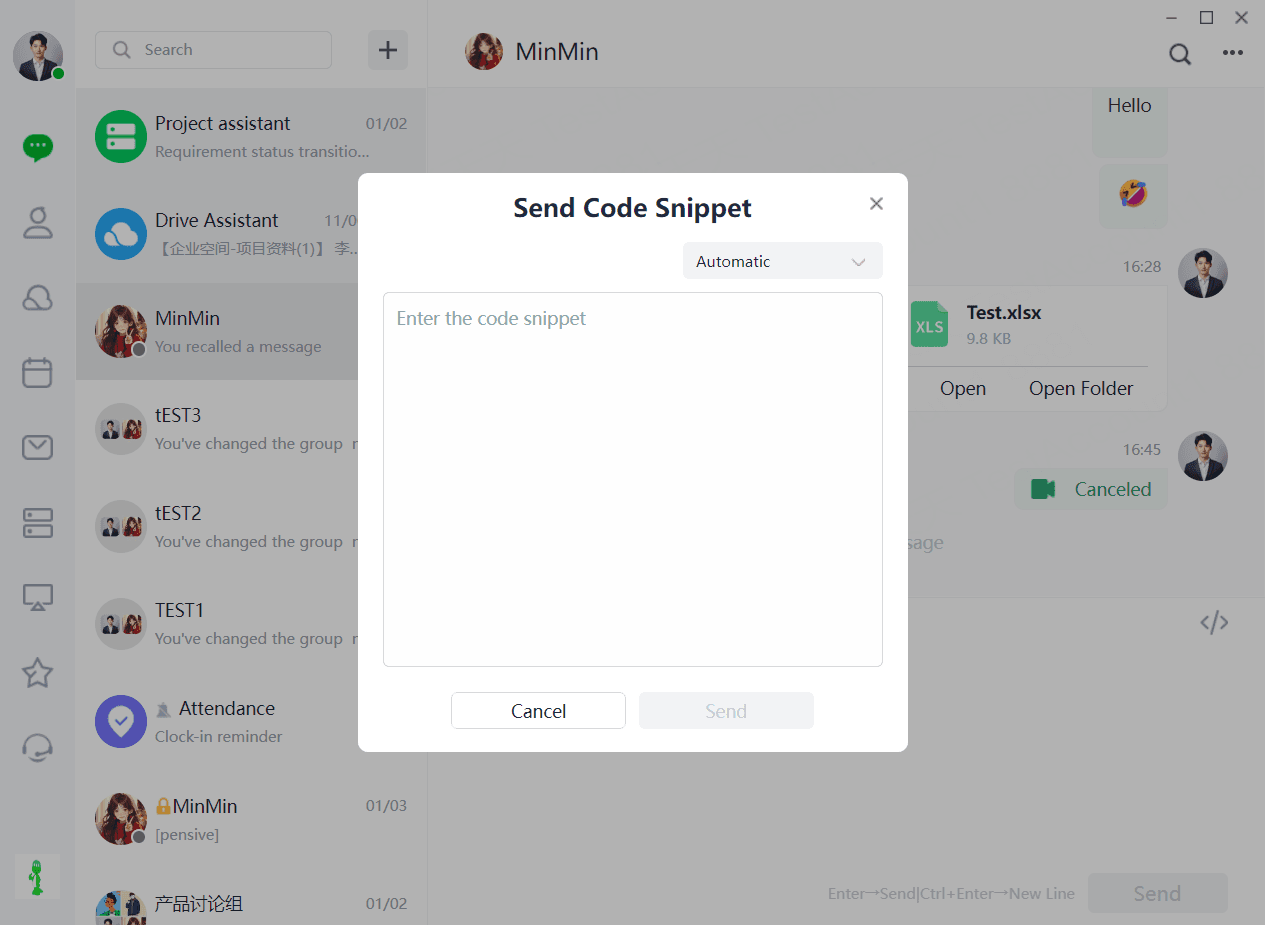
(2) Copy the code block into the text box, select the programming language, and the code format will be automatically adjusted.
1.1.8 Message Read
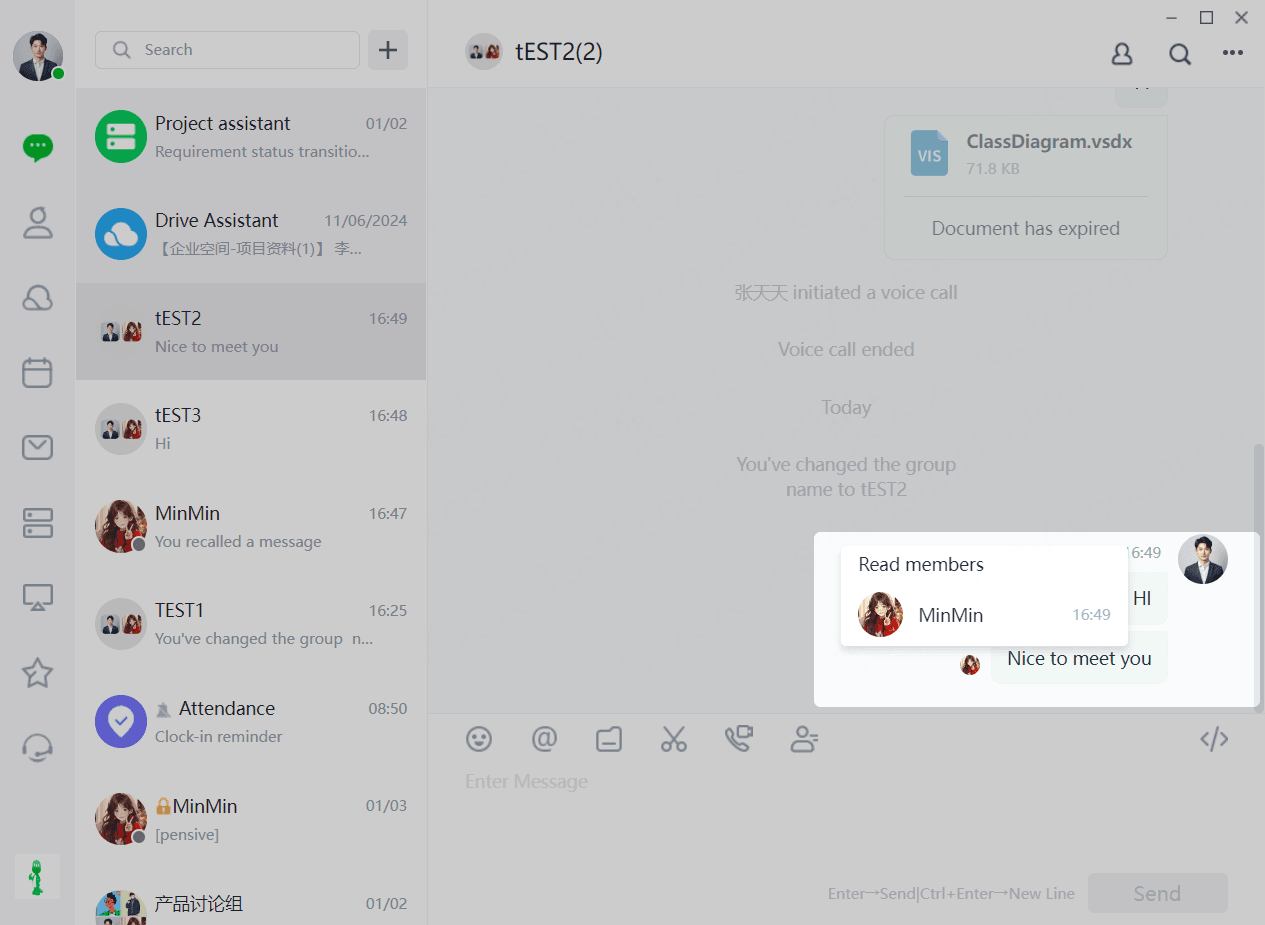
Check if the message has been read
The avatars of users who have read the message will be displayed on the right side of the message you sent.
(1) If all messages are unread, no avatars will be displayed.
(2) If some messages are read, the avatars of the users who have read them will be displayed.
1.1.9 Settings
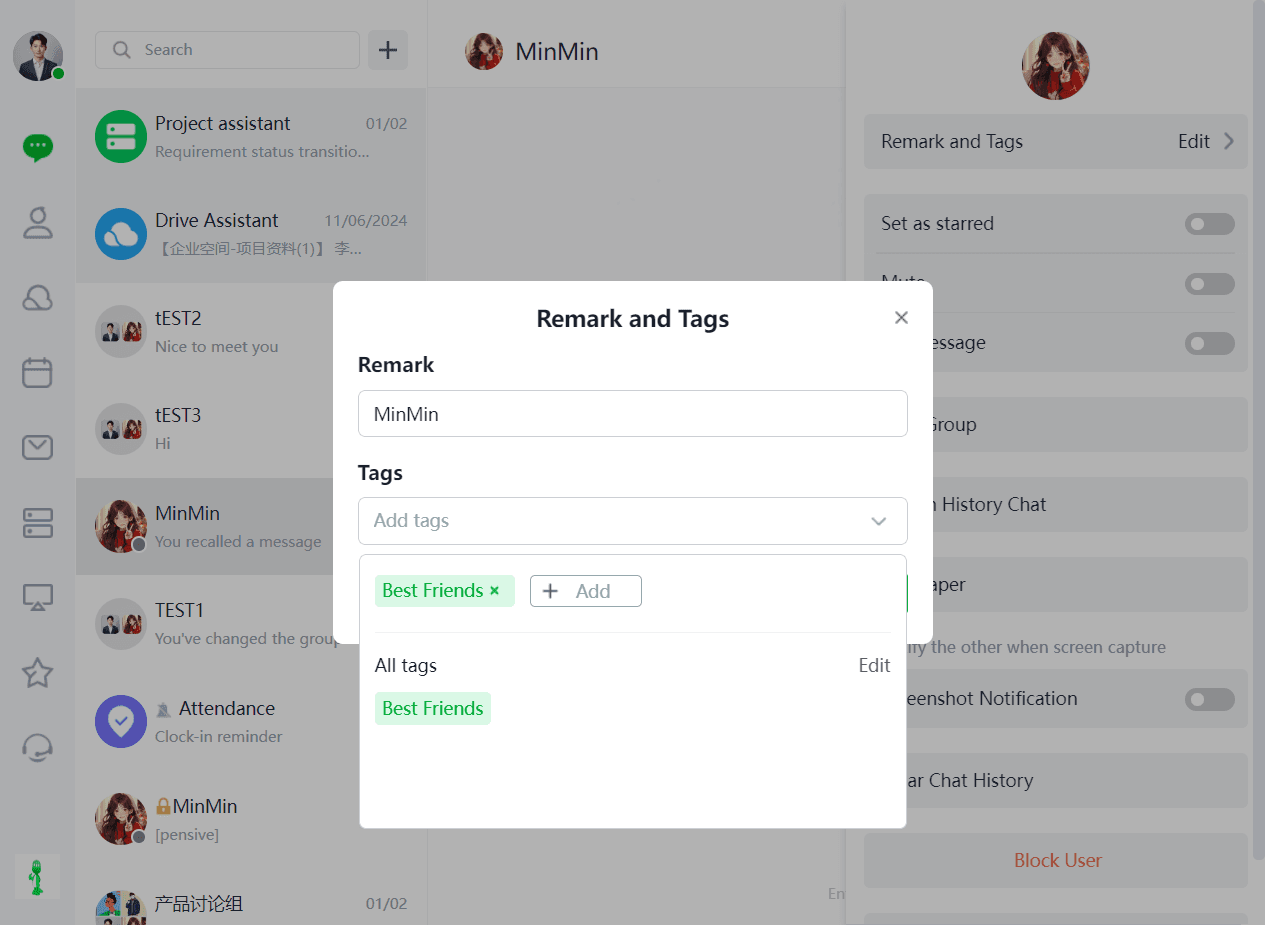
1.1.9.1 Remarks&Tags
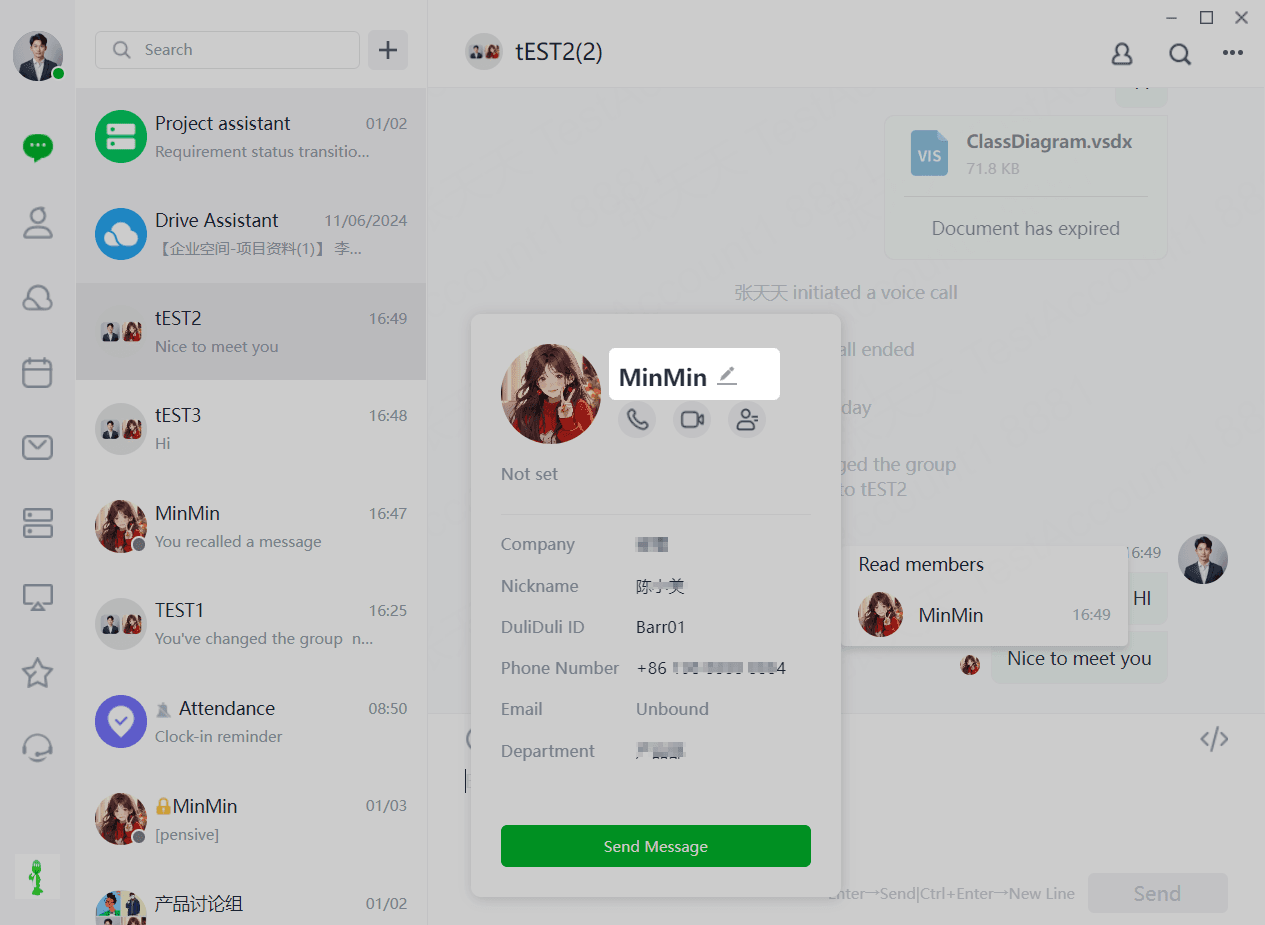
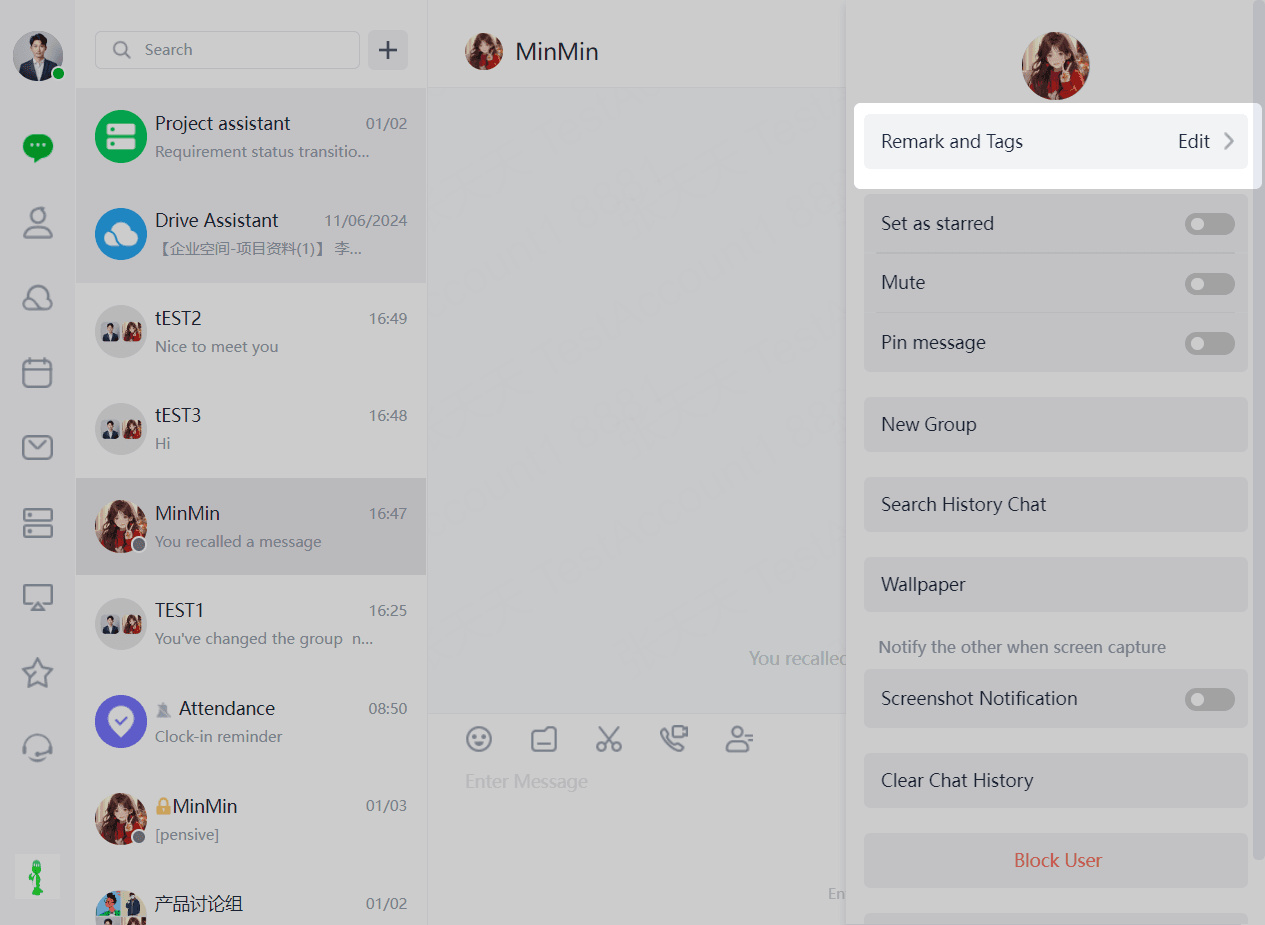
Users can enter the Remarks and Tags page by clicking the top right corner of the chat box to set remarks for the current chat partner.
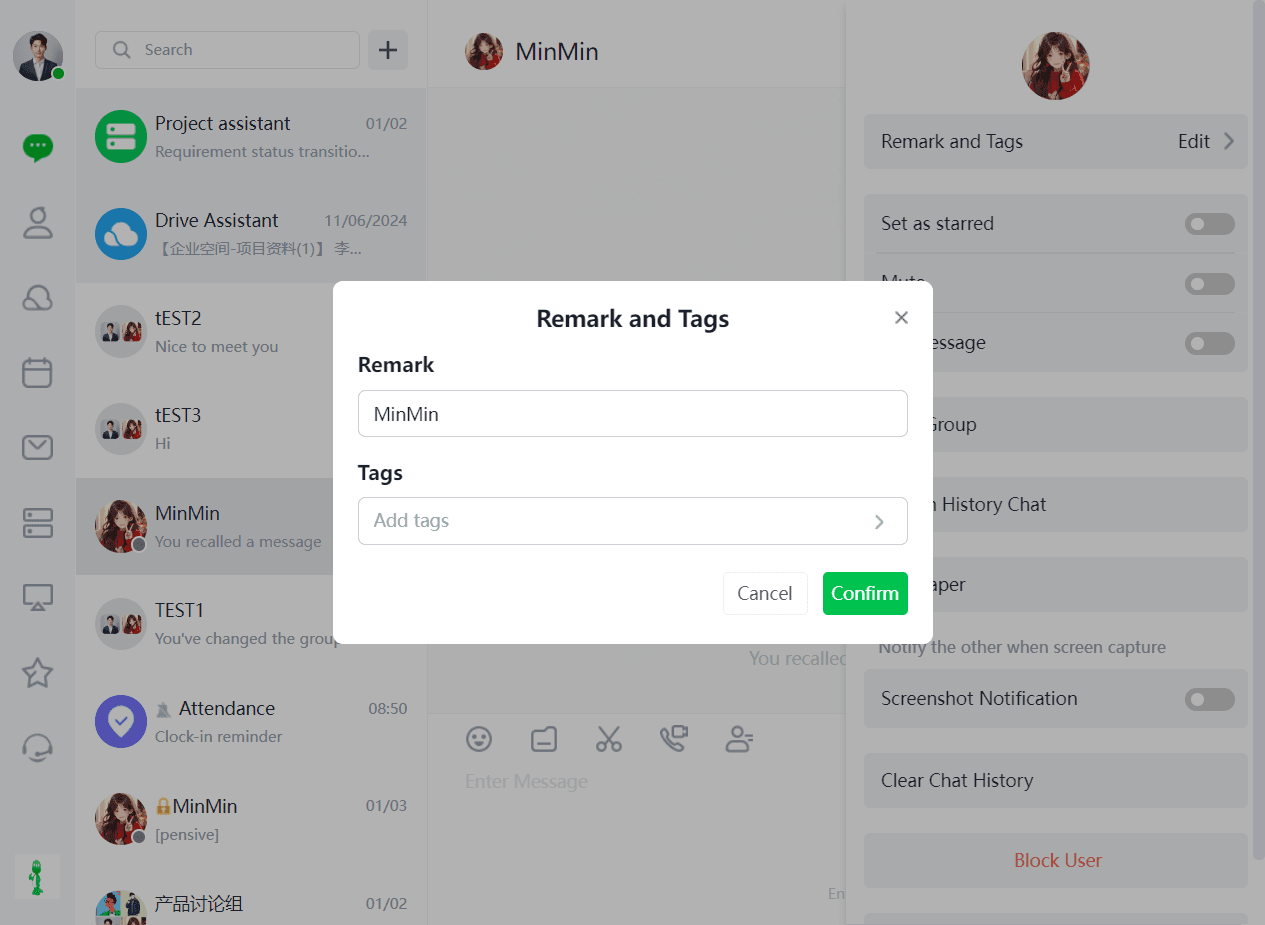
用户可通过点击聊天框右上角后进入备注与标签页,对当前聊天对象进行添加标签,可选择之前给其他联系人设置的标签也可以重新输入文本快捷添加标签。
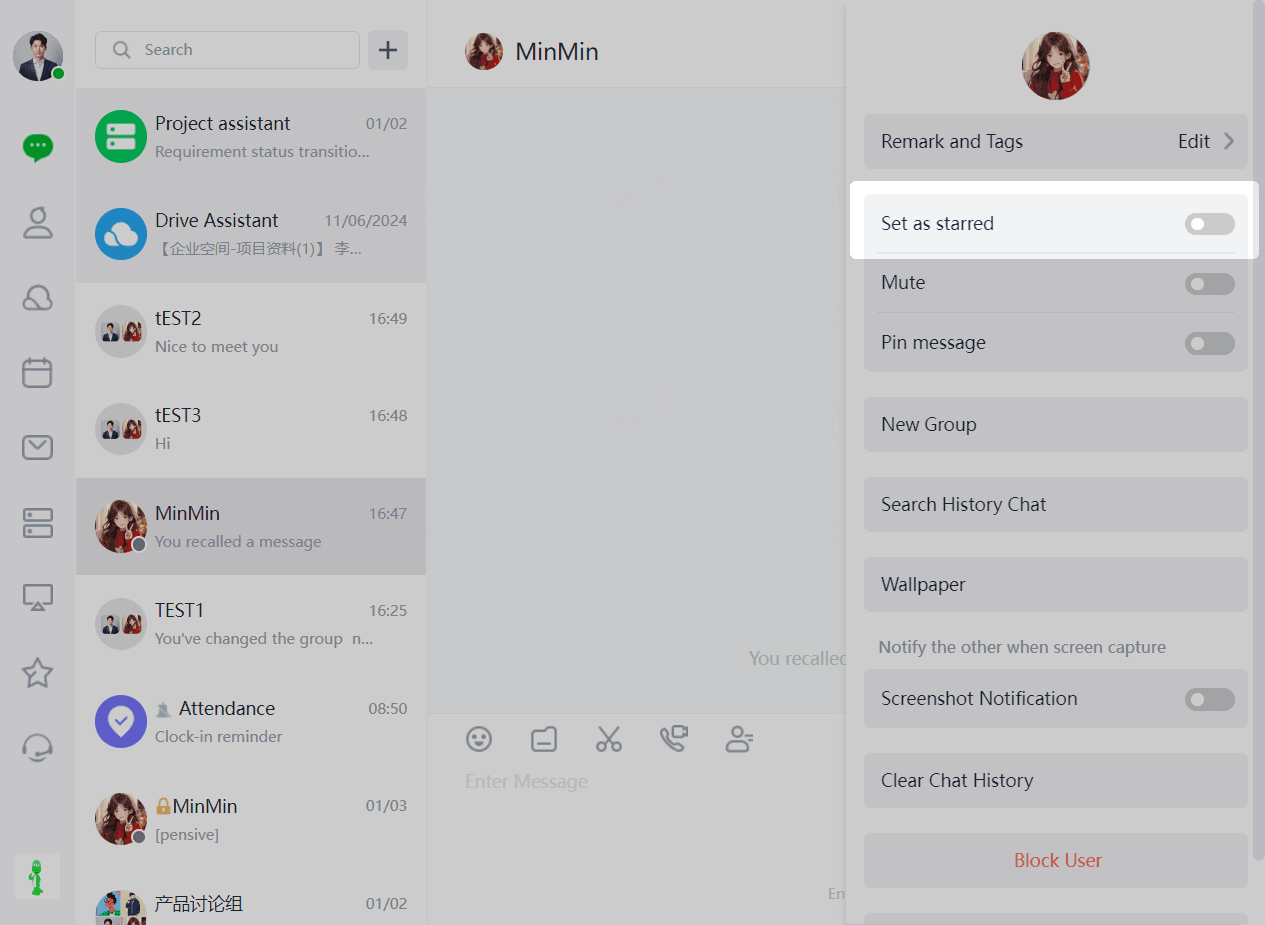
1.1.9.2 Starred Contacts
(1)Users can set the current contact as a starred contact by clicking the top right corner of the chat box. After setting, a new list of starred contacts will appear in the address book.
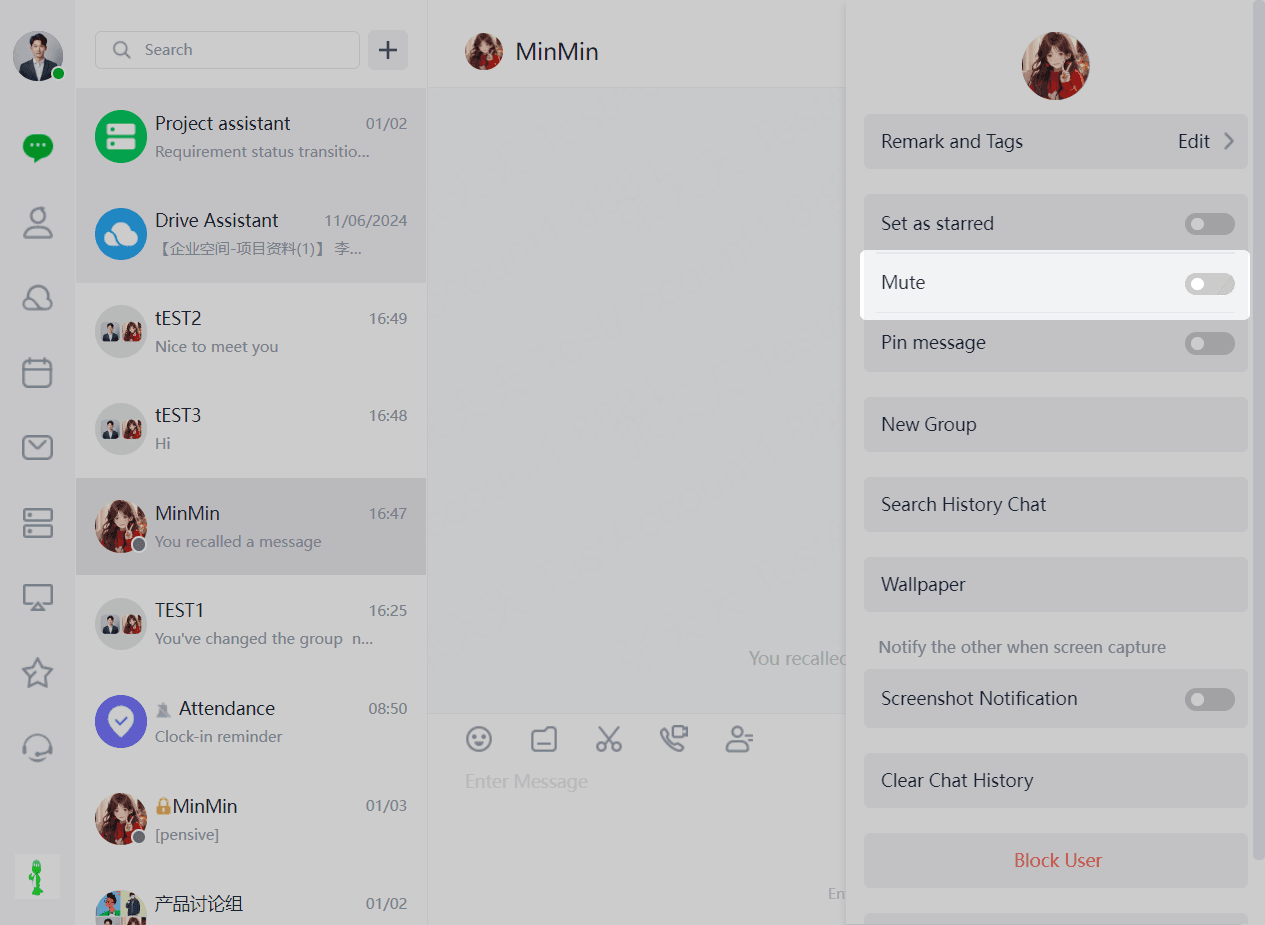
1.1.9.3 Message Mute
(1)Users can set the message notification status for the current chat partner by clicking the top right corner of the chat box or by right-clicking the chat object in the chat list and selecting whether to enable Do Not Disturb.
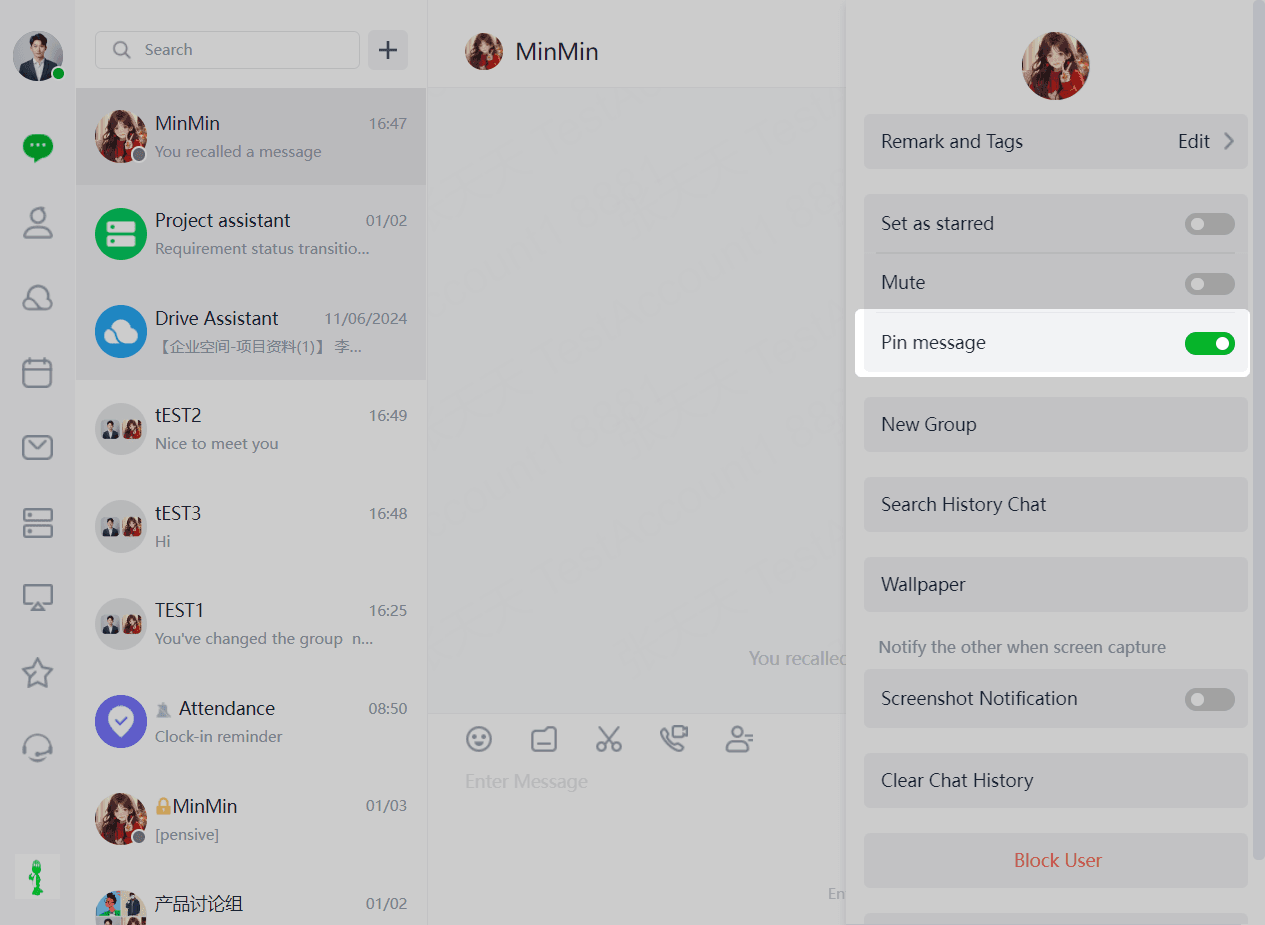
1.1.9.4 Pin Chat
(1)Users can set the chat status for the current chat partner by clicking the top right corner of the chat box or by right-clicking the chat object in the chat list and selecting whether to pin the chat.
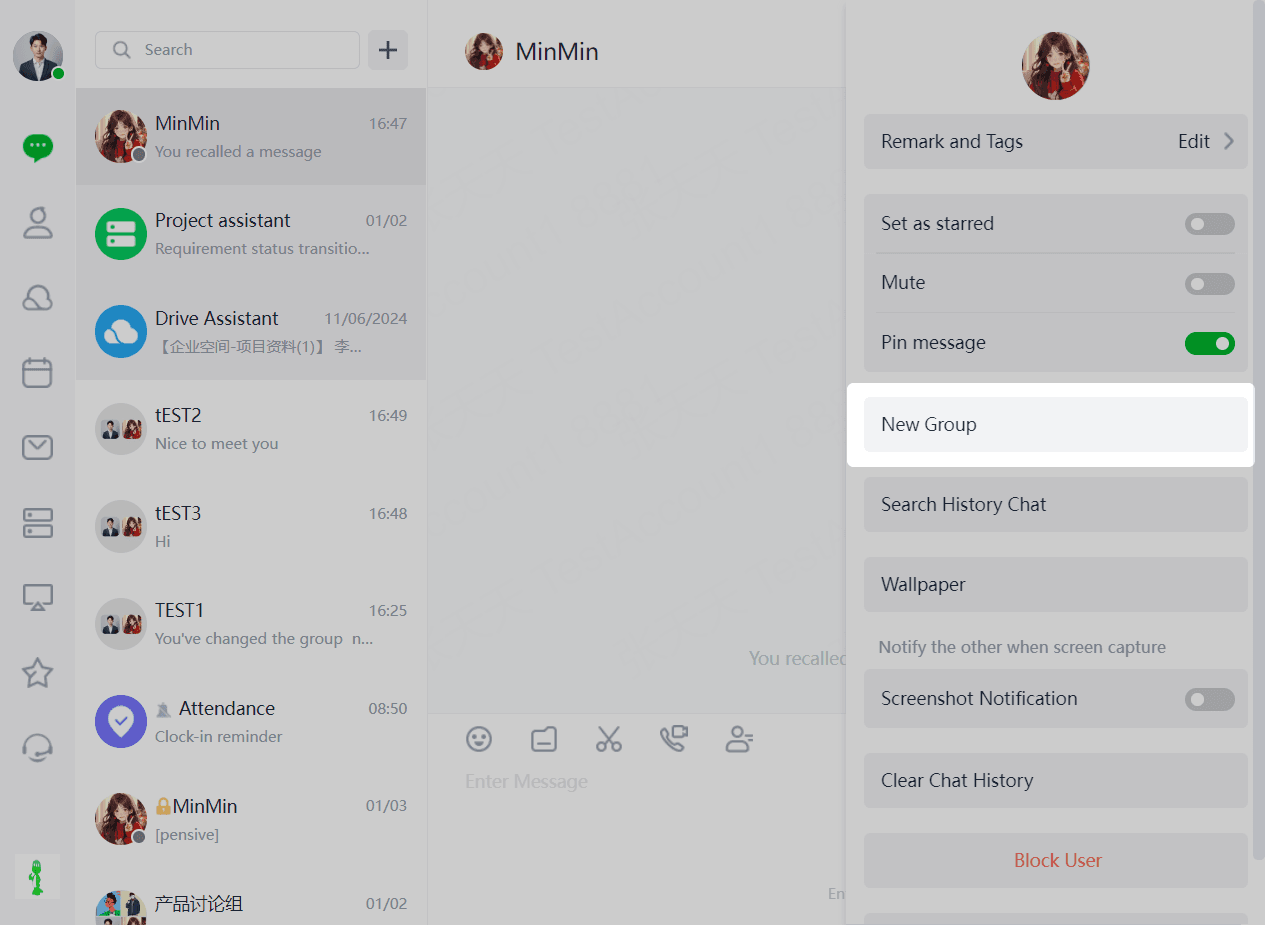
1.1.9.5 Group Chat
(1)Users can start a group chat by clicking the top right corner of the chat box.
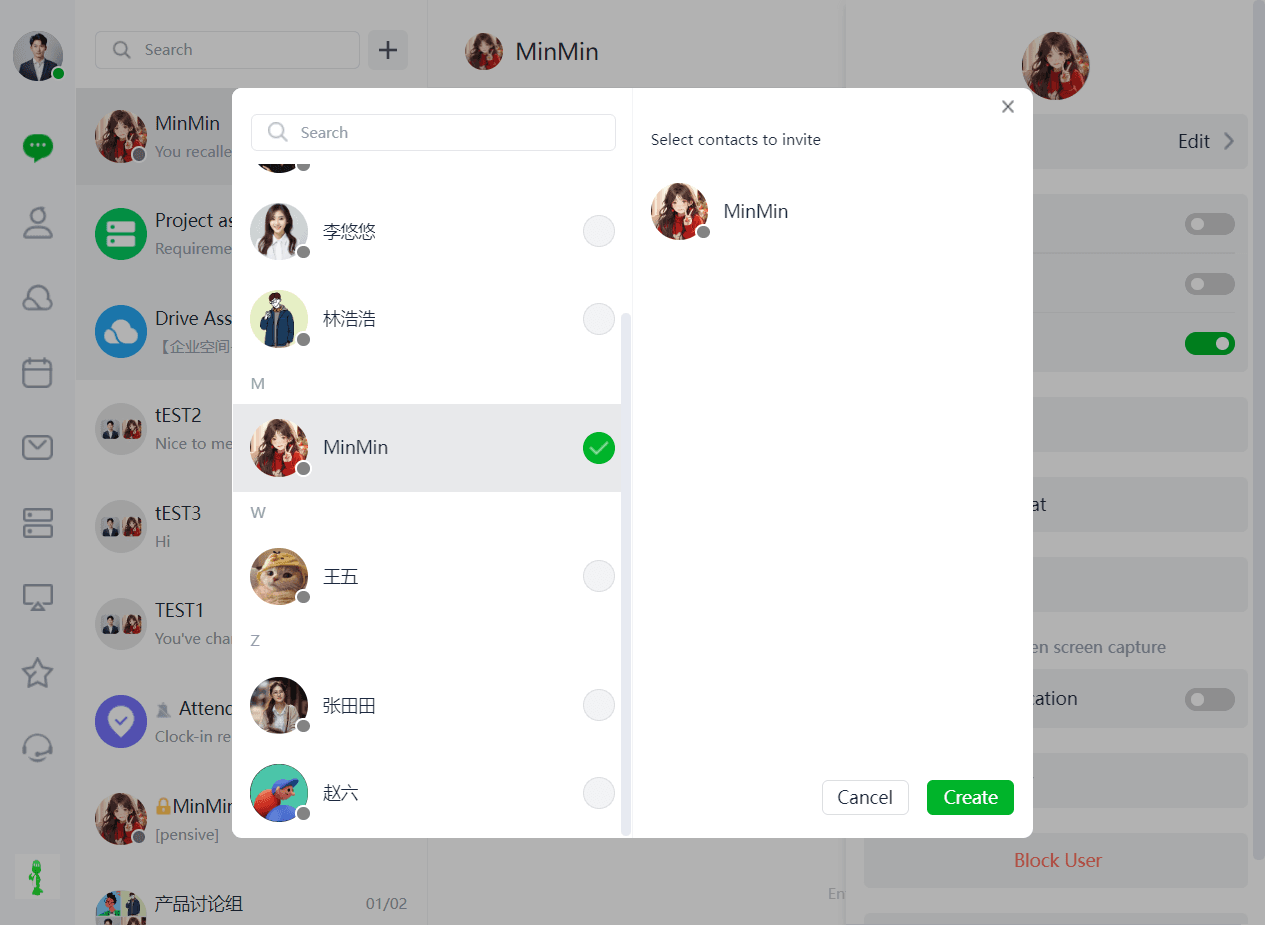
(2)Select the contacts to invite after searching or querying, and click "Create" to successfully create the group.
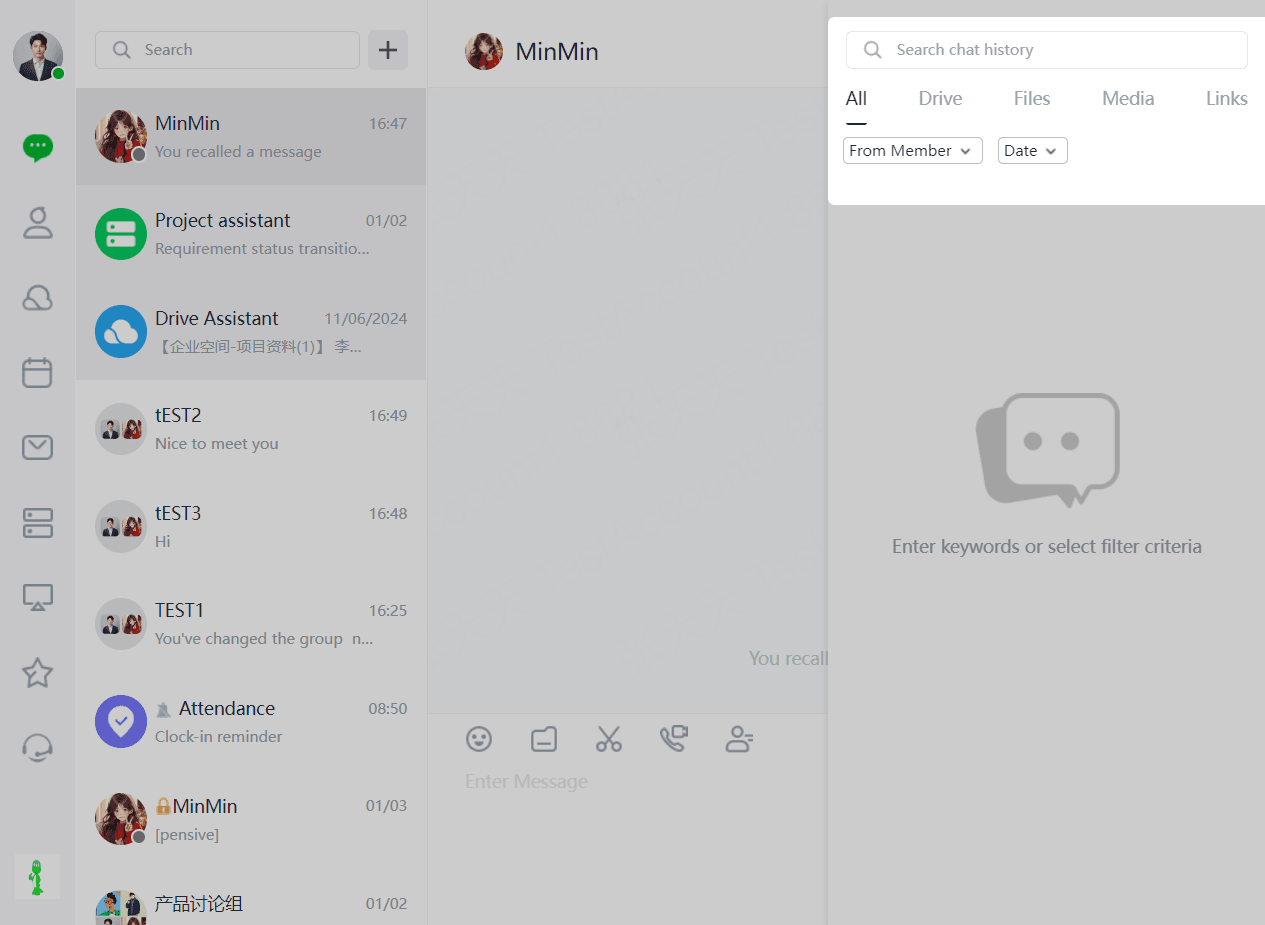
1.1.9.6 Search Chat
(1)Users can search chat history by clicking the top right corner of the chat box and selecting "Search Chat History".
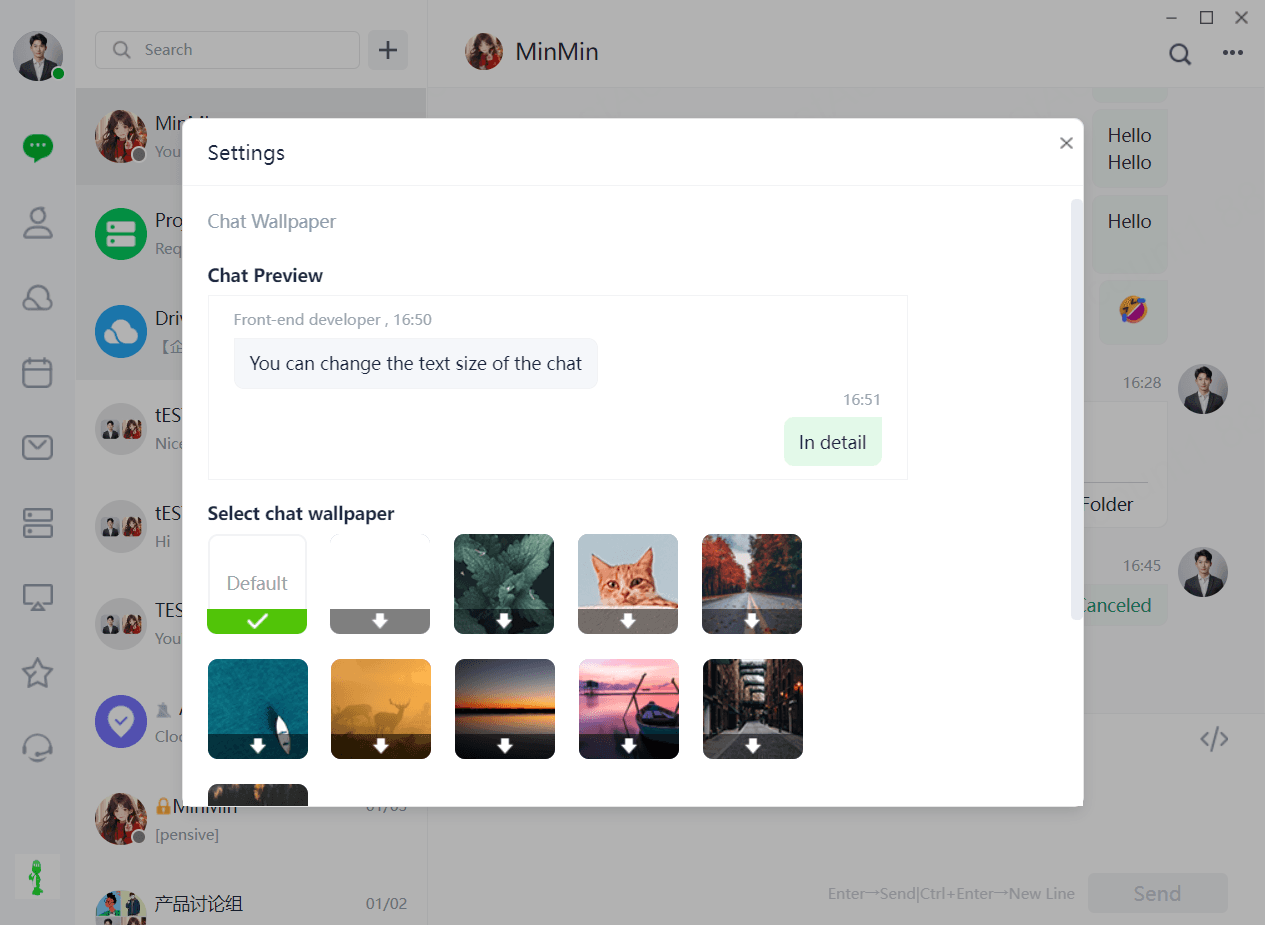
1.1.9.7 Chat Background
(1)Users can set the current chat background by clicking the top right corner of the chat box and selecting "Set Current Chat Background".
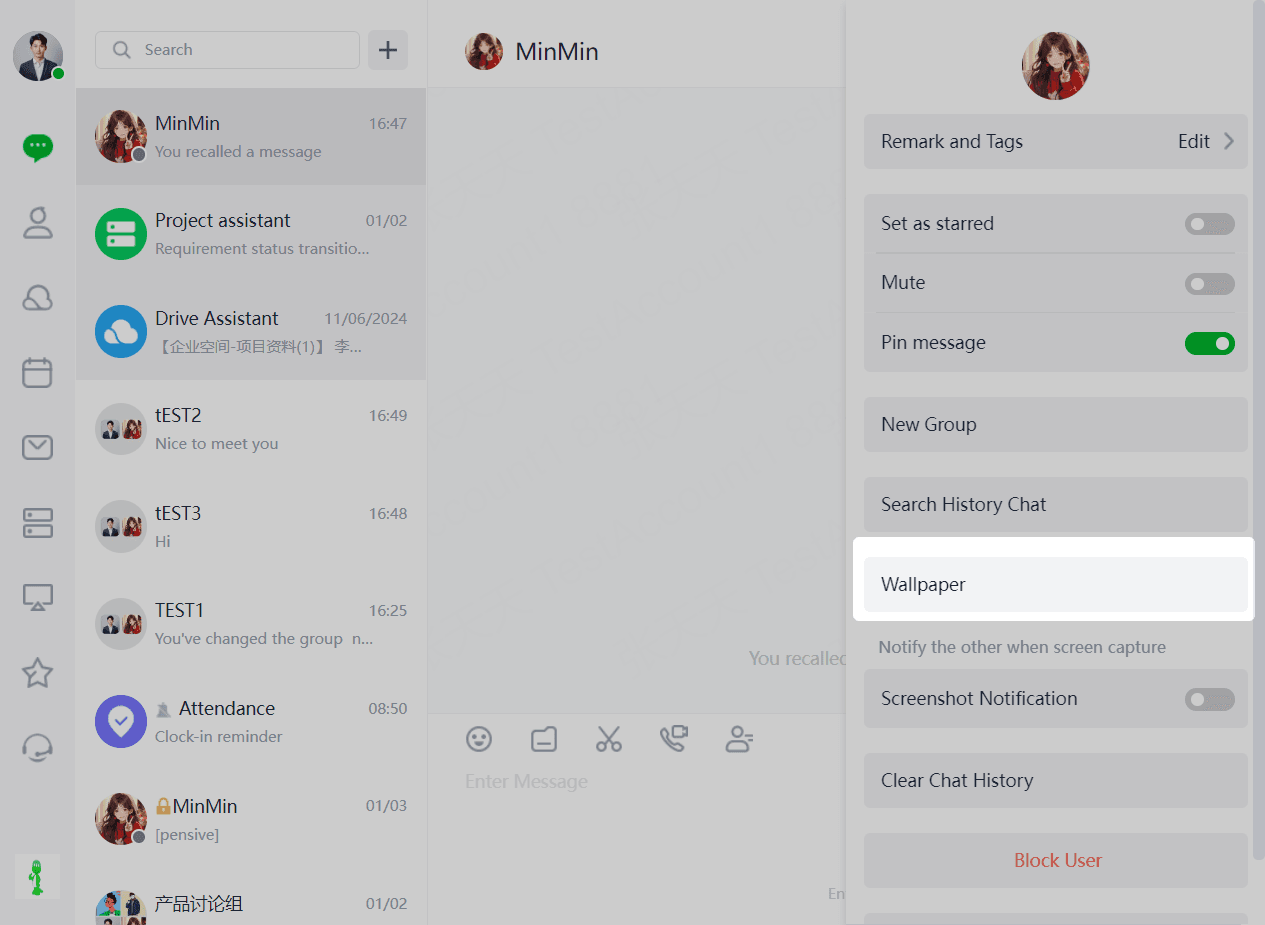
(2)Supports customization or setting with images provided by the platform.
1.1.9.8 Screenshot Notification
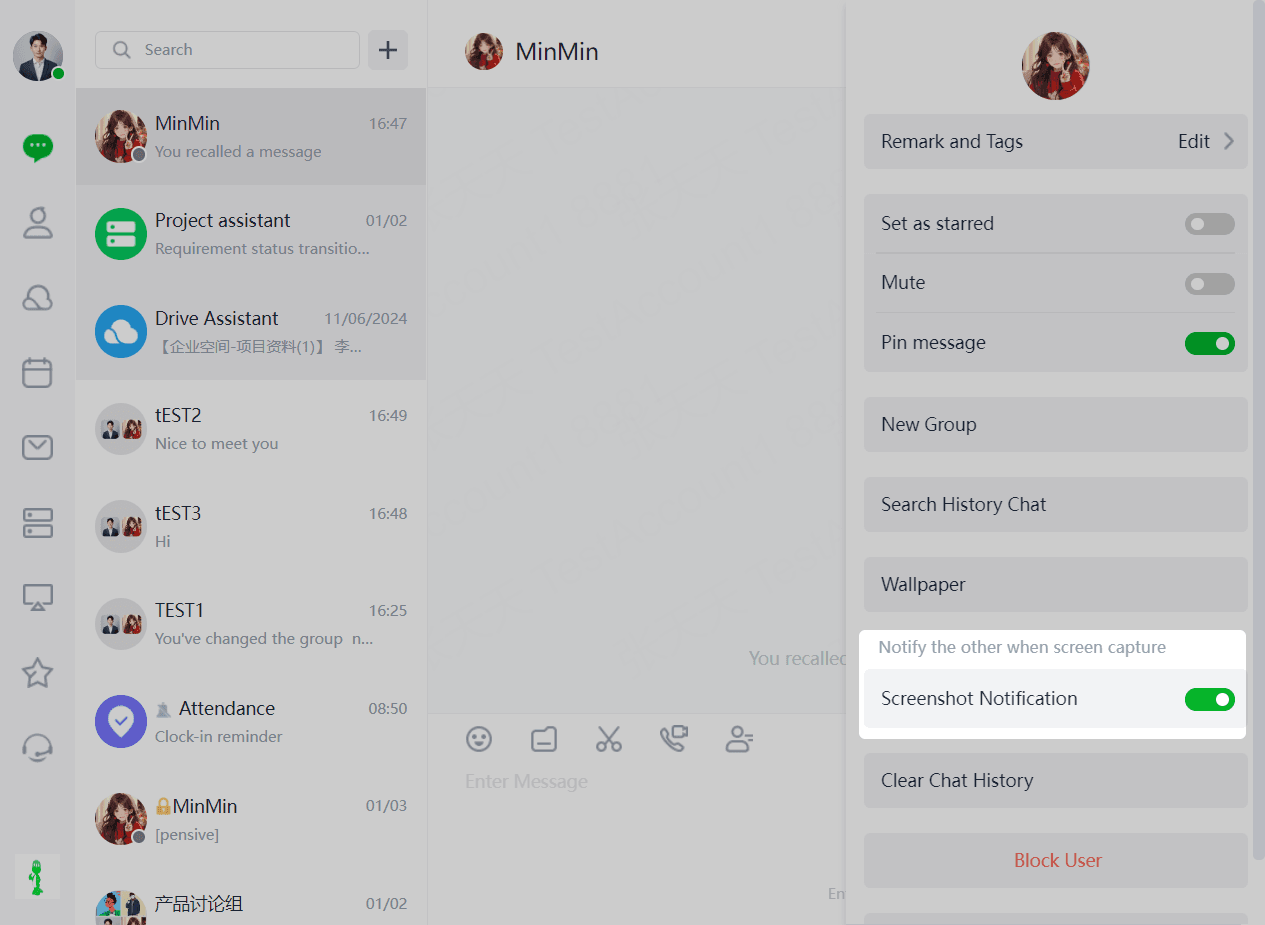
(1)Users can choose whether to enable screenshot notification for the current chat partner by clicking the top right corner of the chat box, which will notify if a screenshot is taken.
1.1.9.9 Clear Chat History
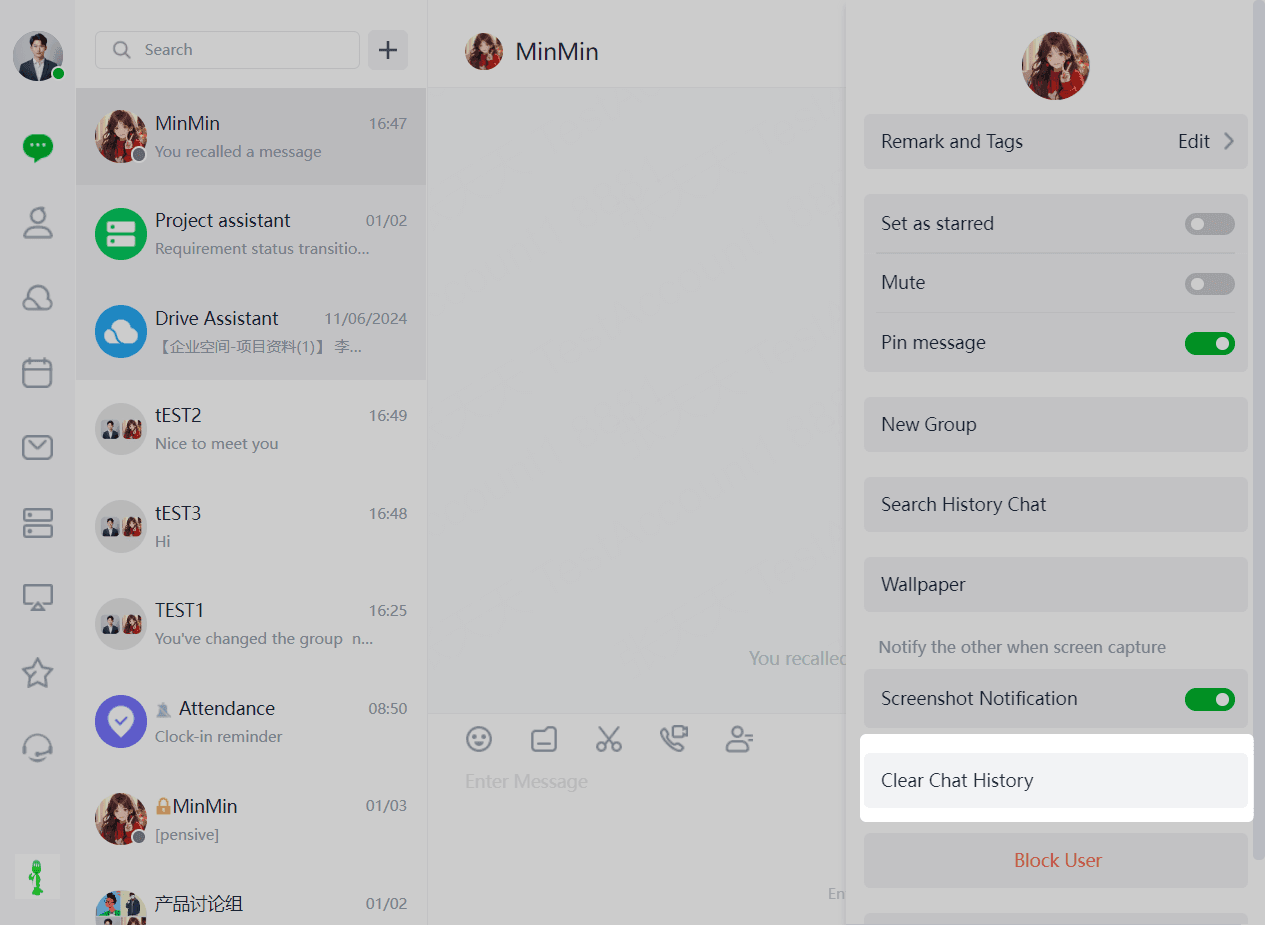
(1)Users can clear their chat history by clicking "Clear Chat History" in the top right corner of the chat box. Once the chat history is cleared, it cannot be retrieved.
1.1.9.10 Block User
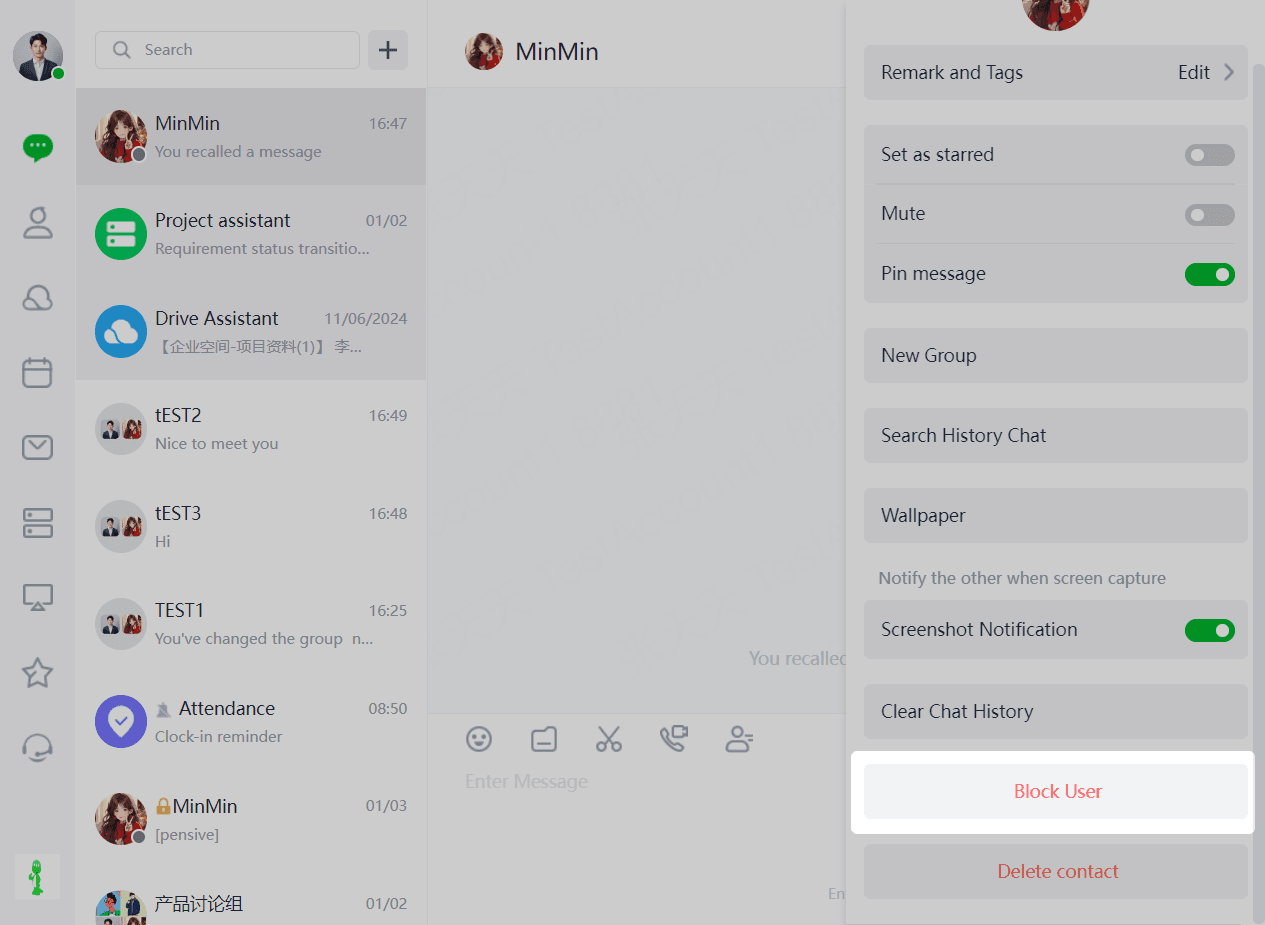
(1)Users can stop receiving messages from a user by clicking the top right corner of the chat box and selecting "Block This User".
1.1.9.11 Delete Contact
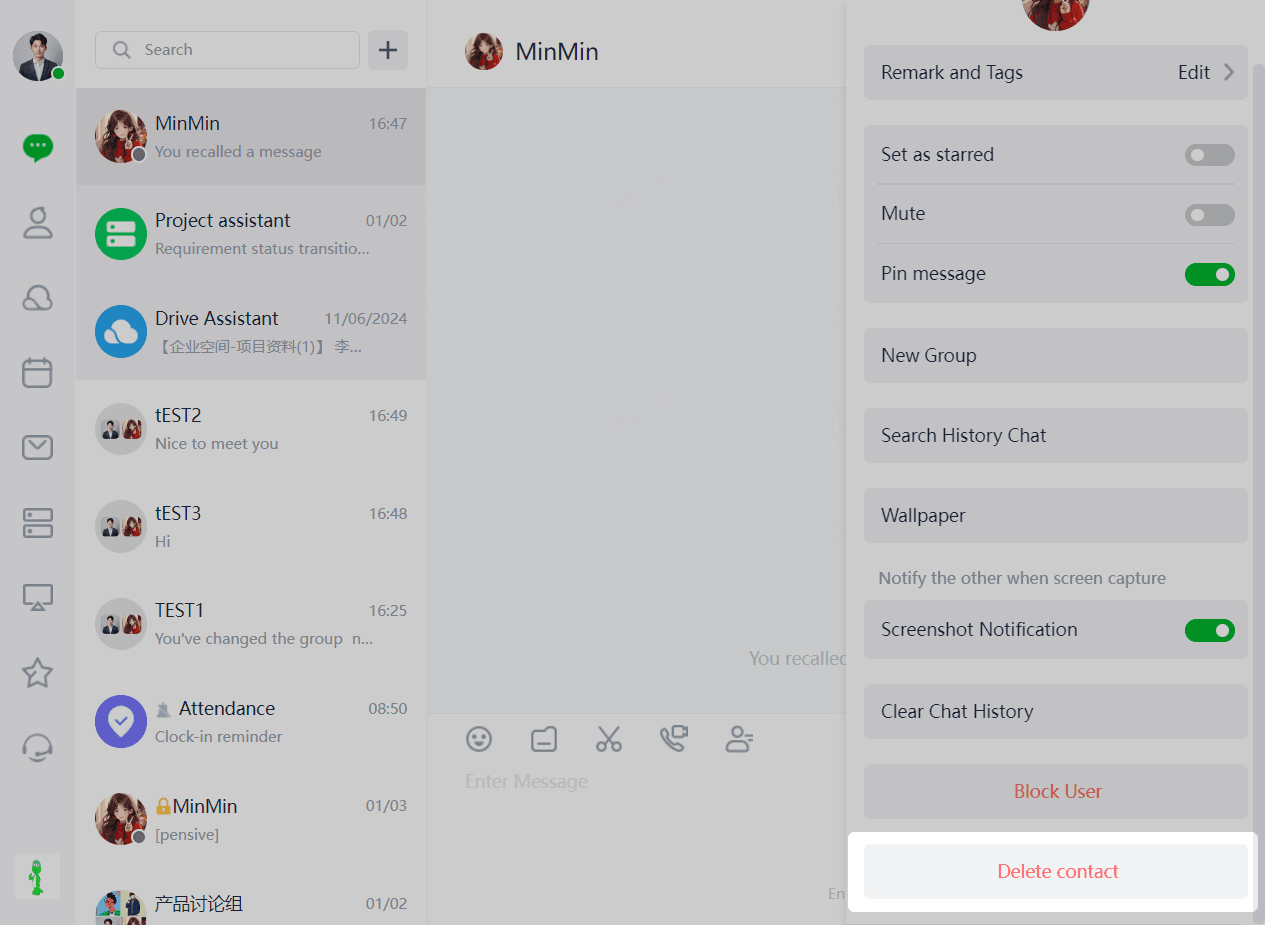
(1)Users can remove a contact from their friends list by clicking the top right corner of the chat box and selecting "Delete Contact".
1.1.9.12 Remove Conversation
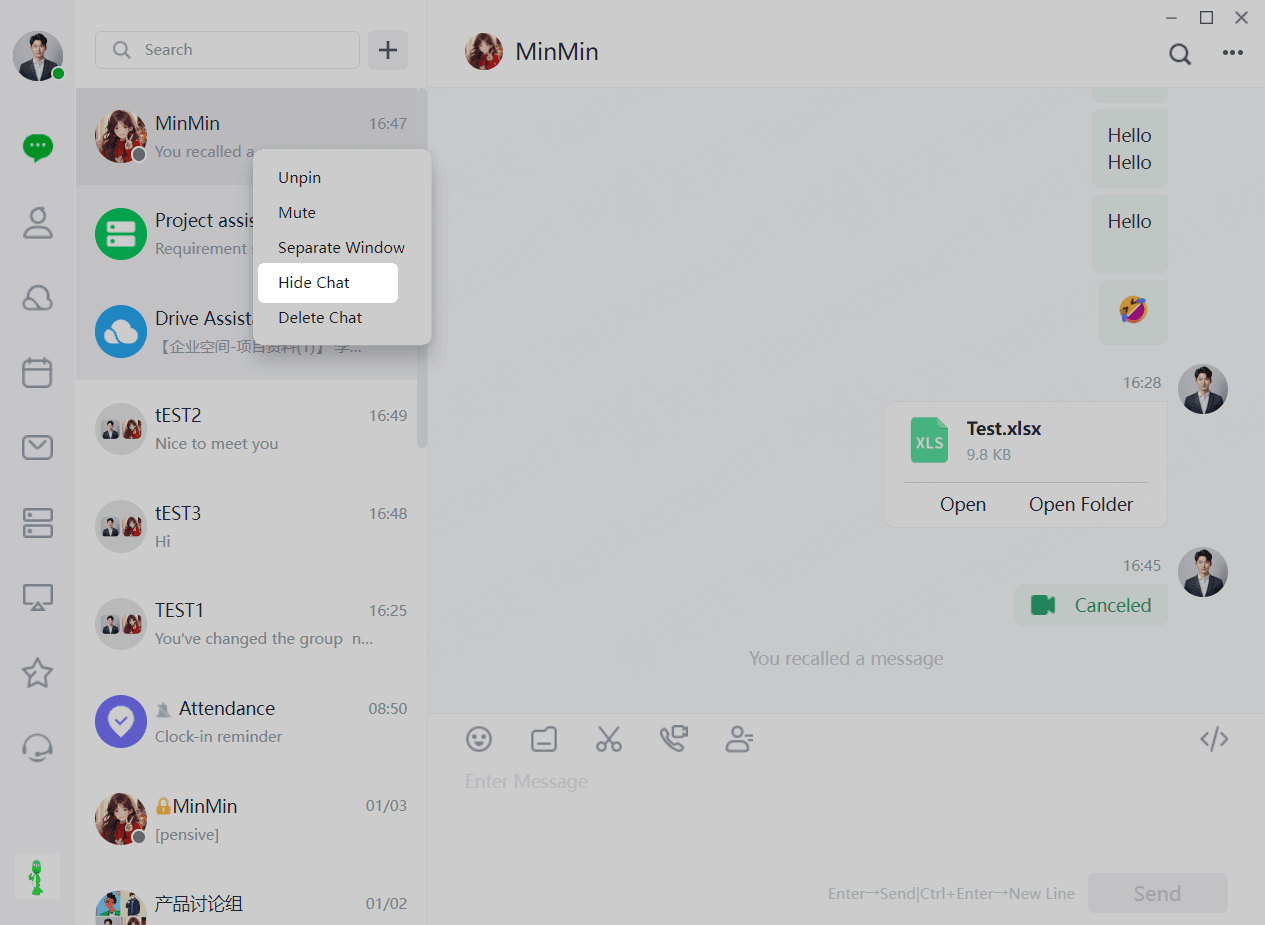
Users can remove a conversation from the chat list by right-clicking the user in the message list and selecting "Hide Chat". After removal, the conversation will no longer be displayed in the chat list.