Transfers
➢How to Download Files?
When you need to download files or folders:
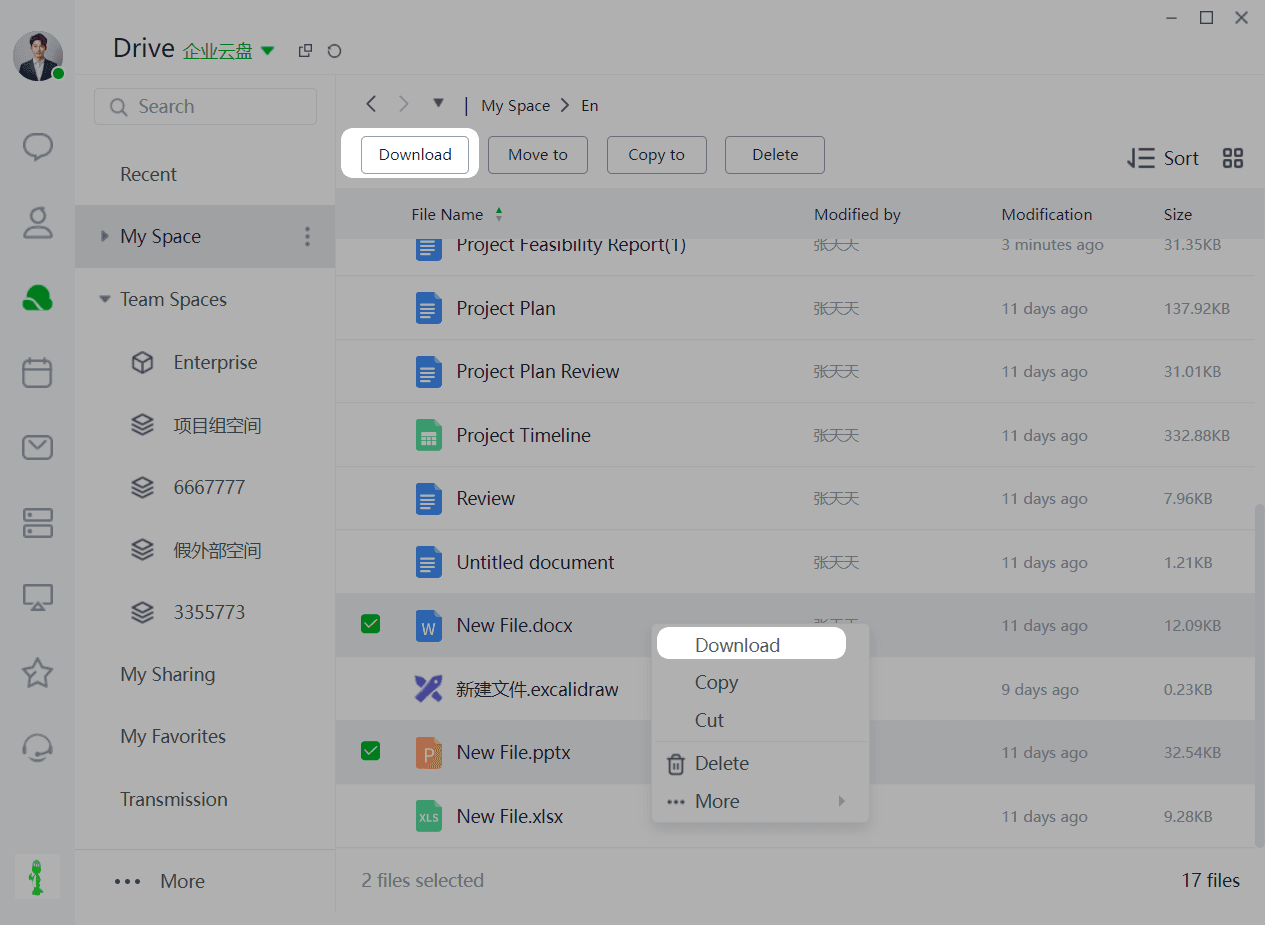
Method 1: Select the files/folders you need and click "Download" to batch download them.
Method 2: Hover your mouse over the target file and click the "Download" icon.
Method 3: Right-click the target file and select "Download" from the function list.
➢How to View Uploading Files?
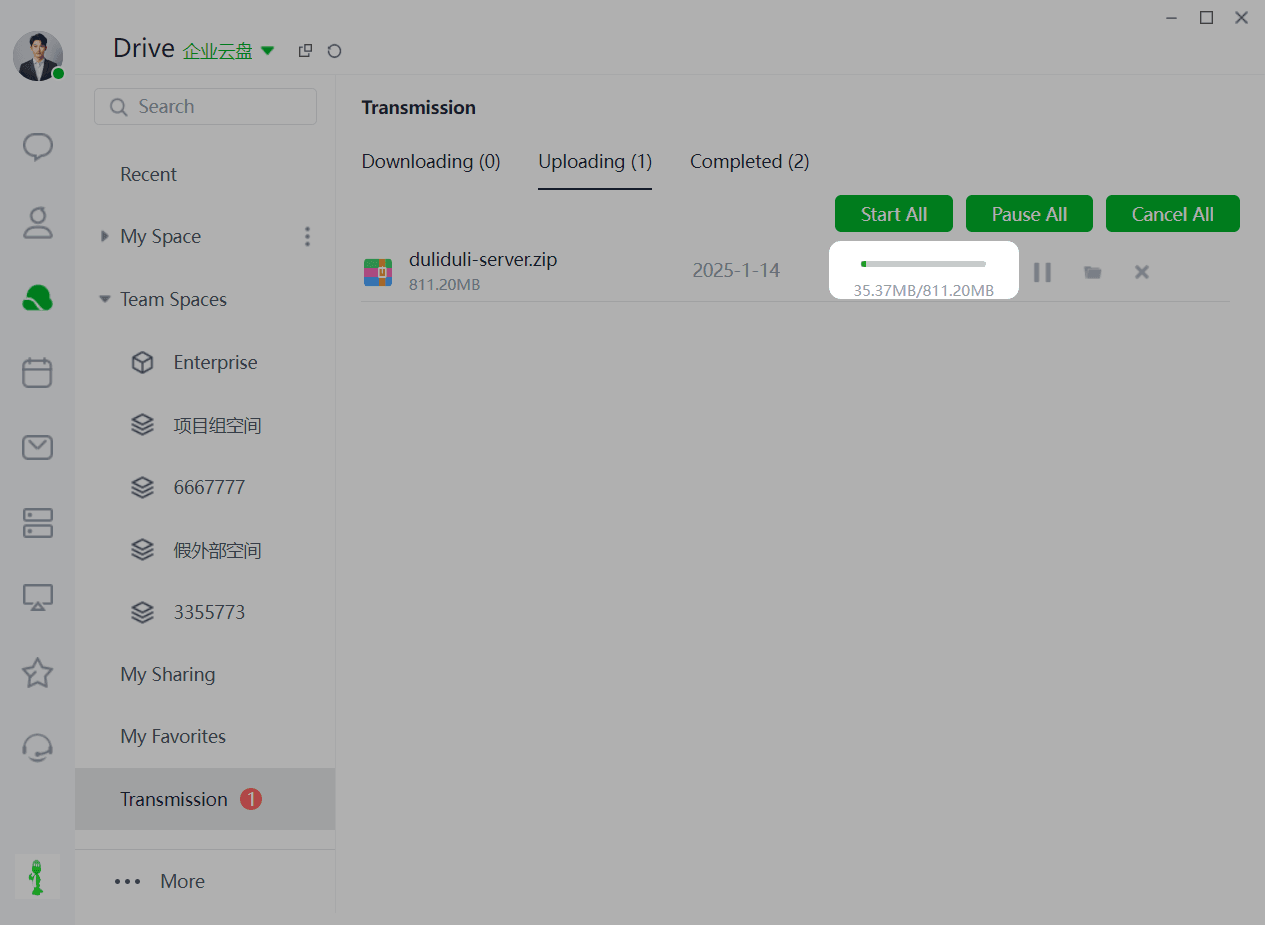
When uploading files in My Documents or Shared Space, the files will be uploaded here.
During the upload process, you can start, pause, or cancel all uploads with one click.
You can also pause, open the folder, or cancel the upload of individual files.
➢ How to View Downloading Files?
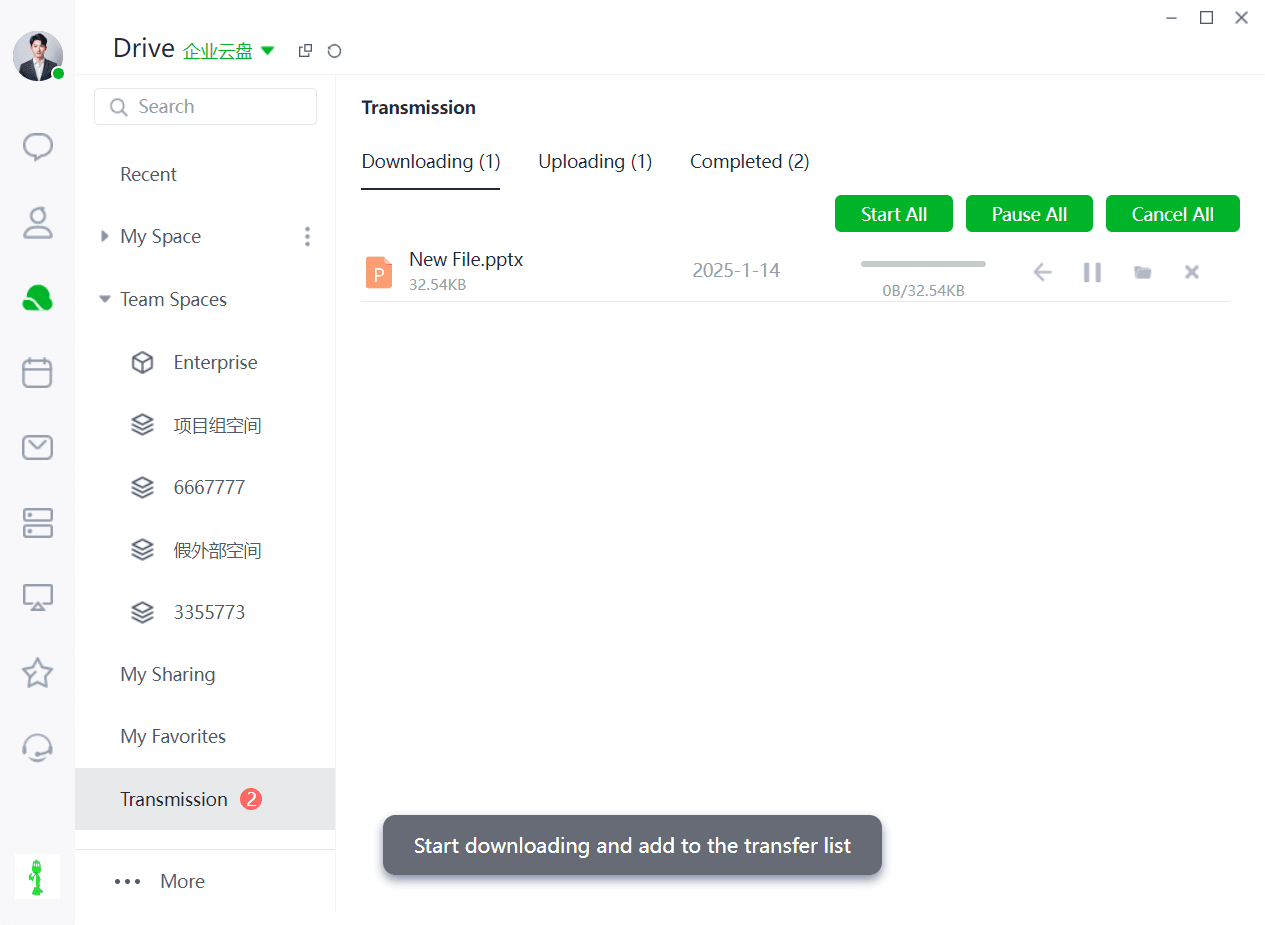
When downloading files in My Documents or Shared Space, the files will be downloaded here.
During the download process, you can start, pause, or cancel all downloads with one click.
You can also open the directory, pause the download, open the download folder, or cancel the download of individual files.
➢ How to View Completed Transfers?
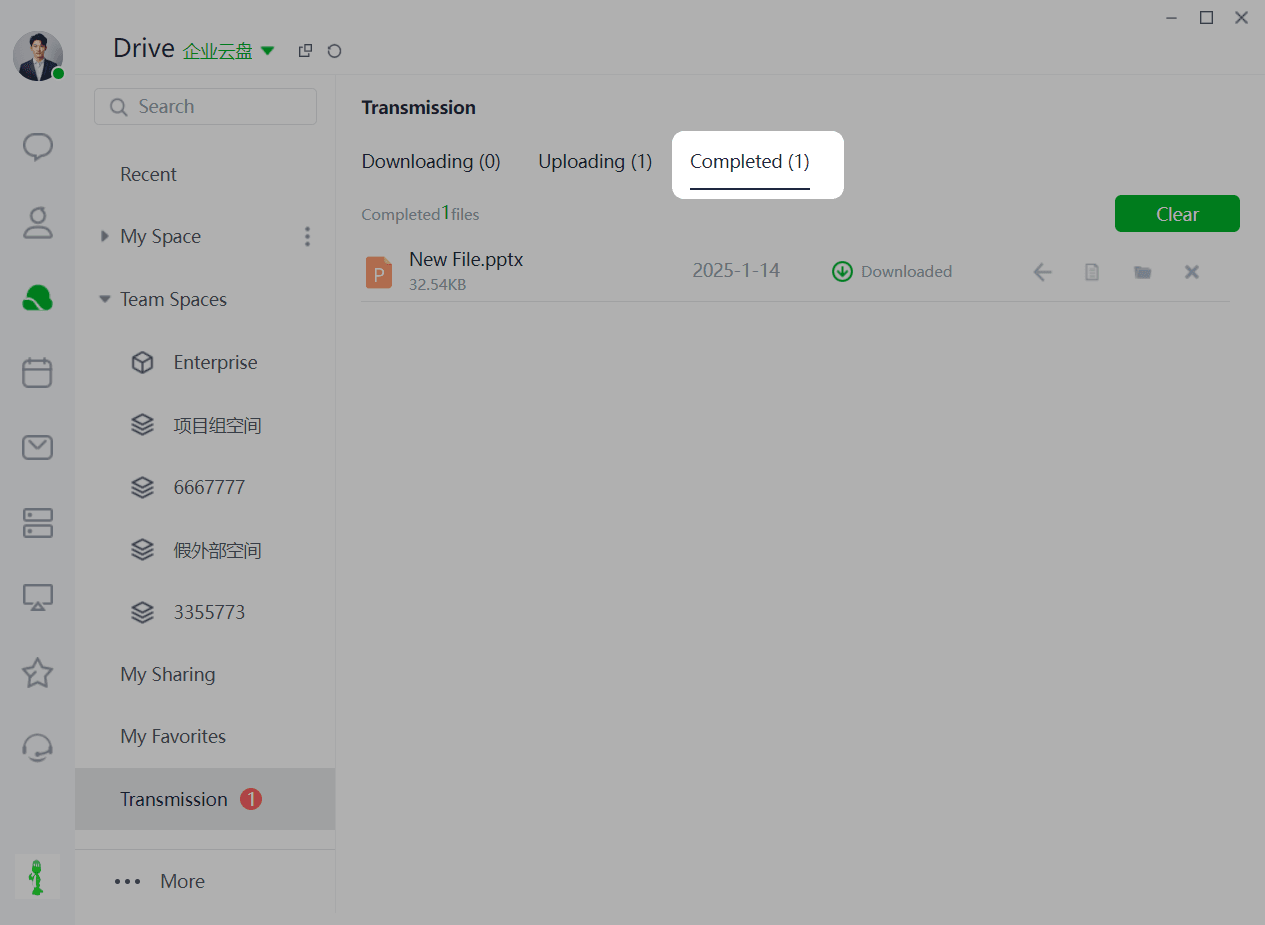
Users can view uploaded or downloaded files in the Completed Transfers list.
You can clear the Completed Transfers list with one click.
You can also delete individual files, return to the directory, open the folder, or open the file.