Project Management
Project Management - Business
Project Management - Business Environment: Users can create and execute work item information for projects based on rules established in a configured environment. At the same time, modules such as dashboards, filters, requirements, defects, iterations, kanbans, documents, versions, and reports assist in business execution, allowing for analysis and management from various perspectives. This supports teams throughout the entire process, from project planning to WBS breakdown, task assignment, progress monitoring, and quality management.
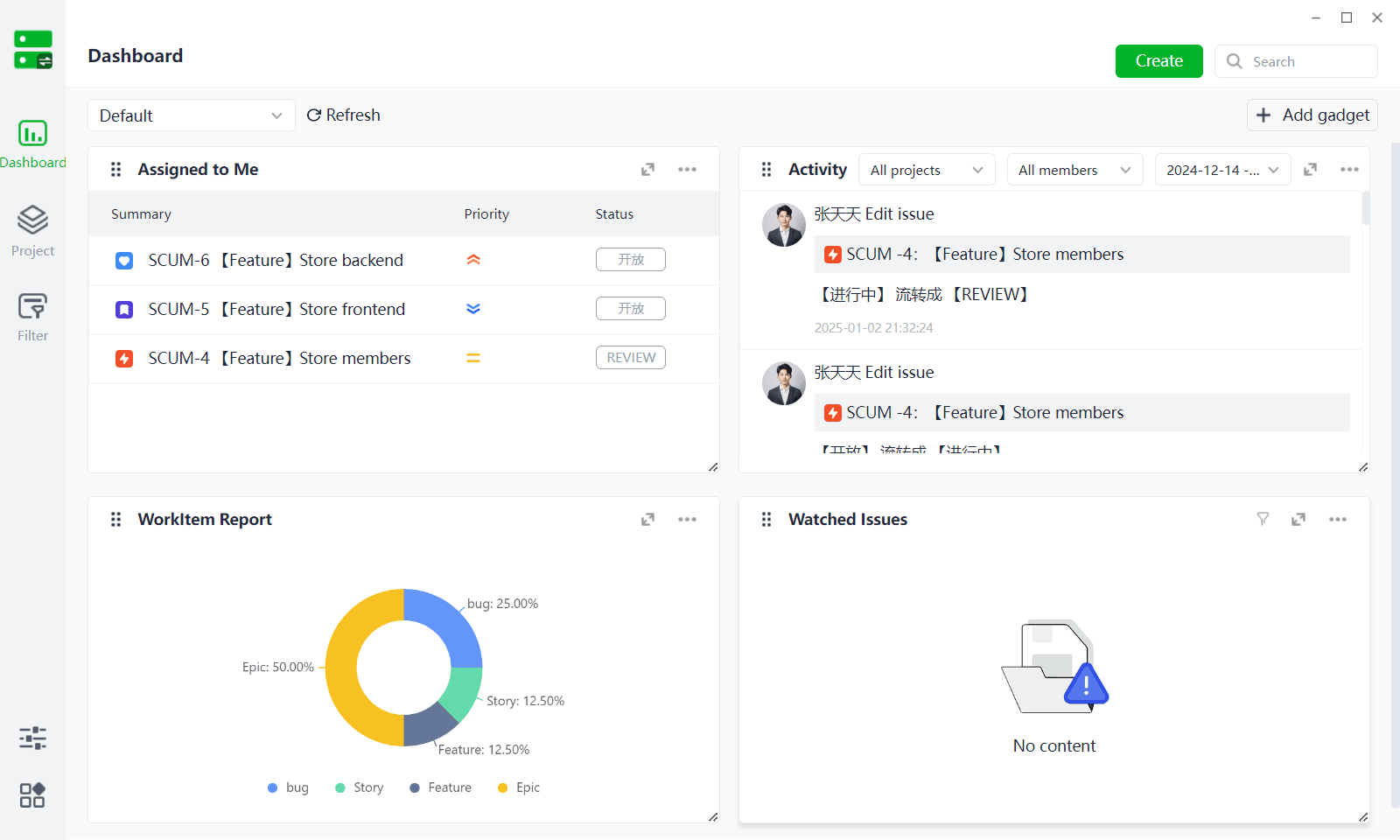
1、Dashboard
Definition: In project management, a dashboard provides a real-time, visual interface where users can create summaries and display key project indicators, progress, risks, resource allocation, and other critical information. It helps project managers and team members quickly understand the project status and make data-driven decisions.
1.1 Create Dashboard
(1) Click [Dashboard List - Add Dashboard], enter the "Dashboard Name", and [Confirm] to create it successfully.
(2) The dashboard comes with预制 (pre-made) cards, and users can also customize and add cards. Users can drag and drop to change the size and order of cards as needed.
1.2 Add Card
(1) On the dashboard page, click [Add Card]. Users can choose from pre-made dashboard cards: My To-Dos, My Favorites, User Activity, Saved Filters, or select a report or create a report to add.
(2) To-Do Card: Automatically displays work items assigned to the current user.
(3) My Favorites: Automatically displays work items favorited by the current user.
(4) User Activity: Displays all dynamic information from projects the current user has permission to view.
(5) Saved Filters: Automatically displays filters created in the Filters module and counts the number of work items corresponding to each filter.
(6) Select Report: If a report has been created in the Reports module of an existing project, it can be directly displayed by selecting it.
(7) Create Report: Users can directly create the required data chart cards.
2、Filters
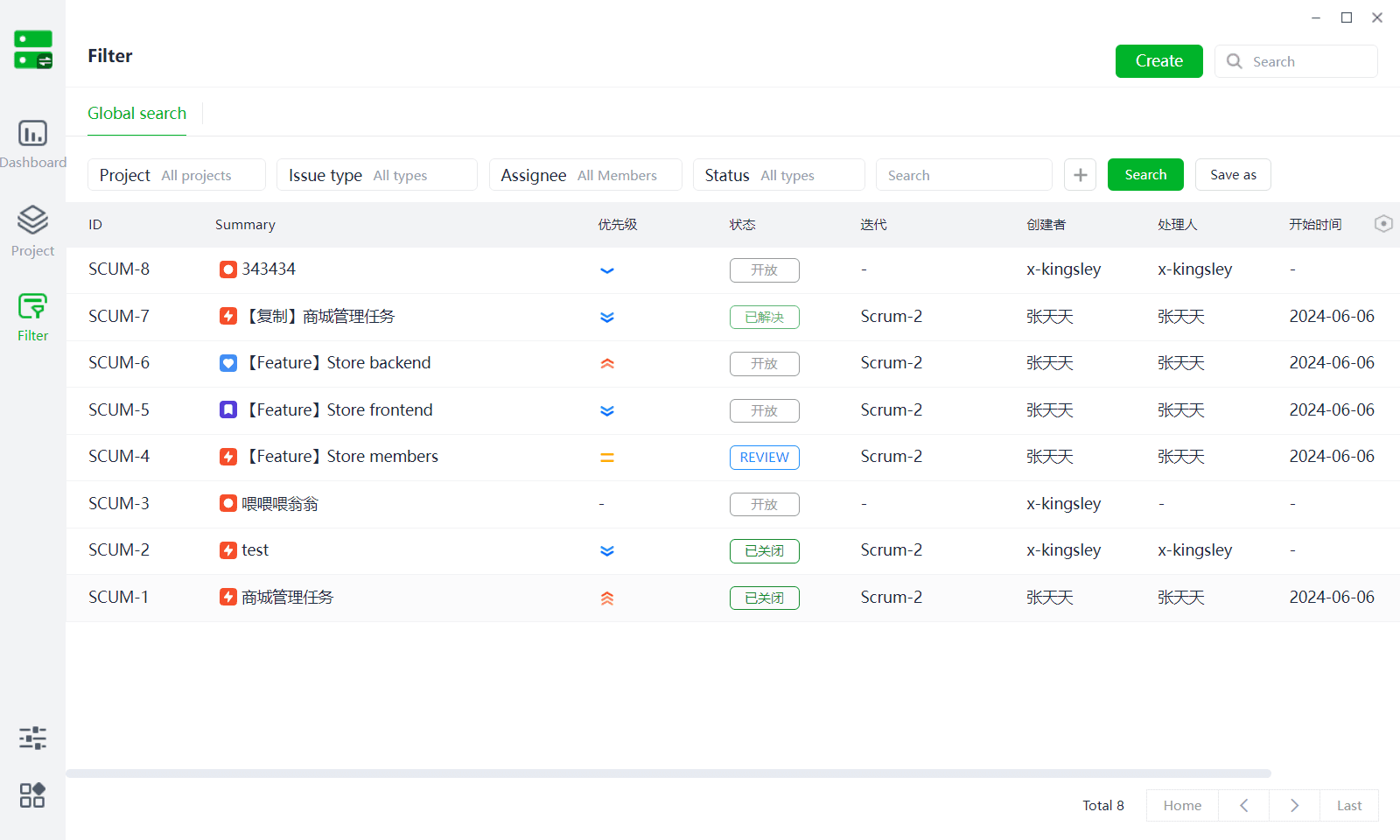
Definition: Used to filter and select data or project elements that meet specific criteria. It allows users to narrow down the data scope based on a series of preset rules or conditions, enabling more efficient management and analysis of project information.
(1) Filters simultaneously filter and view all work items from added projects.
(2) Filters offer multiple auxiliary actions:
- New/Save As Filter: Users can save multiple filter conditions as a filter, switch between filters directly, or view the newly created filter in a separate window.
- Display Fields: Users can adjust the fields displayed in the list and their order.
3、Projects
Definition: The Projects module displays projects that the user has joined, both ongoing and archived.
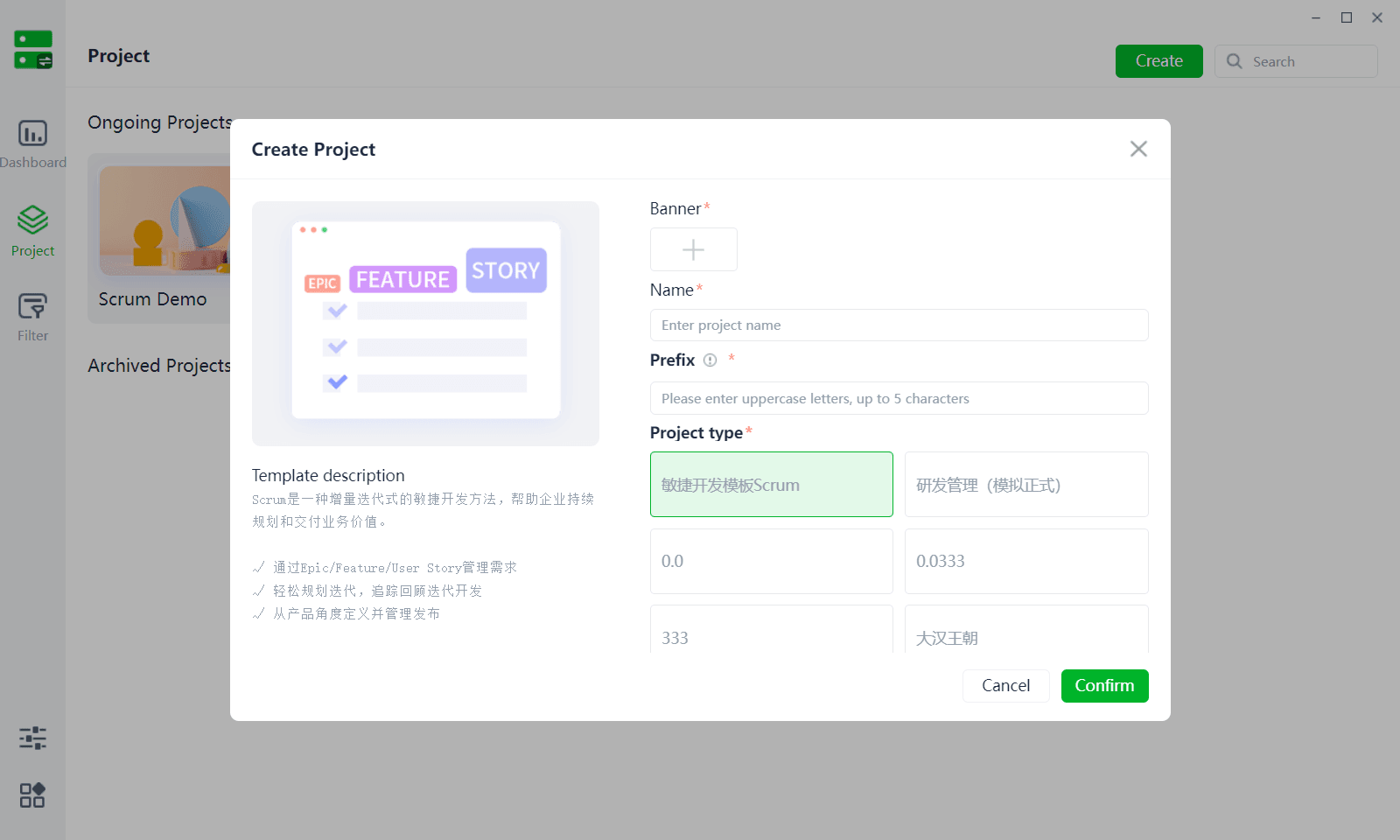
3.1 Create Project
(1) The Create Project button is only visible to users who are system administrators of the project management application or have project creation permissions.
(2) To create a project, users need to upload a project banner, project name, project identifier, select a project type (pre-made template or custom-created project template), and provide project description information.
3.2 Archive
(1) When a project is completed, it can be archived in the project settings. Archived projects can be reactivated or deleted.
4、Application Modules
Definition: Each application module in the project management system serves different functions and roles, collectively forming a complete framework for the project management system. By clarifying the functions and purposes of these modules, project management work can be more orderly, efficient, and controllable. Additionally, these modules are interrelated and influence each other, jointly driving the smooth progress of the project.
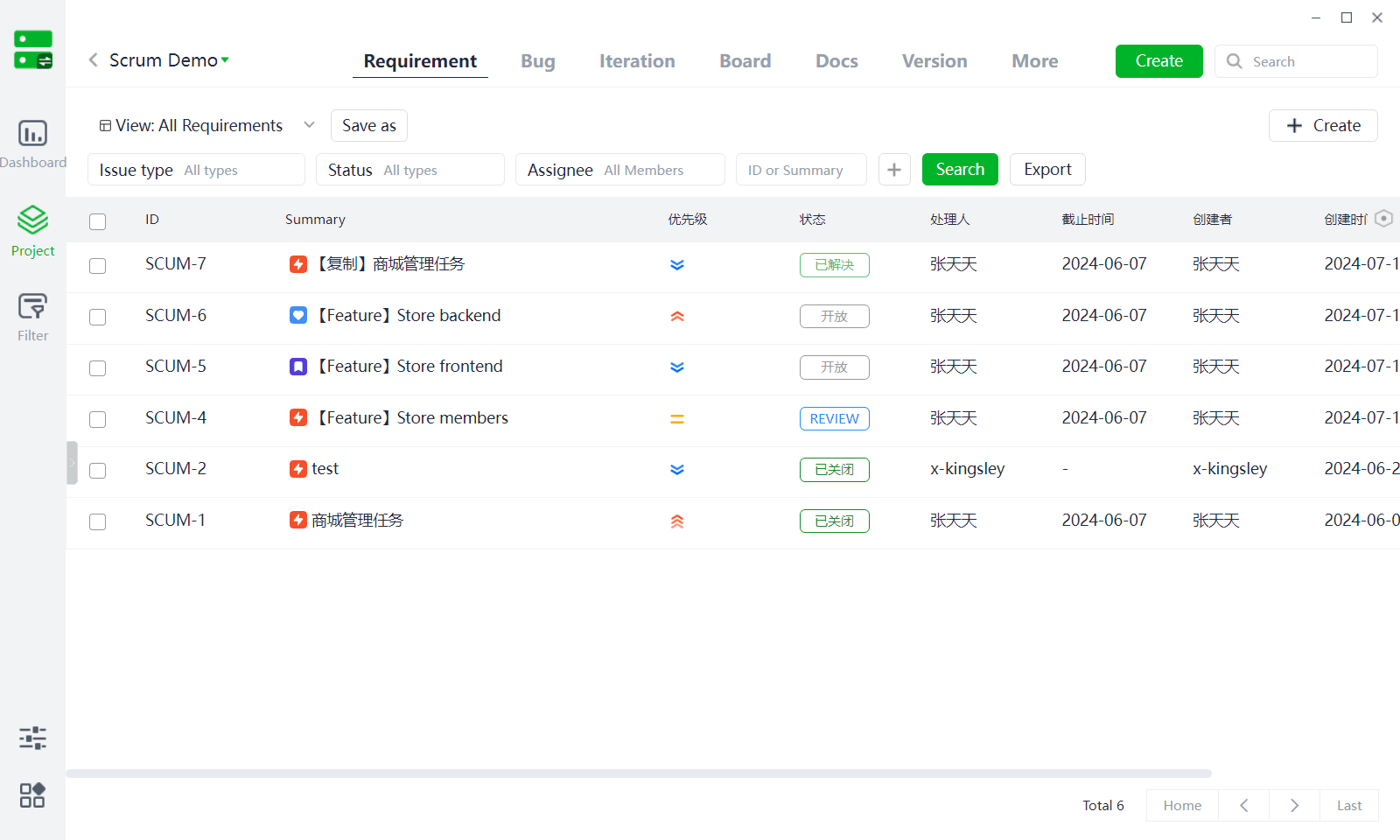
4.1 Requirements
(1) The Requirements module manages work items of the requirement type, allowing users to view, create, edit, and delete work items in this module.
(2) The Requirements module also offers multiple auxiliary actions:
- Views: Users can save multiple filter conditions as views and switch directly to view data under corresponding filter conditions.
- Display Fields: Users can adjust the fields displayed in the list and their order.
- Export: Users can directly export filtered list data.
- Quick Create Sub-requirement: If the parent work item type supports creating sub-work item types, users can click "More" to create them directly.
- Bulk Operations: If multiple work items are selected, clicking "More" allows bulk editing of work item field information.
4.2 Bugs
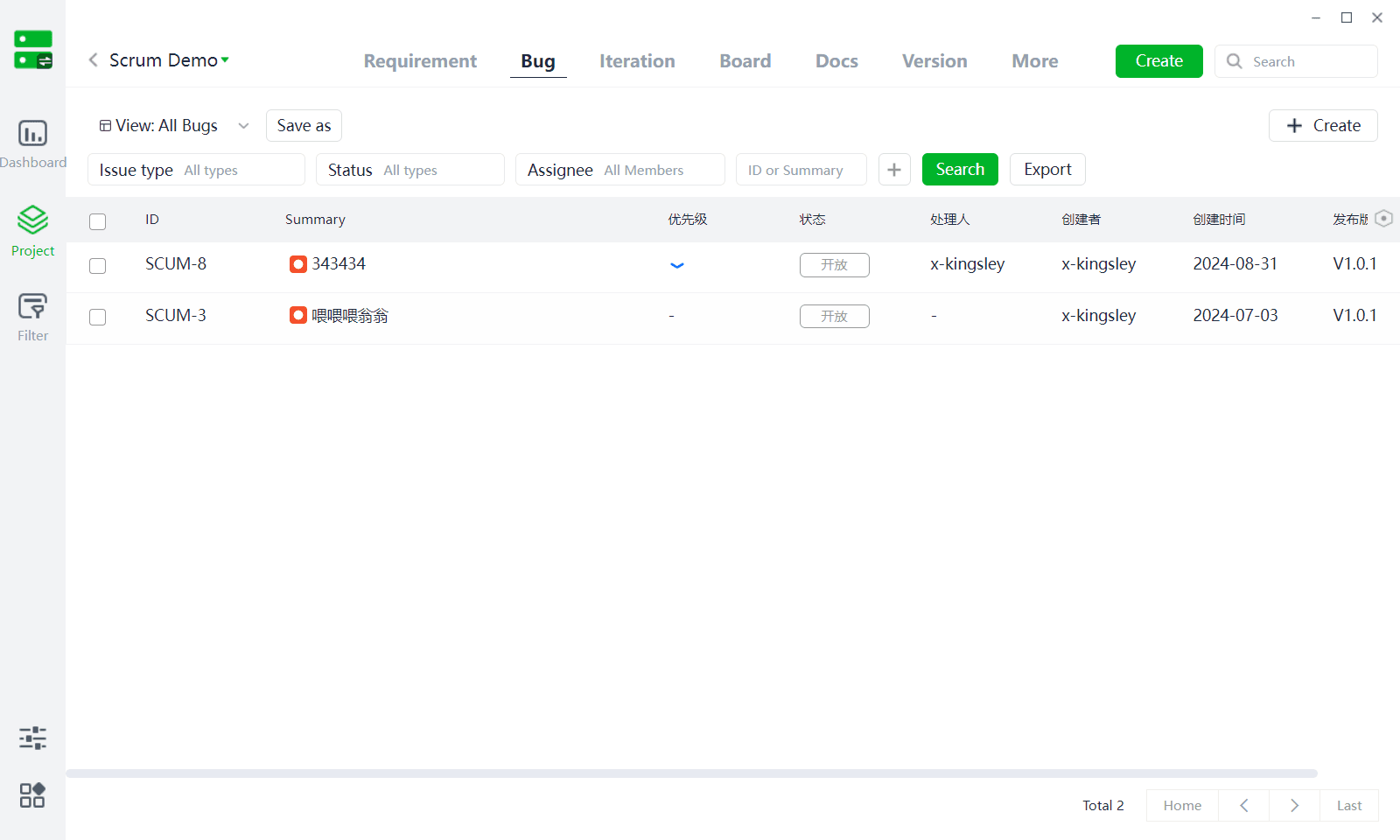
(1) The Defects module manages work items of the BUG type, allowing users to view, create, edit, and delete work items in this module.
(2) The Defects module also offers multiple auxiliary actions:
- Views: Users can save multiple filter conditions as views and switch directly to view data under corresponding filter conditions.
- Display Fields: Users can adjust the fields displayed in the list and their order.
- Export: Users can directly export filtered list data.
- Bulk Operations: If multiple work items are selected, clicking "More" allows bulk editing of work item field information.
4.3 Iteration
Definition: In project management, the project is divided into a series of smaller, more manageable phases (or cycles), each containing one or more cycles of activities such as requirement analysis, design, development, testing, feedback, and correction. Through rapid cycles, the product is continuously improved and refined until it meets predetermined quality standards or the project ends.
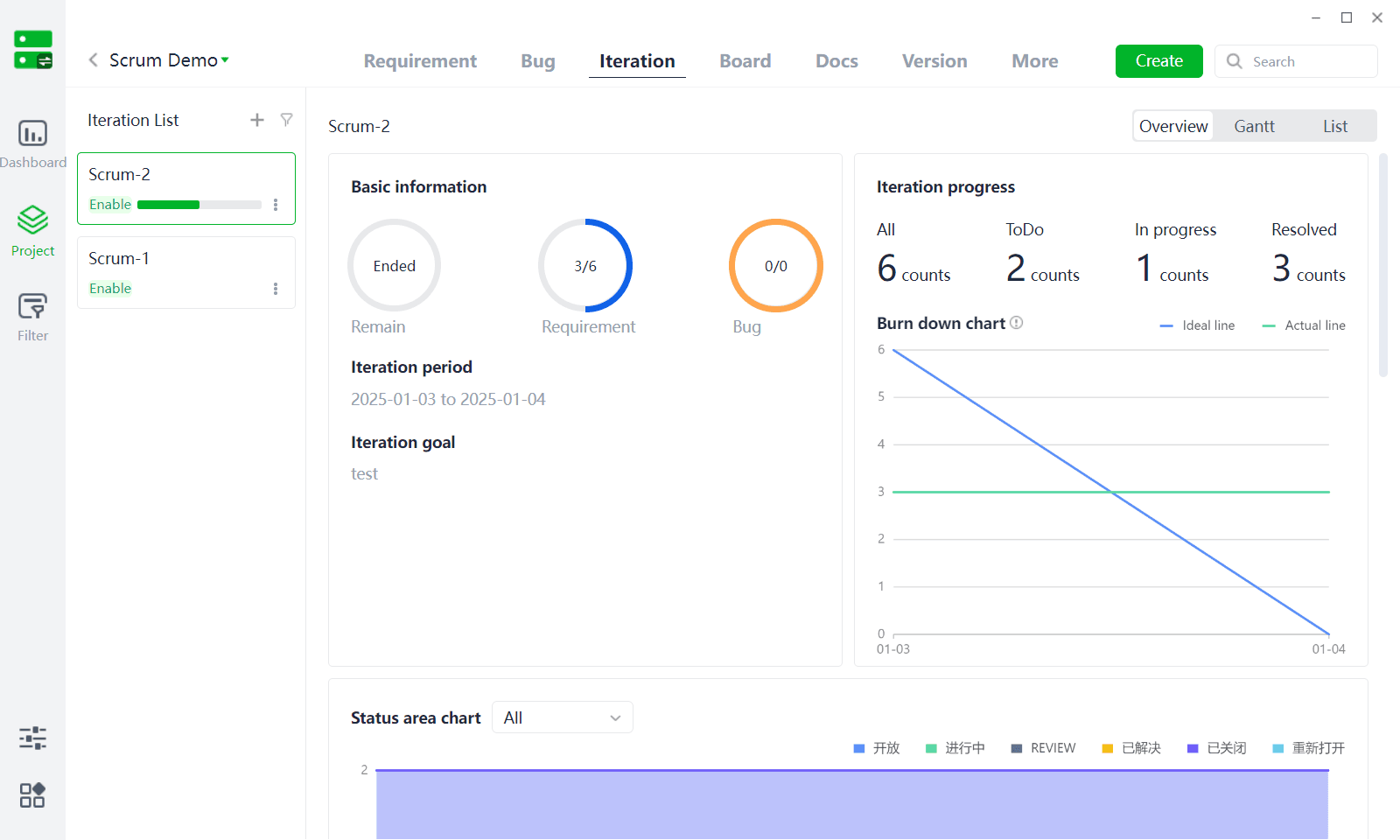
(1) Users can link requirements or defects that need to be resolved in the current cycle to created iterations.
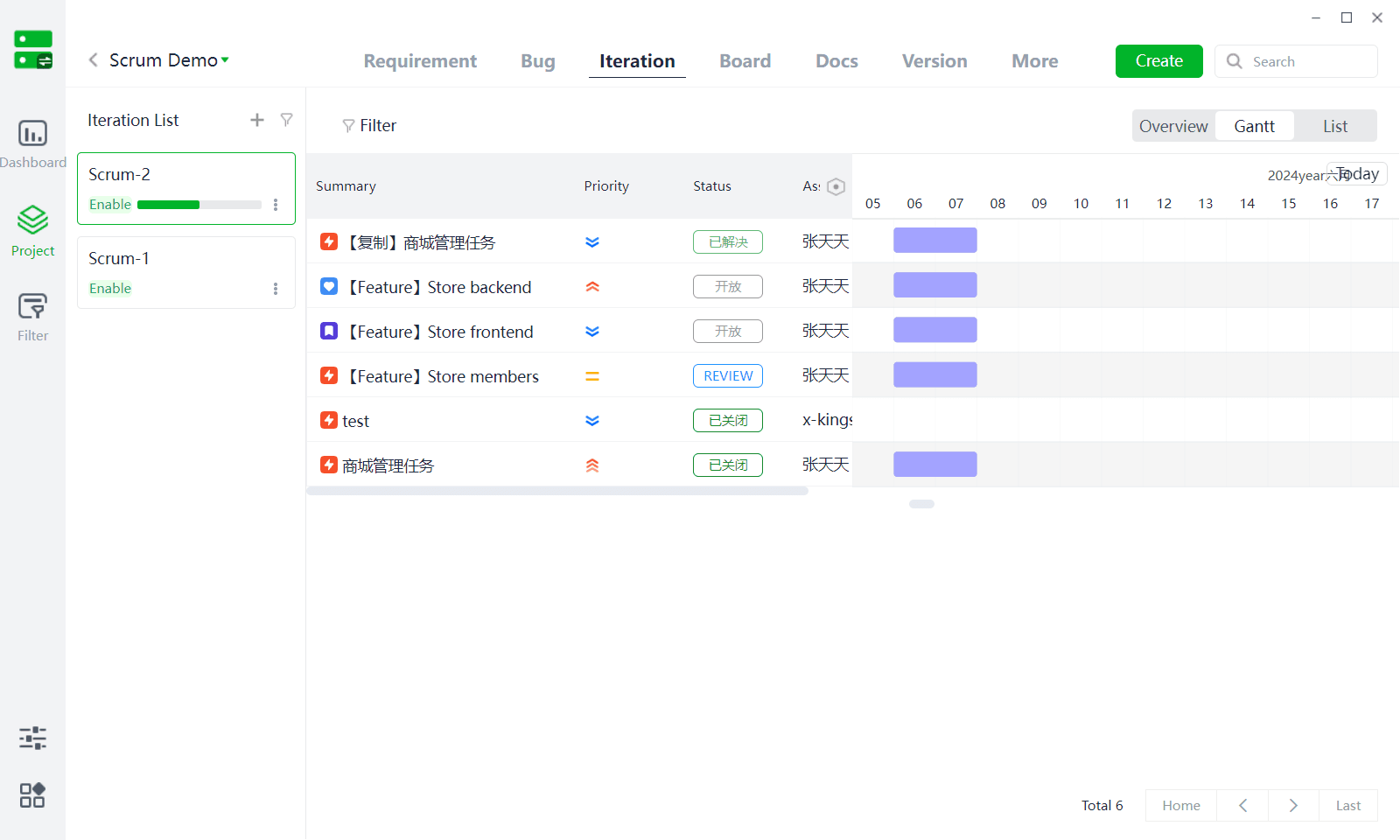
(2) Iterations offer three perspectives for easy management:
- Overview: Users can view the current iteration cycle, number of unresolved requirements, number of unresolved defects, iteration goals, iteration progress, iteration health (burn-down chart), and the status distribution and assignee distribution of work items in the iteration.
- Gantt Chart: Users can view the estimated start and end times for each member's work items in the iteration, facilitating scheduling.
- List: Users can view specific work item information in the current iteration.
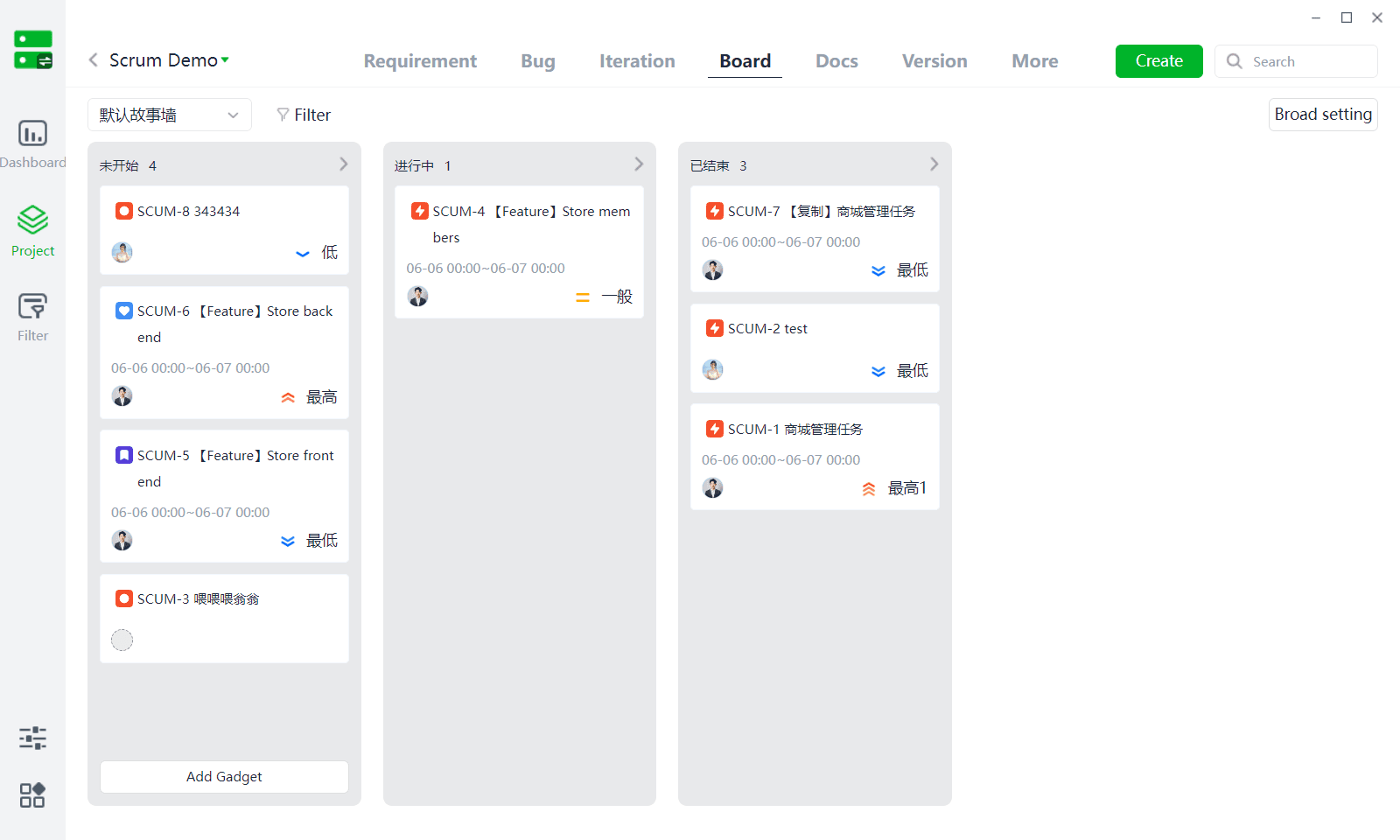
4.4 Kanban
Definition: A kanban is a visual management tool used to track and manage various stages and tasks of a project. By breaking down complex project processes into a series of visible, interconnected tasks, the project team can clearly see the overall progress of the project and the status of each task at a glance.
(1) Kanbans can be created based on individual needs, supporting the dragging and dropping of work item card statuses. Work items can also be quickly created directly, greatly facilitating project understanding and management.
(2) Add Kanban: Click [Kanban List - Add Kanban] to enter the kanban settings pop-up.
- Team/Personal Kanban: Members with team kanban permissions can add team kanbans, which can be viewed by all members of the current project. Personal kanbans are only visible to the user who created them.
- Filter Conditions: Advanced filter conditions can be used to exclude unwanted data.
- Status Column Settings: Users can create different column data and move work item statuses into corresponding columns. After saving, the corresponding work item statuses will be automatically placed under the columns, facilitating visual kanban management of the project's specific status.
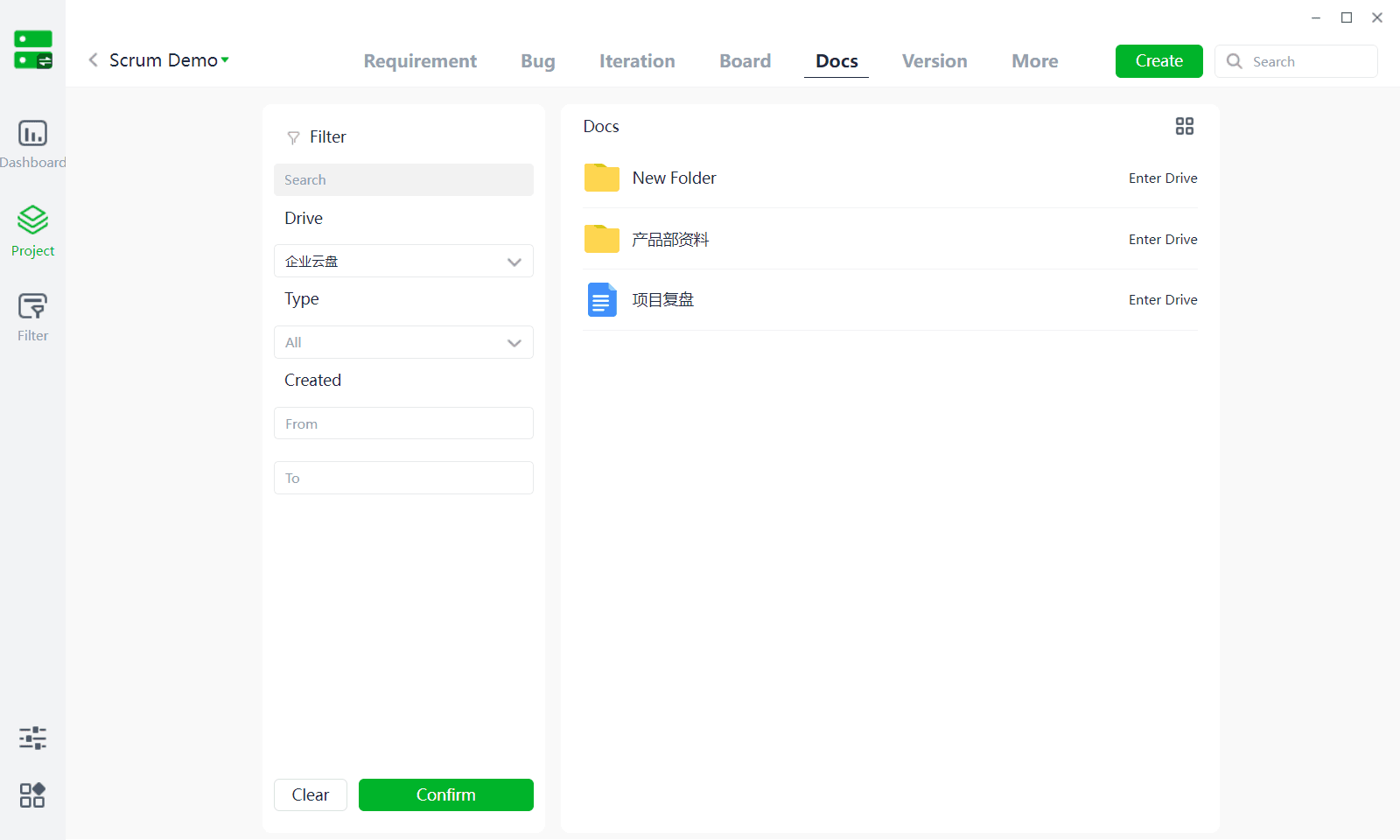
4.5 Documents
(1) The Documents module in project management does not support document upload. It only supports accessing files from the enterprise cloud disk path linked under the Documents module (see Project - Configuration) for corresponding cloud disk files.
(2) Documents obtained from the enterprise cloud disk can only be previewed and cannot be managed, ensuring file security.
4.6 Versions
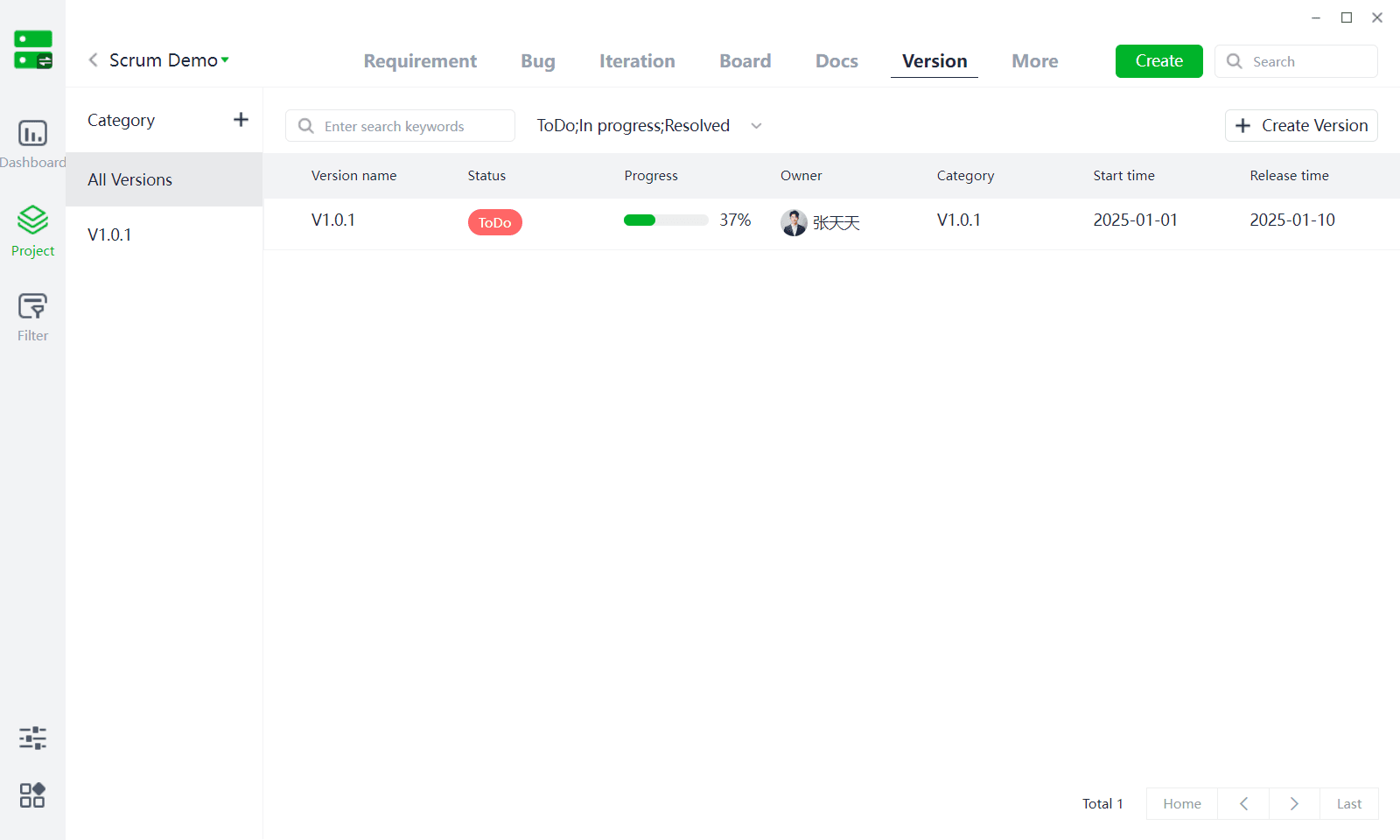
Definition: A version is a milestone in the project development process, recording the complete state of the project at a certain moment, including code, documents, configurations, and all related resources. Through version management, the project team can clearly understand the historical changes and current status of the project.
(1) Users can click [New Version] to manage versions. Each version can have an independent version name, status, responsible person, and version cycle set, facilitating future traceability.
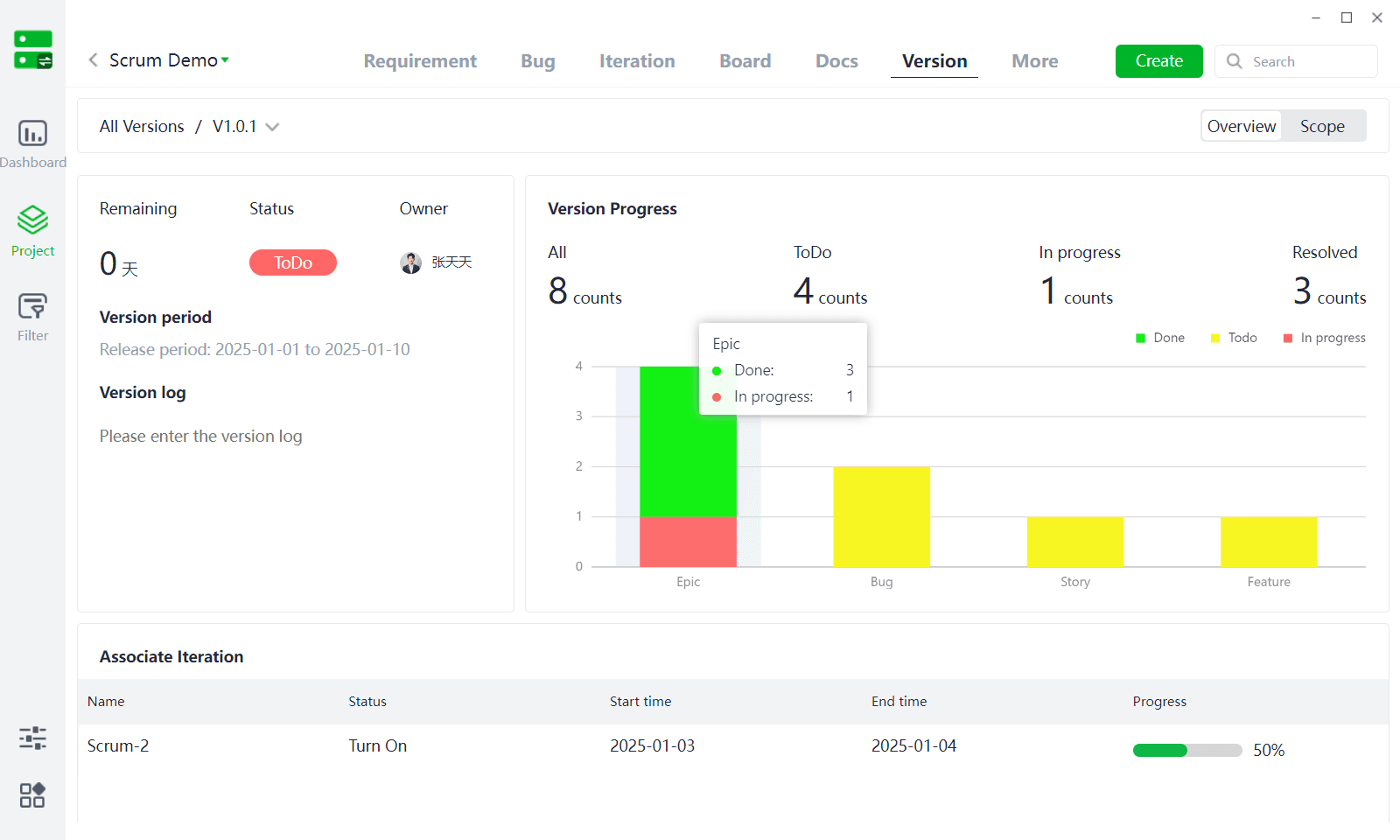
(2) Each version offers two perspectives for easy management:
- Version Overview: Users can view the current version cycle, version status, responsible person, version change history, version progress, linked iterations, and submitted related code.
- Users can view specific work item information under the current version.
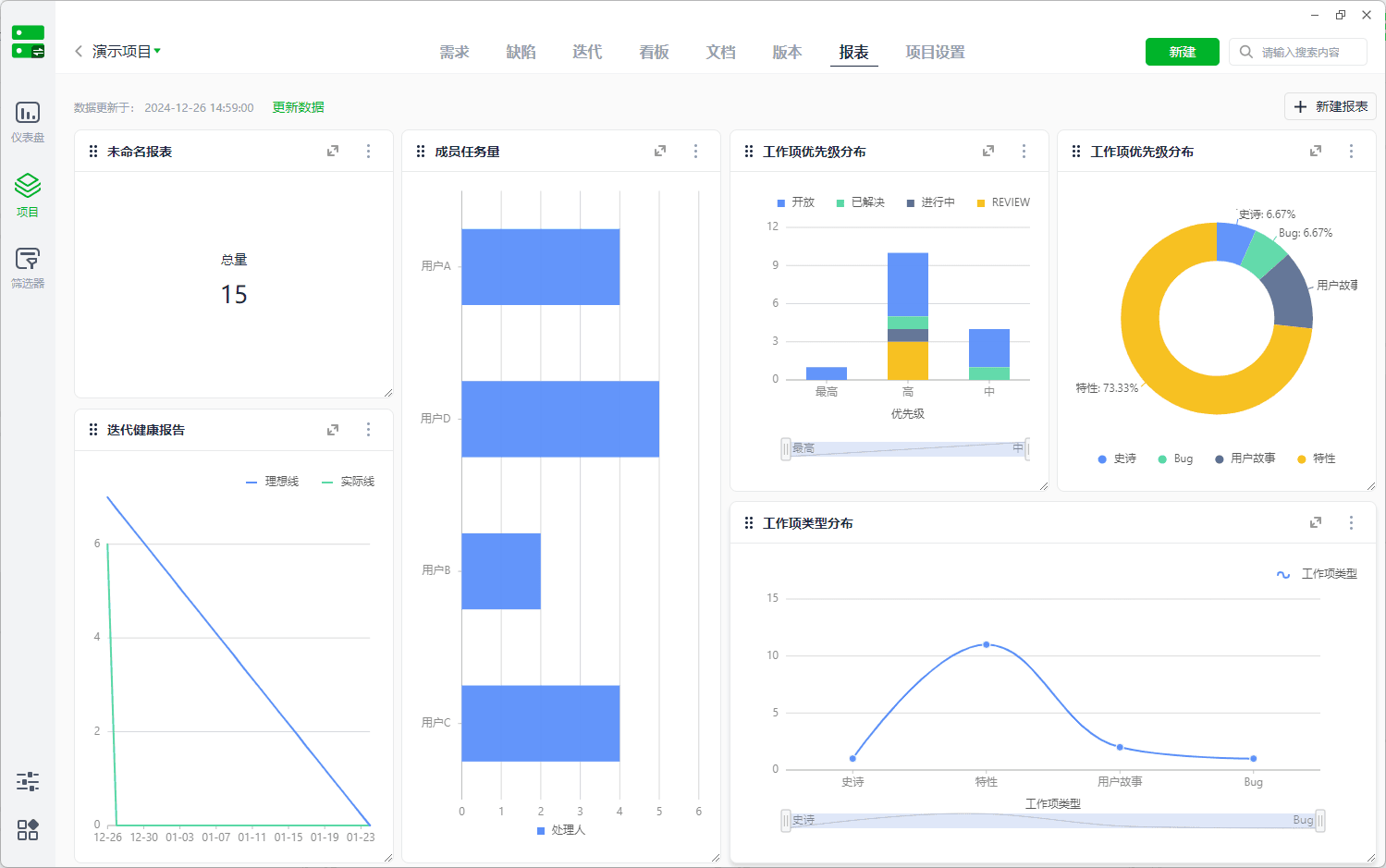
4.7 Reports
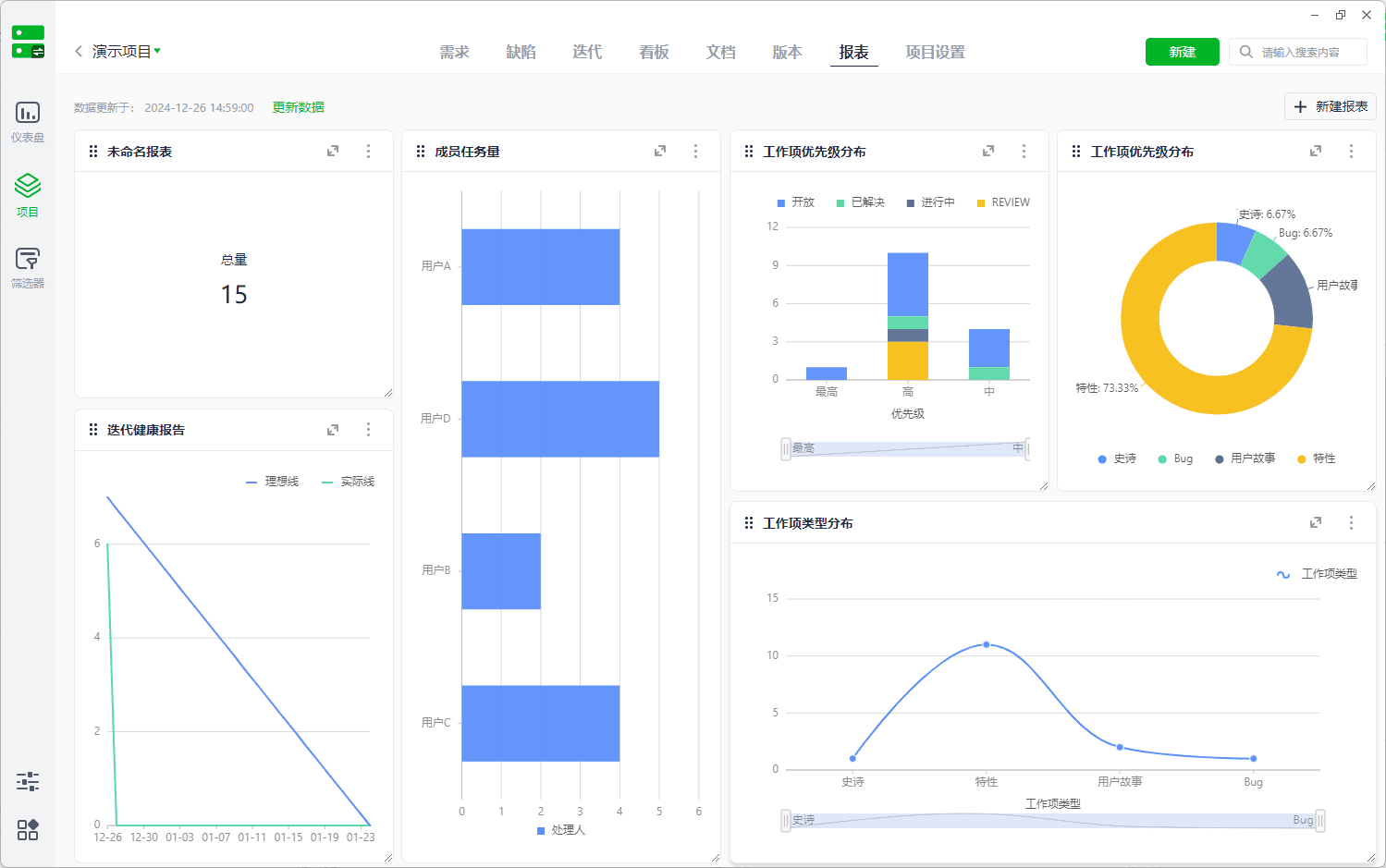
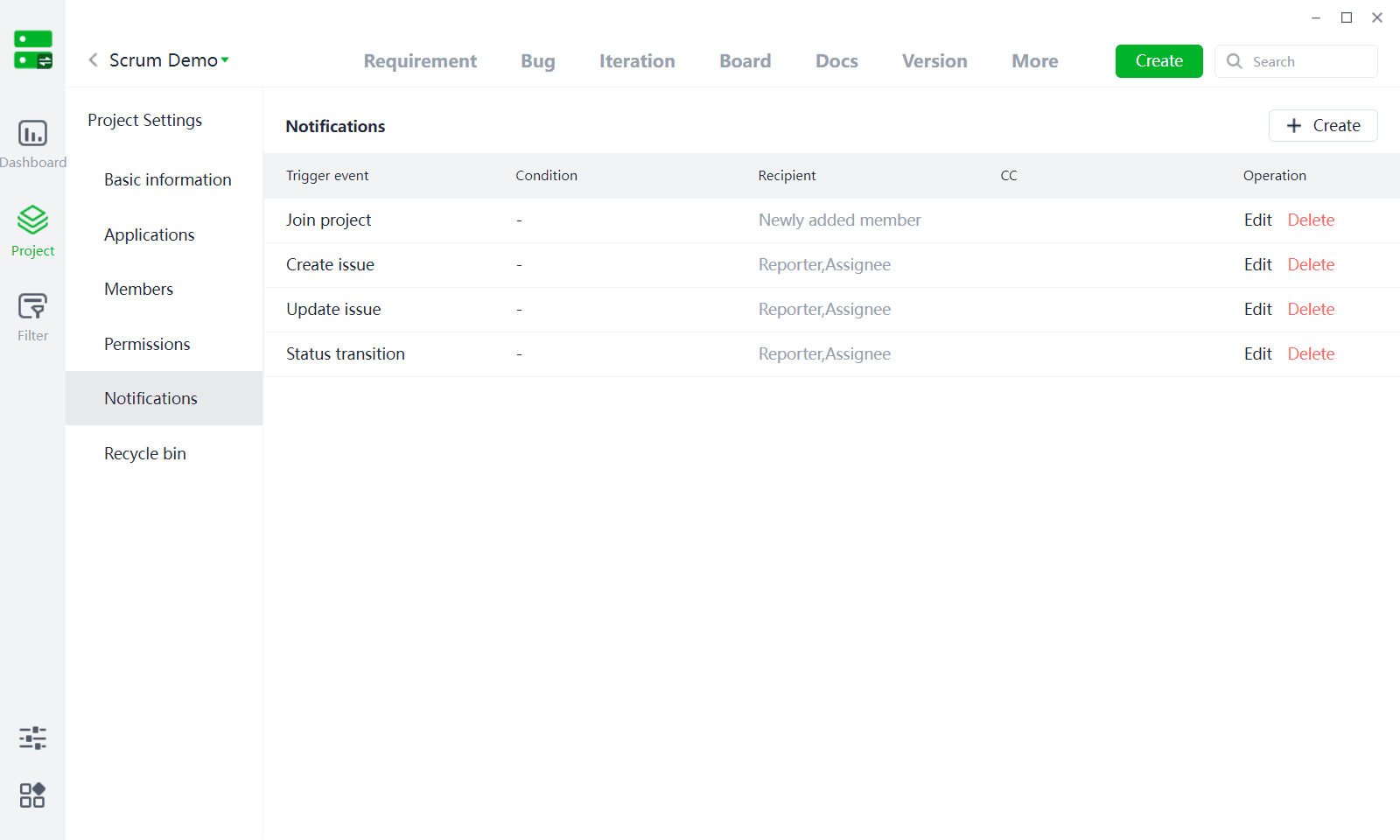
Definition: Reports are important tools for tracking, recording, and displaying key project information such as progress, costs, resource allocation, risks, and quality. These reports provide project managers and team members with real-time project status, helping them understand the overall project situation to promptly identify issues, adjust plans, and make informed decisions.
(1) Users can click [New Report] to create reports. Project management provides multiple pre-made basic reports that can be used directly by clicking.
(2) Custom Reports: Project management offers various common chart types, including indicators, two-dimensional tables, pie charts, line charts, bar charts, histogram, bubble charts, burn-down charts, percentage bar charts, and grouped reports. Users can choose based on their needs. Multiple dimensions of data and advanced filter conditions can also be incorporated for detailed data viewing.
(3) Users can directly expand to view detailed data from various dimensions under the report.
(4) Existing reports also support subscription, and subscribed report data will be automatically pushed to Duli's project assistant, allowing users to stay updated on project information instantly.
5、Project Settings
5.1 Project Information
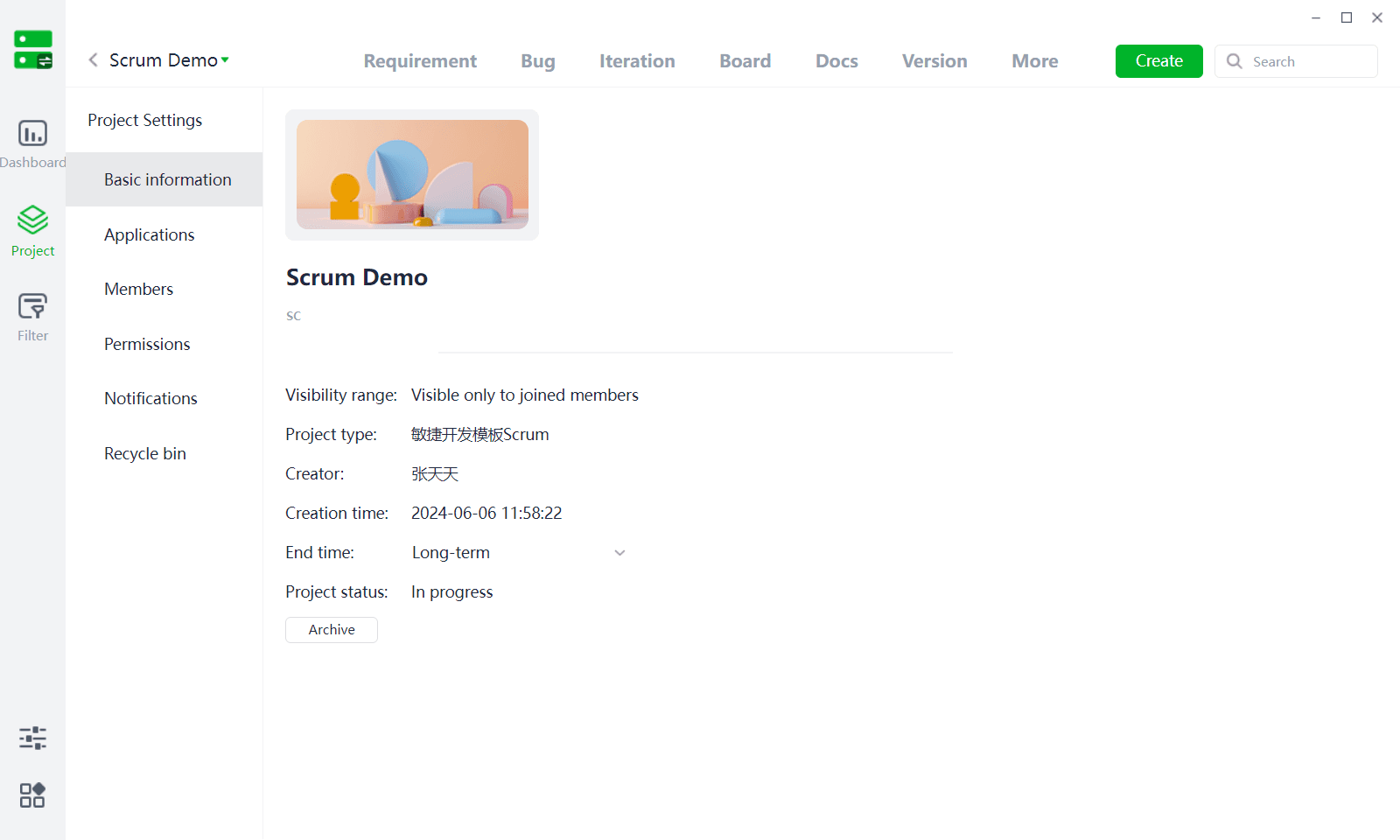
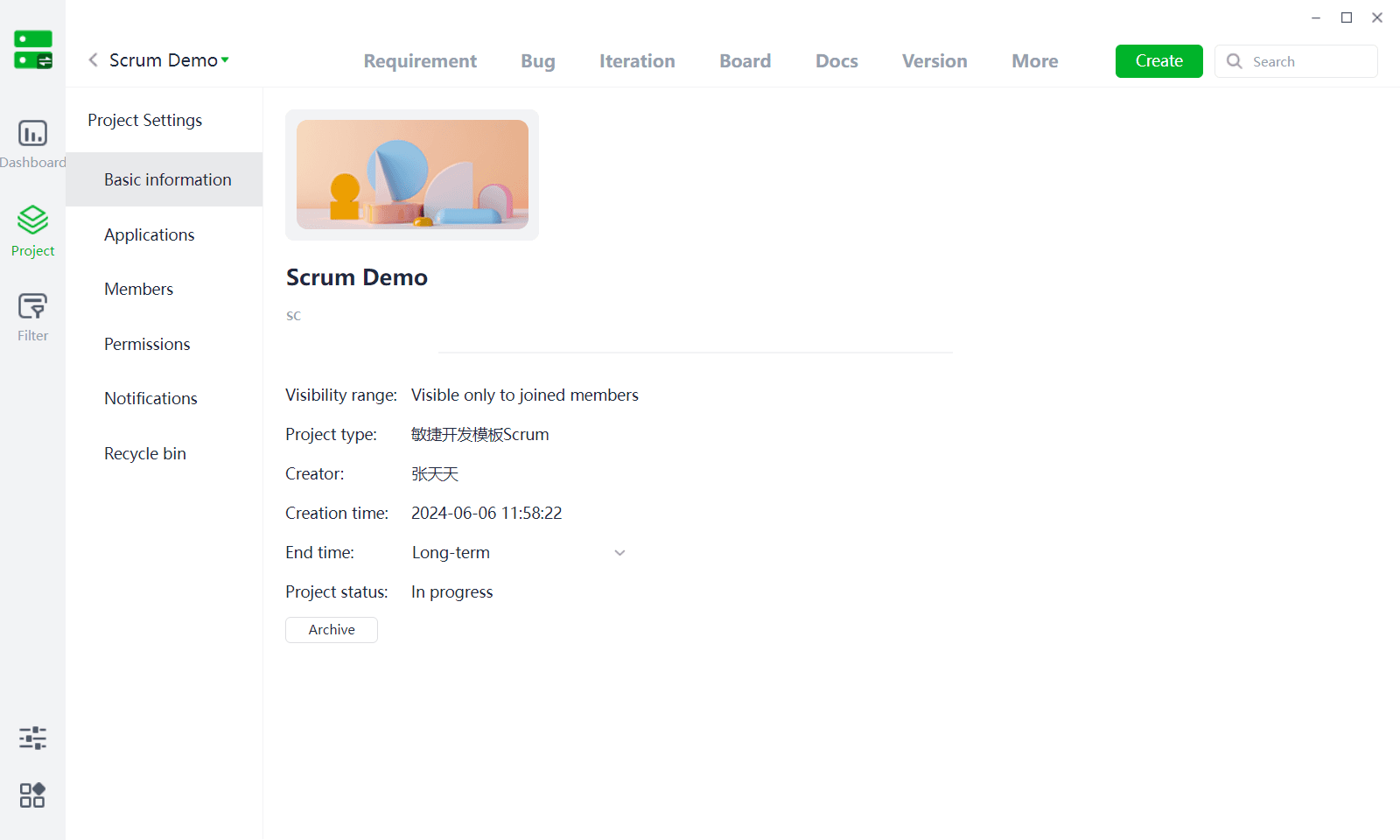
(1) Project Information: Displays basic project details and allows for modifications.
(2) Project Handover: Click on the creator to make changes; upon successful modification, the project is directly transferred to the new member.
(3) Project Status: The default status is "In Progress." The status can be changed to "Archived" or activated from "Archived" back to "In Progress." Archived projects can also be deleted directly and restored in the Configuration Center.
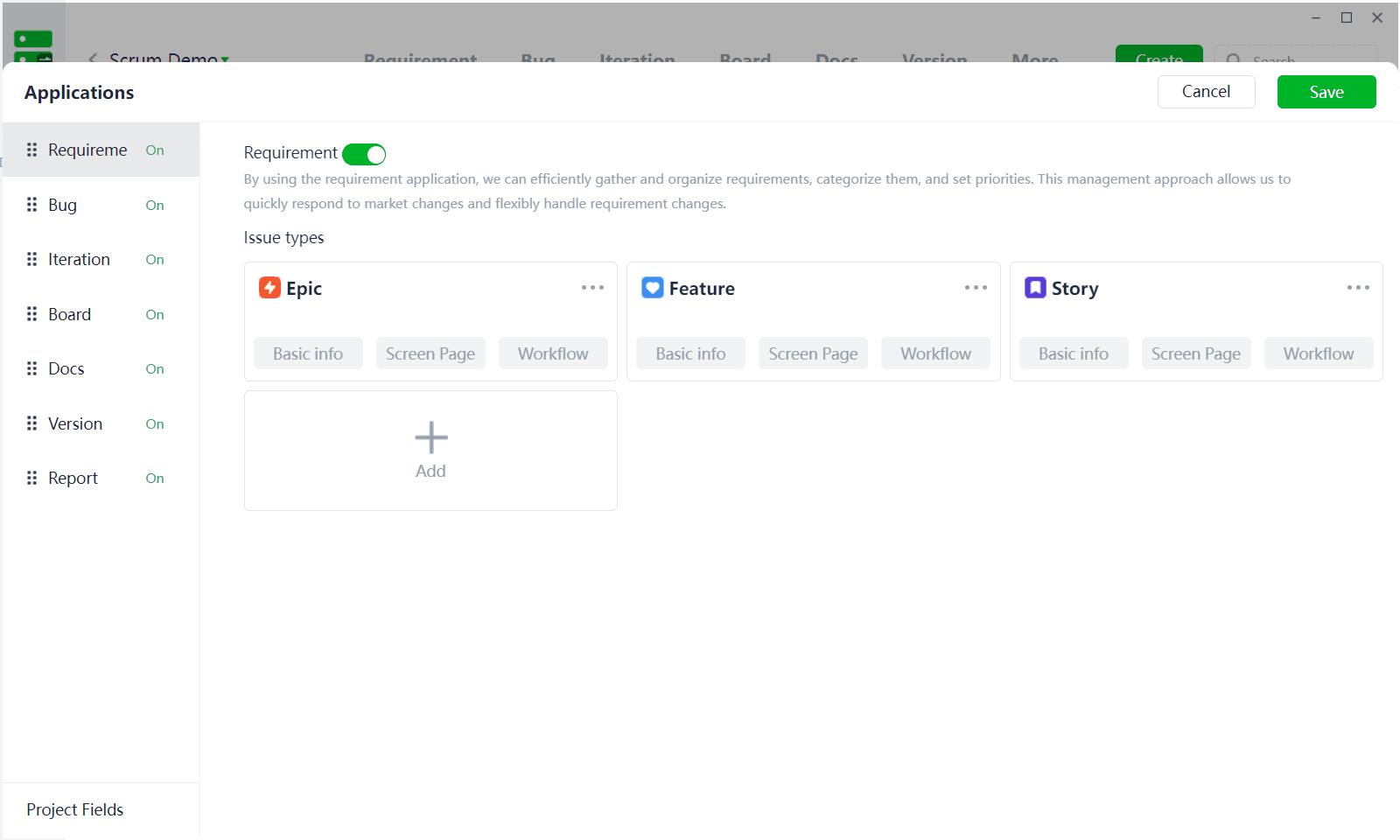
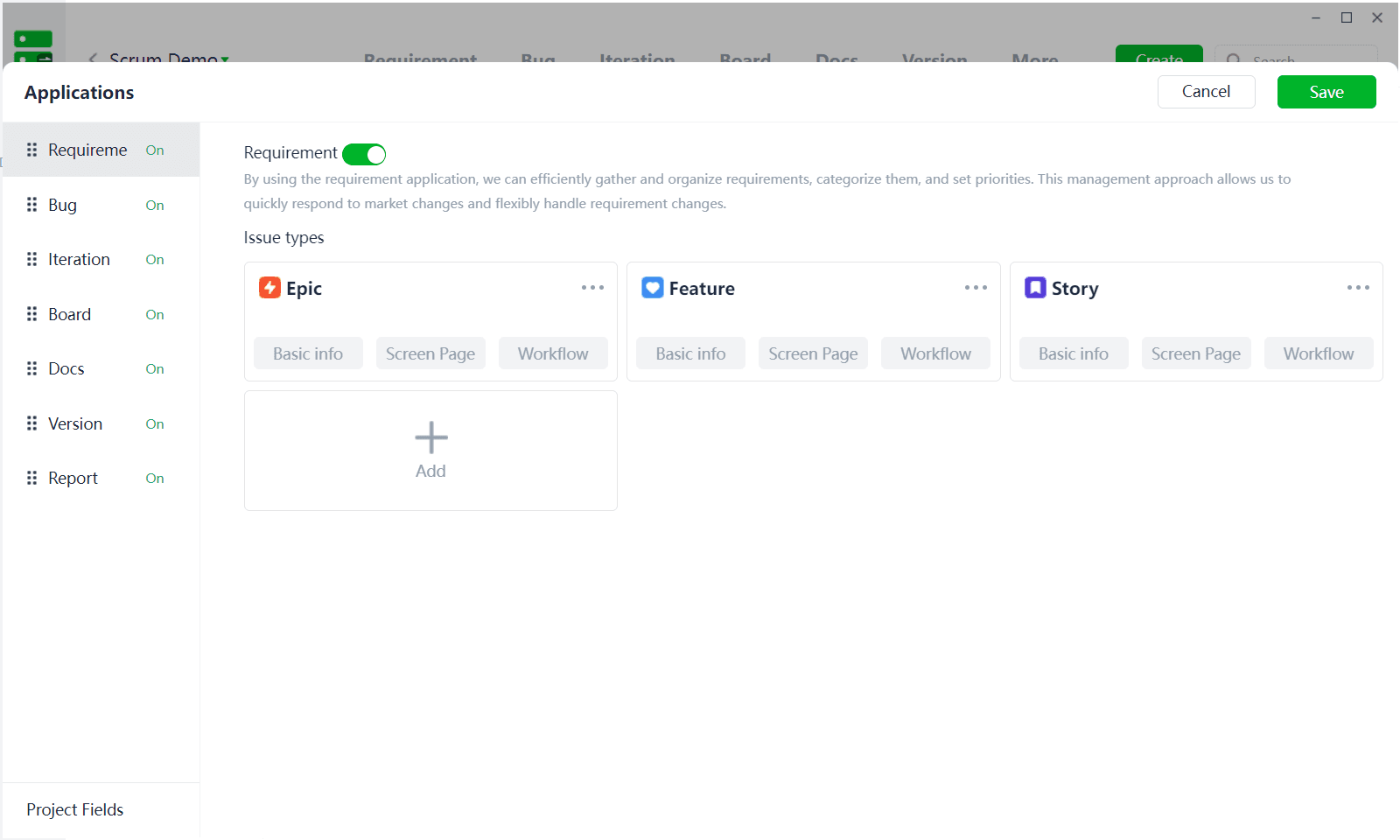
5.2 Application Settings
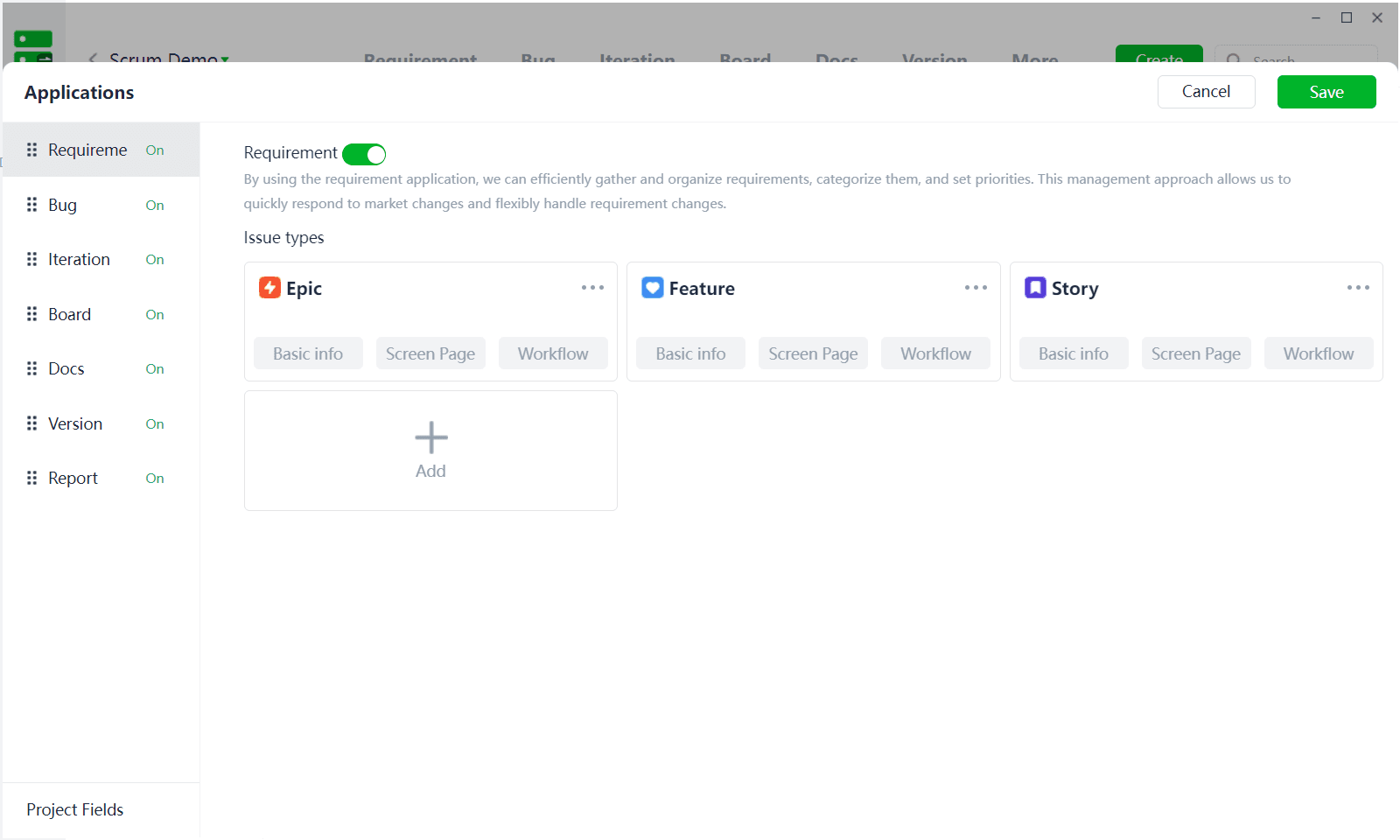
(1) Manage application modules for the current project; changes will only apply to the current project after saving. (Module editing is the same as template editing under Project Management - Configuration.)
(2) Users can customize project fields within Application Settings. Currently, only modules and tags are editable fields.
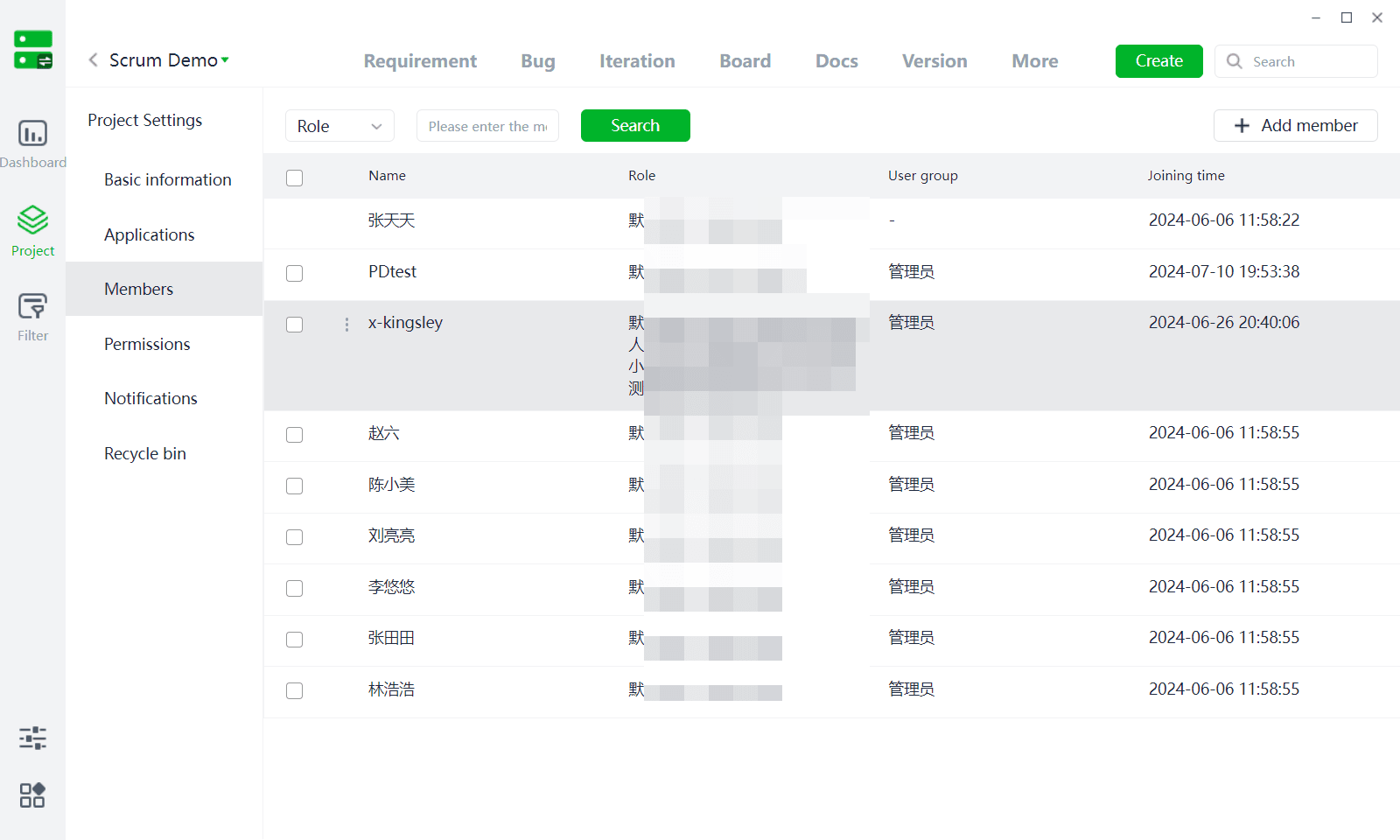
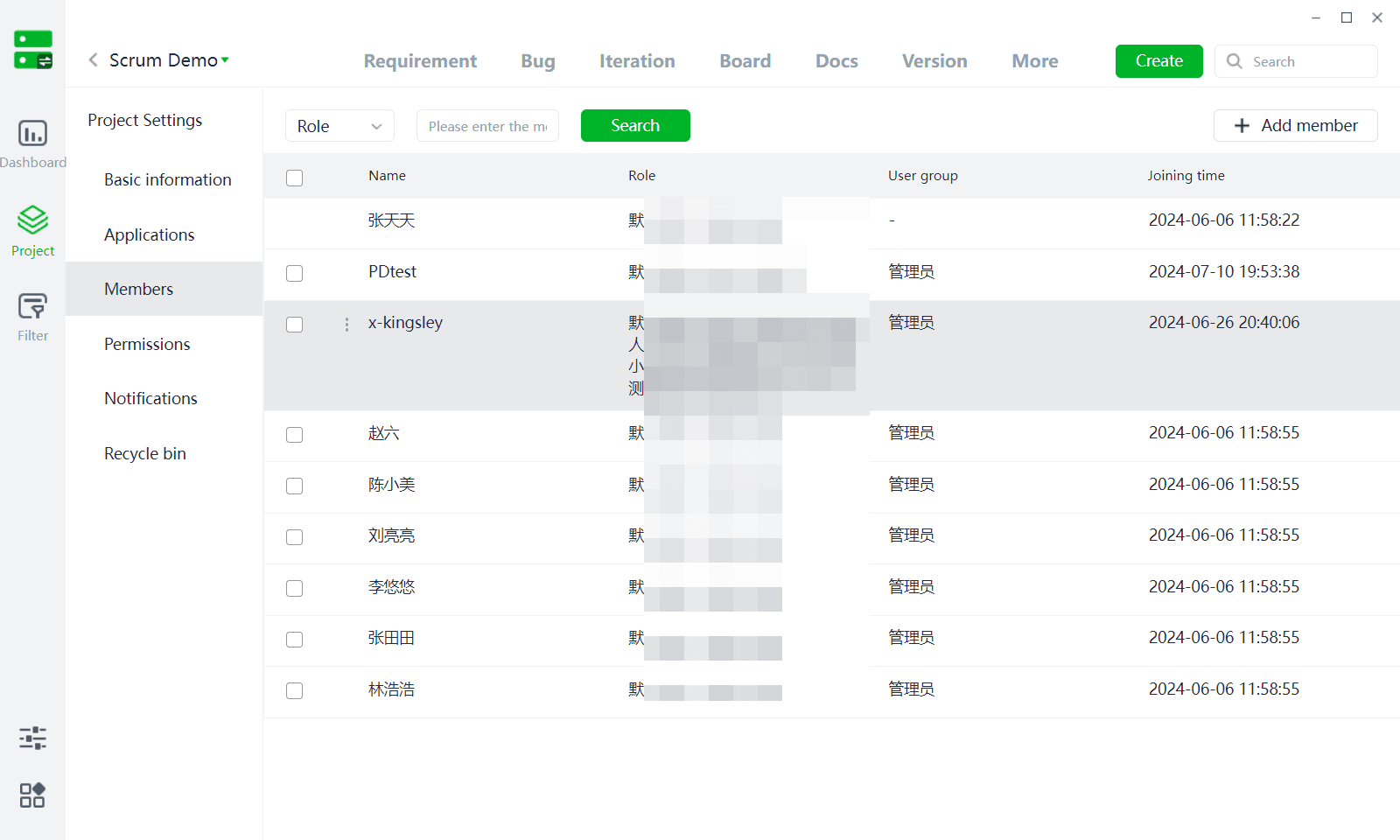
5.3 Project Members
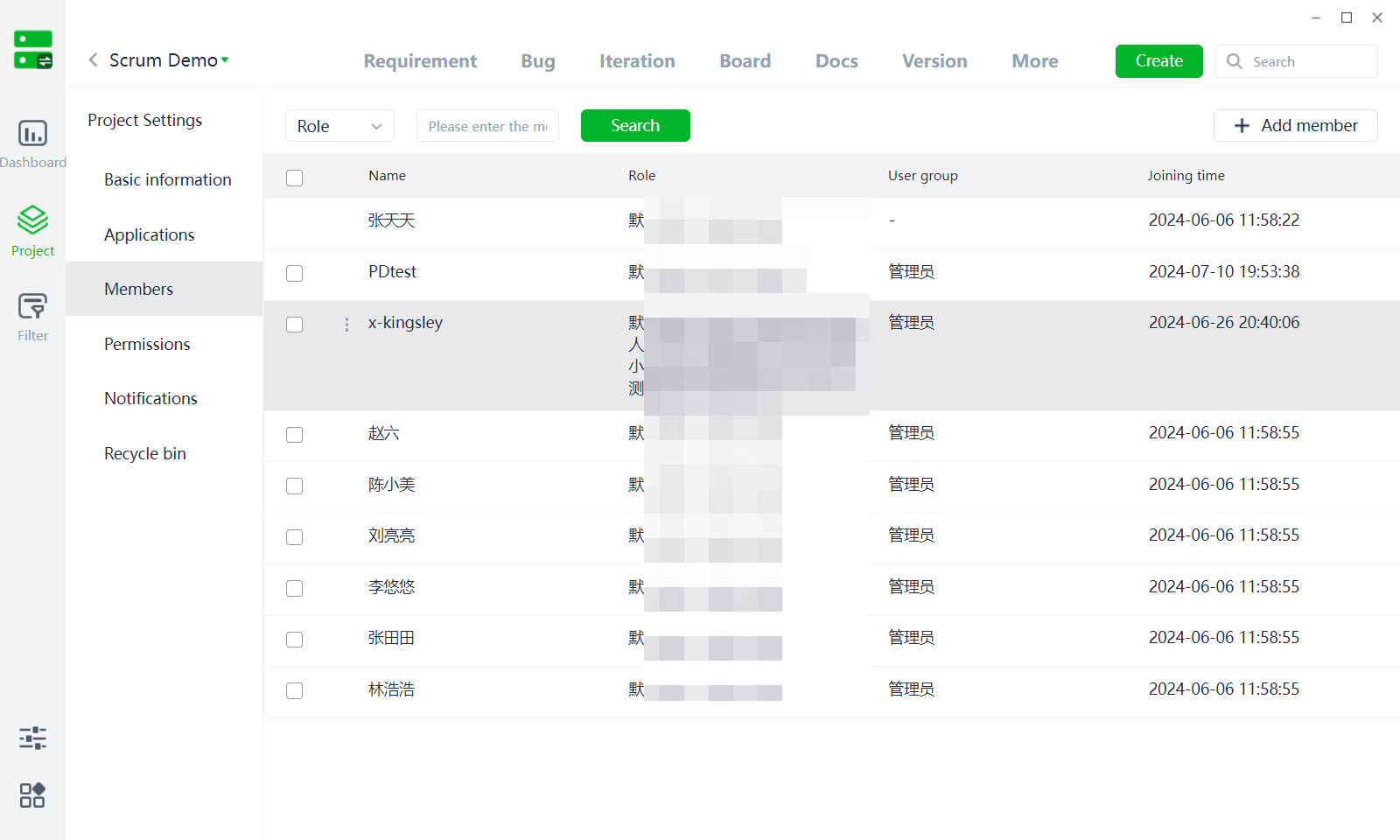
(1) Only members added to the project, in addition to system administrators, are allowed to access the current project.
(2) Roles: Automatically obtain the role information of the current user from the merchant backend, and roles can be assigned permissions under Permission Settings.
(3) Edit User: Modify the user group of project members, and user groups can be linked to project permission information.
(4) Add Member: For multi-organization merchants, only members from the company of the current project can be added; members from other organizations cannot be added.
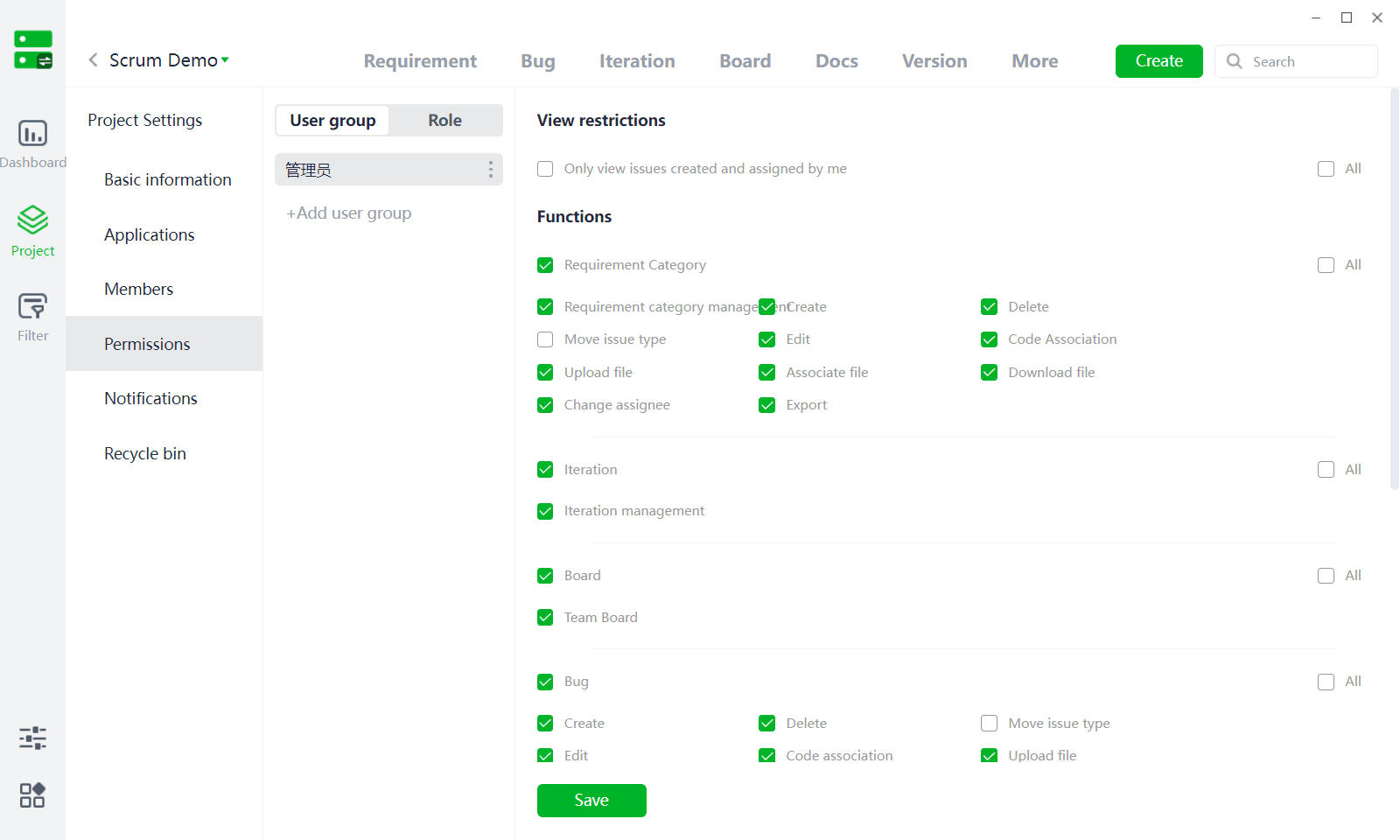
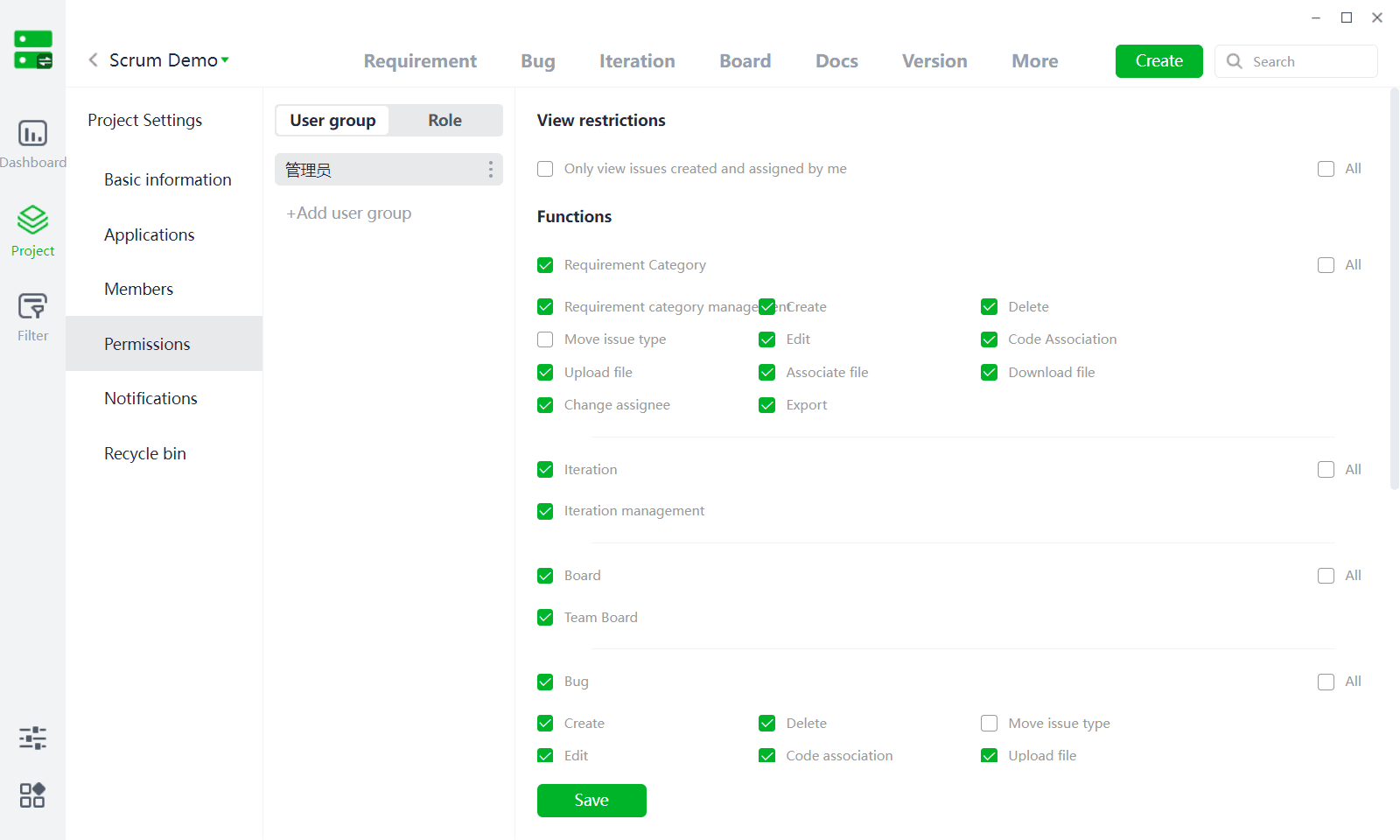
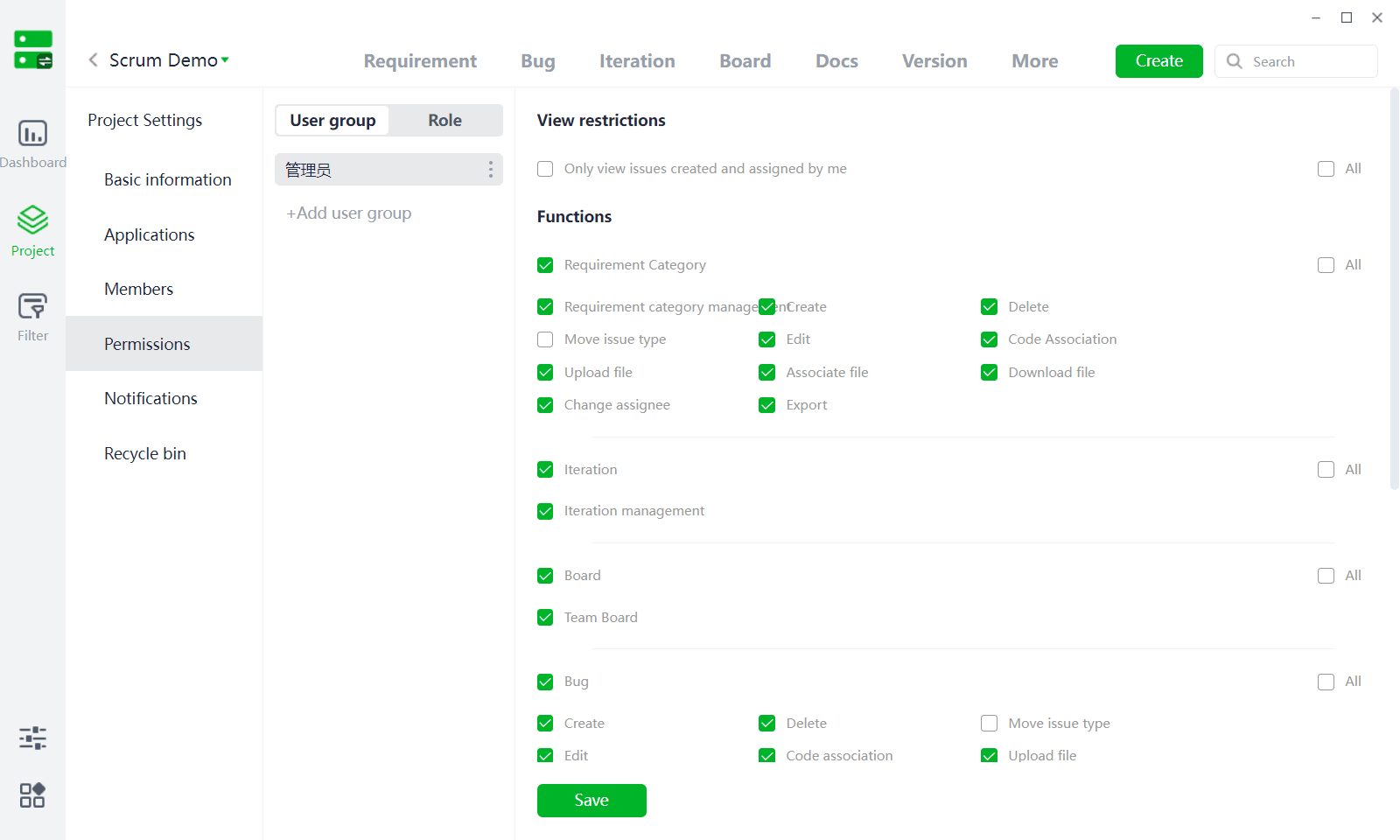
5.4 Permission Settings
(1) There are two ways to set permissions:
- Role Permissions: The project automatically retrieves the role list created by the current enterprise on the merchant backend. After assigning permissions to a role, users joining this project will directly inherit the corresponding permissions of their role.
- User Group Permissions: User groups can be created and assigned permissions. Members added to this user group will receive all permissions associated with the user group.
(2)Permission Overview
- Work Item Viewing Permissions: When enabled, users can only view work items they have created or those assigned to them.
- Module Permissions: Module permissions are further divided into multiple sub-permissions, which users can configure based on their needs.
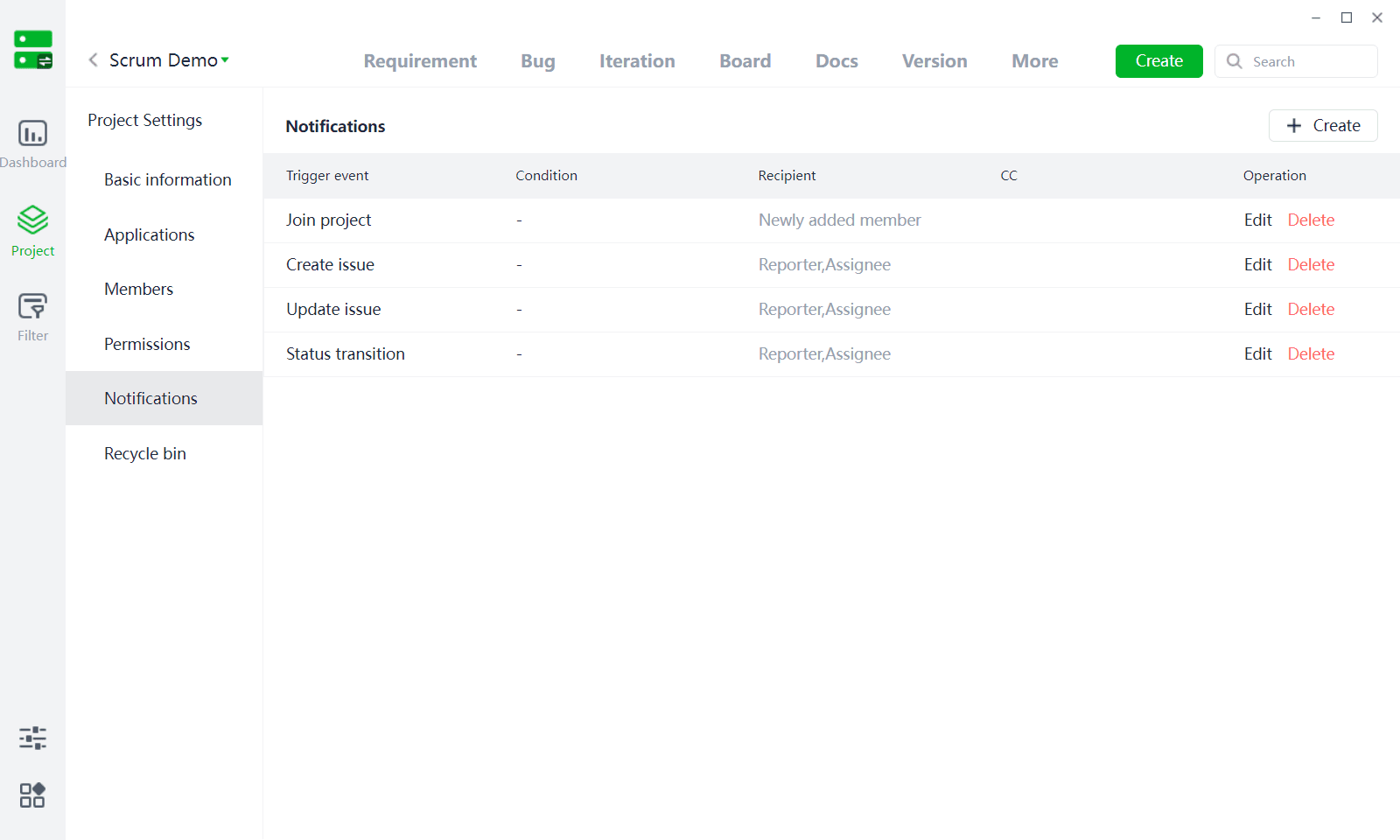
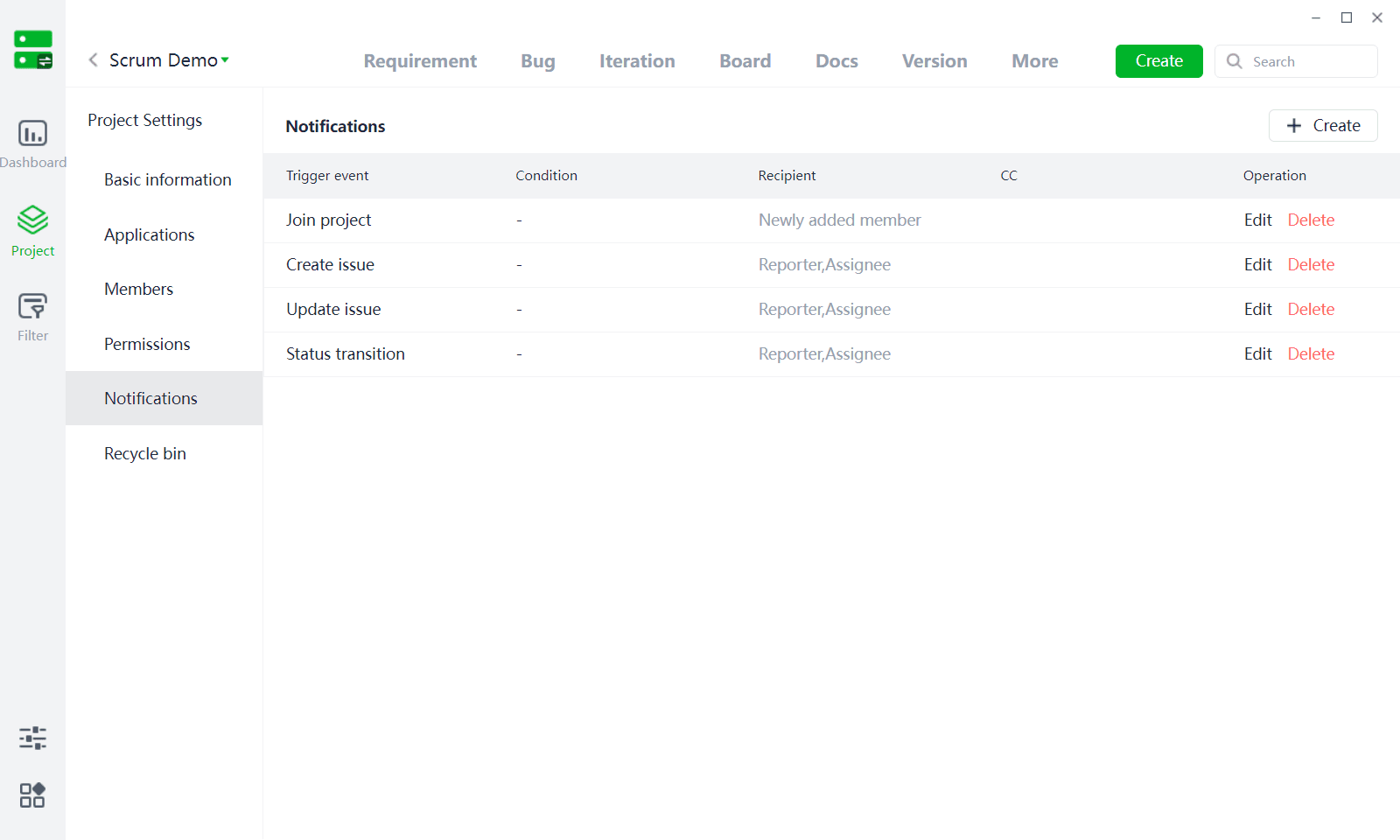
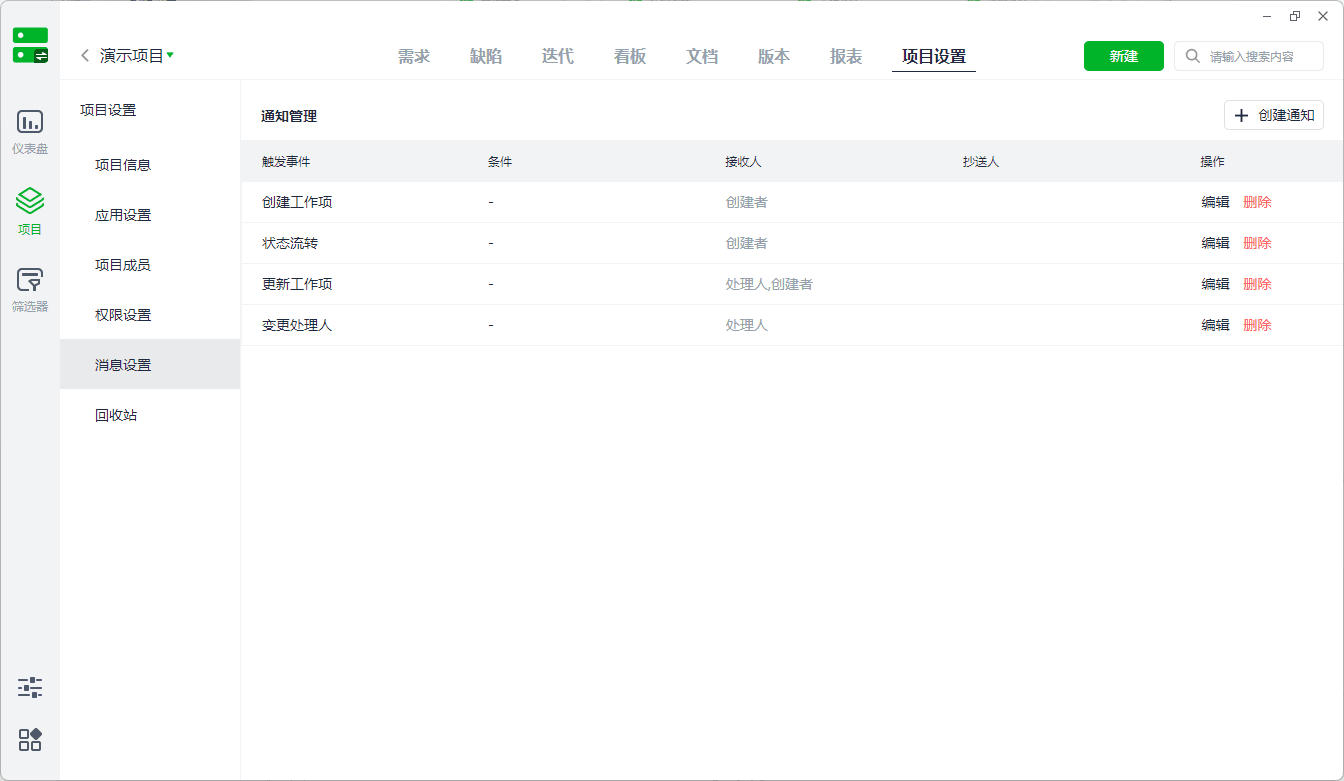
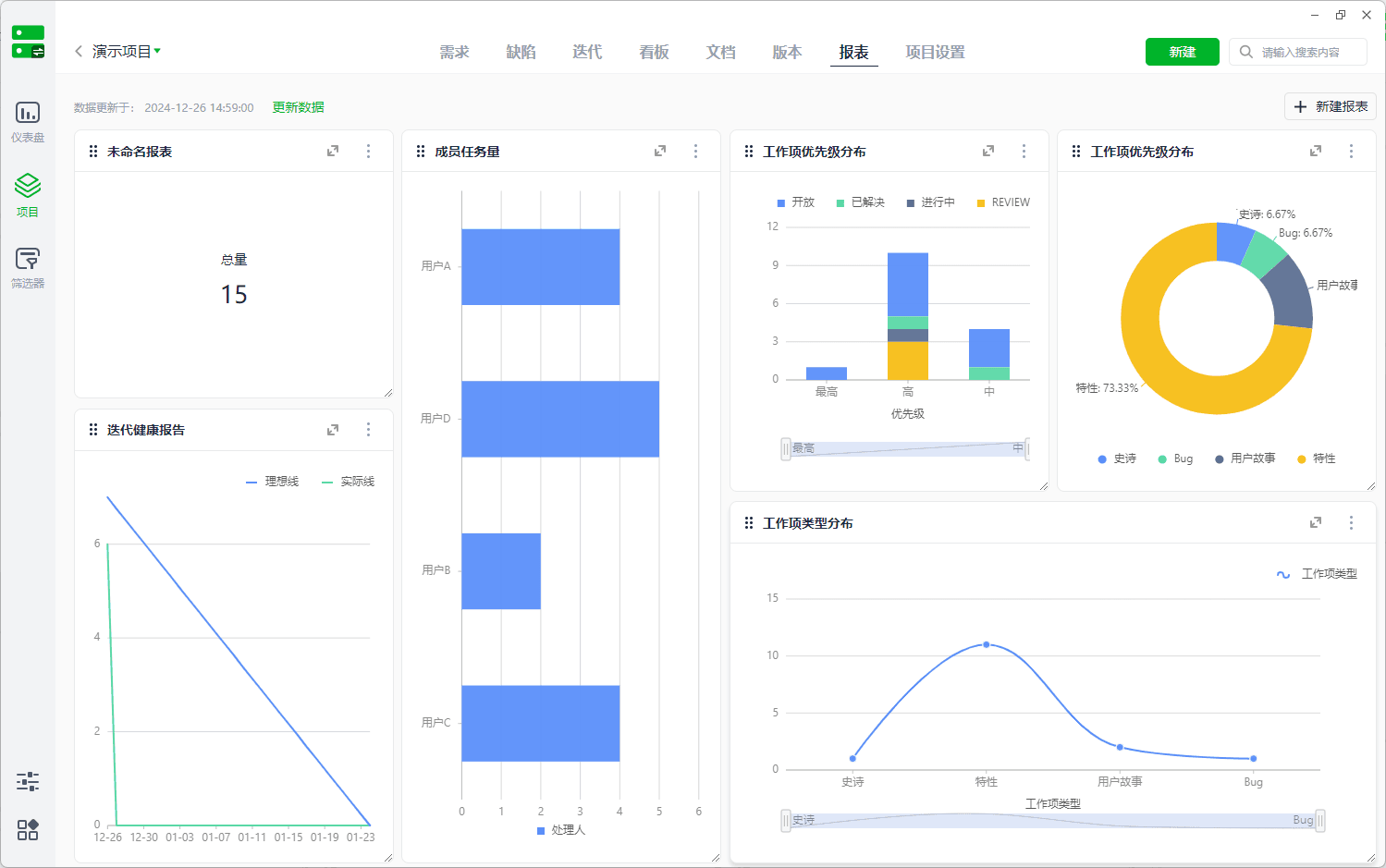
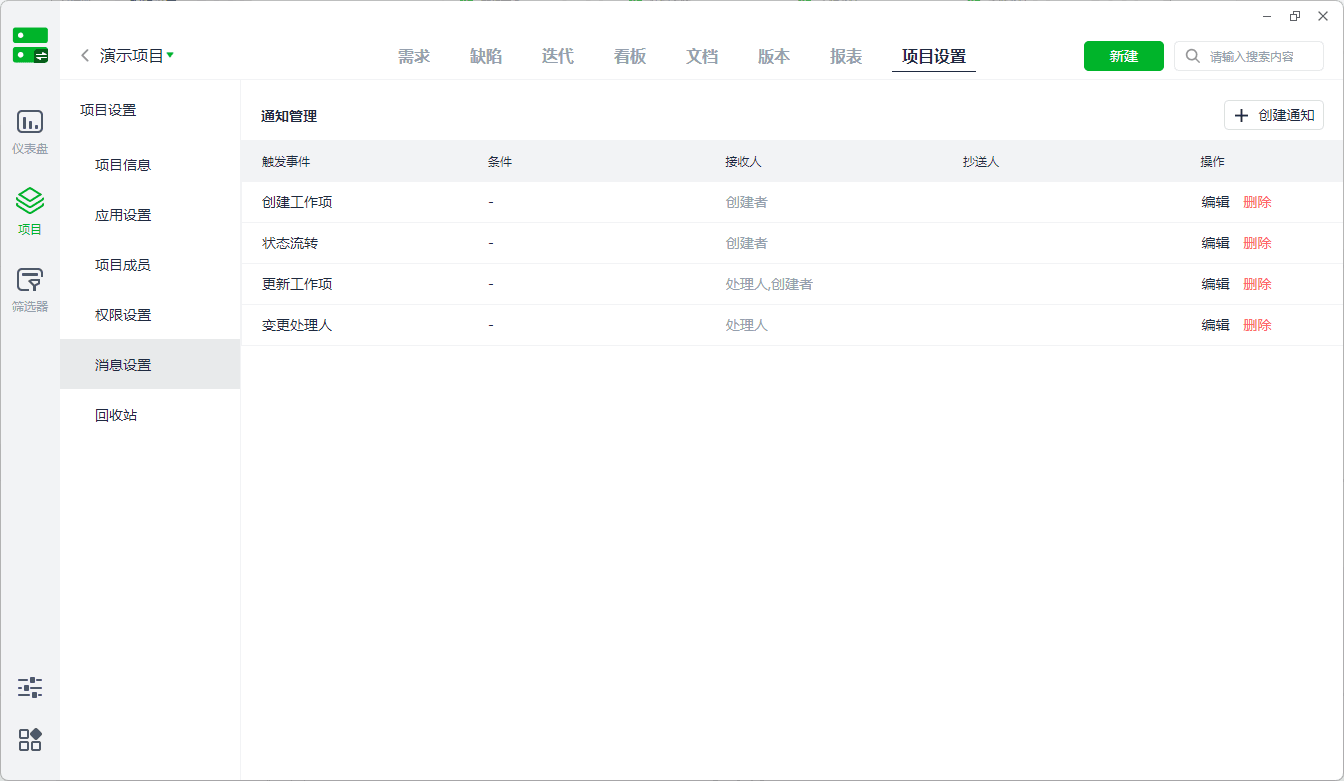
5.5 Notification Settings
(1) Project management notifications are crucial, but excessive messages can be overwhelming. Therefore, users can filter based on key criteria to receive only the most important notifications.
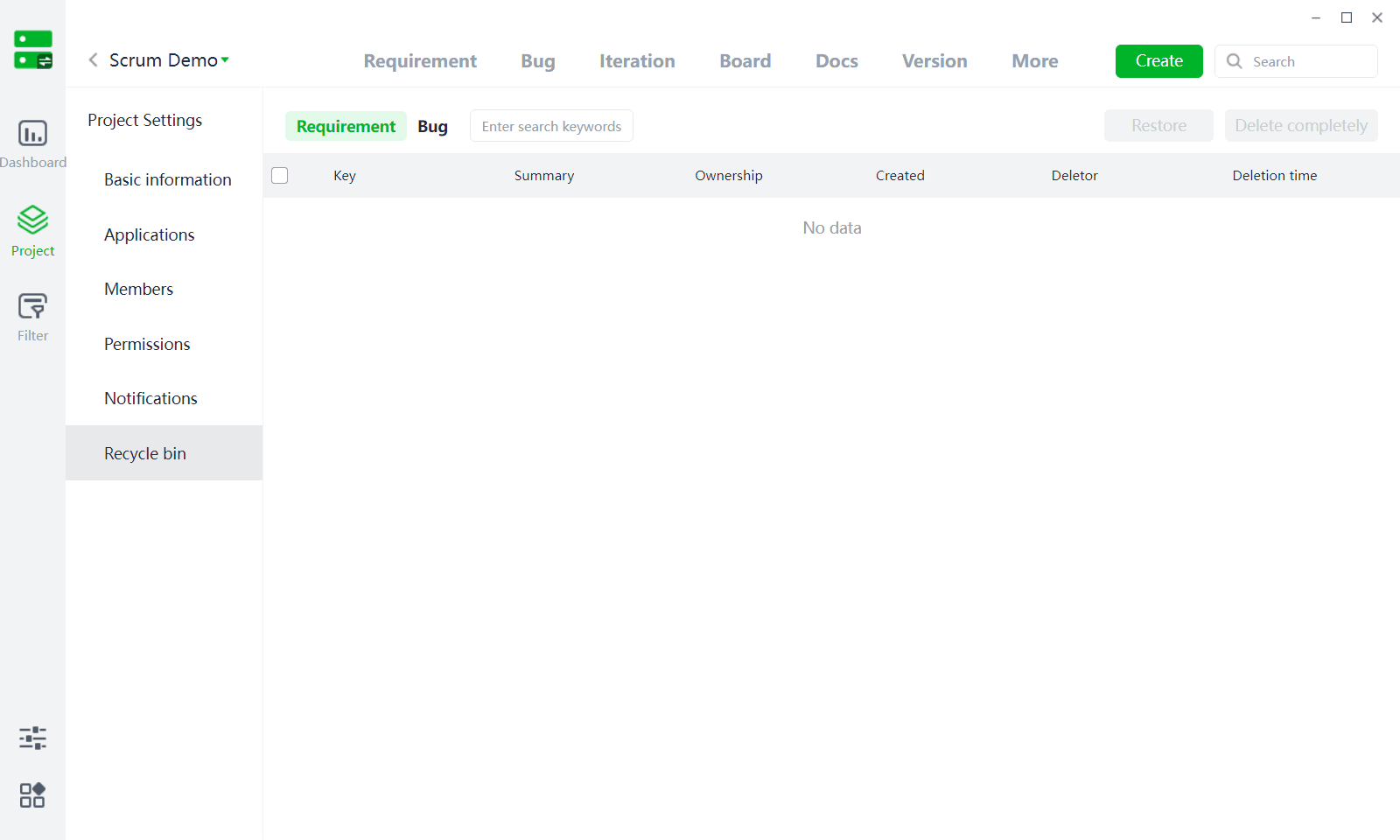
5.6 Recycle Bin
(1) Deleted work items are placed here, where they can be restored or permanently deleted.
(3) Users can directly expand to view detailed data from various dimensions under the report.
(4) Existing reports also support subscription, and subscribed report data will be automatically pushed to Duli's project assistant, allowing users to stay updated on project information instantly.
5、Project Settings
5.1 Project Information
(1) Project Information: Displays basic project details and allows for modifications.
(2) Project Handover: Click on the creator to make changes; upon successful modification, the project is directly transferred to the new member.
(3) Project Status: The default status is "In Progress." The status can be changed to "Archived" or activated from "Archived" back to "In Progress." Archived projects can also be deleted directly and restored in the Configuration Center.
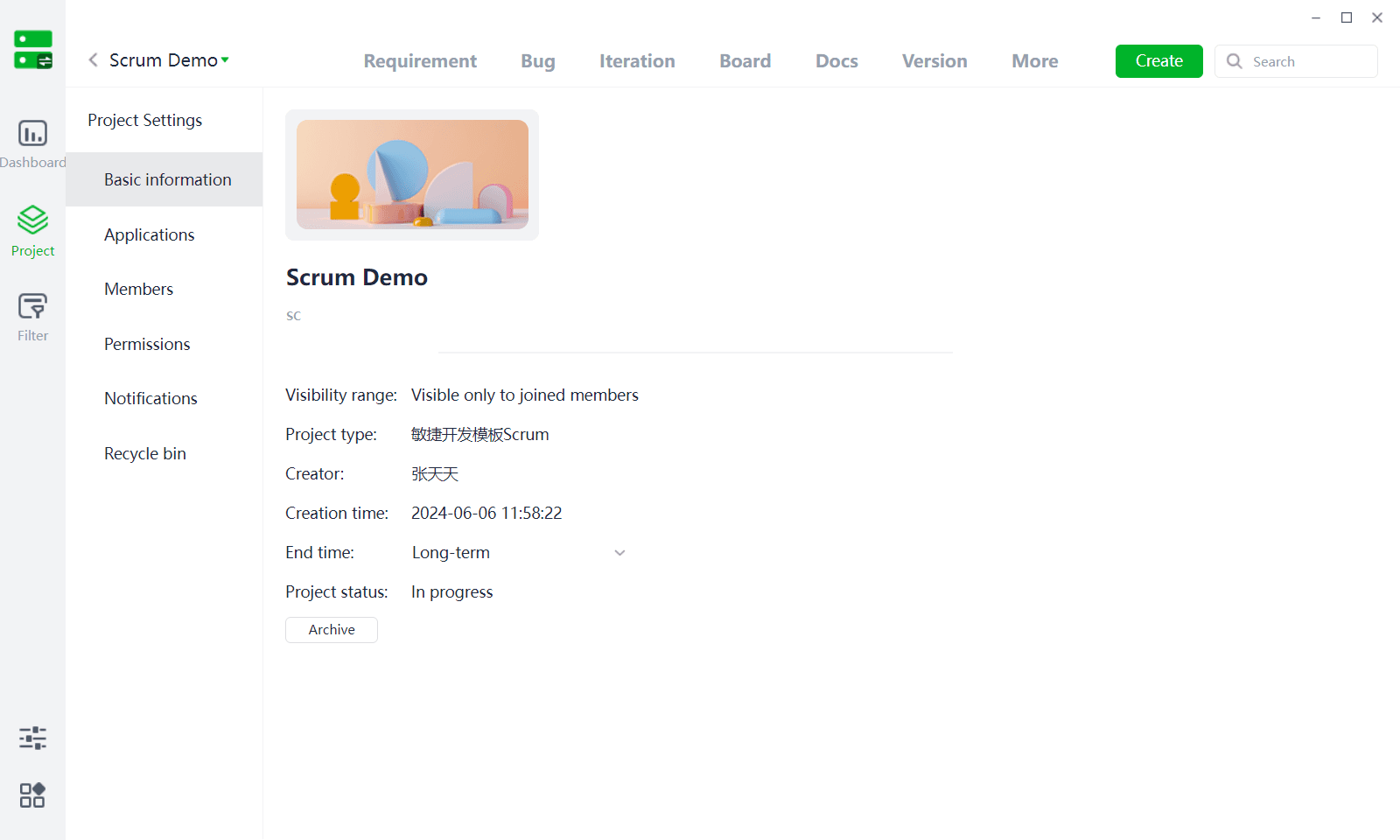
5.2 Application Settings
(1) Manage application modules for the current project; changes will only apply to the current project after saving. (Module editing is the same as template editing under Project Management - Configuration.)
(2) Users can customize project fields within Application Settings. Currently, only modules and tags are editable fields.
5.3 Project Members
(1) Only members added to the project, in addition to system administrators, are allowed to access the current project.
(2) Roles: Automatically obtain the role information of the current user from the merchant backend, and roles can be assigned permissions under Permission Settings.
(3) Edit User: Modify the user group of project members, and user groups can be linked to project permission information.
(4) Add Member: For multi-organization merchants, only members from the company of the current project can be added; members from other organizations cannot be added.
5.4 Permission Settings
(1) There are two ways to set permissions:
- Role Permissions: The project automatically retrieves the role list created by the current enterprise on the merchant backend. After assigning permissions to a role, users joining this project will directly inherit the corresponding permissions of their role.
- User Group Permissions: User groups can be created and assigned permissions. Members added to this user group will receive all permissions associated with the user group.
(2)Permission Overview
- Work Item Viewing Permissions: When enabled, users can only view work items they have created or those assigned to them.
- Module Permissions: Module permissions are further divided into multiple sub-permissions, which users can configure based on their needs.
5.5 Notification Settings
(1) Project management notifications are crucial, but excessive messages can be overwhelming. Therefore, users can filter based on key criteria to receive only the most important notifications.
5.6 Recycle Bin
(1) Deleted work items are placed here, where they can be restored or permanently deleted.
(3) Users can directly expand to view detailed data from various dimensions under the report.
(4) Existing reports also support subscription, and subscribed report data will be automatically pushed to Duli's project assistant, allowing users to stay updated on project information instantly.
5、Project Settings
5.1 Project Information
(1) Project Information: Displays basic project details and allows for modifications.
(2) Project Handover: Click on the creator to make changes; upon successful modification, the project is directly transferred to the new member.
(3) Project Status: The default status is "In Progress." The status can be changed to "Archived" or activated from "Archived" back to "In Progress." Archived projects can also be deleted directly and restored in the Configuration Center.
5.2 Application Settings
(1) Manage application modules for the current project; changes will only apply to the current project after saving. (Module editing is the same as template editing under Project Management - Configuration.)
(2) Users can customize project fields within Application Settings. Currently, only modules and tags are editable fields.
5.3 Project Members
(1) Only members added to the project, in addition to system administrators, are allowed to access the current project.
(2) Roles: Automatically obtain the role information of the current user from the merchant backend, and roles can be assigned permissions under Permission Settings.
(3) Edit User: Modify the user group of project members, and user groups can be linked to project permission information.
(4) Add Member: For multi-organization merchants, only members from the company of the current project can be added; members from other organizations cannot be added.
5.4 Permission Settings
(1) There are two ways to set permissions:
- Role Permissions: The project automatically retrieves the role list created by the current enterprise on the merchant backend. After assigning permissions to a role, users joining this project will directly inherit the corresponding permissions of their role.
- User Group Permissions: User groups can be created and assigned permissions. Members added to this user group will receive all permissions associated with the user group.
(2)Permission Overview
- Work Item Viewing Permissions: When enabled, users can only view work items they have created or those assigned to them.
- Module Permissions: Module permissions are further divided into multiple sub-permissions, which users can configure based on their needs.
5.5 Notification Settings
(1) Project management notifications are crucial, but excessive messages can be overwhelming. Therefore, users can filter based on key criteria to receive only the most important notifications.
5.6 Recycle Bin
(1) Deleted work items are placed here, where they can be restored or permanently deleted.