Quick Start Drive
➢What is a Drive?
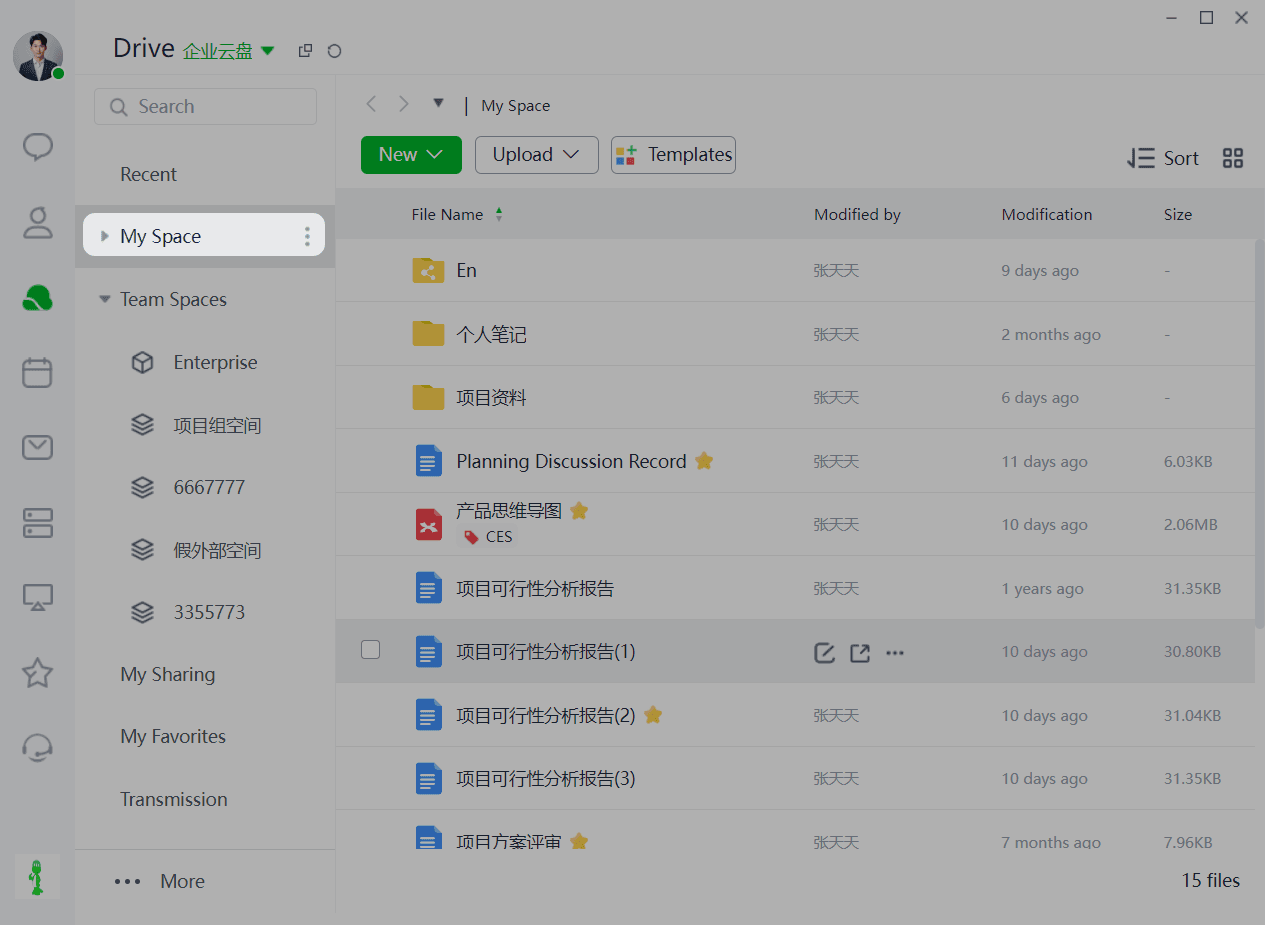
A Cloud Drive is a file management platform that integrates file storage, permission management, and multi-user collaboration. It supports one-click storage, editing, and sharing of work and study materials on any device, anytime and anywhere, making document collaboration more efficient.
Cloud Drive consists of My Documents and Enterprise Space:
1)My Documents: For storing personal files, with options to share and manage permissions.
2)Enterprise: For internal company data, with options for external or internal sharing and permission management.
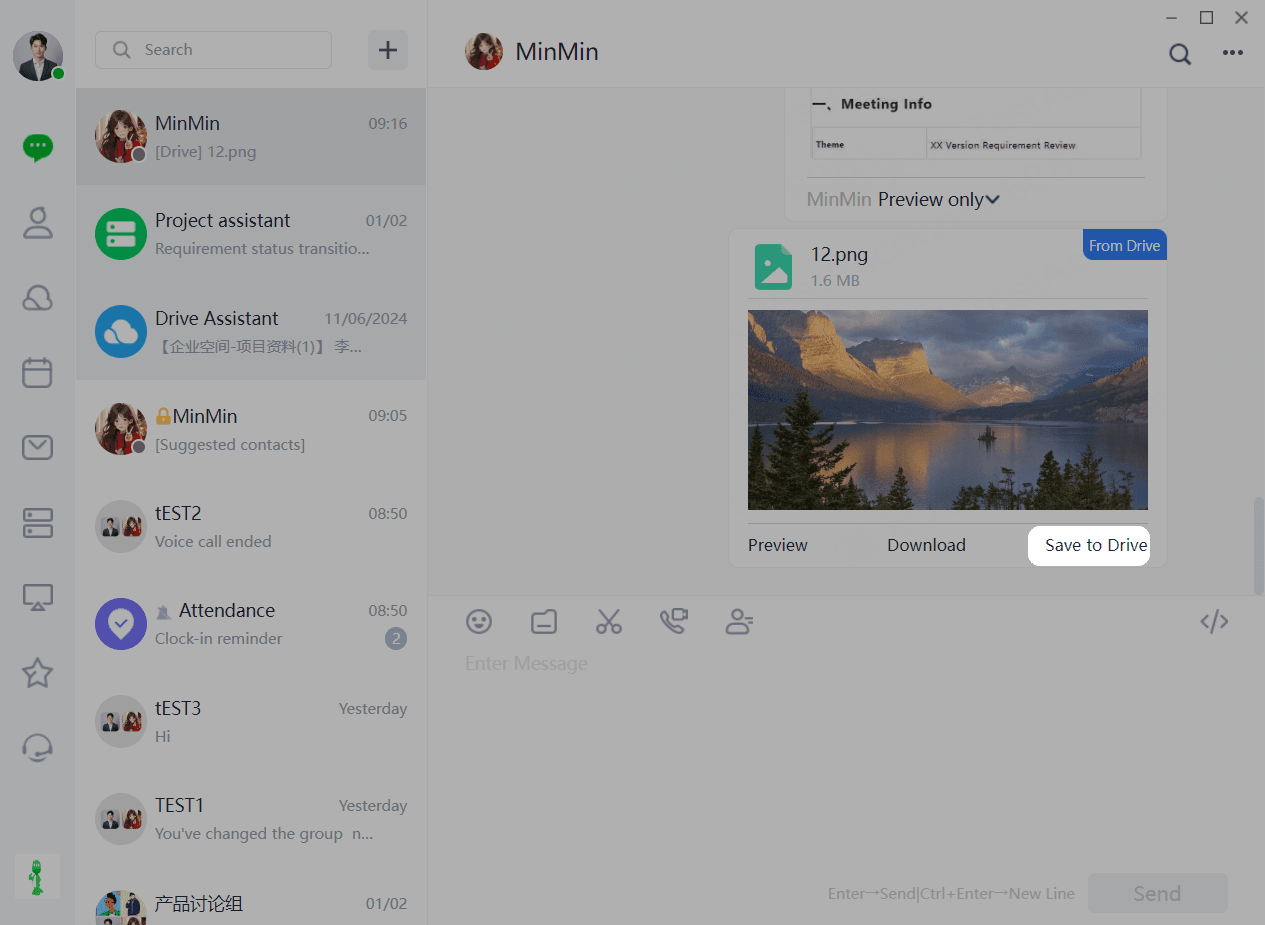
One-Click Storage of Chat Files to Cloud Drive
Files can be stored in the Cloud Drive with one click, unifying the management of corporate work outcomes. It's easy to operate, allowing for instant access, editing, and organization.
More Granular Permission Management
More granular file permissions enable precise authorization for each file and each user, ensuring data asset security.
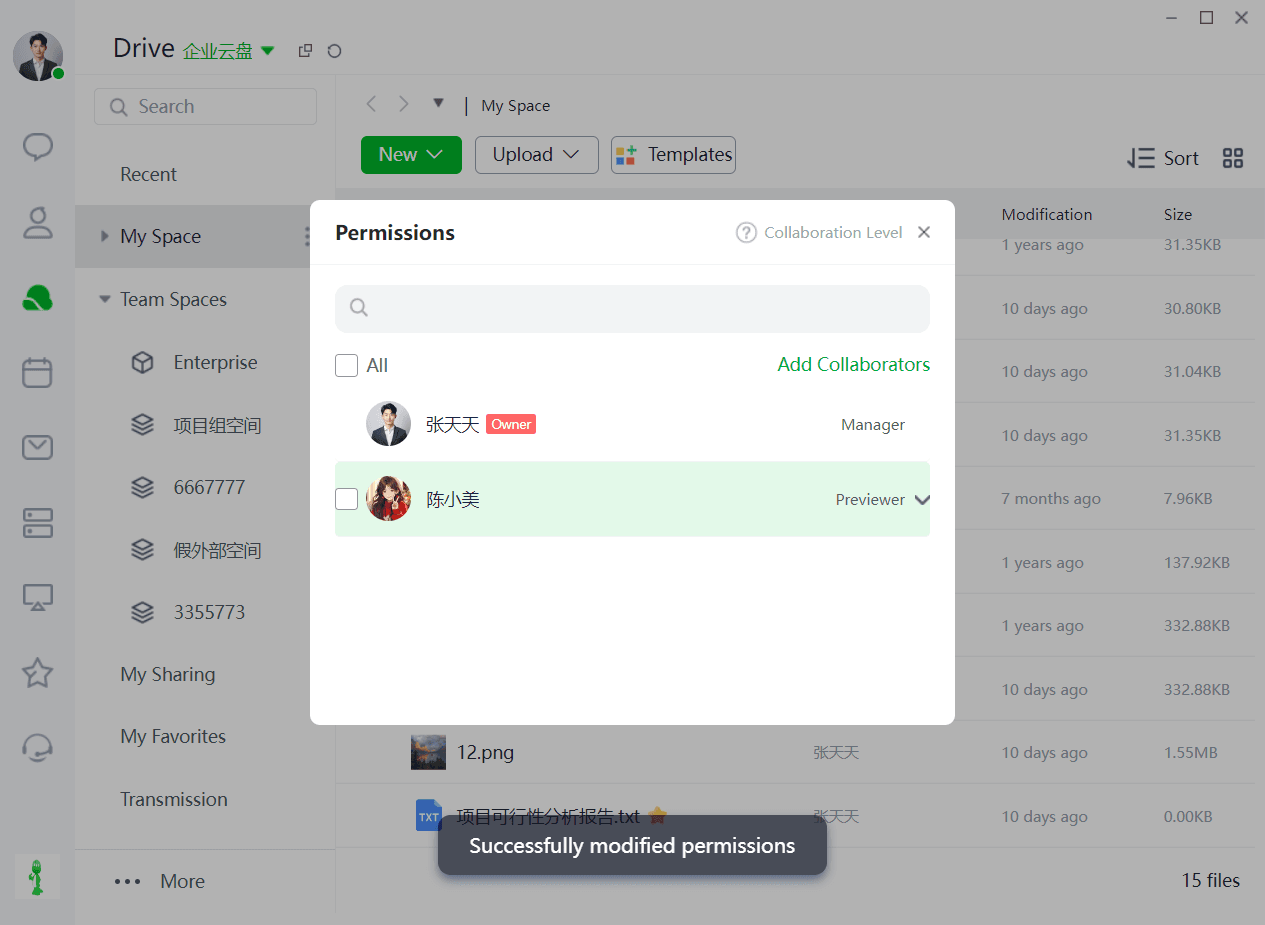
Edit Online Anytime, Anywhere
Regardless of the device, open documents directly in the Cloud Drive, edit in real-time, and auto-save, enabling free creation anytime, anywhere.
Efficient File Collaboration
No need to send files back and forth. Multiple users can collaborate and edit online, with content syncing in real-time and history records available for tracing and viewing.
Convenient File Search
Multiple search methods, including global search and directory search, quickly find and locate files.
➢How to Access Drive?
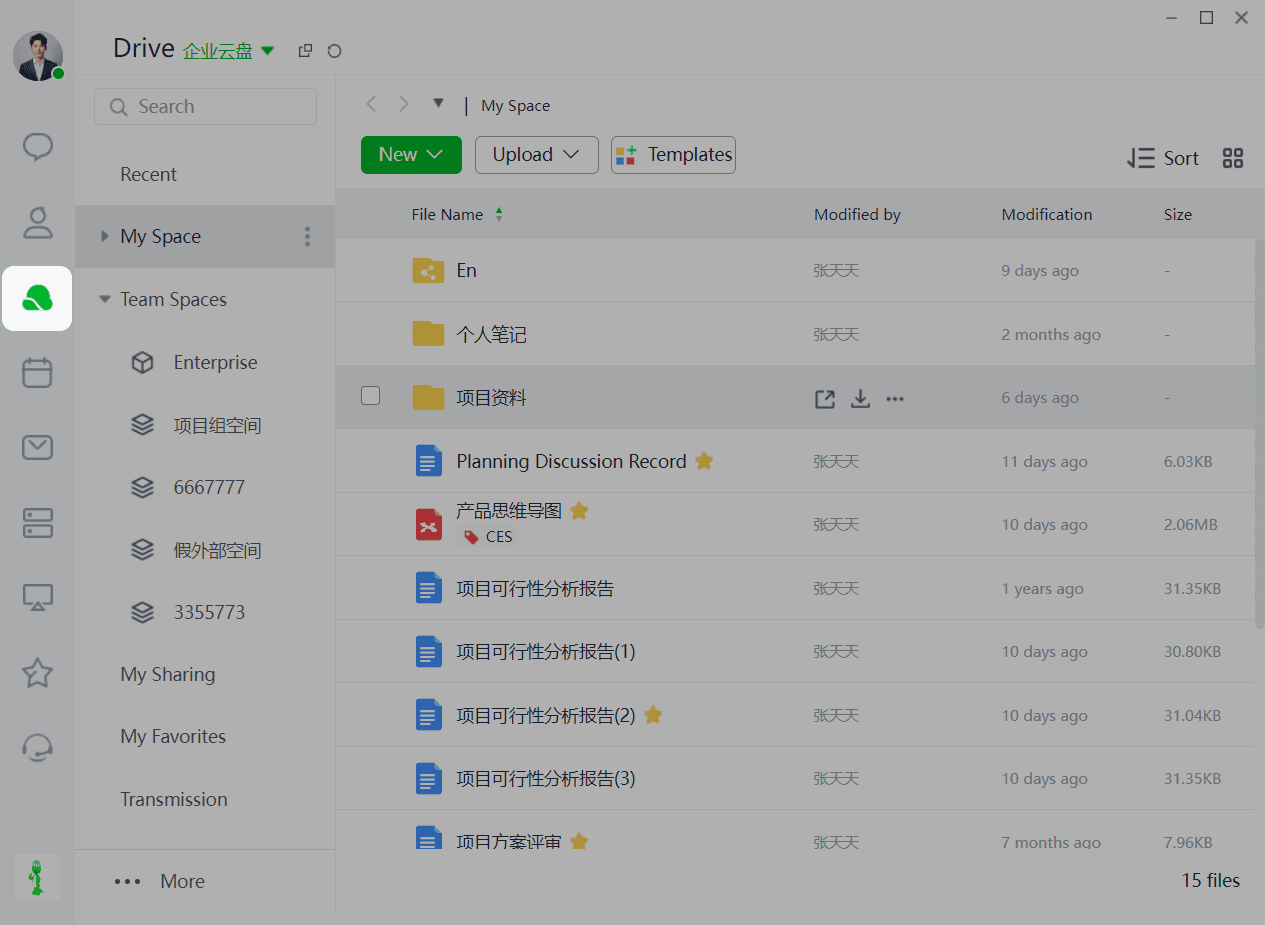
Method 1: Click [Cloud Drive] on the left menu bar of the client.
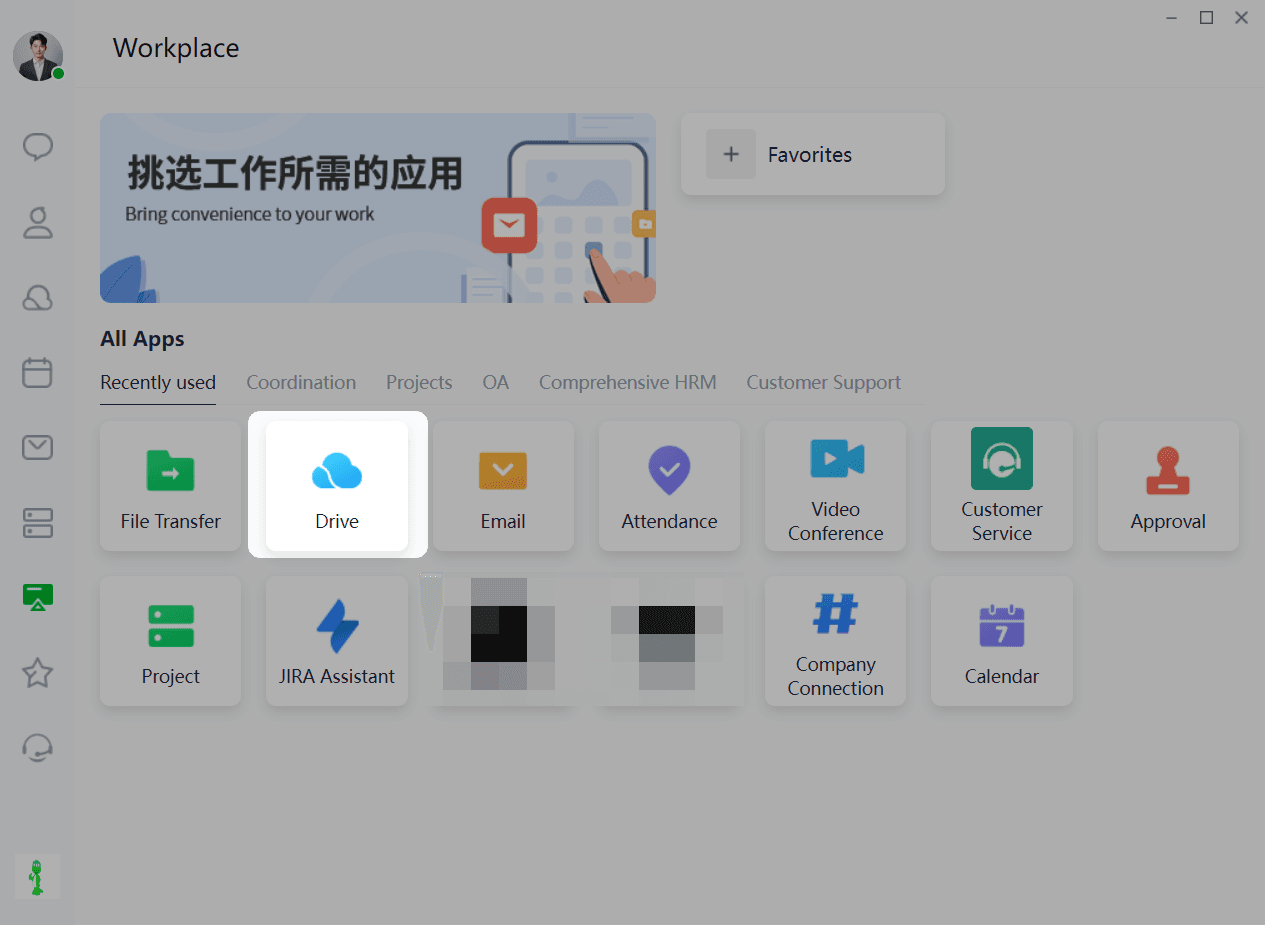
Method 2: Click [Workbench] >> [Cloud Drive] on the left menu bar of the client.
➢How to Search Files?
When you need to quickly find a file or folder:
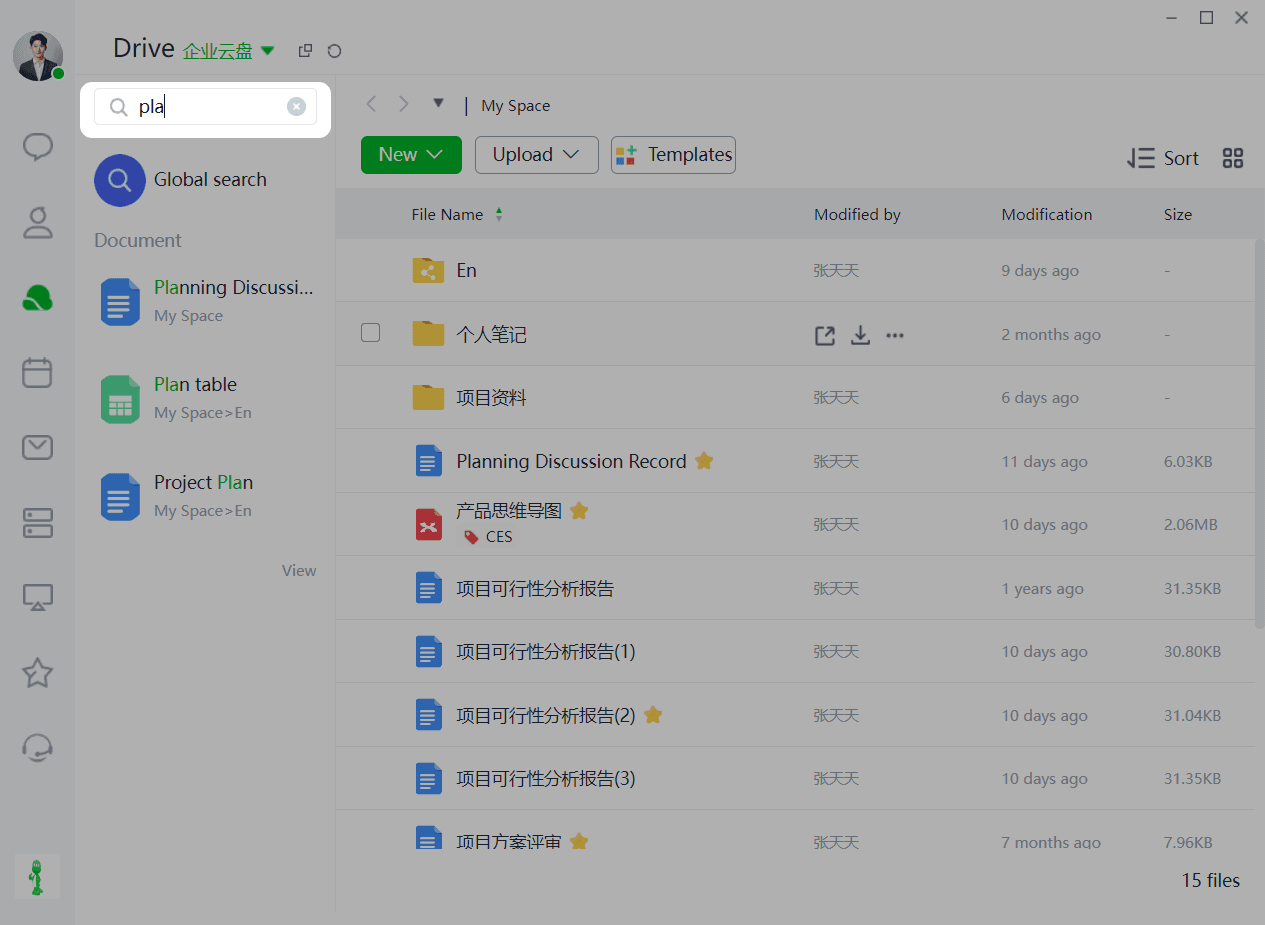
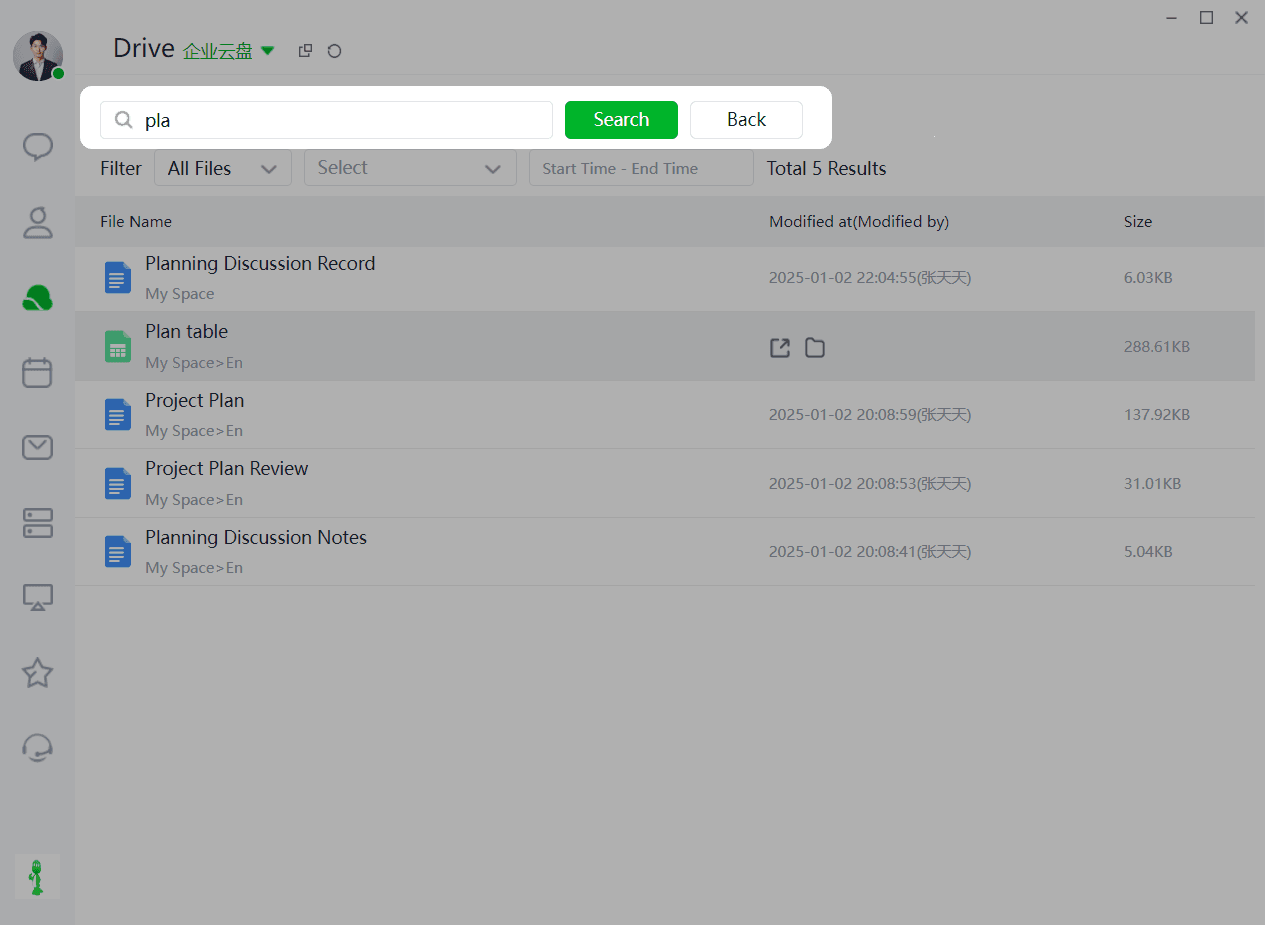
Step 1: Enter the file name or keyword in the search box on the right side of the page, and click the advanced search button to go to the full search page, which will quickly help you find the file (folder) based on keyword relevance.
Step 2: On the full search page, you can conduct a secondary search by setting file location, file type, and time range.
➢How to Preview Files?
When you need to preview files online**:**
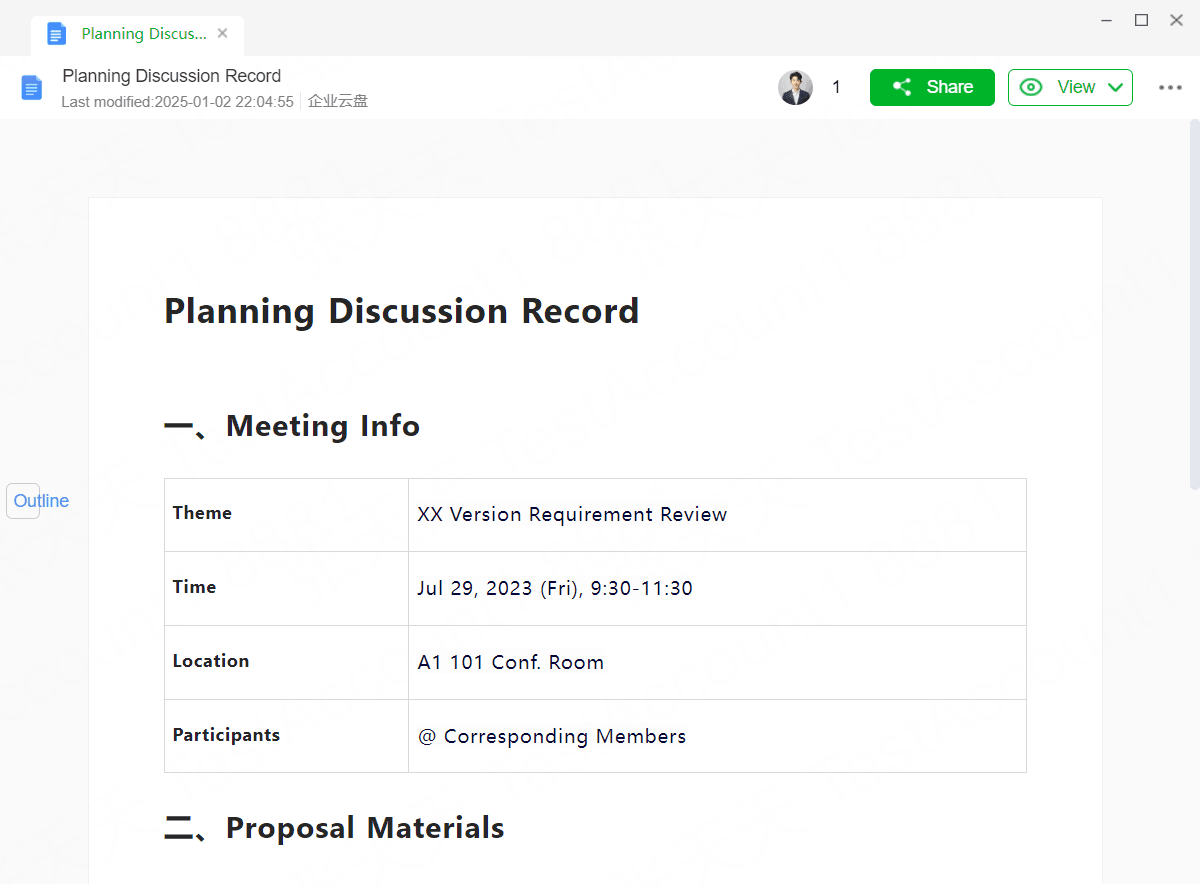
Step 1: Select the target file and click it with the left mouse button to preview. Supported file types for preview
include:
- All plain text files like Markdown, txt.
- Multimedia files like images, music, videos.
- Office documents like Word, Excel, PPT for online preview and editing.
- Layout documents like PDF, OFD, XPS.
- AutoCAD, dwg engineering drawings.
- Compression packages like zip, rar, jar, tar, gzip.
- Code files like Java, Php, Html, Js, Py, Css.
- Customizable addition of the above file types for preview.
- Online preview and editing of Office files, multi-user collaborative editing, and document version history traceability.
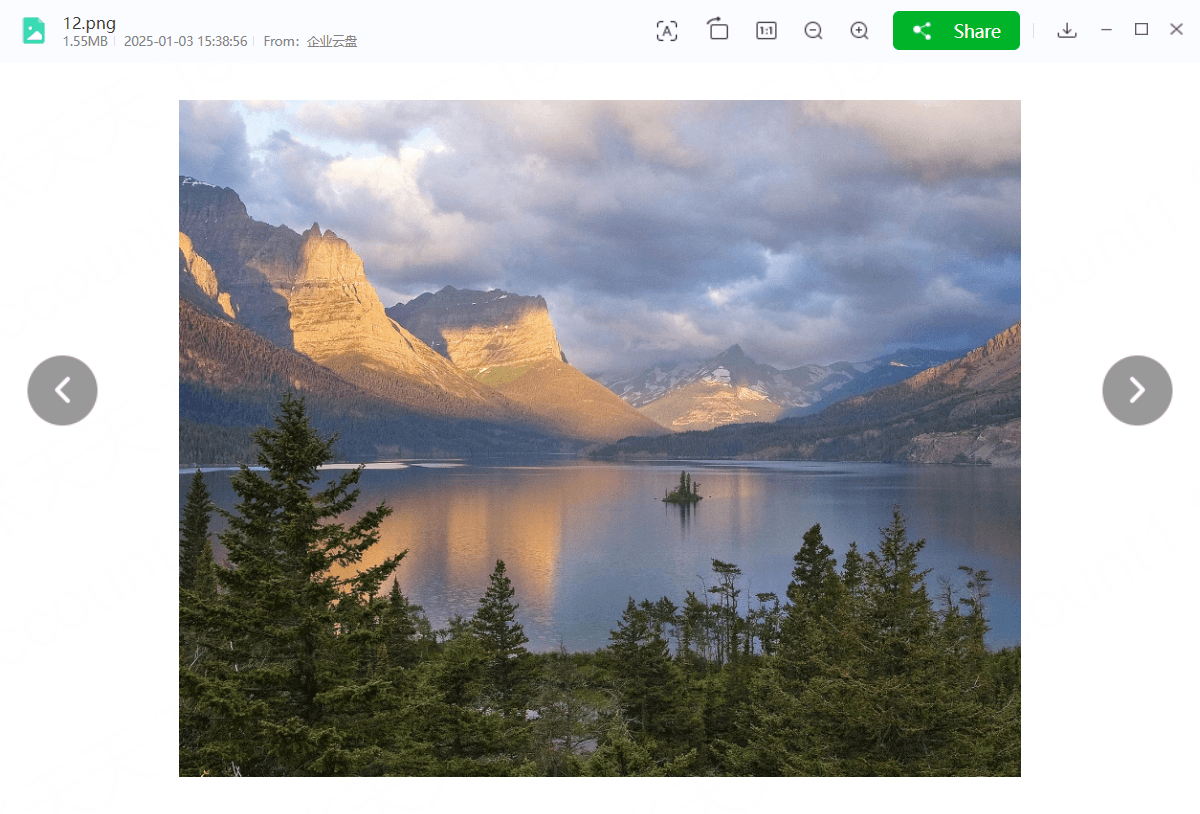
Step 2: For image preview, click the buttons at the top of the preview page, which, from left to right, are close, full-screen, minimize, download, share, zoom in, zoom out, 100% display, restore, and text recognition. You can switch to the previous or next image on the left and right sides of the image for more flexible preview and quick sharing.
➢How to Switch Views?
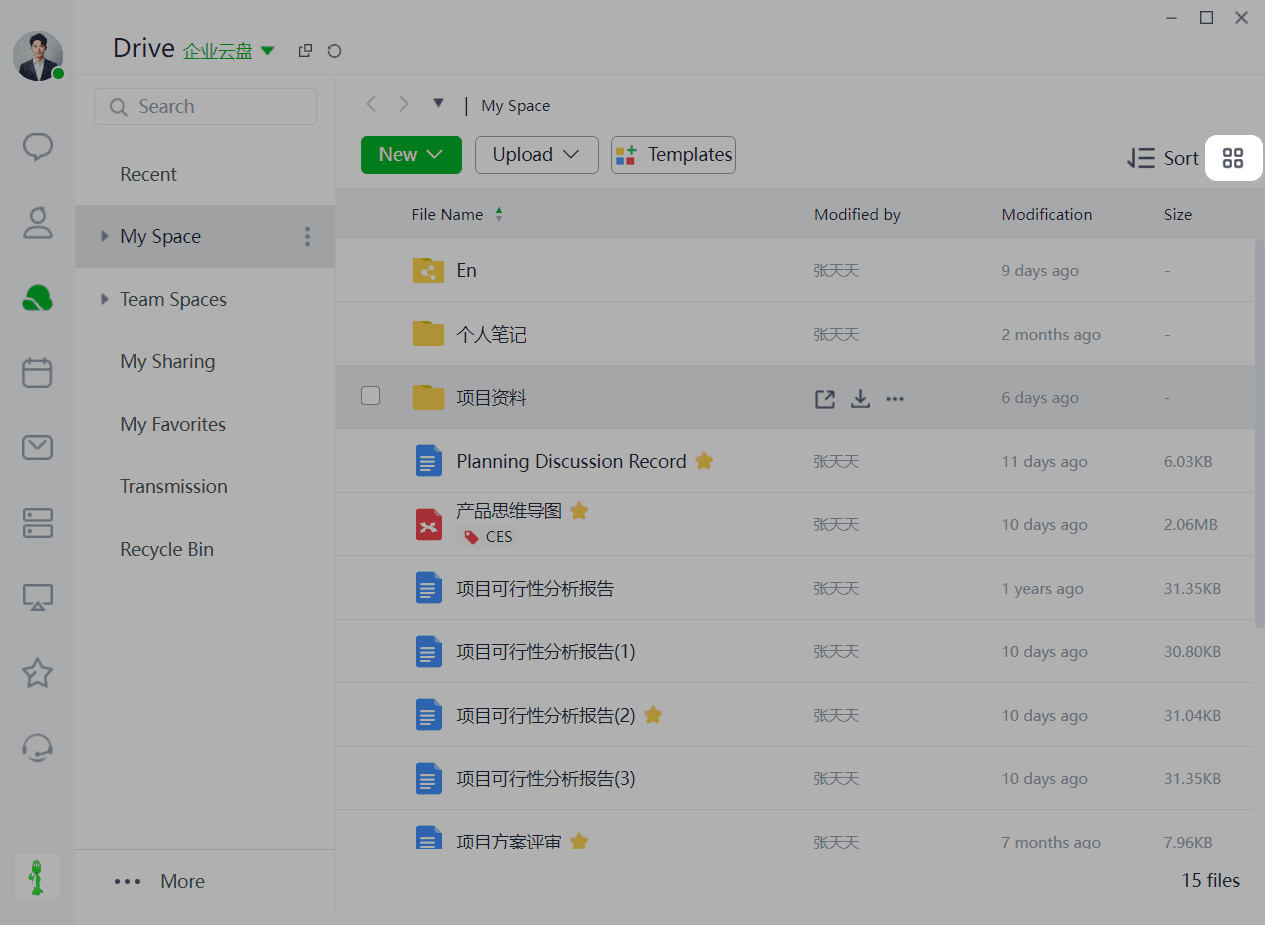
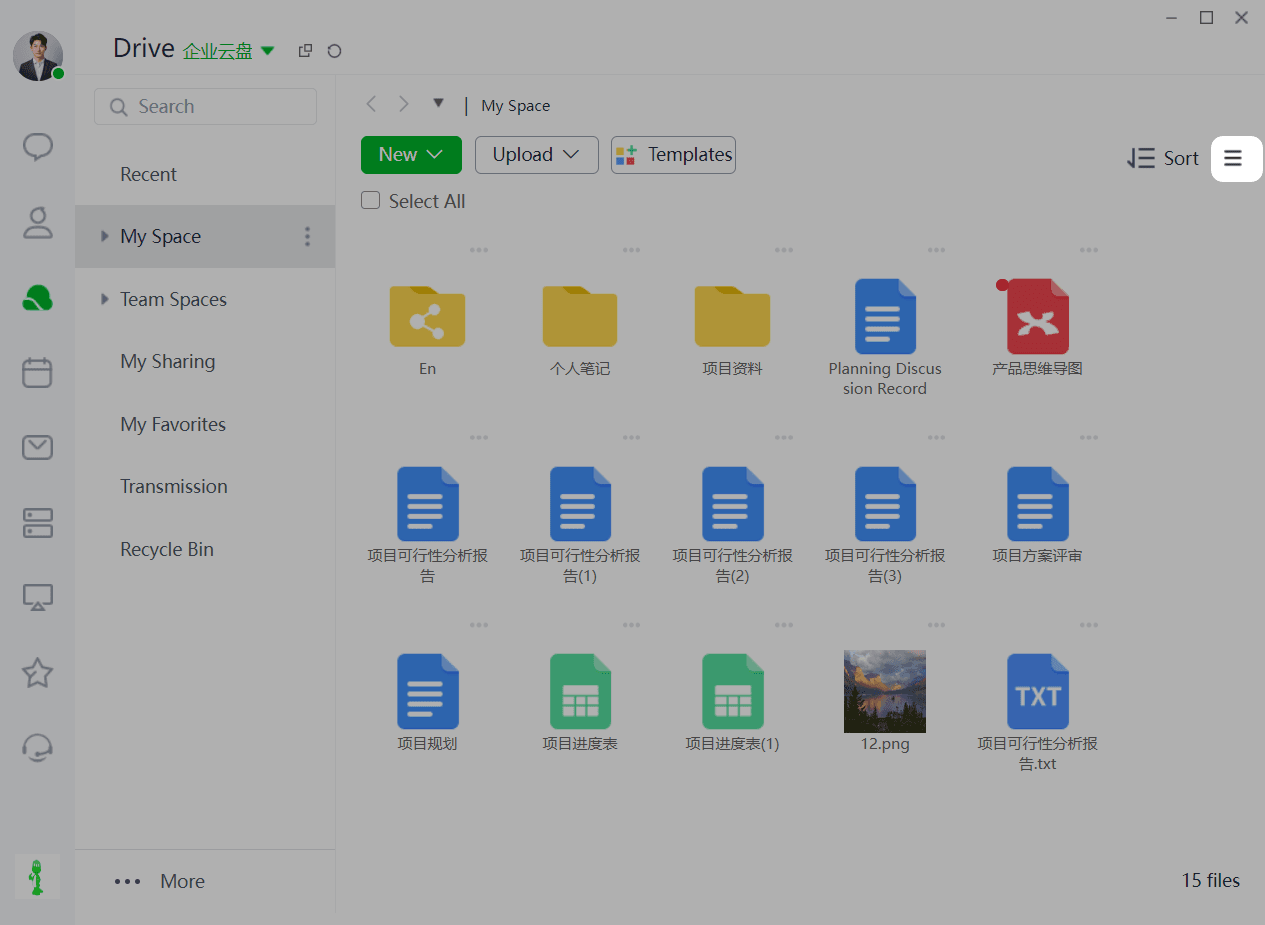
1、Click the grid/list icon to switch views.
➢How to Clean Files?
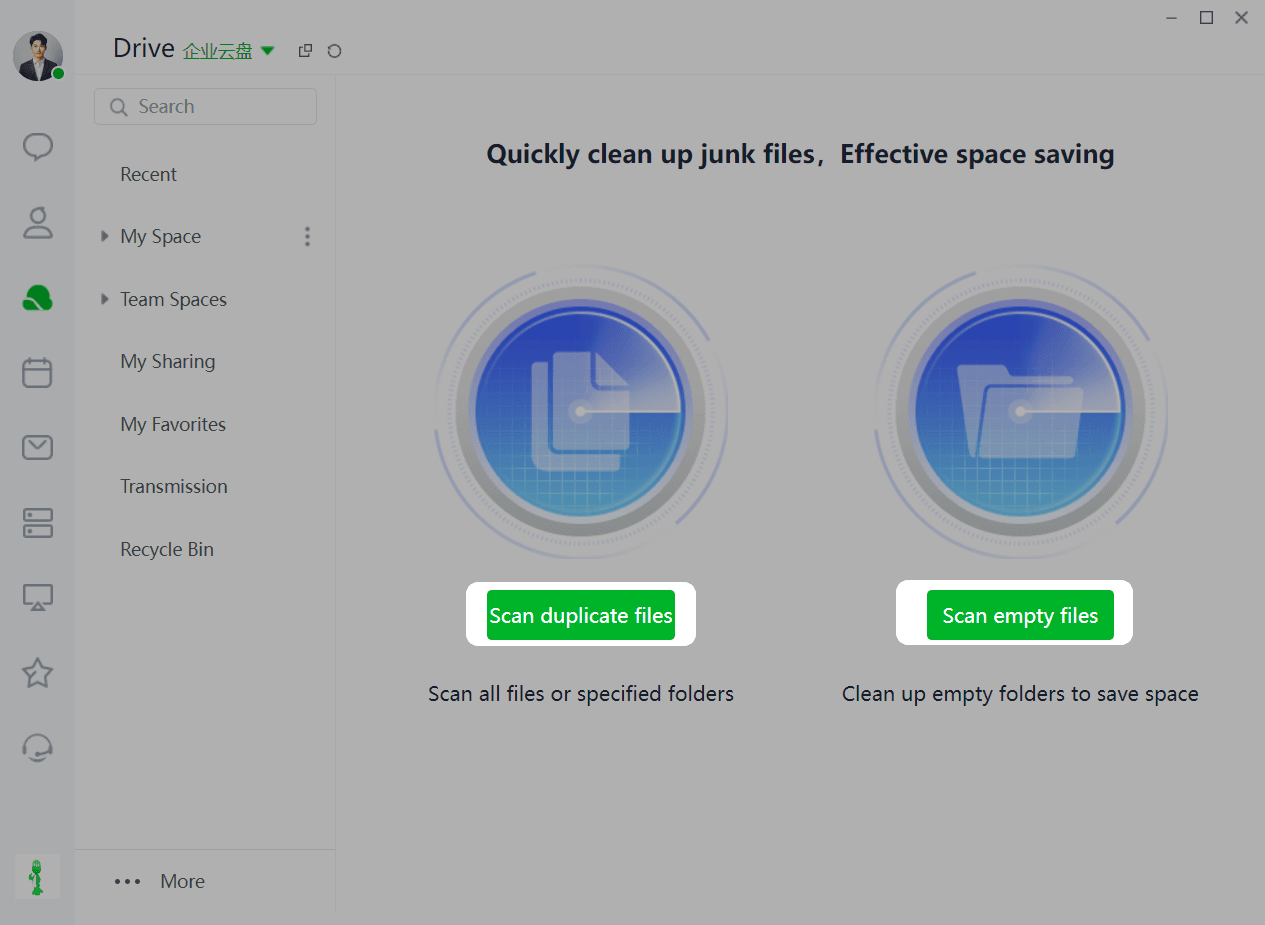
File cleanup quickly removes duplicate and empty files.
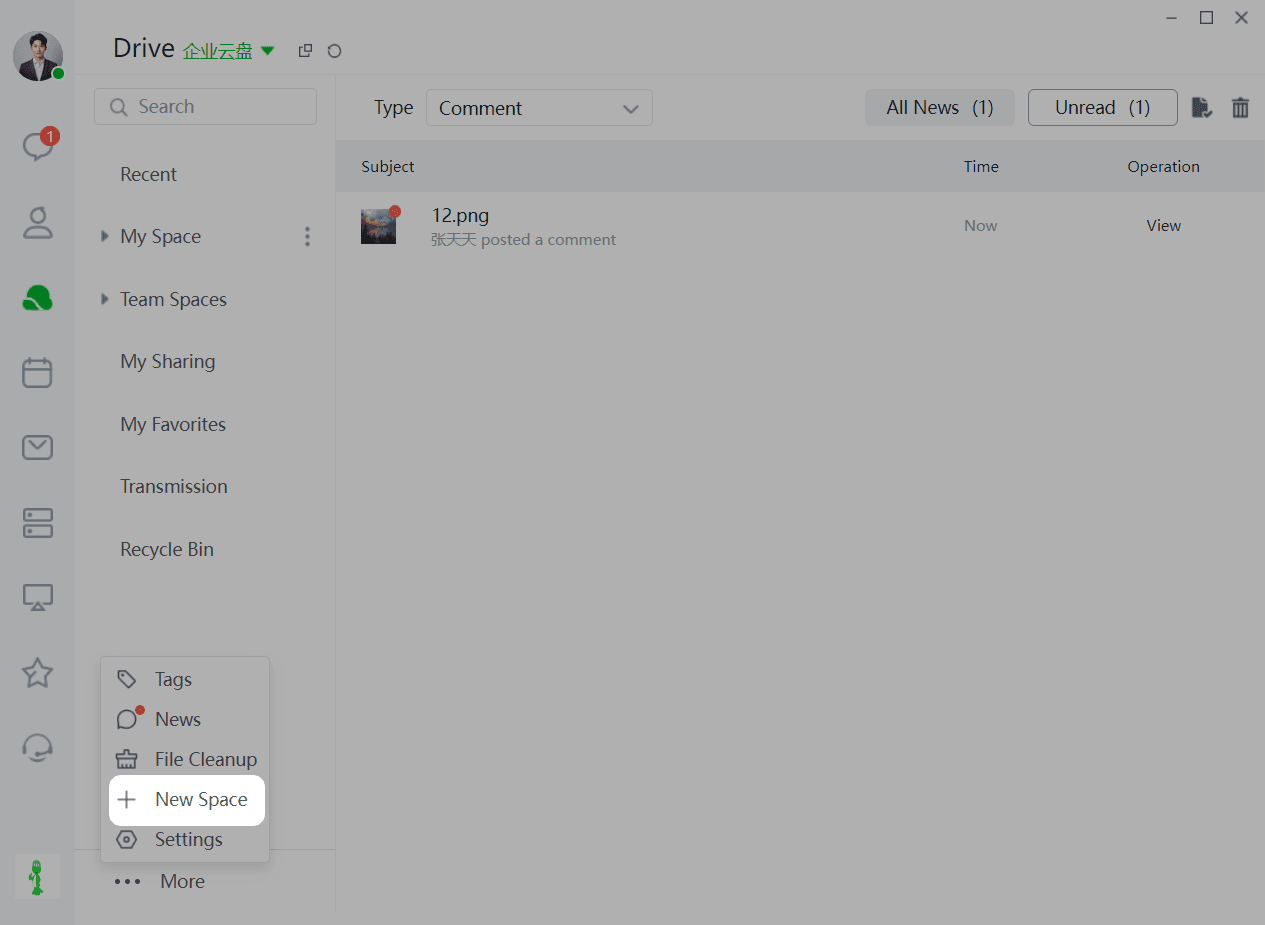
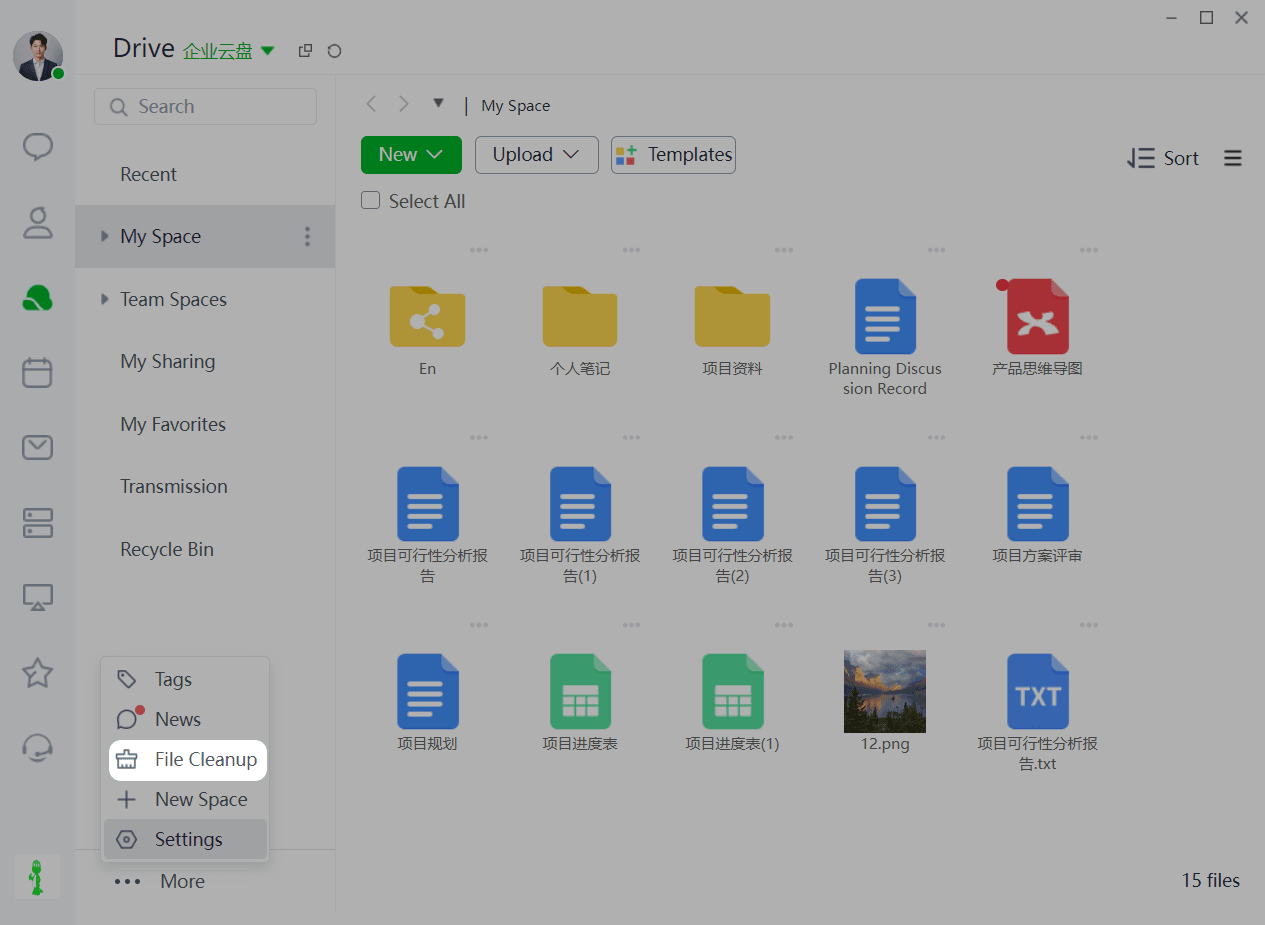
Step 1: Click "More" at the bottom of the Cloud Drive list and select "File Cleanup".
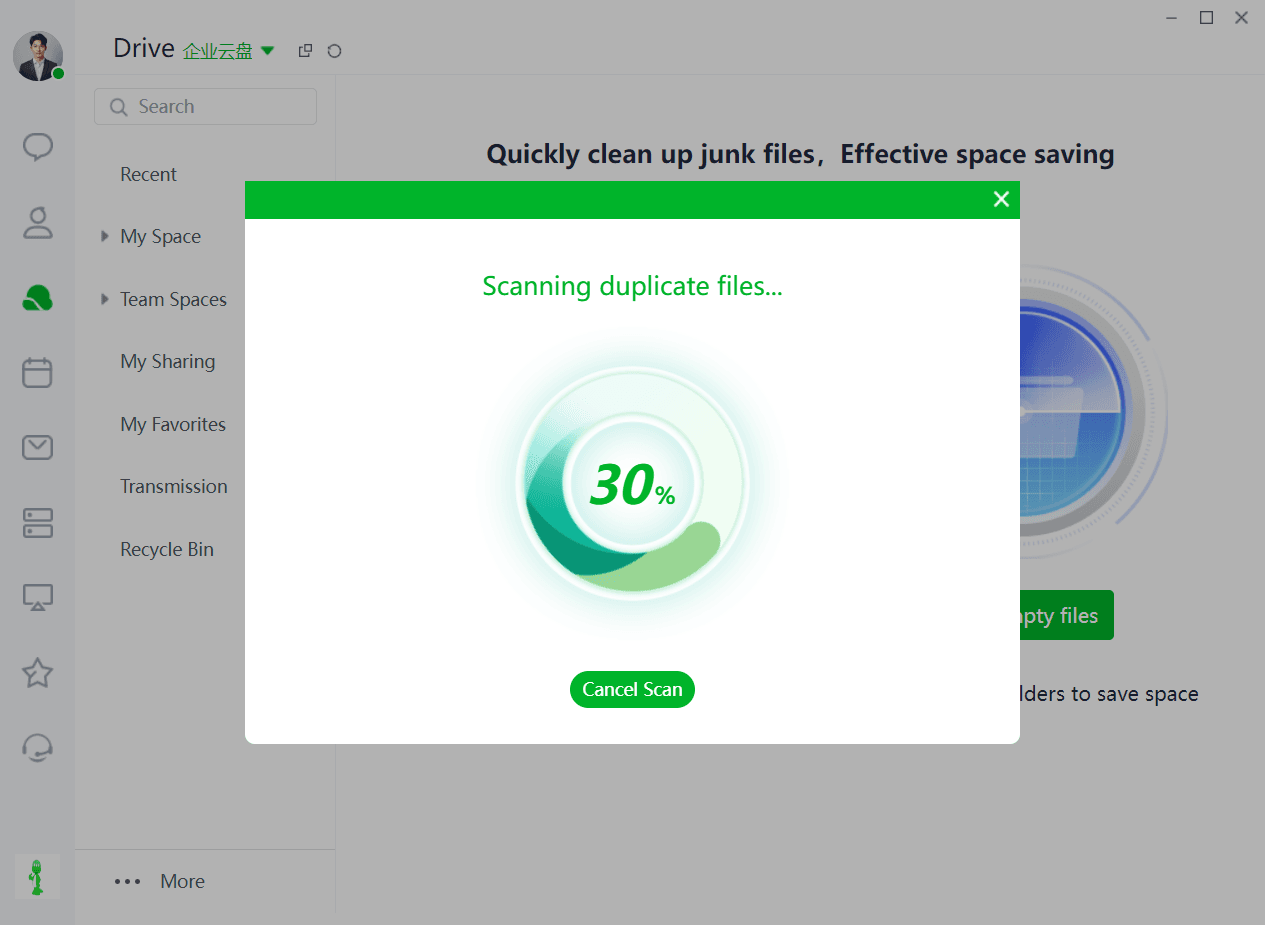
Step 2: Choose the type of scan you want, supporting the cleanup of duplicate and empty files.
➢How to View Notice?
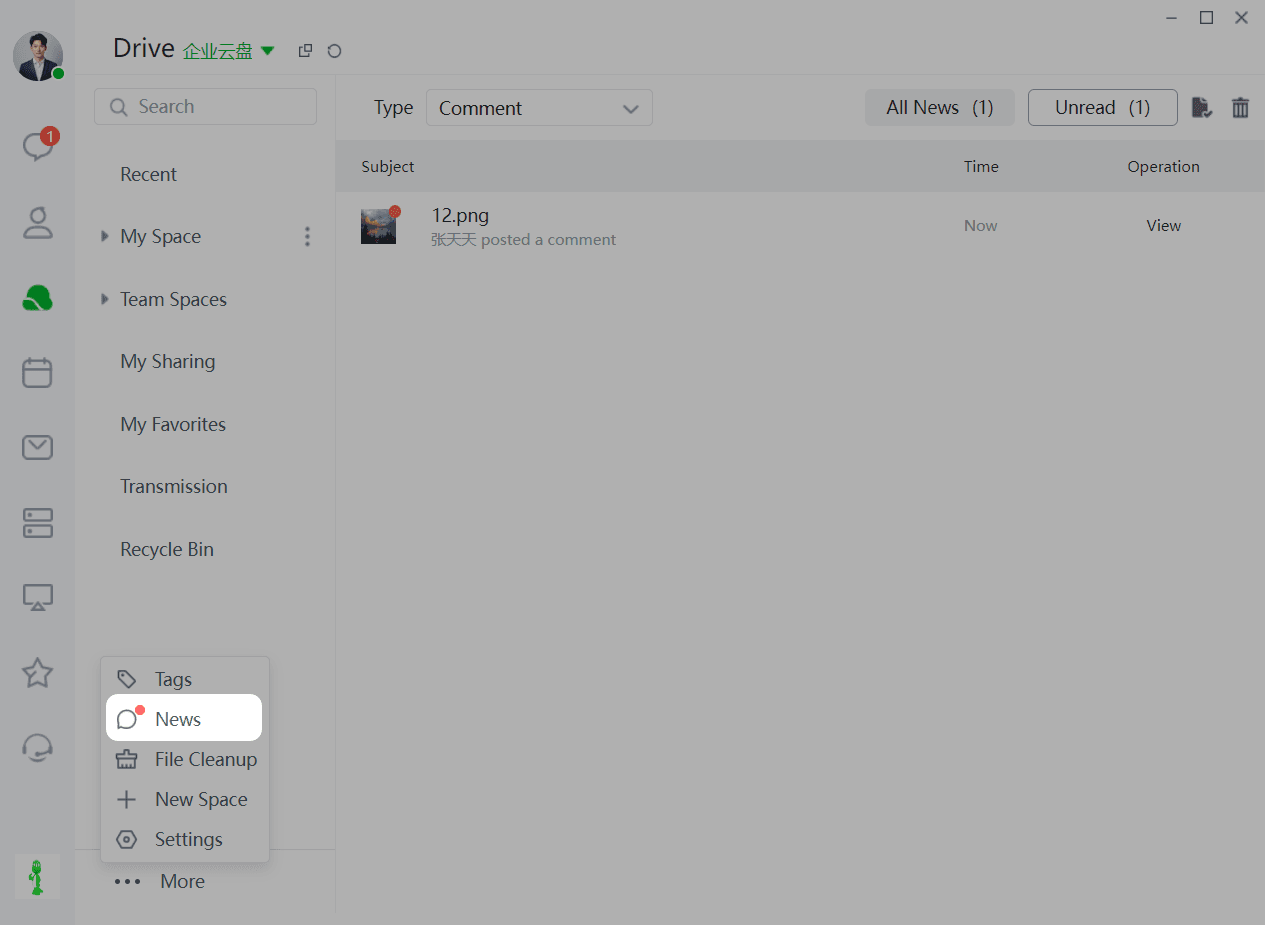
This section aggregates all Cloud Drive messages related to you, including department dynamics, project dynamics, collaboration dynamics, subscriptions, comments, and system messages.
Step 1: Click "Messages" to enter the message page. Unread messages will be indicated by a numerical icon.
Step 2: Click the message type directly to view the corresponding message details on the right detail page.
Step 3: By default, all messages are displayed. You can select to view "All Messages" or "Unread Messages" in the message filter.
➢How to Create Space?
Cloud Drive project groups are used for file storage and collaboration across teams or project teams.
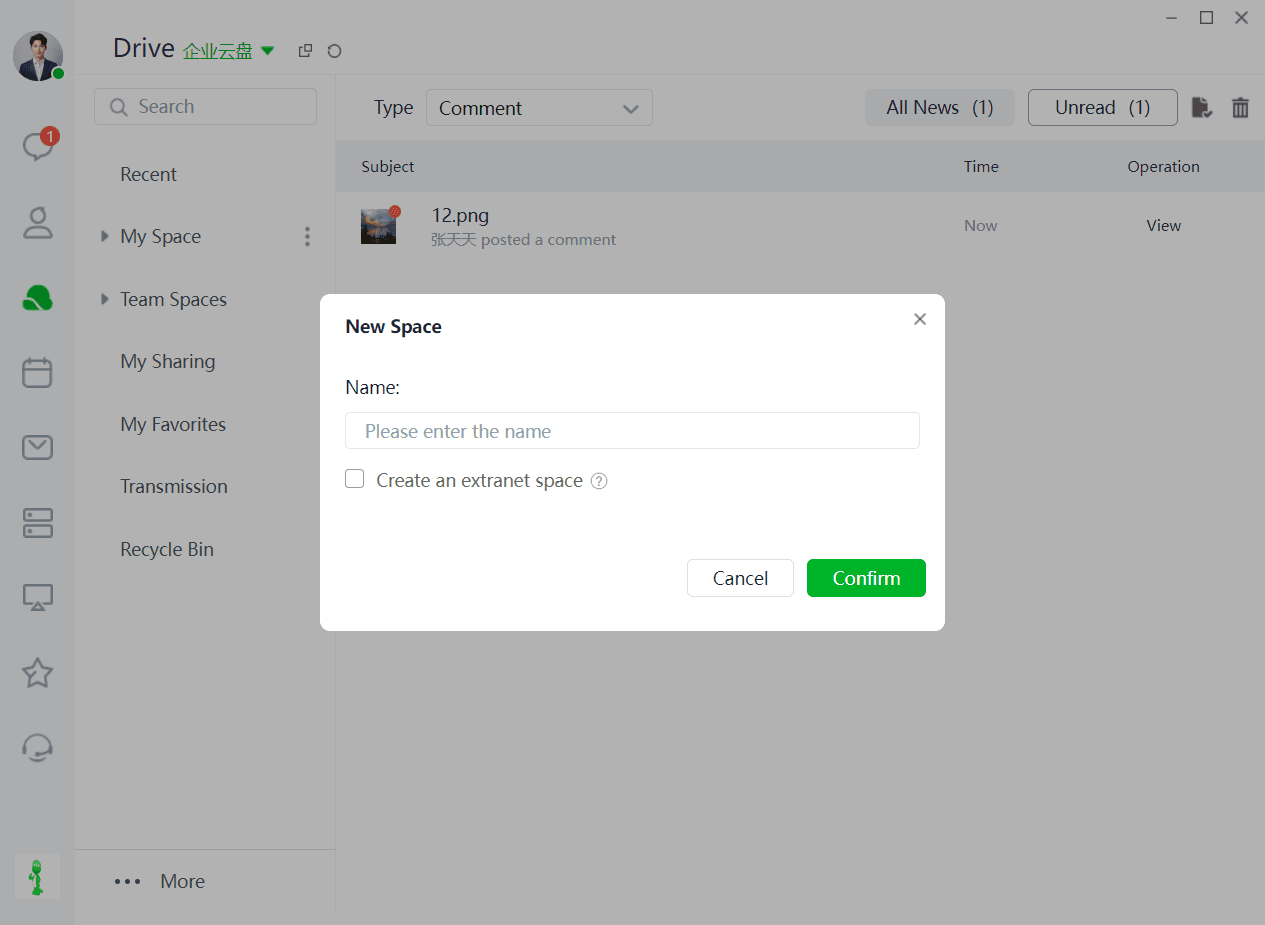
Step 1: Click "More" and then "New Space" to create a new space.
Step 2: Once created, the new space will appear in the Enterprise Space list, where you can rename or delete it.
Step 3: When creating a new space, check the option to create it as an external space, allowing you to add external accounts as collaborators by creating external links.
Step 4: For external spaces, you can enable file review. Once enabled, uploaded files need to be reviewed, and rejected files will disappear from the list.