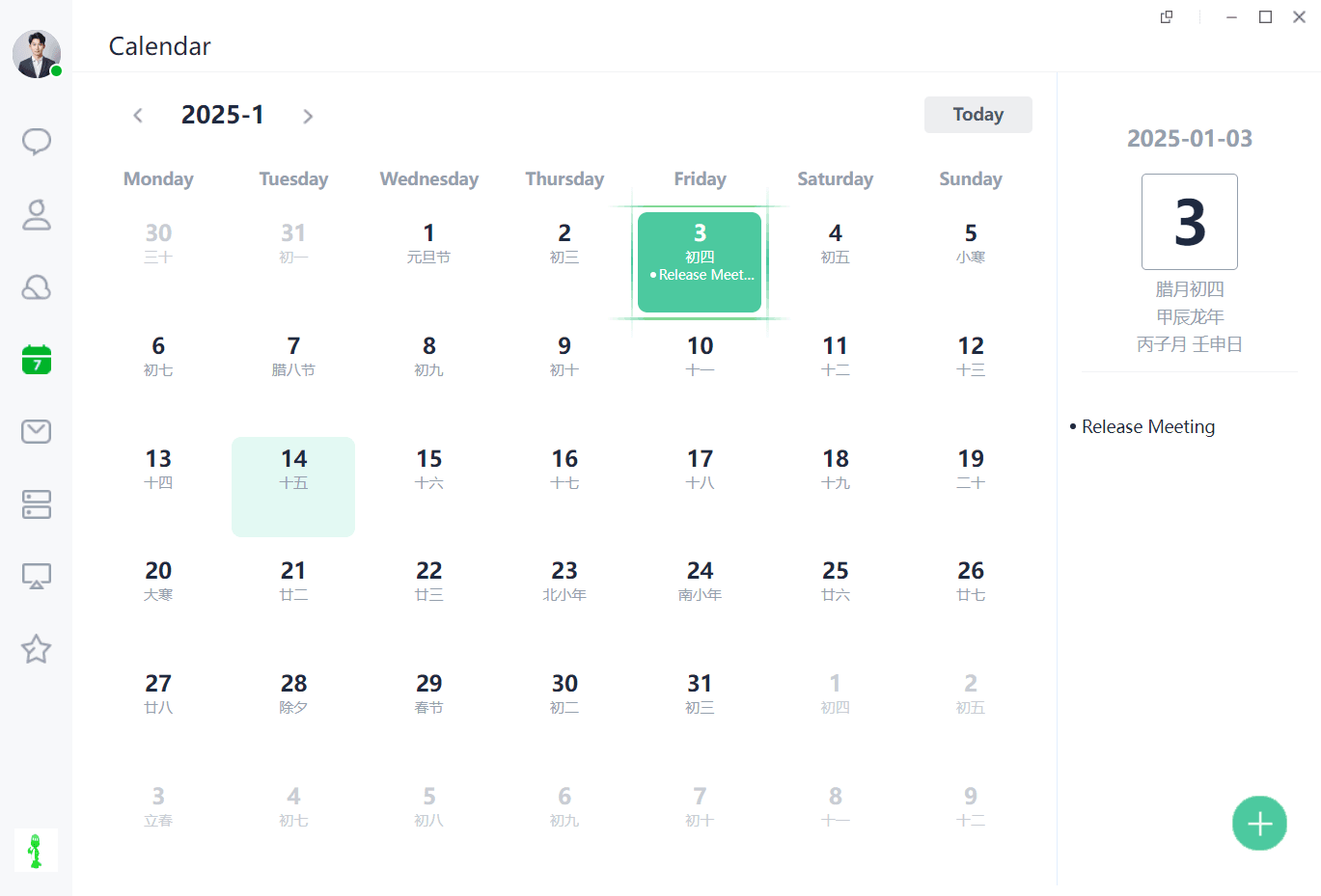
Initiate Calendar
Initiate Calendar
Open the DuliDuli PC client, log in, click on the Calendar app on the left side, and then click Create Meeting.
Open the DuliDuli mobile client, log in, tap on the Workbench at the bottom, select the Calendar app, and create a meeting.
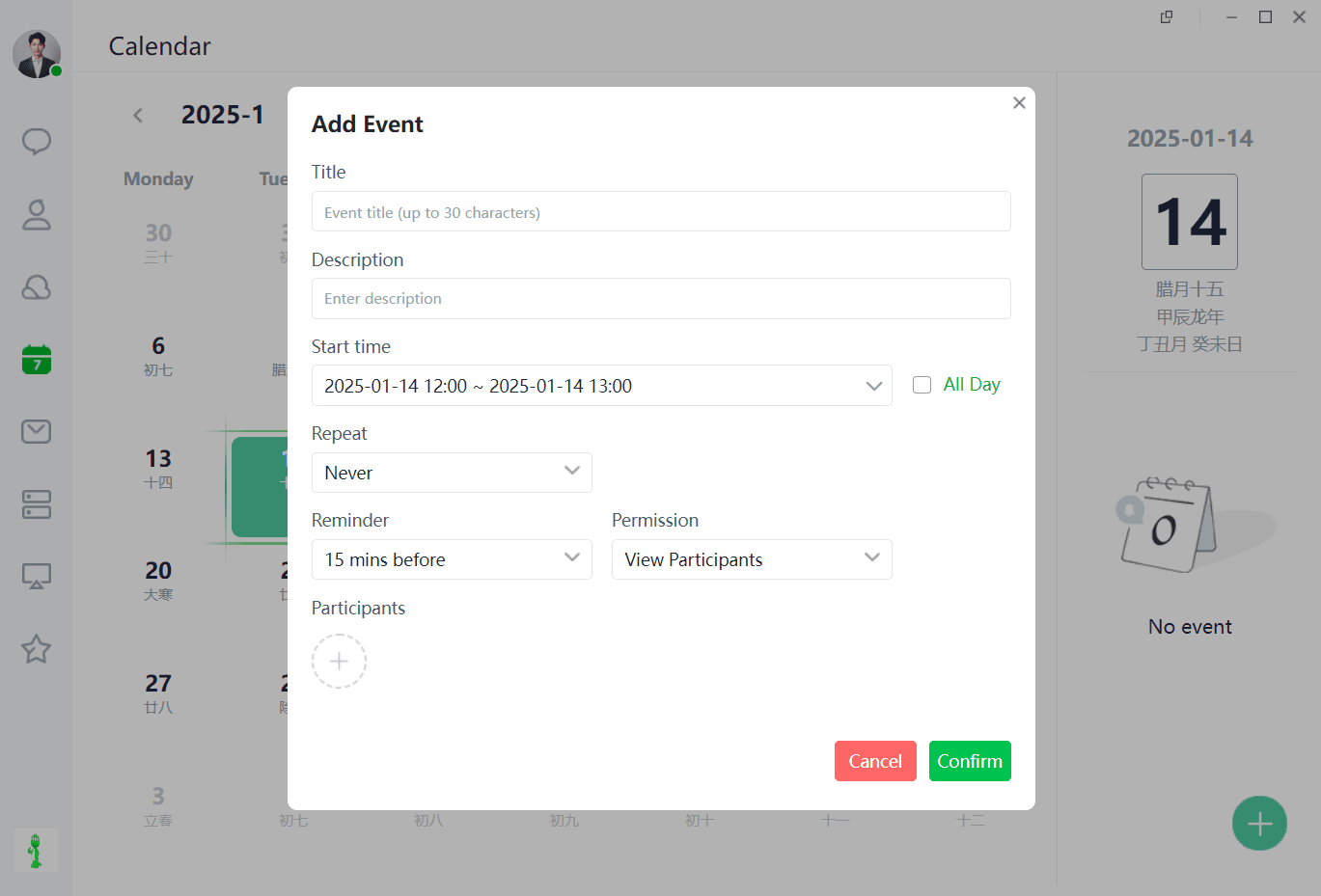
- Title: Schedule Topic
- Description: Add notes about the schedule here
- Meeting Time: Set for the whole day or a specific time slot
- Recurrence: Set as a recurring schedule, Daily/Weekly/Bi-weekly/Monthly/Yearly/Never
- Reminder: Set reminders for participants as the schedule approaches
- Permissions: Allow participants to perform various actions on the schedule, including modifying event details, inviting new participants, viewing joined participants, and choosing whether to hide participant information.
- Participants: Members attending the meeting
Schedule Management
Calendar: The calendar automatically loads statutory holidays and makeup workdays for the current year, facilitating user's schedule management.
Schedules: Created or joined schedules are directly displayed on the calendar, allowing users to view, edit, or delete their created/joined schedules.