More
➢How to view historical versions?
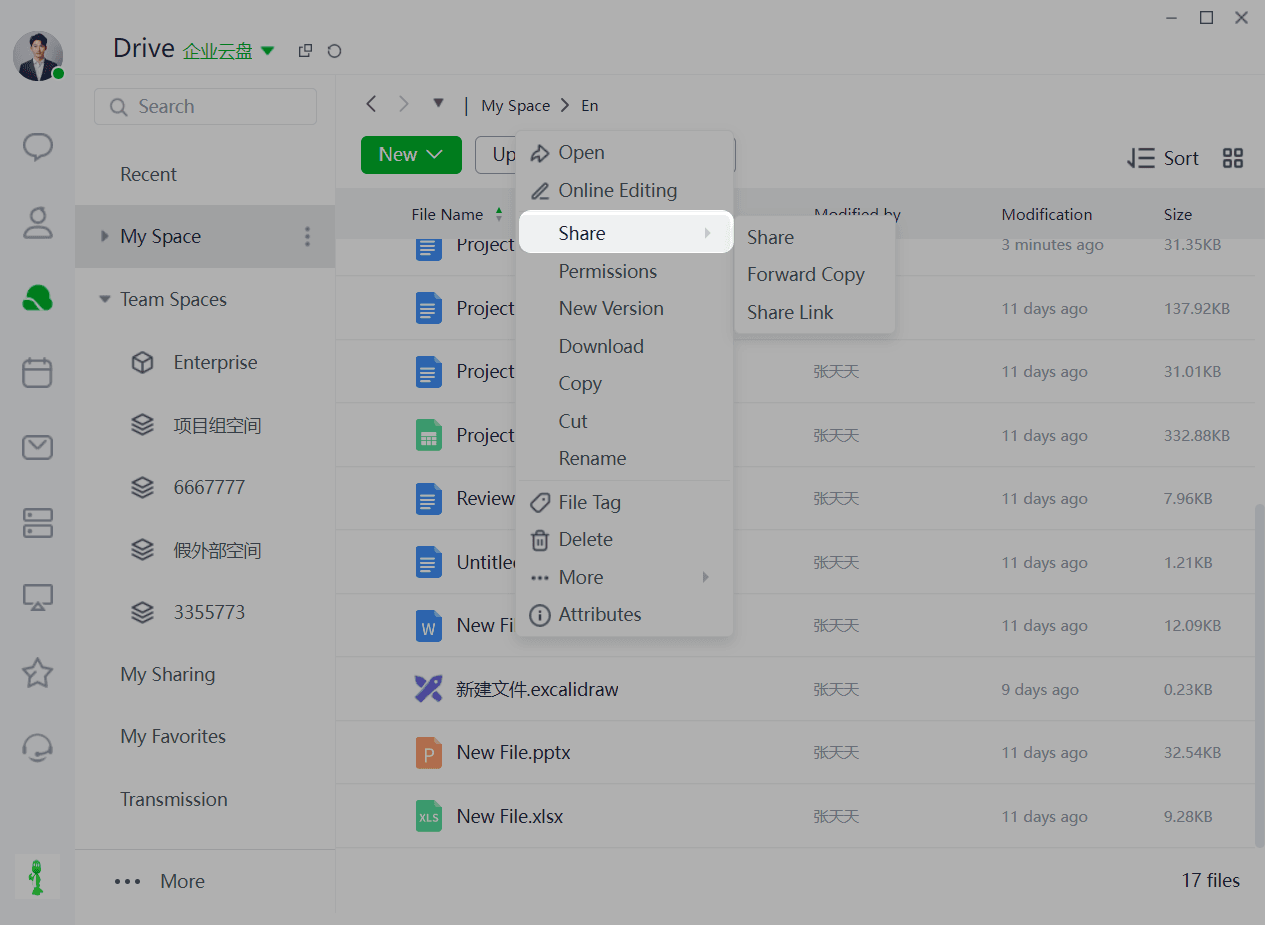
Right-click - More - Historical Versions
When you need to view historical versions of a file:
- Select the target file, right-click or click the More icon, then click More - Historical Versions to view the file's historical versions page.
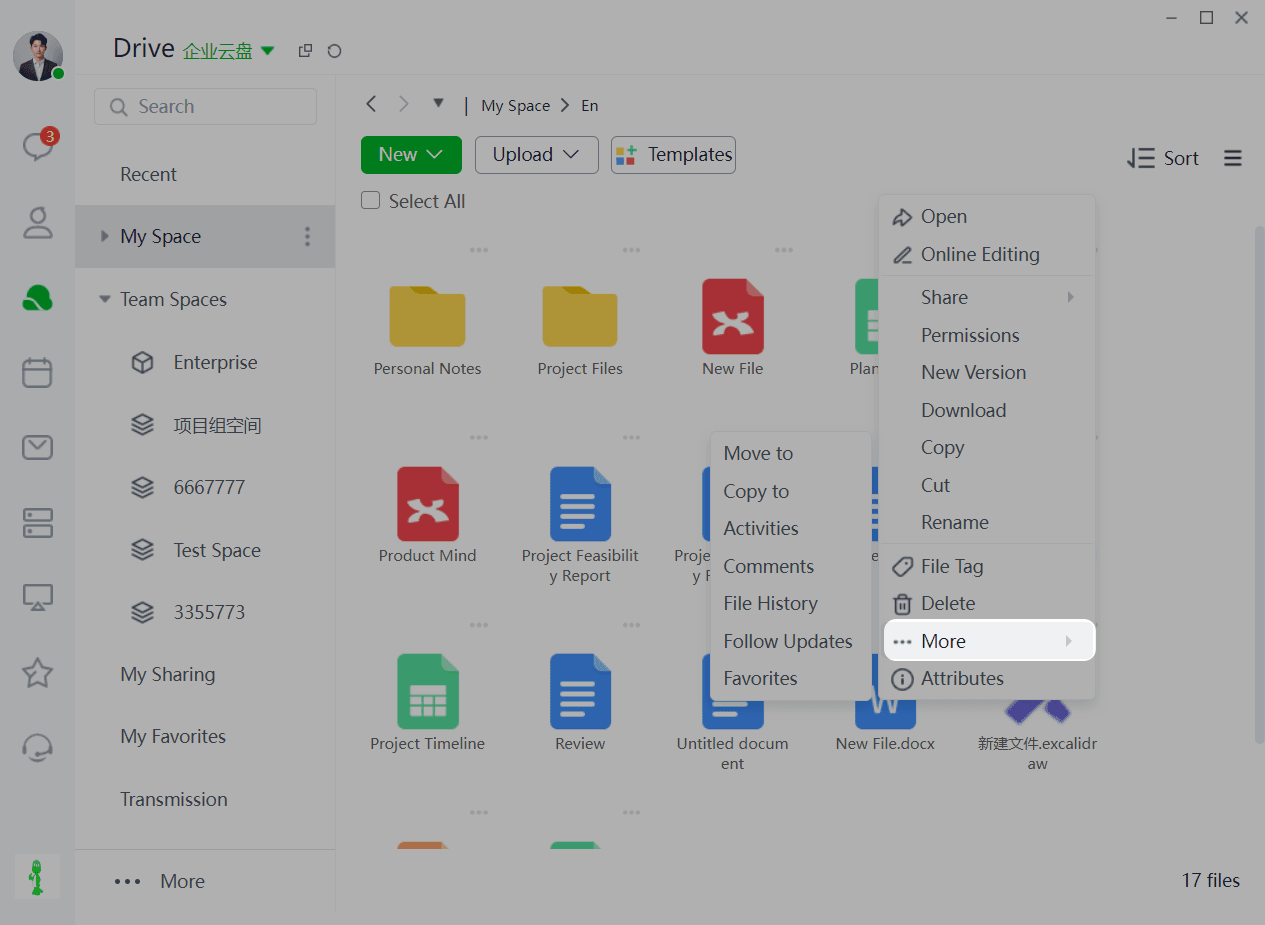
- On the historical versions page, you can view/download any version of the file or click Upload New Version to update.
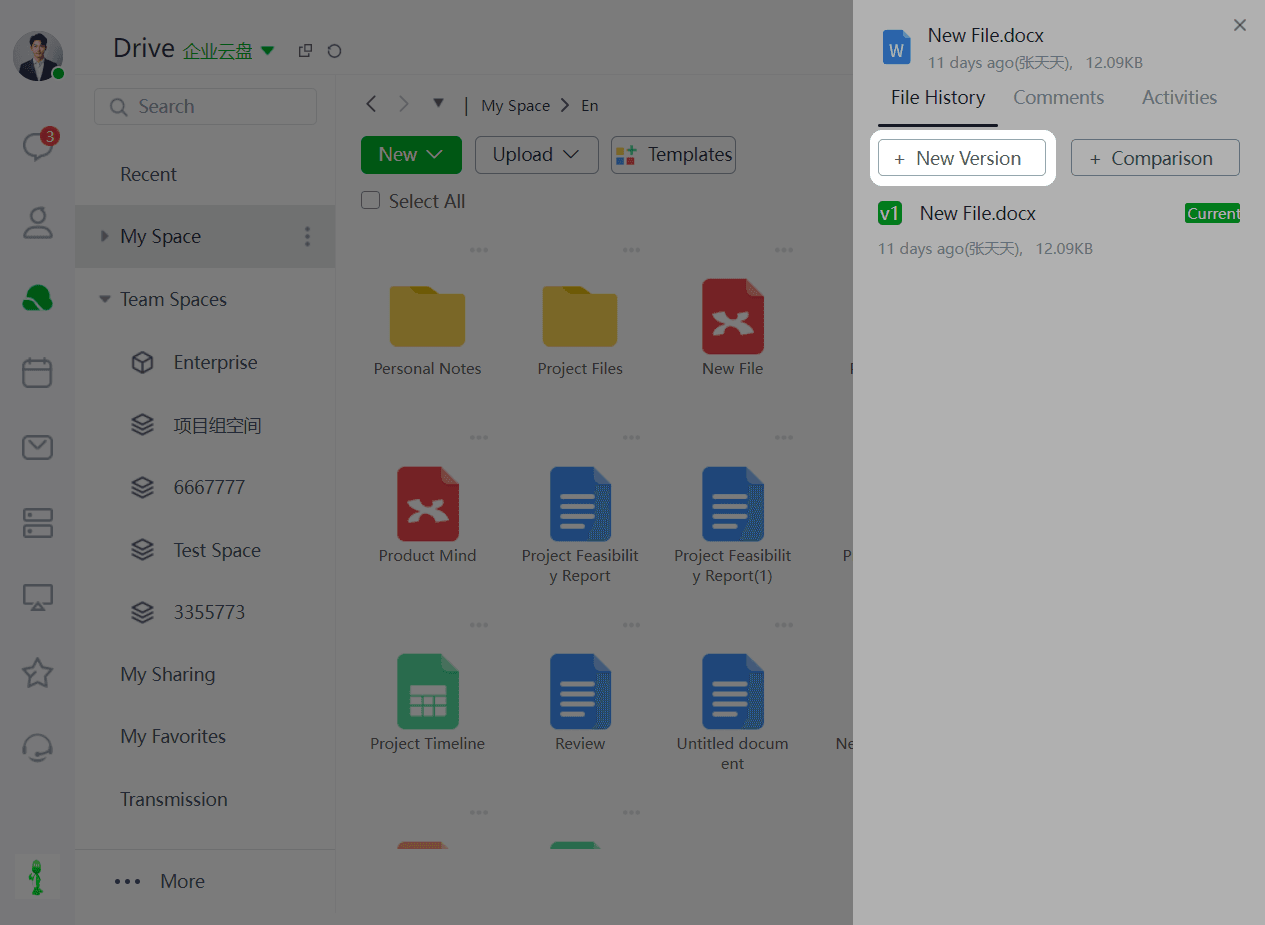
**3、**Click Set as Latest Version to set the file as the latest version
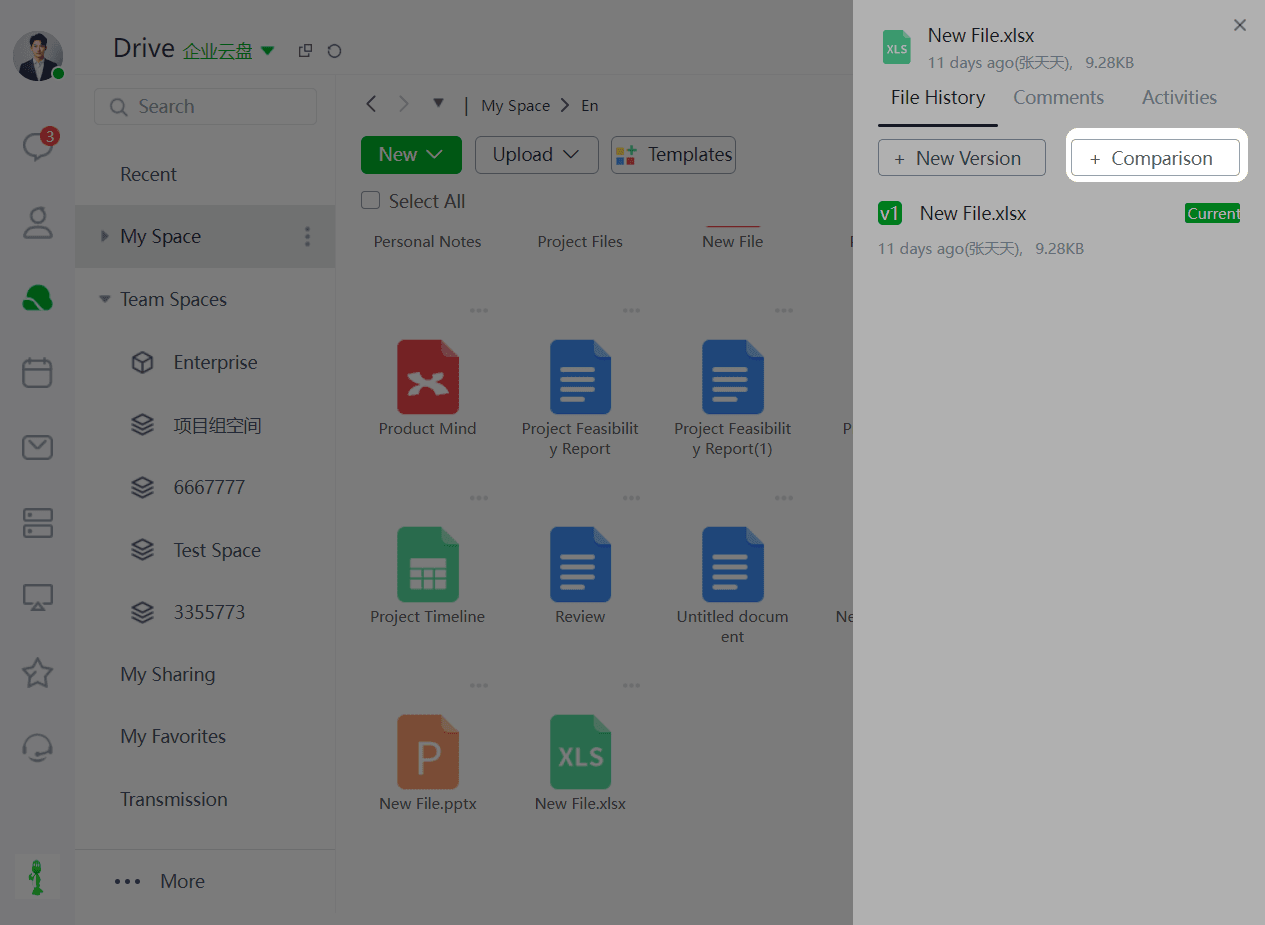
4、Click Compare Versions to compare different versions and highlight changes.
Document - Historical Versions
**1、**Enter the target document, click More next to Edit, then click History to view the document's history.
➢How to edit files online?
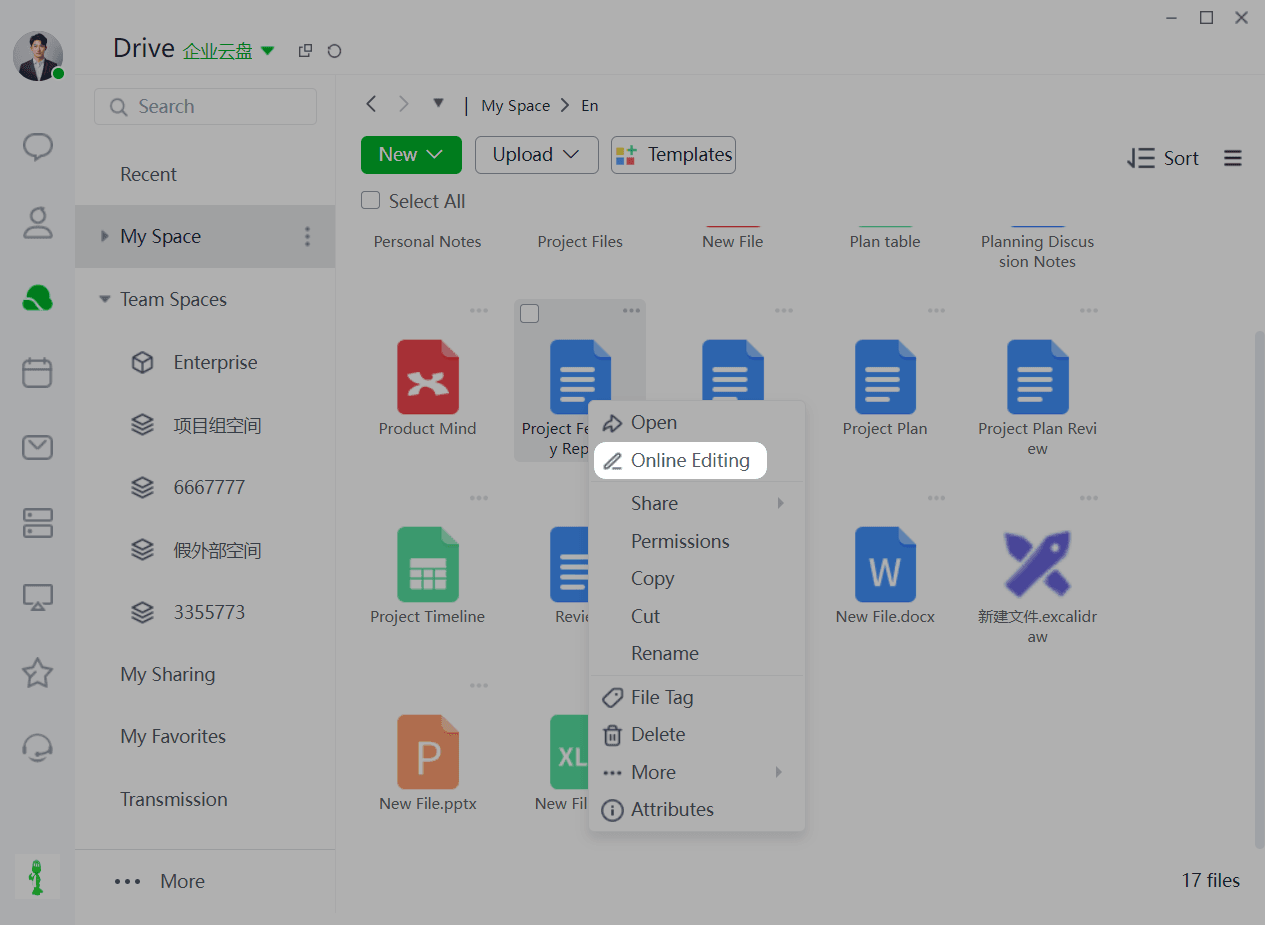
Documents support real-time collaborative editing with automatic saving and traceable historical versions
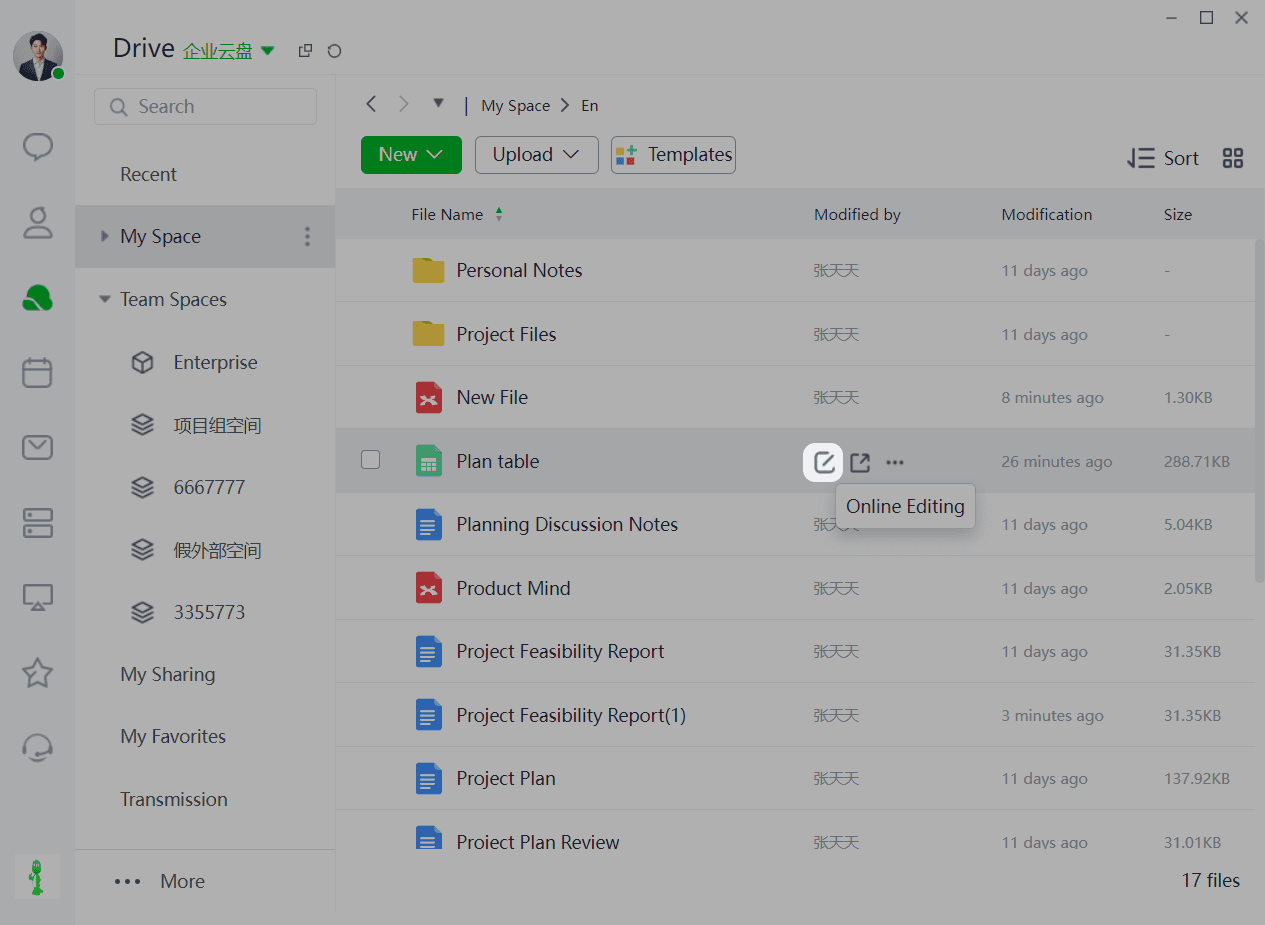
Step 1: Go to the homepage -> Select the target document. Click the file name or right-click the Online Edit icon to enter online editing.
Step 2: Open the target file by left-clicking. You can see who is editing it before opening.
Step 3: The document saves automatically in real-time during editing.
The button before the file name indicates that someone is editing the file.
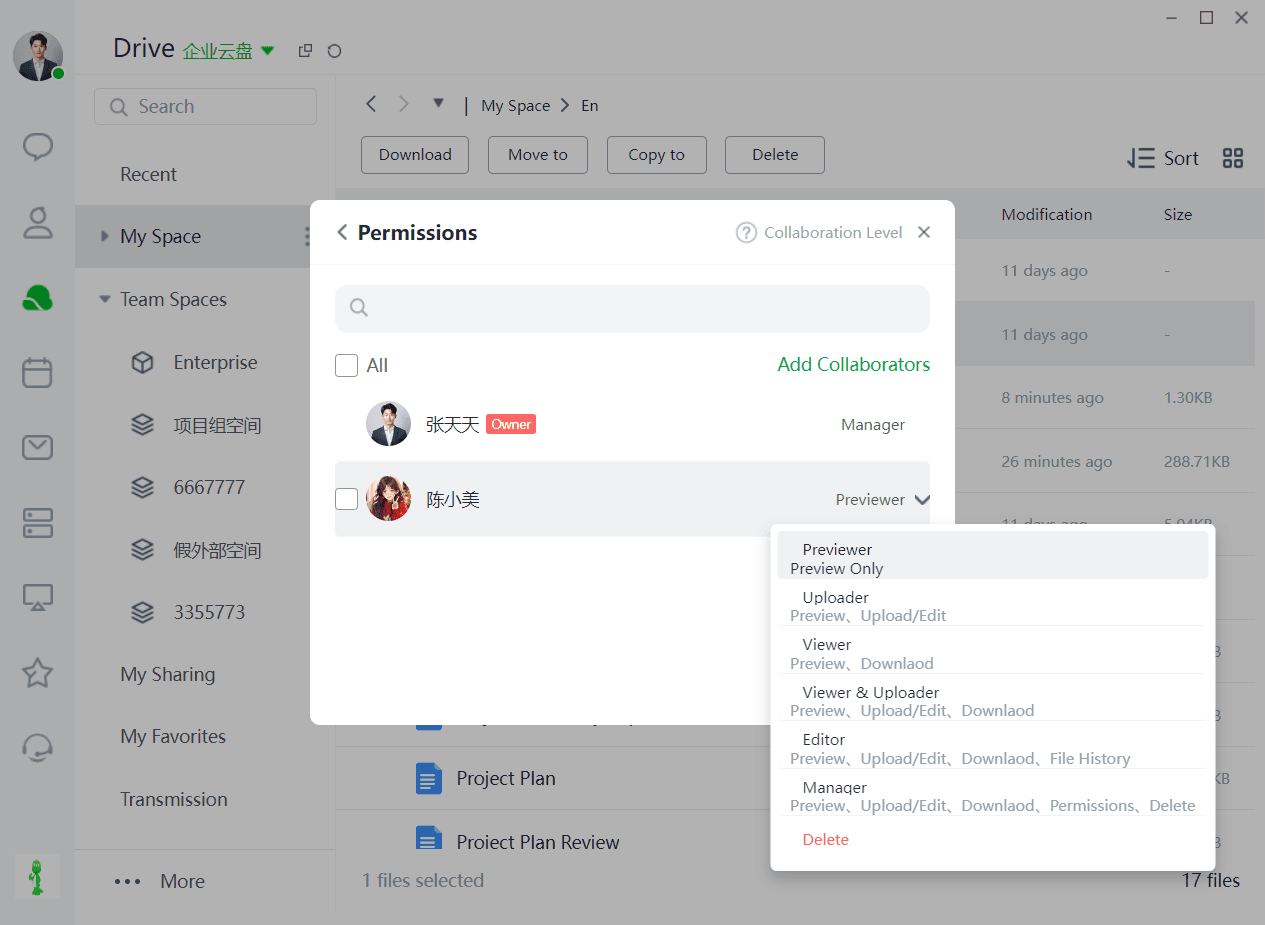
➢How to manage file permissions?
The cloud drive supports precise permission assignment to each file and user, ensuring data security.
To invite collaborators:
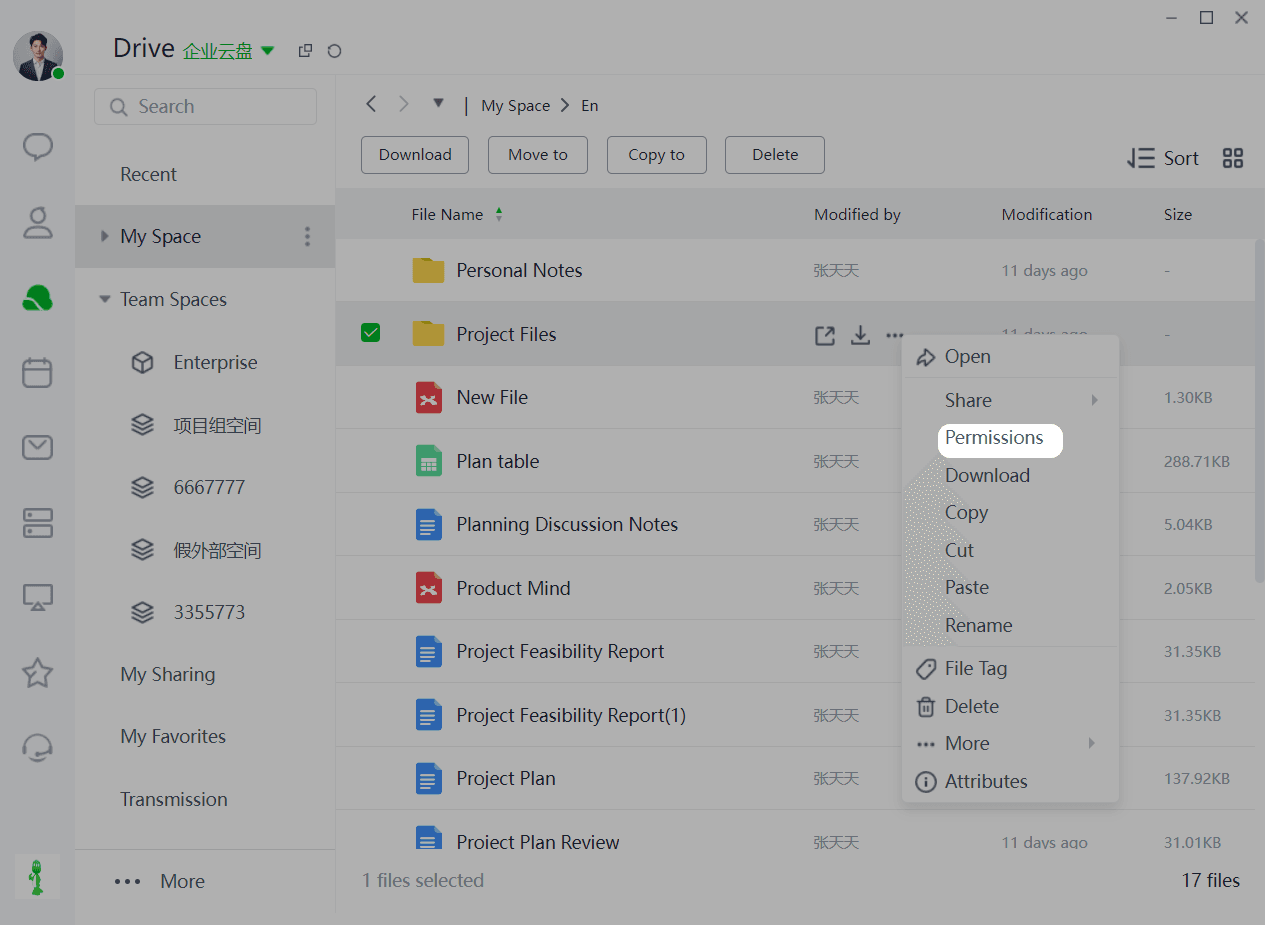
Step 1: Select the file or folder you want to collaborate on, click the Share icon, then select Permission Management, or right-click the file and select Permission Management.
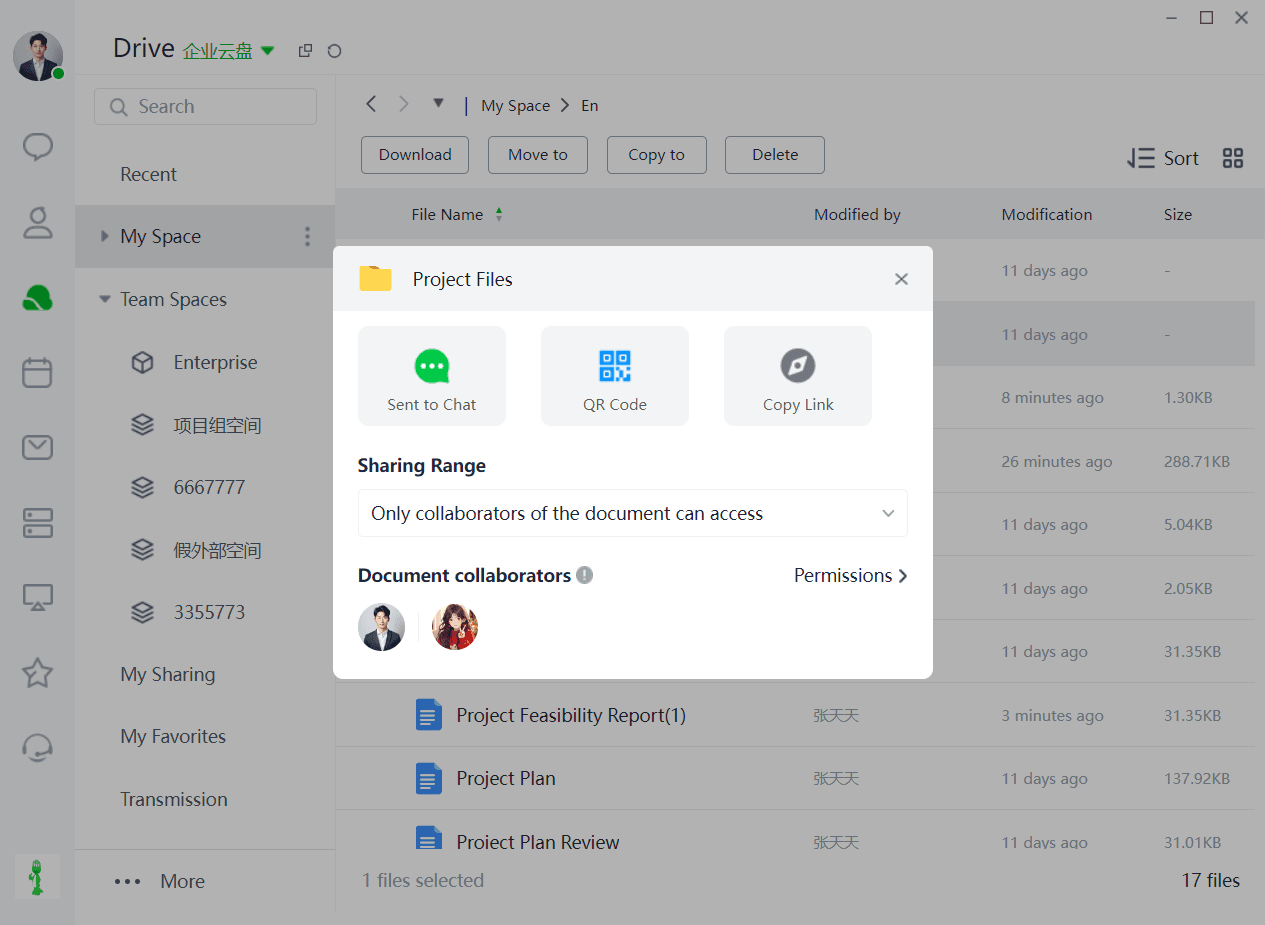
Step 2: In the pop-up, select the collaborators to add.
Step 3: Authorize specified groups, individuals, or departments for manage/edit/view/download permissions.
1、
2、
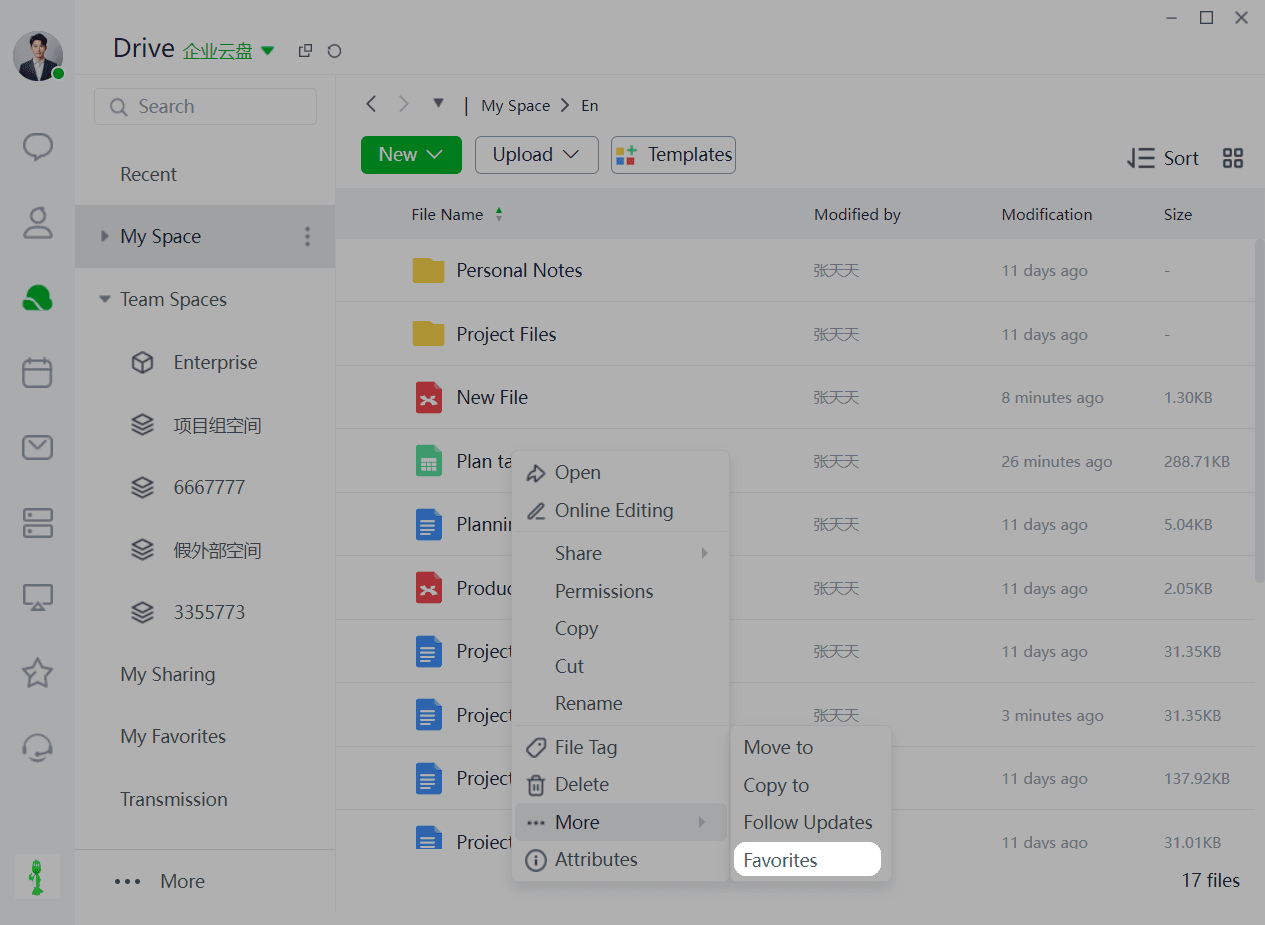
➢How to favorite files?
To favorite a file/folder:
Step 1: Select the target file, right-click, then click Favorite in More to favorite it.
Step 2: Favorited files/folders can be viewed in "My Favorites".
To unfavorite a file/folder:
Method 1: Select the files/folders to unfavorite, then click Unfavorite for batch unfavoriting.
Method 2: Hover over the target file and click the Unfavorite icon.
Method 3: Right-click the target file, then click Unfavorite in the function list.
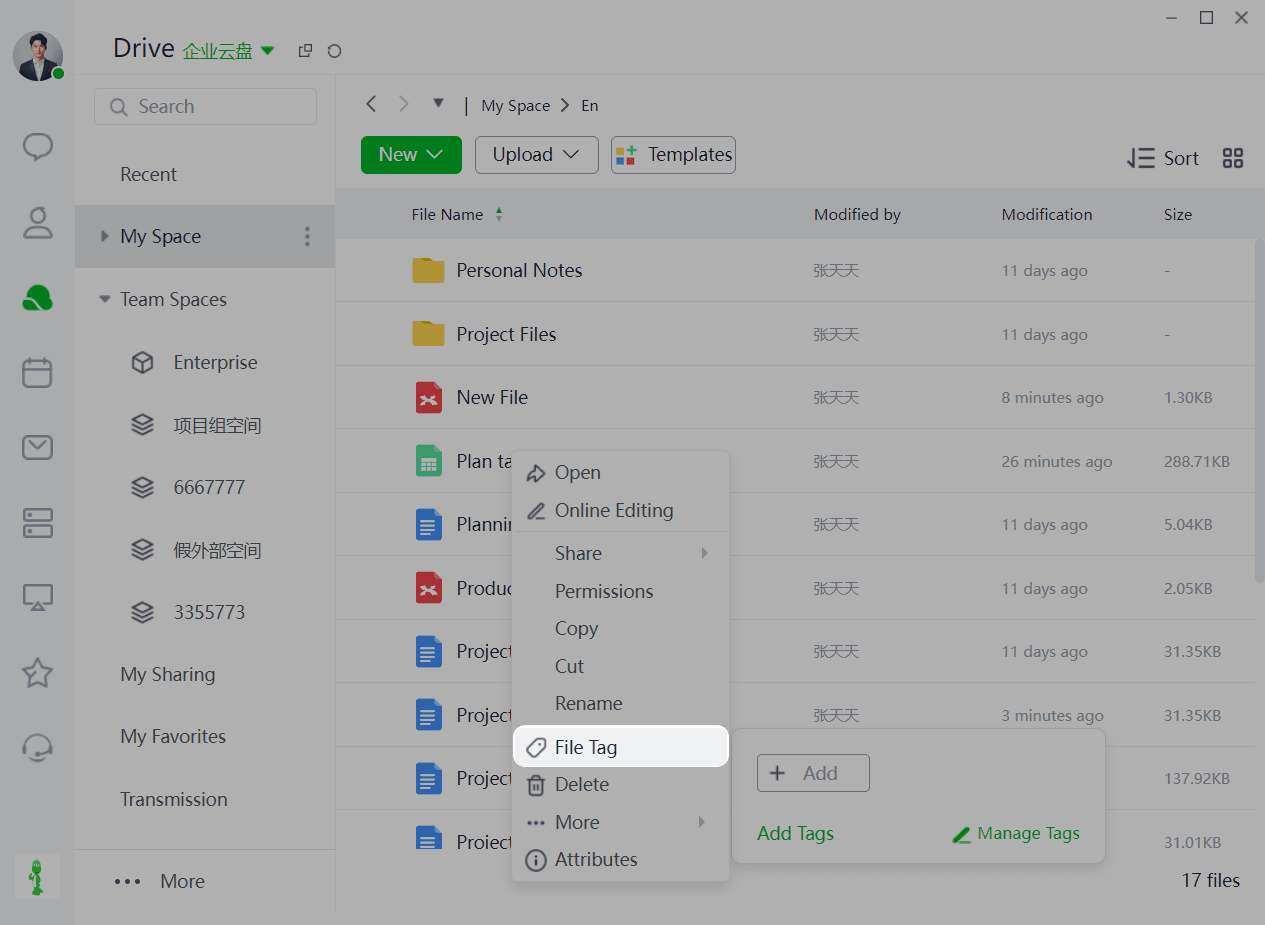
➢How to add tags to files?
The cloud drive supports custom tags for files. File managers can add tags for quick file retrieval.
Step 1: Select the file or folder to tag, right-click, then hover over File Tags to quickly add a tag.
Step 2: Quickly view applied tags through the document list.
Step 3: View files/folders under the current tag through My Tags.
Step 4: Modify, delete, or create tags in Tag Management.
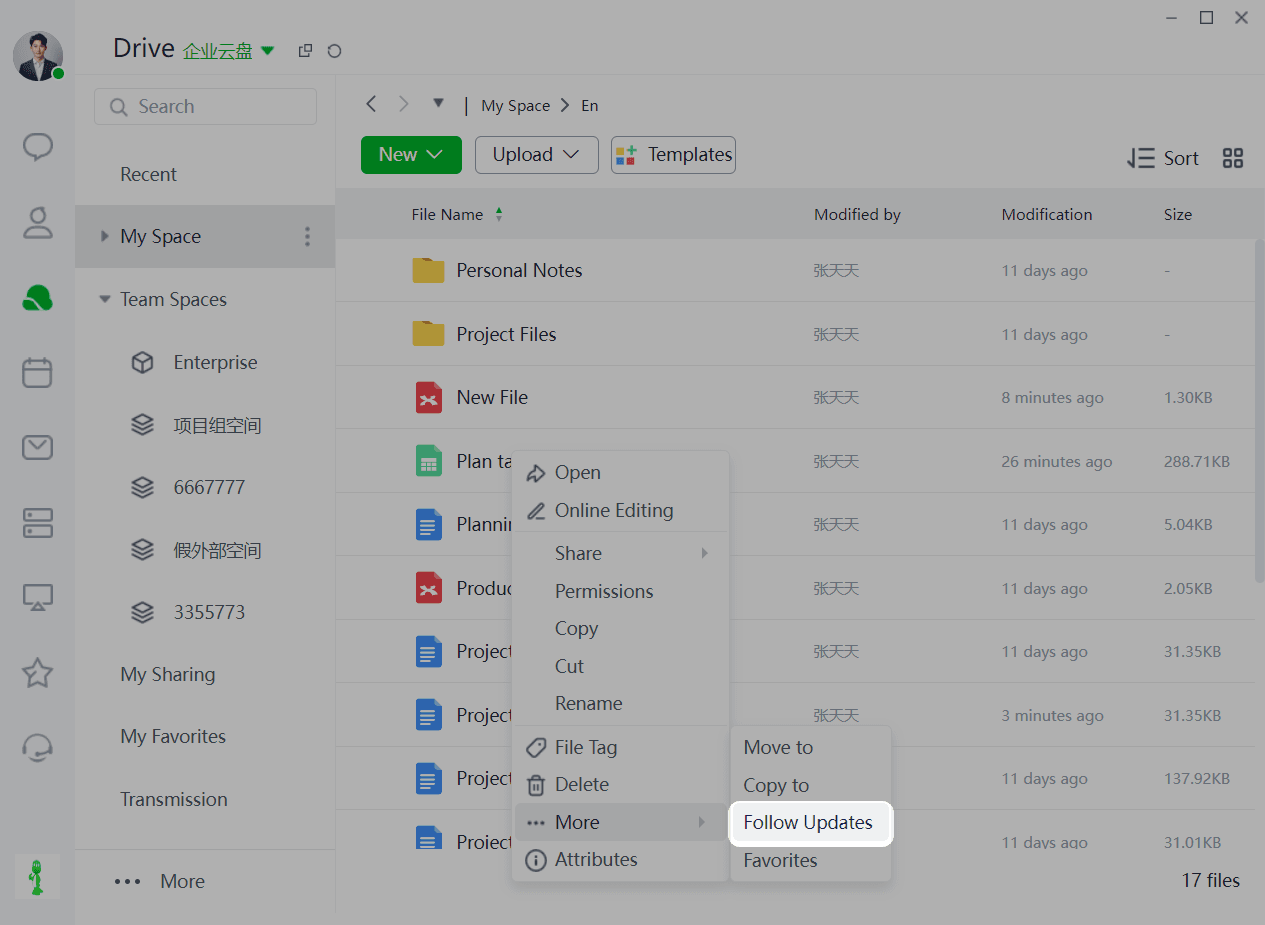
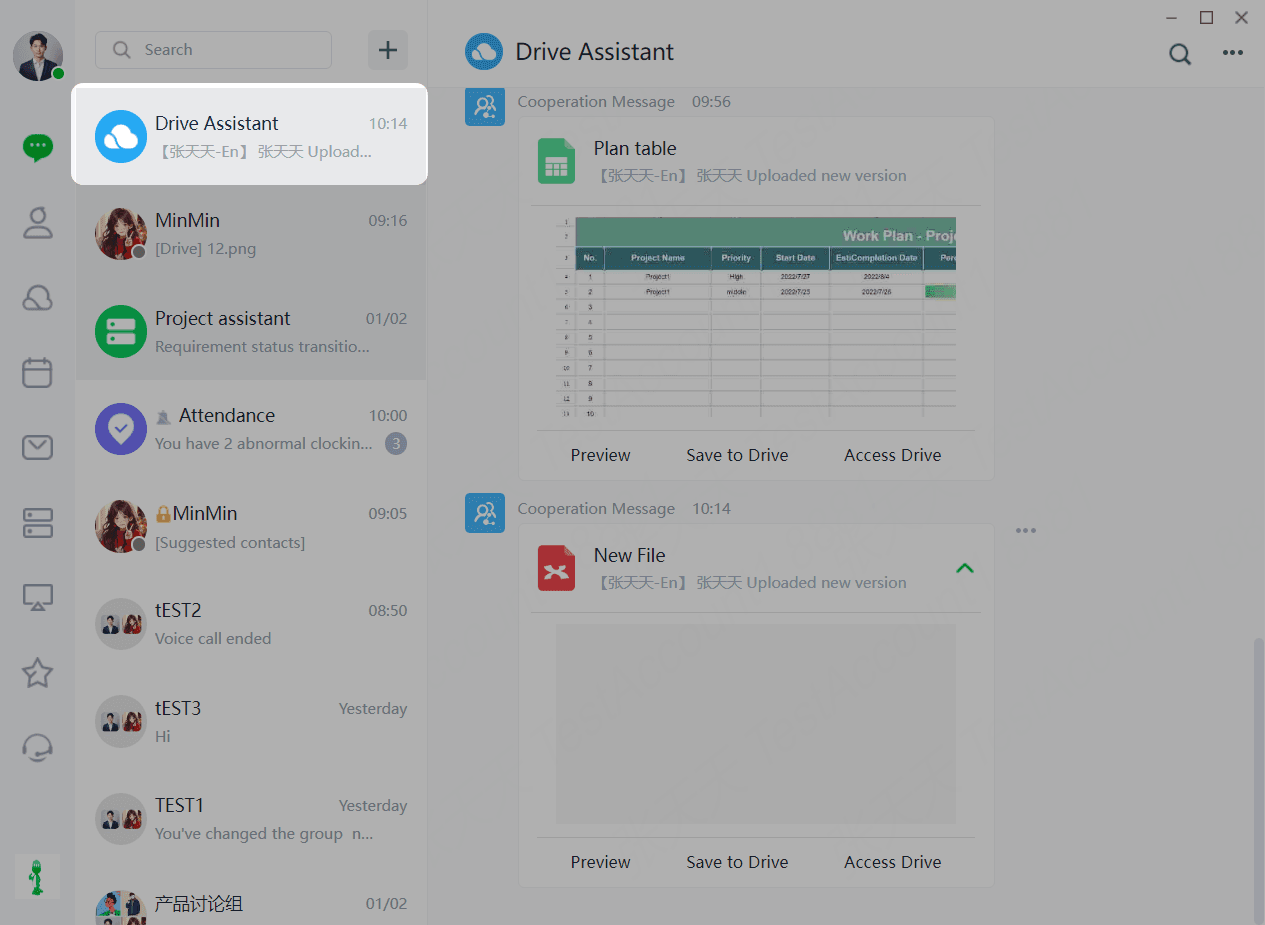
➢How to follow file updates?
To follow document changes in real-time:
Step 1: Select the target file/folder, then click the Follow Updates icon.
Step 2: Receive real-time change notifications in the "Cloud Drive Assistant" when the file/folder is updated.
➢How to comment on files?
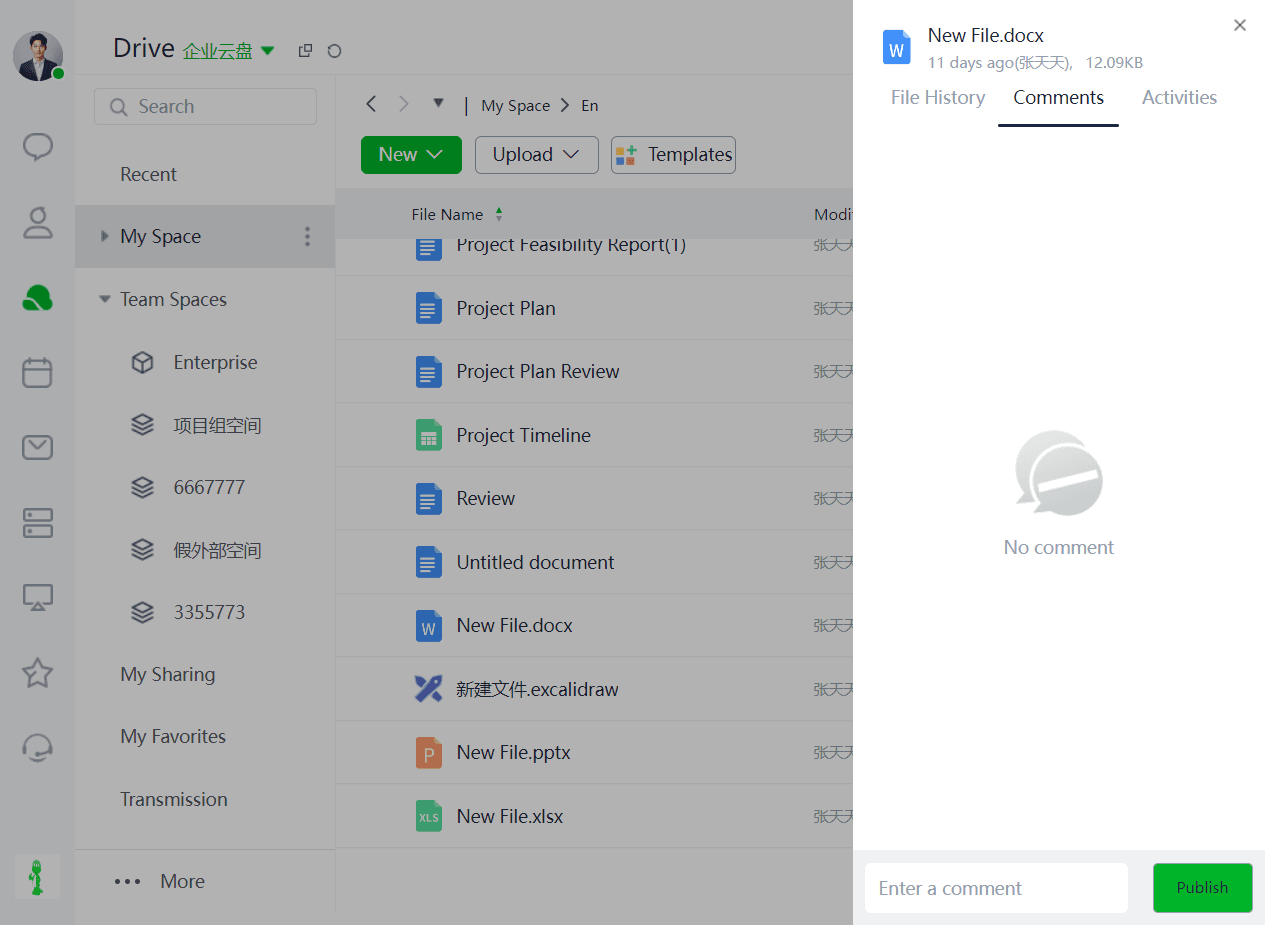
Comments allow you and collaborators to provide opinions or suggestions on files/folders.
Step 1: Select the target file/folder, right-click -> More -> Comment.
Step 2: Enter your comment or @ relevant collaborators in the comment, then click Post.
➢How to share files?
To share a file/folder with others in one click:
Step 1: Select the target file/folder, click the Share icon. There are three sharing options: "Send to Chat", "Forward Copy", or external link sharing.
Step 2: "Send to Chat" quickly sends the document to a specified chat session, allowing members to access the document and request permissions conveniently.
Step 3: "Forward Copy" sends the file as a copy, with changes to the original file not synchronized to the copy.
Step 4: "External Link Sharing" allows you to set permissions for specified groups, individuals, or departments.