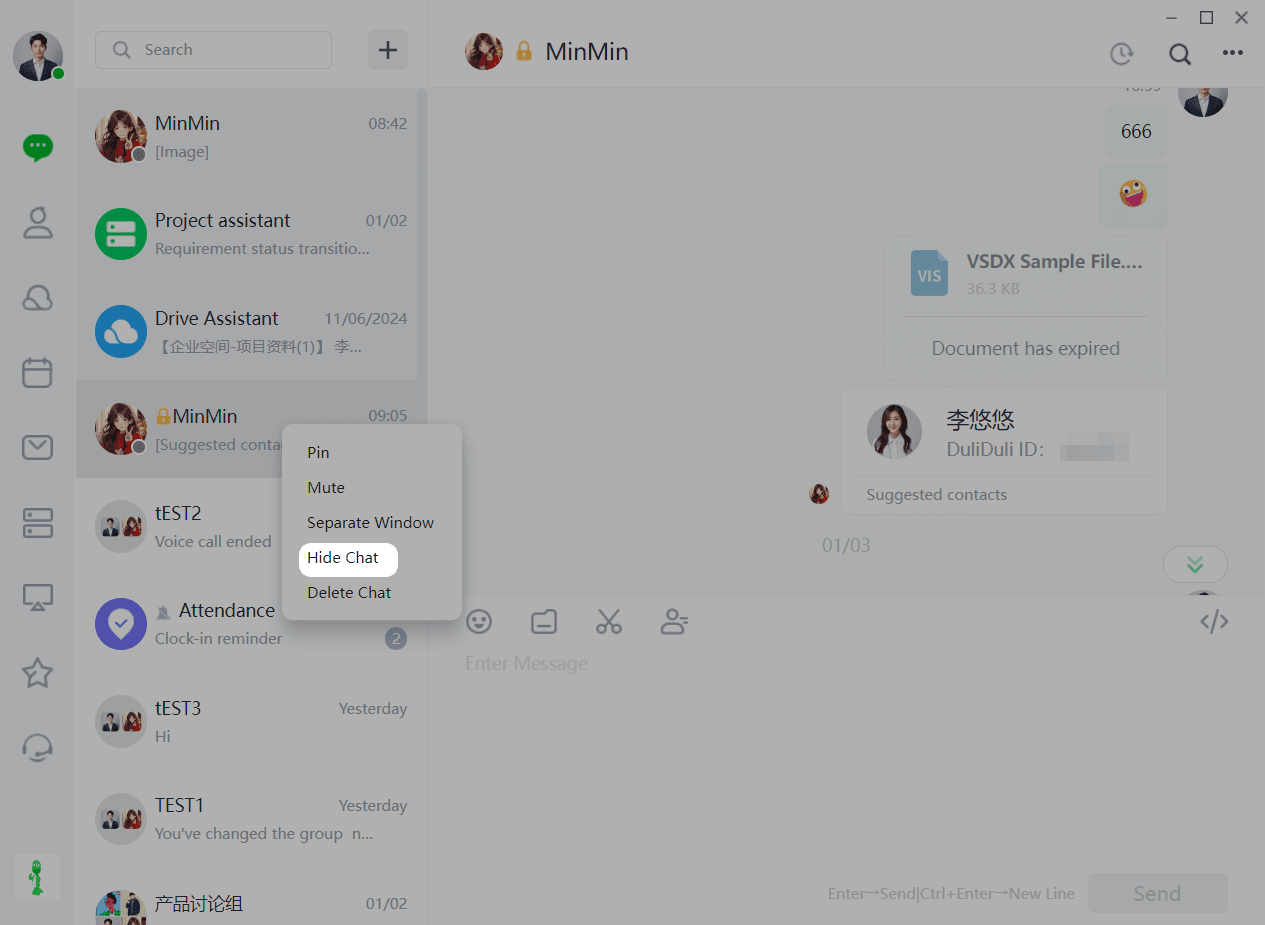
Secret Chat
【Secret Chat】 mode allows users to select contacts from their address book for 1V1 chat. Messages are delivered instantly. Currently, 【Secret Chat】 supports text messages, emojis, file sharing, screenshots, video calls, voice calls, and sharing business cards.
1.1 Sending Text Messages
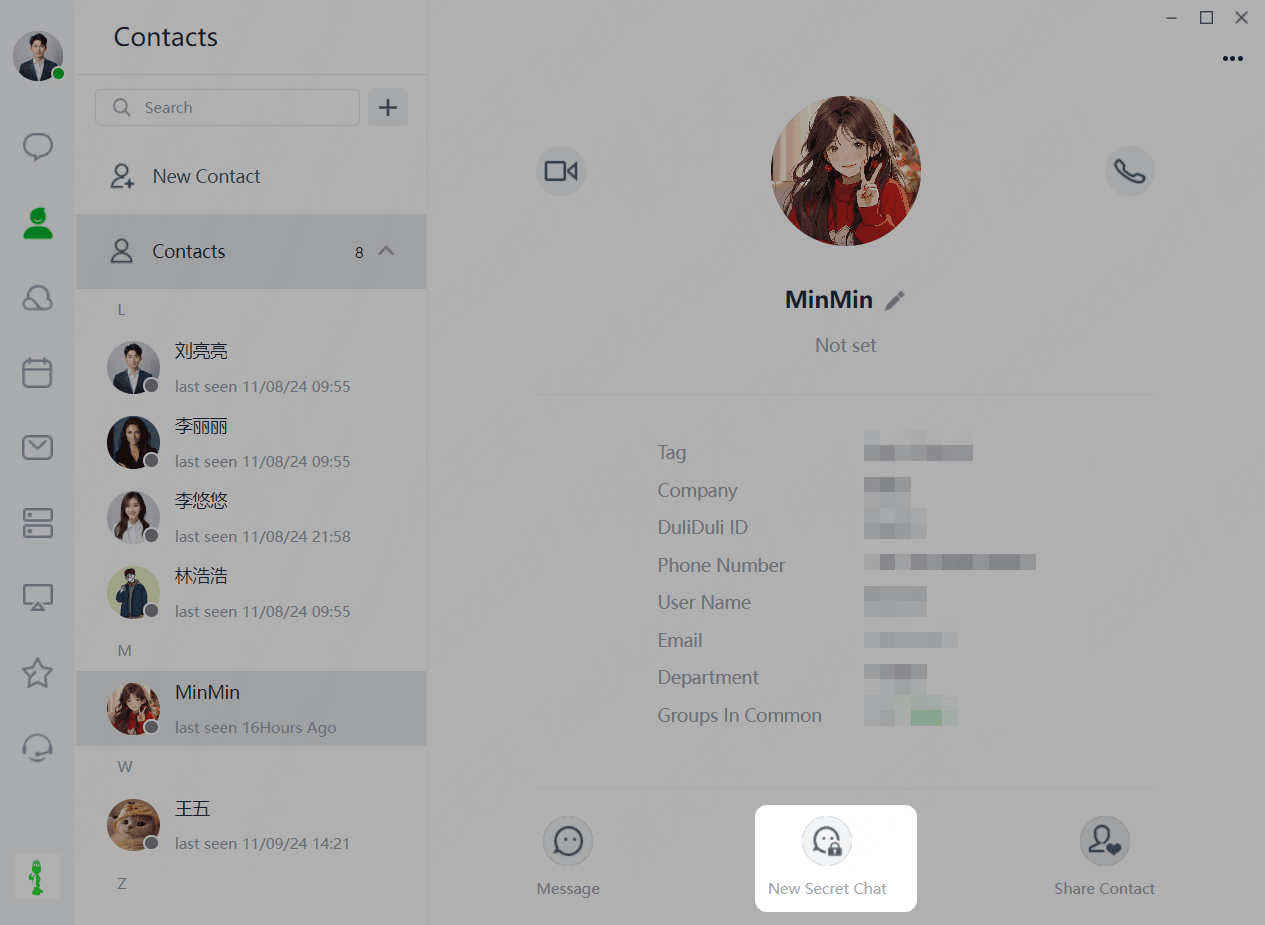
(1)Users can quickly find chat partners by entering their "username," "nickname," or "phone number" in the 【Address Book】 list. After selecting a chat partner, click "Start Private Chat" at the bottom of their profile page for encrypted chatting.
(2)Enter a message in the "text box" and press "Enter" to send or "Ctrl+Enter" for a new line. Sending an empty message is not allowed. Sent messages are delivered instantly, displaying the sender's timestamp.
(3)For delivered messages, the sender can right-click to "Copy," "Reply," "Edit," "Recall," "Select Multiple," "Delete," or "Add Event to Calendar."
1.2 Sending Emojis
(1)Follow the same steps as sending text messages for entering and sending emojis
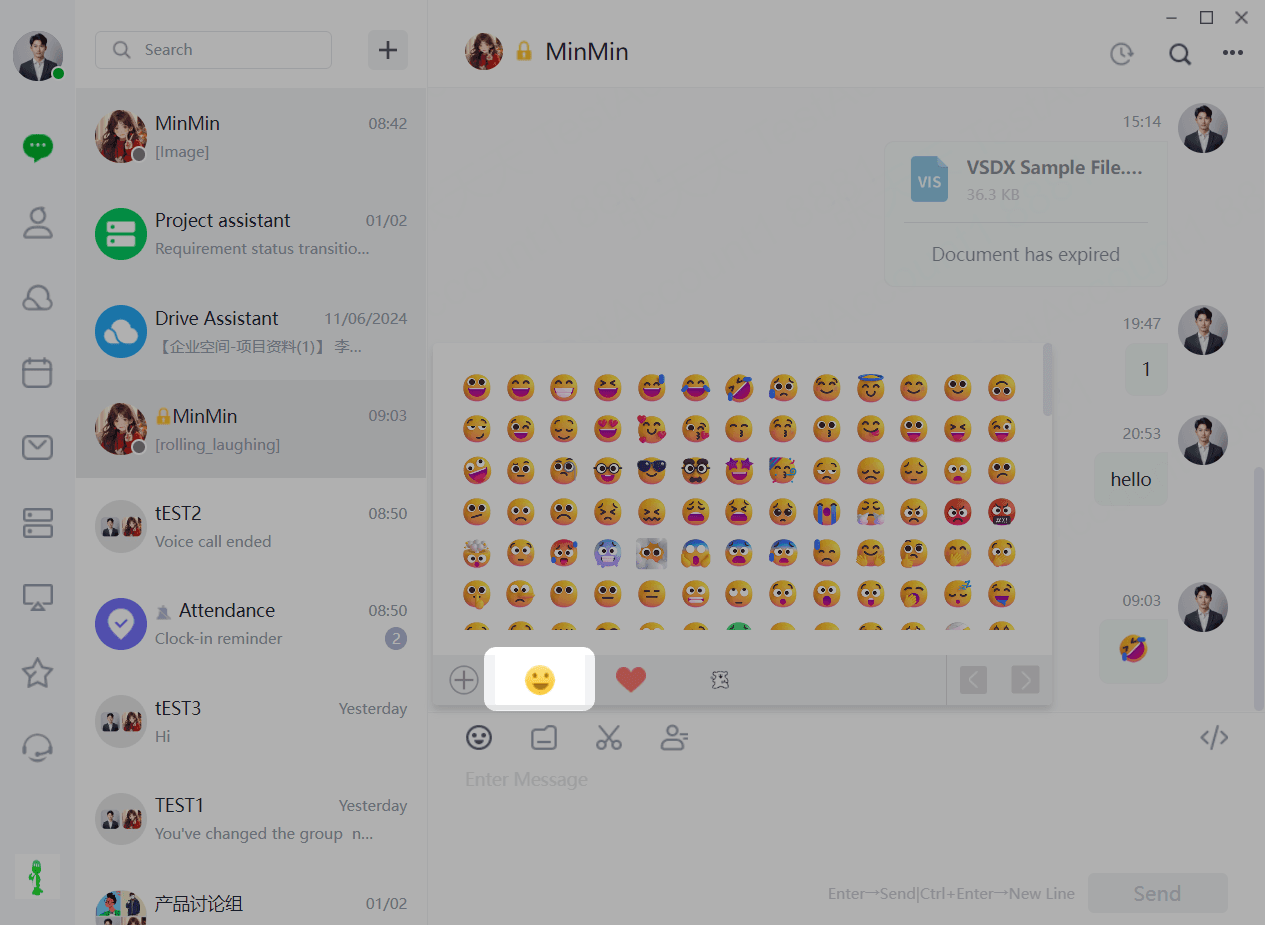
(2)Users can enrich their emoji library by clicking 【Emoji - Add New】. Click "Emoji" on the chat screen.
(3)Click "+" after "Emoji" as shown below.
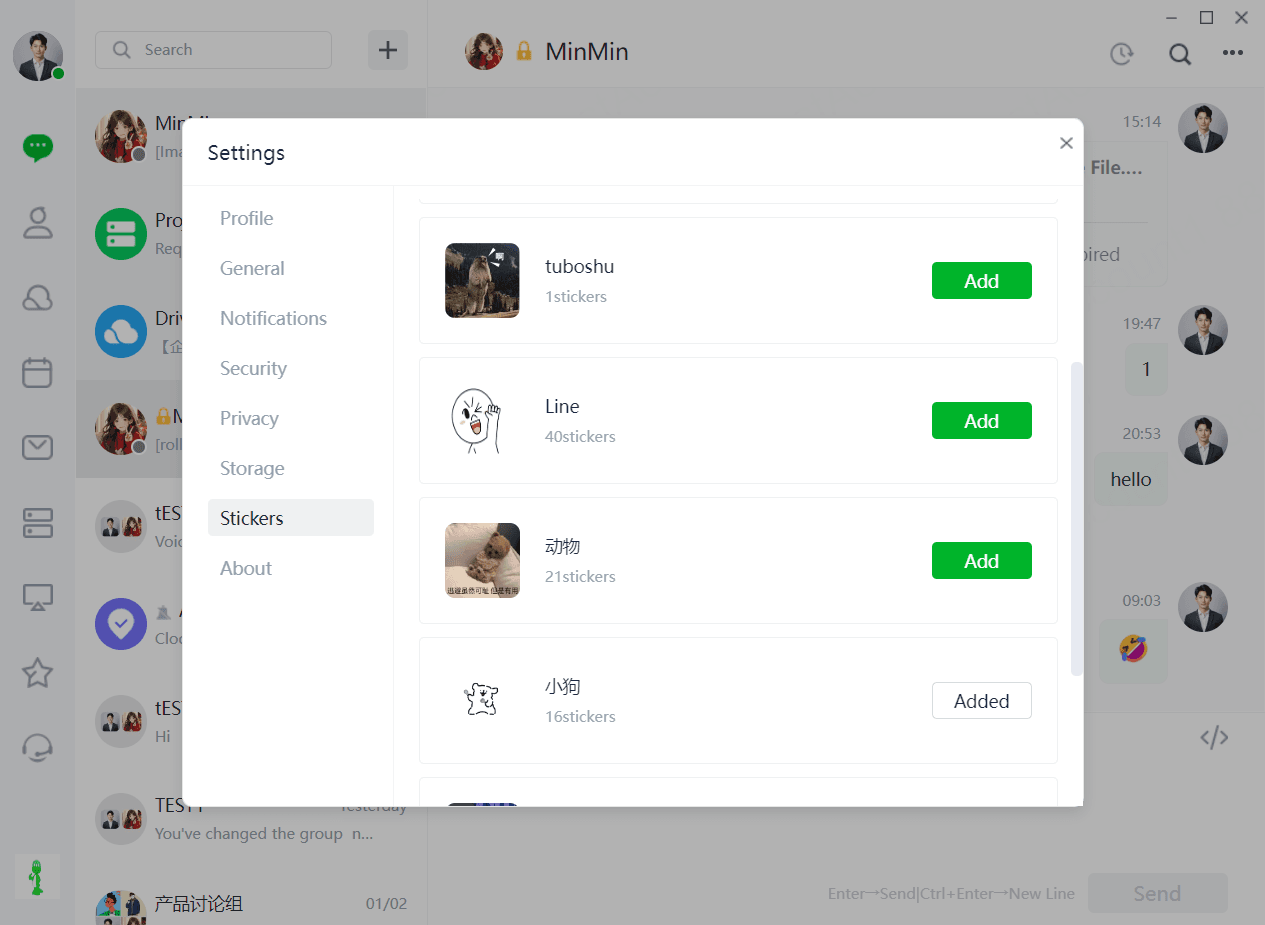
(4)Select the "Emoji Library" and click "Add" to add successfully.
1.3 Sending Files
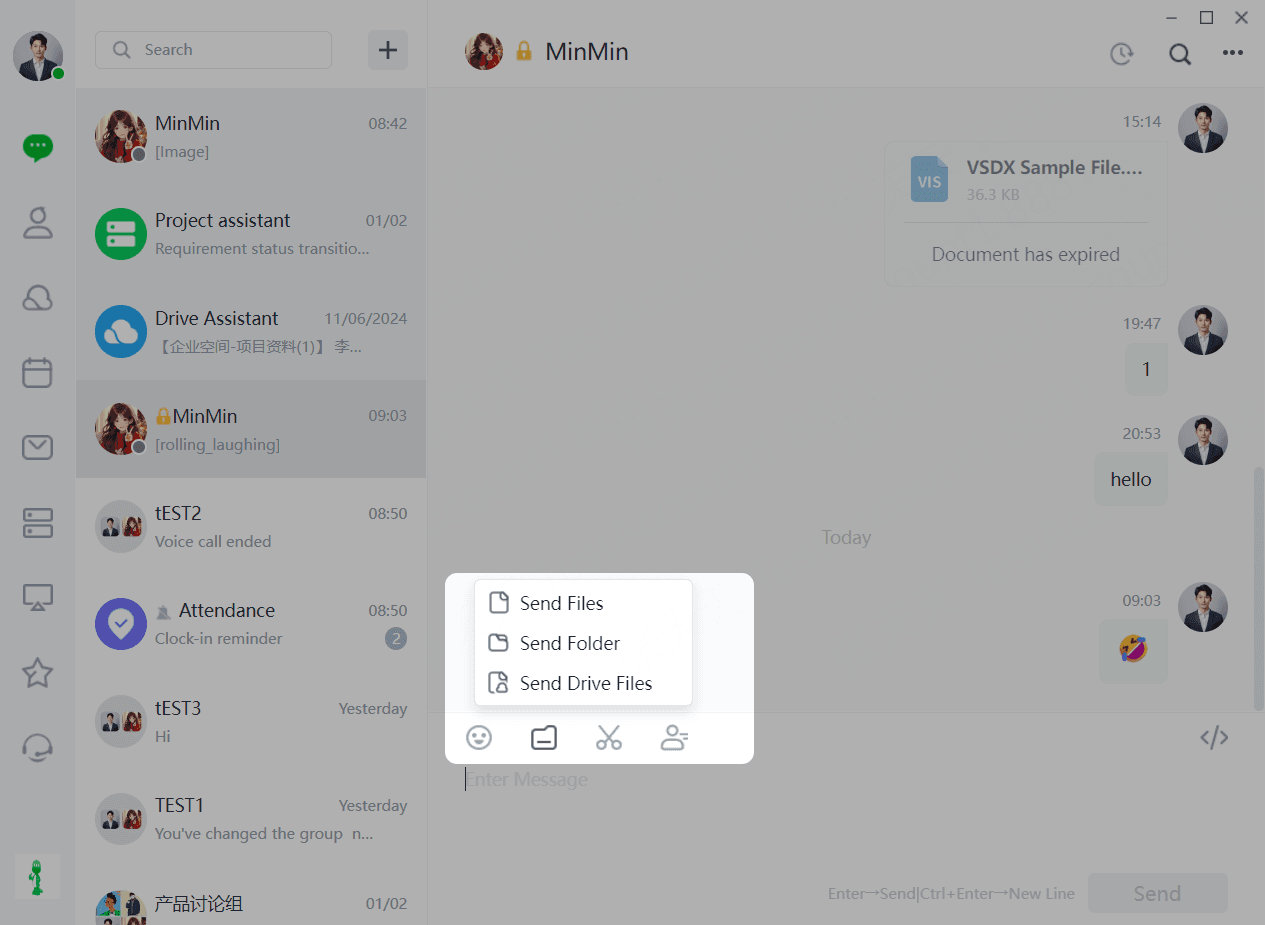
(1)Users can send files by clicking "File" in the chat box. Duli supports three file-sending options: "Send File," "Send Folder," and "Send Cloud File."
(2)Select the file format and location.
(3) Click 【Send】 to send successfully.
(4)For delivered files, the sender can "View," "View Folder," or right-click for options like "Reply," "Recall," "Save As," "Select Multiple," "Delete," "Open Folder," etc.
1.4 Screenshots
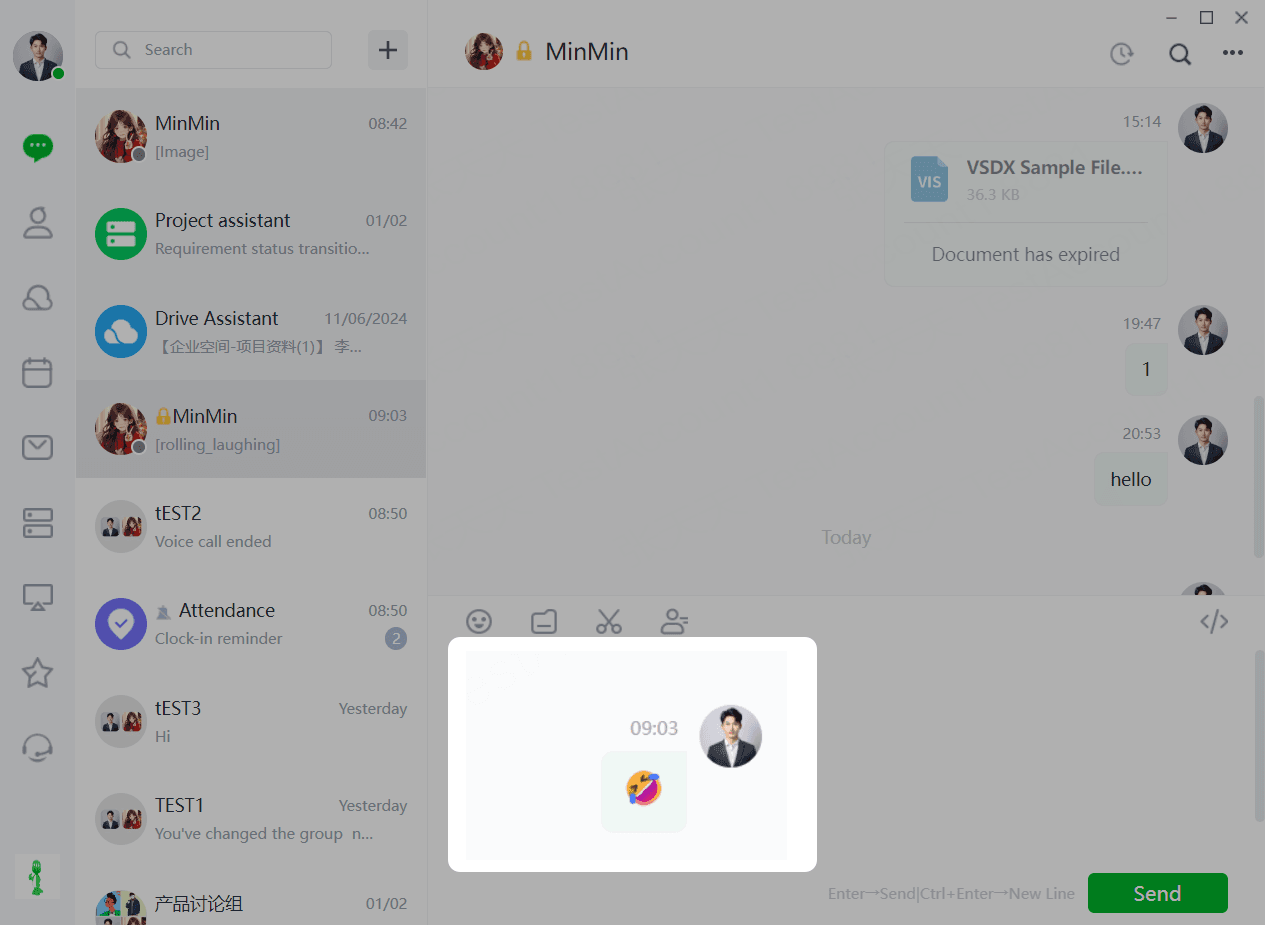
(1)Users can take screenshots by clicking the "Screenshot" function in the chat box. Duli supports two methods: "Screen Capture" and "Screenshot and Hide Current Window." "Screen Capture" captures the current screen content or use the shortcut "Shift+Alt+A" (customizable in Settings - General Settings). "Screenshot and Hide Current Window" hides the chat box before capturing.
(2)Screenshots can be edited with tools like "Rectangle/Oval," "Polyline," "Pen," "Marker," "Mosaic/Blur," "Text," "Eraser," "Undo," "Redo," "Exit Screenshot," "Pin to Screen," "Save to File," "Copy to Clipboard," "Screenshot," "Paste Image Text," "Scrolling Screenshot," "OCR Text Recognition," "Annotate," "Animated GIF/webp/mp4," etc.
(3)Click 【Send】 to send successfully.
1.5 Sending Contact Cards
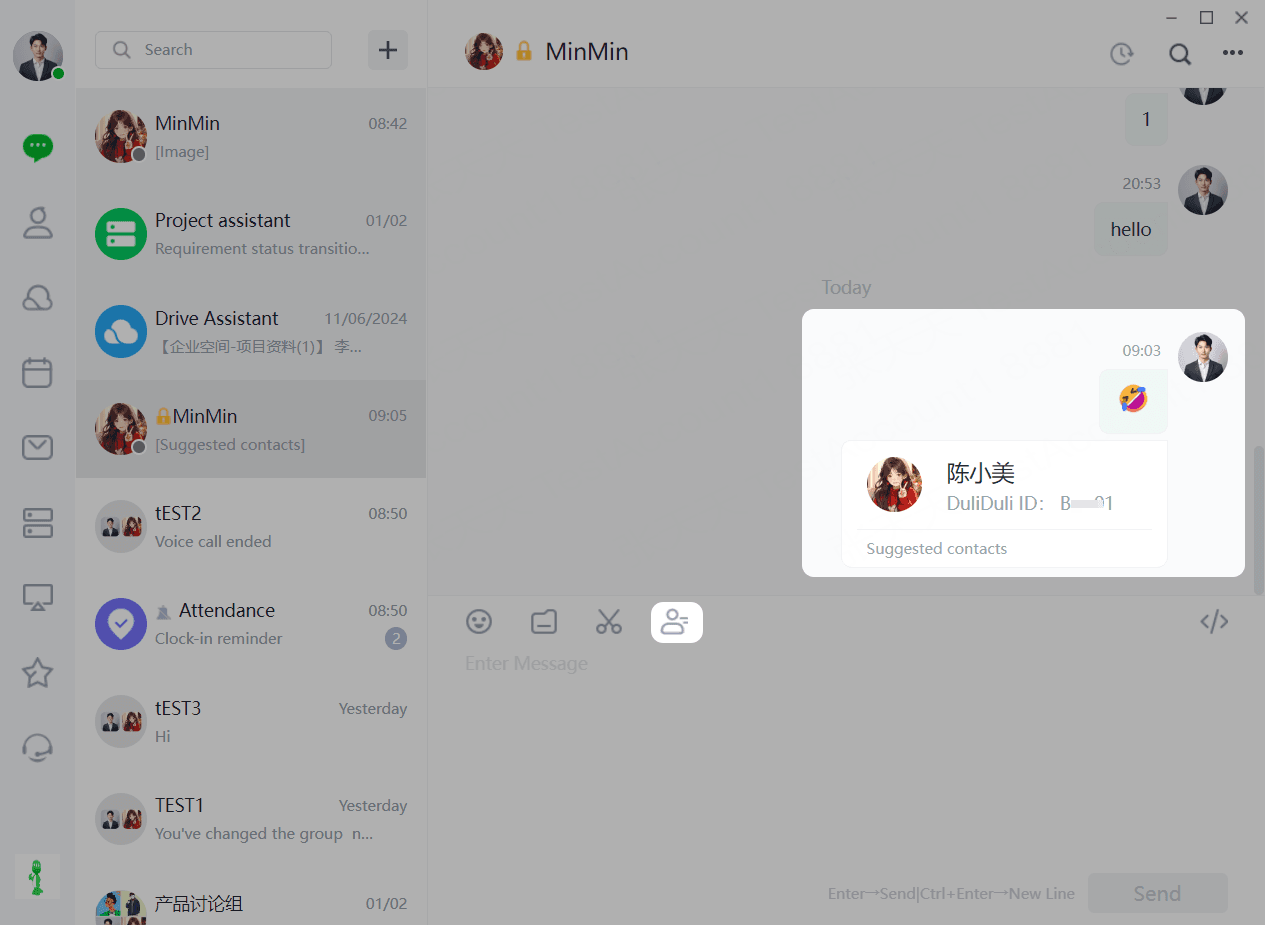
(1)Users can send other users' business cards by clicking "Send Contact Card" in the chat box.
(2)Select the user to recommend, enter a "Message," and click "Confirm" to send.
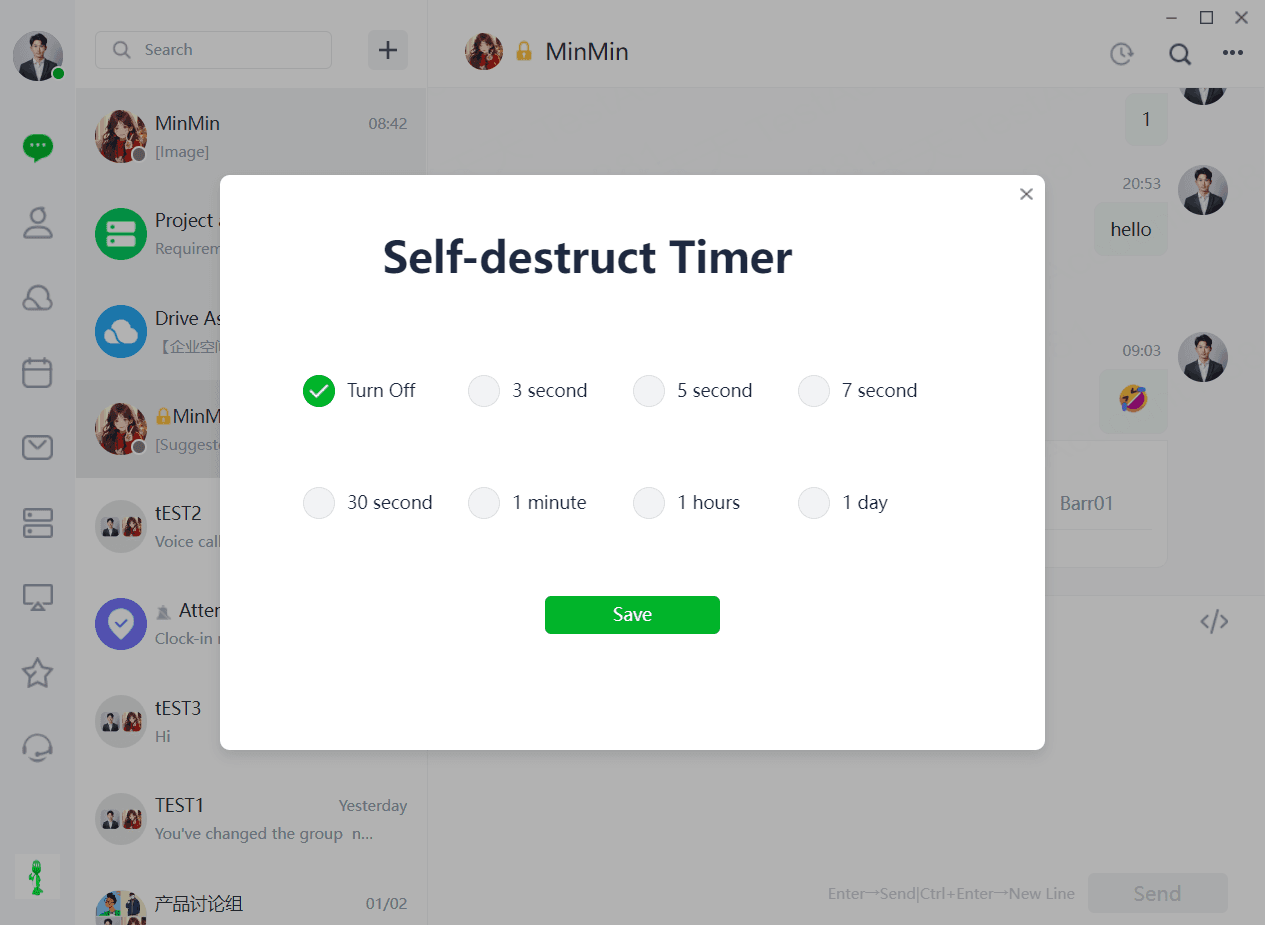
1.6 Disappearing Messages
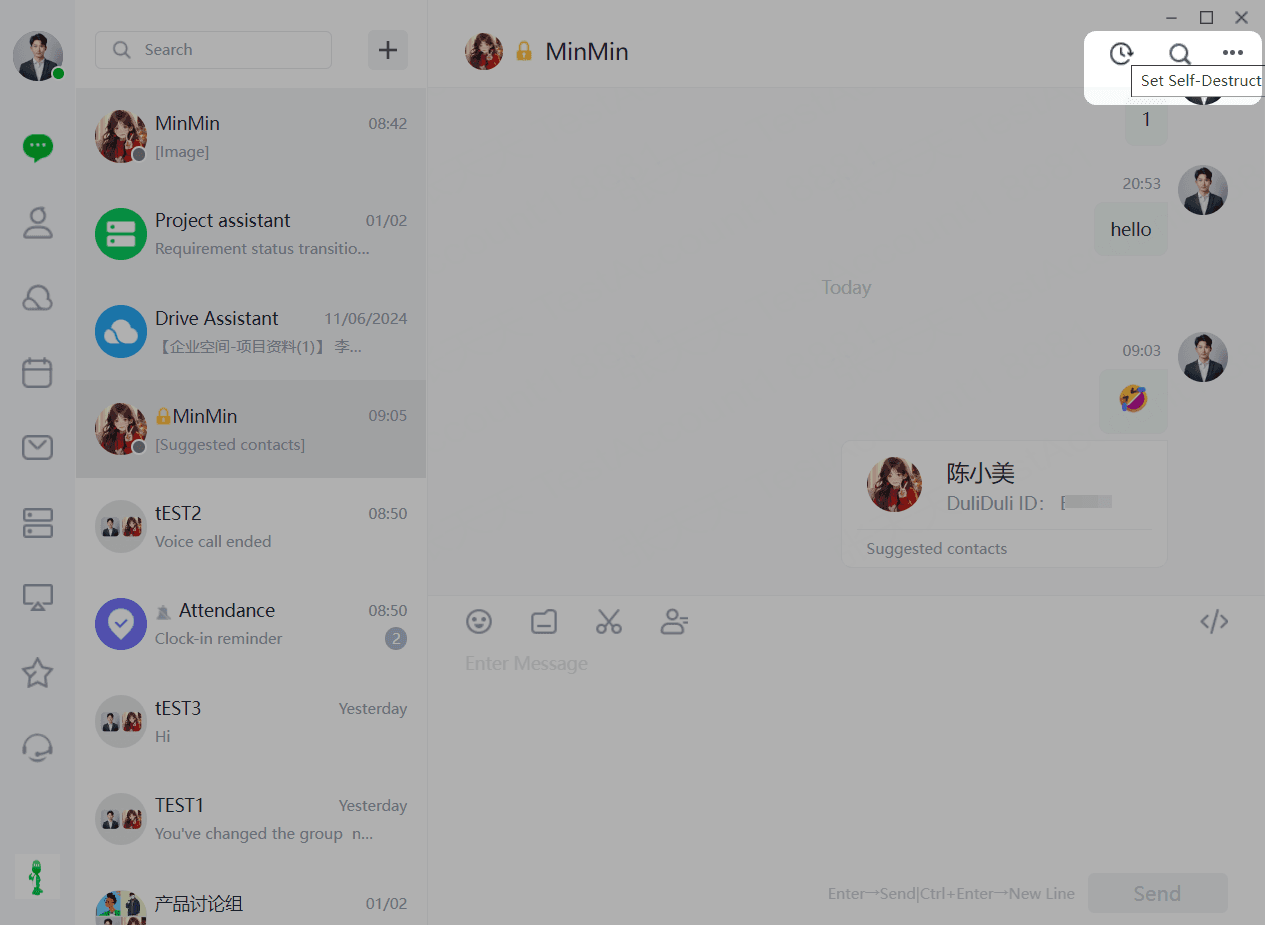
After initiating a 【Private Chat】, users can set messages to automatically disappear after being read within a specified time. Click the top-right corner of the chat box to enable "Disappearing Messages" and set the duration.
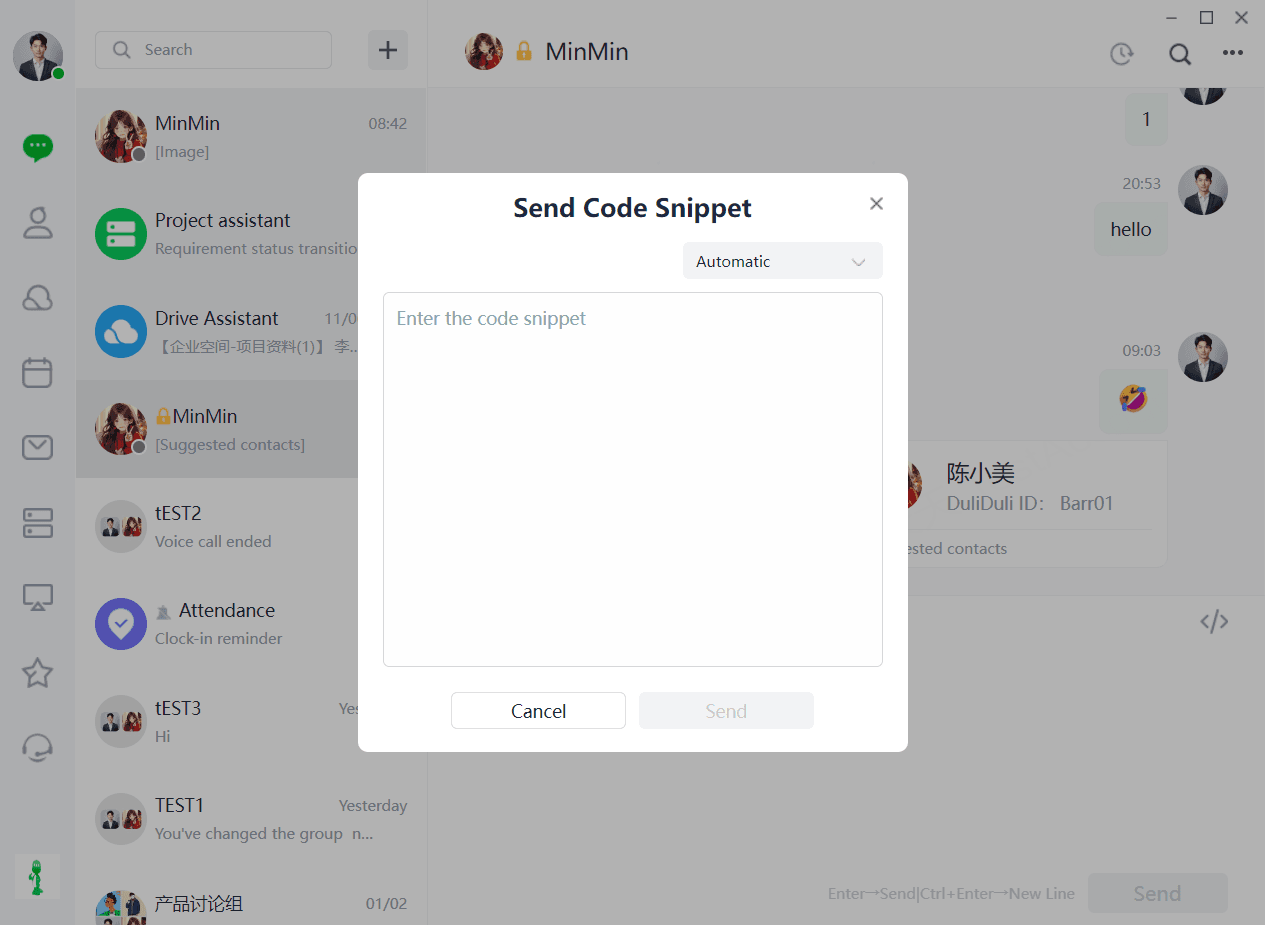
1.7 Code Blocks
(1)Users can send code to chat partners by clicking "Send Code Block" in the chat box.
(2)Copy the code into the text box, select the programming language, and the format will adjust automatically.
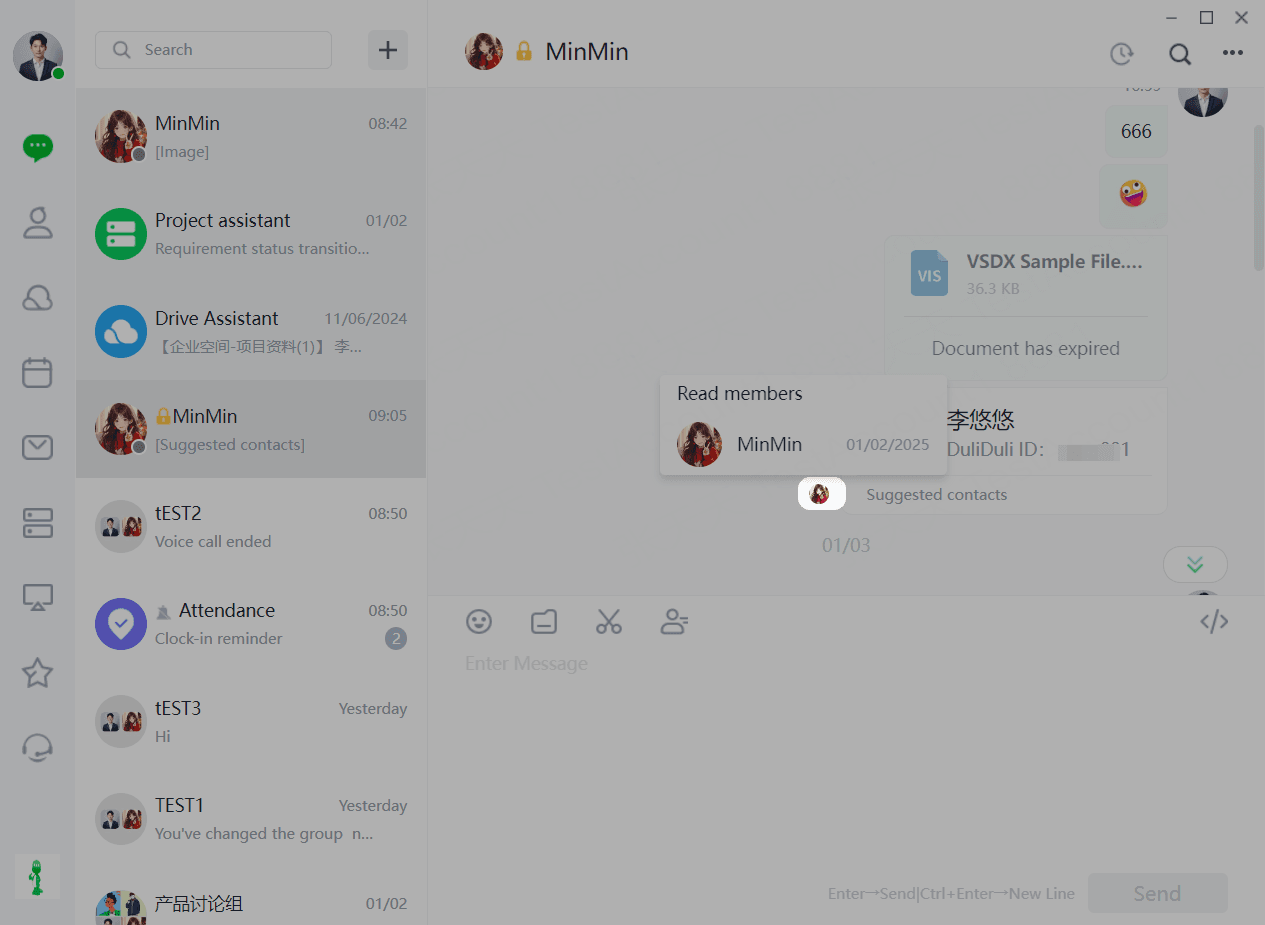
1.8 Read Status
Check if messages have been read.
User avatars are displayed on the right of your sent messages:
(1) Not shown if all unread.
(2) Shows avatars of users who have read the message.
1.9 Settings
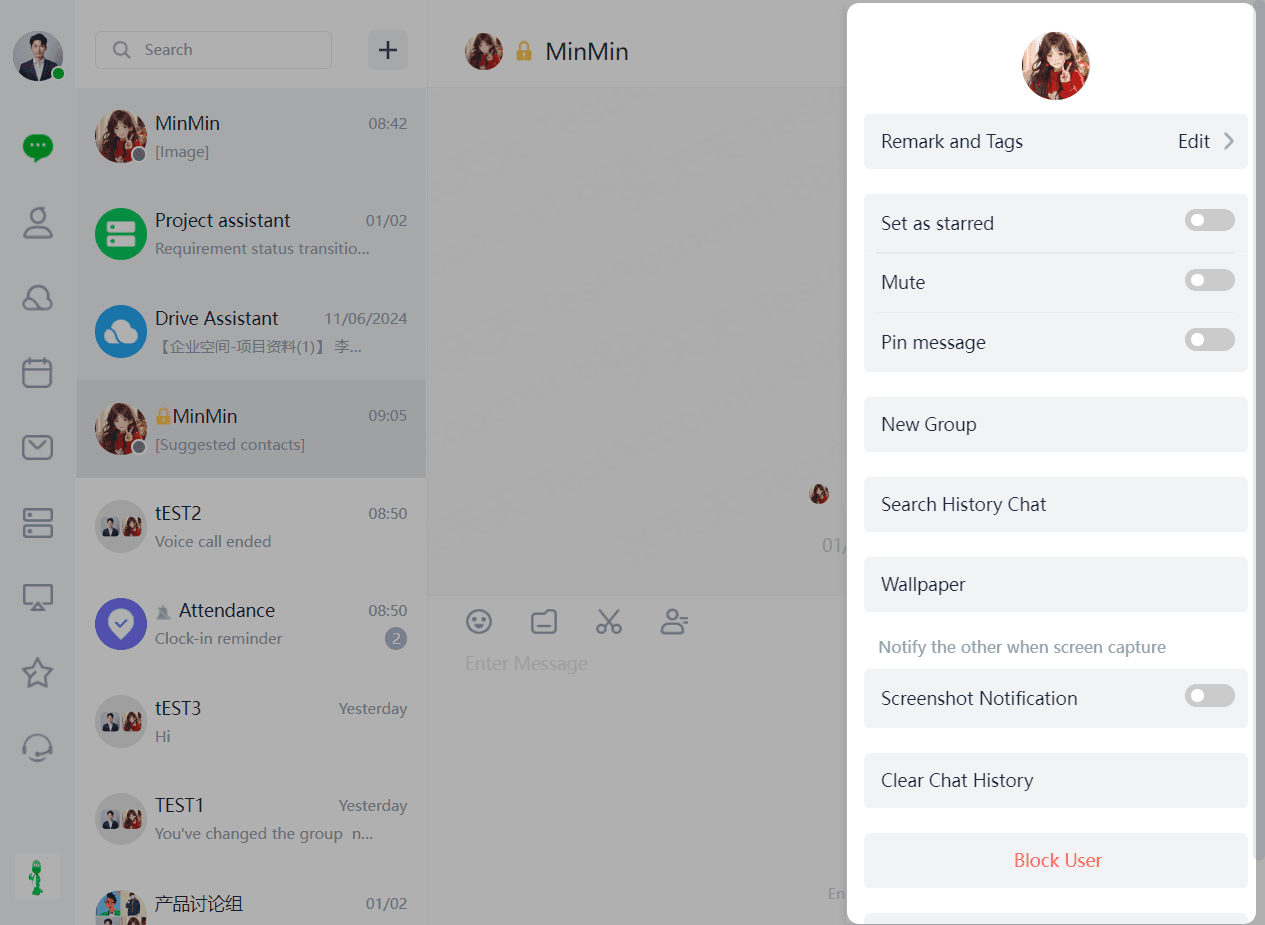
1.2.9.1 Remarks & Tags
Remarks
Users can set remarks for the current chat partner by clicking the top-right corner of the chat box and selecting the Remarks option.
Tags
(2) Users can add tags to the current chat partner by entering the Remarks & Tags page through the top-right corner, either selecting previous tags or entering new ones.
1.2.9.2 Starred Contacts
(1)Users can star the current contact by clicking the top-right corner of the chat box, adding them to a Starred Contacts list in the address book.
1.2.9.3 Message Mute
(1)Users can enable Do Not Disturb for the current chat by clicking the top-right corner or right-clicking the chat in the list.
1.2.9.4 Pin Chat
(1)Users can pin the current chat to the top by clicking the top-right corner or right-clicking the chat in the list.
1.2.9.5 Group Chat
(1)Users can initiate a group chat by clicking the top-right corner of the chat box.
(2)Select contacts to invite and click "Create" to start the group.
1.2.9.6 Search Chat History
(1)Users can search chat history by clicking the top-right corner of the chat box and selecting "Search Chat History."
1.2.9.7 Chat Background
(1)Users can set the chat background by clicking the top-right corner and selecting "Set Current Chat Background."
(2)Supports custom images or platform-provided options.
1.2.9.8 Screenshot Notifications
(1)Users can enable screenshot notifications for the current chat by clicking the top-right corner.
1.2.9.9 Clear Chat History
(1)Users can clear chat history by clicking the top-right corner and selecting "Clear Chat History." Once cleared, it cannot be recovered.
1.2.9.10 Block User
(1) Users can block the current user by clicking the top-right corner and selecting "Block This User," stopping further messages.
1.2.9.11 Delete Contact
(1)Users can delete the current contact by clicking the top-right corner and selecting "Delete Contact," removing the friendship.
1.2.9.12 Remove Conversation
Users can remove a conversation from the list by right-clicking it, which will no longer appear in the chat list.