
Linux Service Deployment Guide
1. Overview
1.1 Deployment plan
DULI private deployment is built on Docker. Each service is packaged as an independent image.
For online deployment, a single command can automatically download dependencies and finish installation.
For offline deployment, you can download the image package first and then configure and initialize it according to the customer environment.
1.2 Deployment methods
| Name | Description |
|---|---|
| On-premises deployment | The customer purchases the server and installs it in the company’s own server room. |
| Cloud deployment | The customer purchases the server from a cloud service provider. |
1.3 Deployment architecture
| Name | Description | Recommended user scale | Number of servers |
|---|---|---|---|
| Single-node deployment | Usually deployed on one physical server | 0-200 users | 1 |
1.4 Recommended Cloud Servers
If you choose cloud deployment, first evaluate the mainstream cloud server providers below. We recommend selecting a China region to improve access for users in China and reduce network latency. Recommended bandwidth is 200 Mbps; for small-scale trials, use at least 100 Mbps. If the company has heavy file transfer, mobile external access, or many concurrent users, increase bandwidth according to actual concurrency and file volume. Instance specifications, bandwidth, cloud disks, security groups, and billing methods differ by provider, so review the provider purchase guide or consult the cloud server vendor.
| Cloud server provider | Cloud server URL |
|---|---|
| Alibaba Cloud ECS | https://www.aliyun.com/product/ecs |
| Tencent Cloud CVM | https://cloud.tencent.com/product/cvm |
| Volcengine ECS | https://www.volcengine.com/product/ecs |
| Huawei Cloud ECS | https://www.huaweicloud.com/product/ecs.html |
2. Environment preparation
2.1 Server specifications
2.1.1 Trial edition
| Users | CPU | Memory | Disk |
|---|---|---|---|
| Up to 100 | 4 cores | 12 GB | 60 GB |
2.1.2 Production edition
| Users | CPU | Memory | Disk |
|---|---|---|---|
| 0-200 | 24 cores+ | 64 GB+ | 1 TB+ |
2.2 Operating system and software
| Name | Version | Notes |
|---|---|---|
| Operating system | CentOS 7.9 | A clean operating system is recommended. Otherwise ports may fail to start normally or installation scripts may terminate unexpectedly. |
2.3 Network requirements
| Name | Ports | Notes |
|---|---|---|
| Proxy ports / project ports / service ports | 3306, 9001-9018, 10001-10002, 8085/18085, 12321-12322, 19001-19018 | 1. Allow these ports through the local firewall. 2. If mobile or other external devices need access, configure TCP port mapping. 3. If you are using cloud servers, also allow them in the security group. 4. - indicates a range and / indicates parallel ports.5. 19001-19018 may remain closed to the public network when only intranet access is required. |
3. Installation and deployment
Linux deployment uses Docker. Running the one-click deployment command usually takes about 12 minutes.
3.1 Install Docker
The DULI installation script automatically installs Docker. If you have special Docker version requirements, install it manually according to the official Docker documentation.
3.2 Install services
After preparation is complete, check the basic environment first. Deployment methods are divided into online deployment and offline deployment.
| Name | Description | Notes |
|---|---|---|
| Online deployment | The script downloads the server installation package from the Internet and automatically configures and deploys it. | 1. Public network access is available. 2. Yum repositories are available. 3. No port conflict exists. |
3.2.1 Check installation environment
# Check the operating system
cat /etc/redhat-release

# Check memory
free -m

# Check CPU
cat /proc/cpuinfo | awk '/processor/' | wc -l

# Check disk
df -h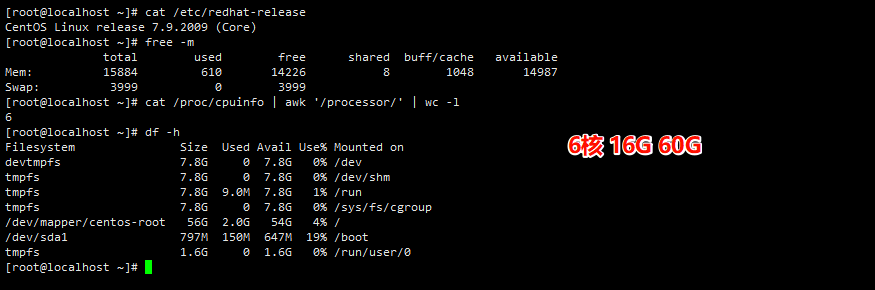
3.2.2 Single-node deployment
Run a single command to automatically download dependencies and install:
cd /opt/ && echo yes | /bin/bash -c "$(curl -fsSL https://download.duliduli.com/download/Linux/main/v1.0.1/install.sh )"Initialize system parameters:
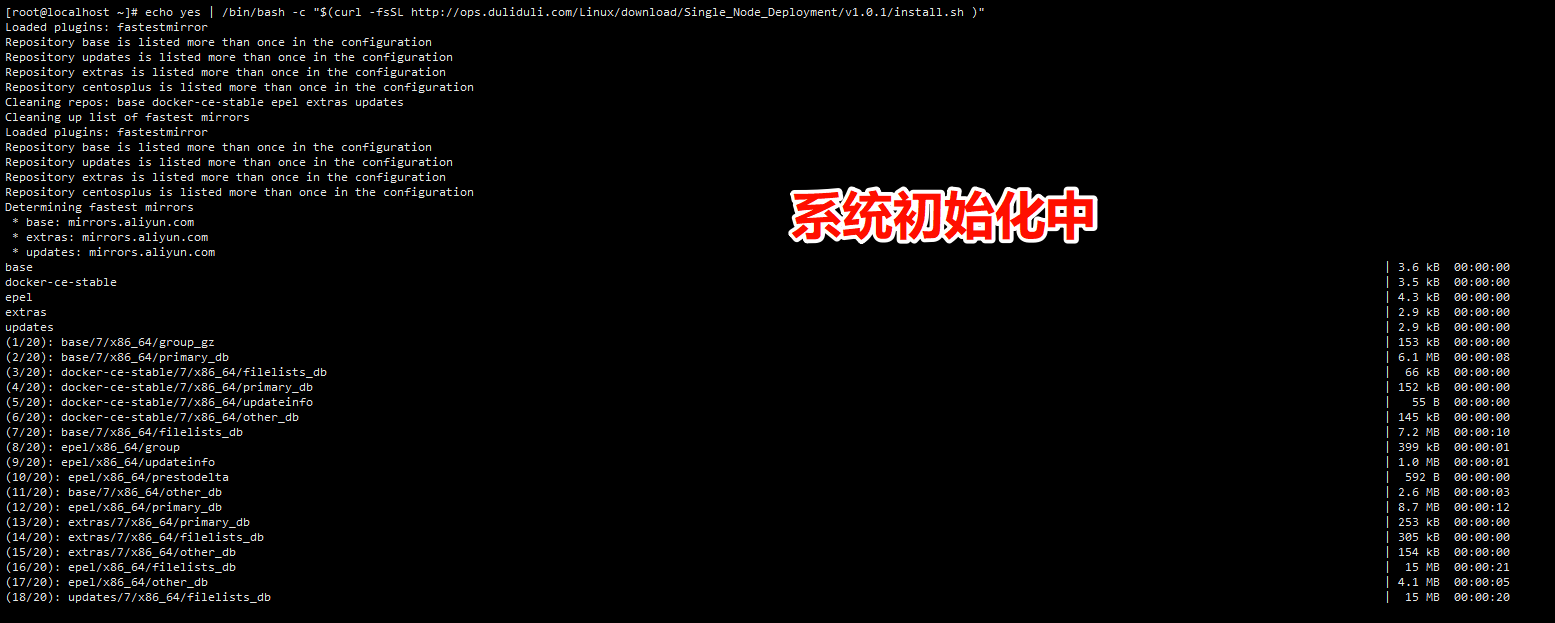
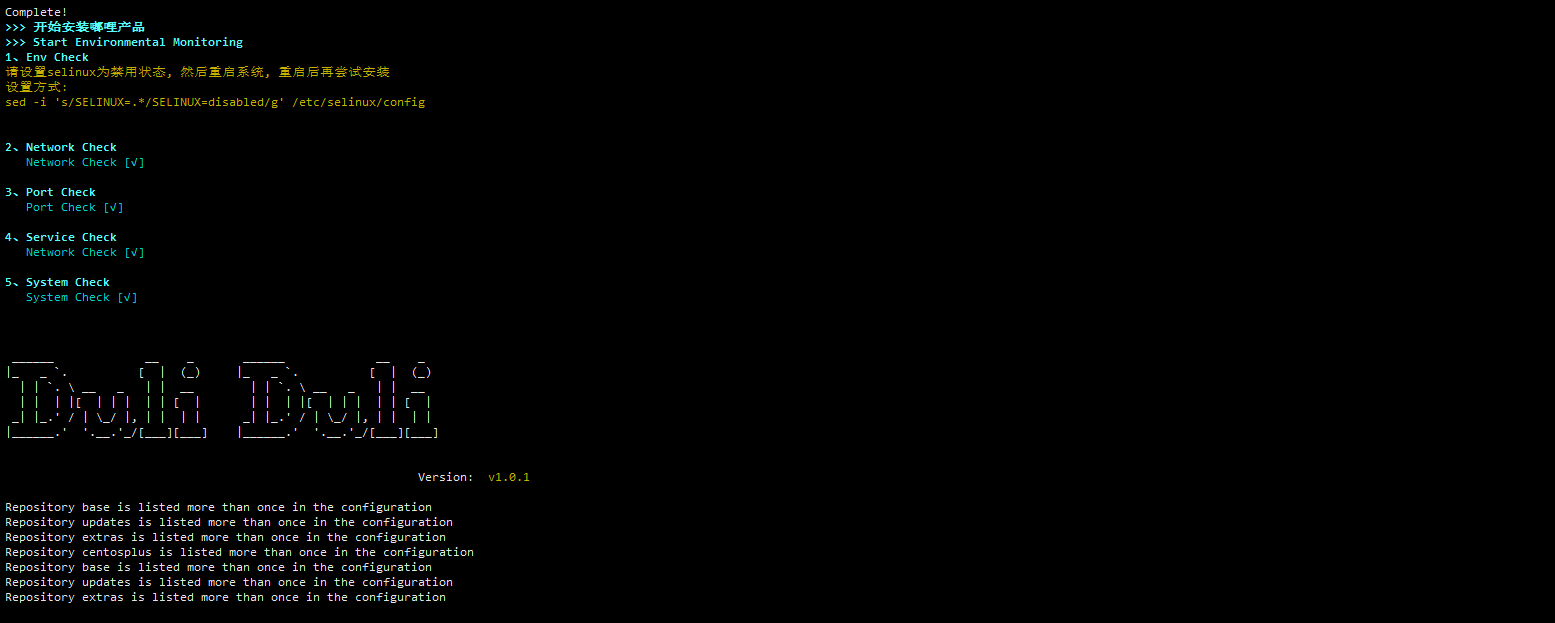
Start deploying the services and projects required for a single node:
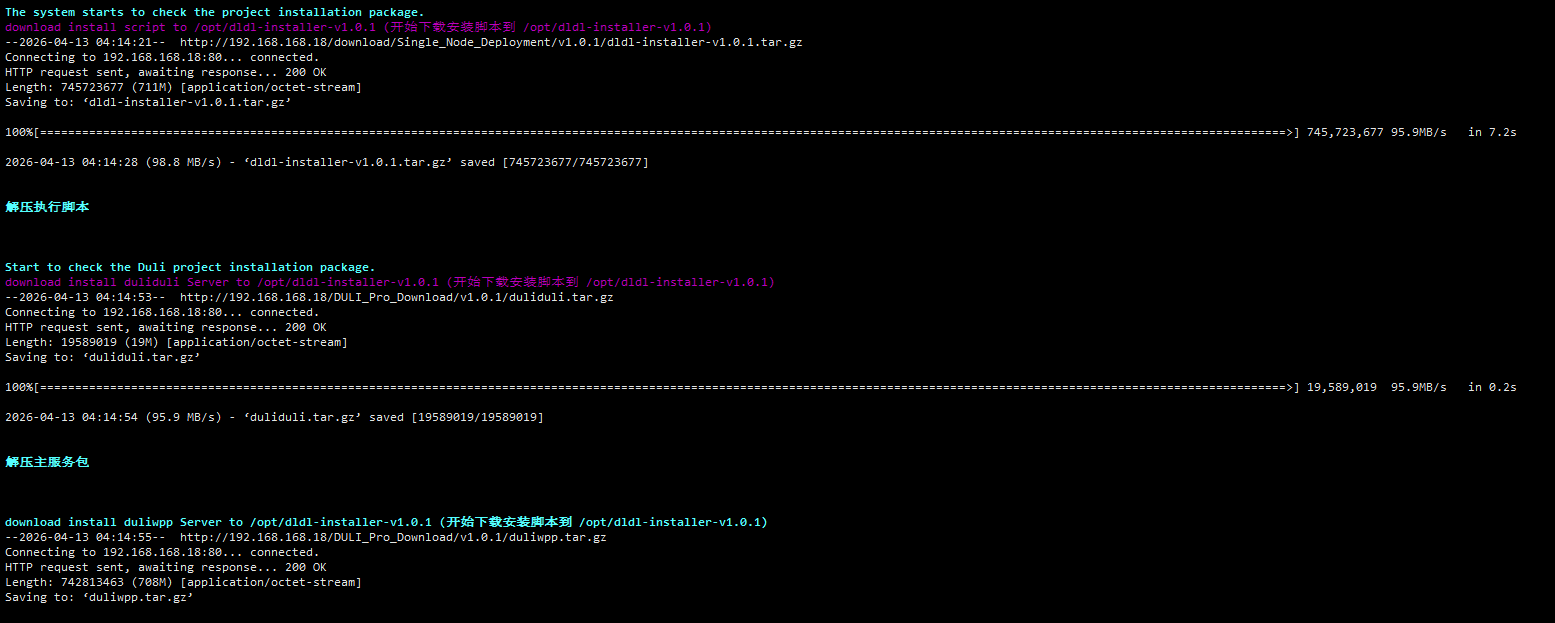
During installation, the script automatically downloads the server installation package:
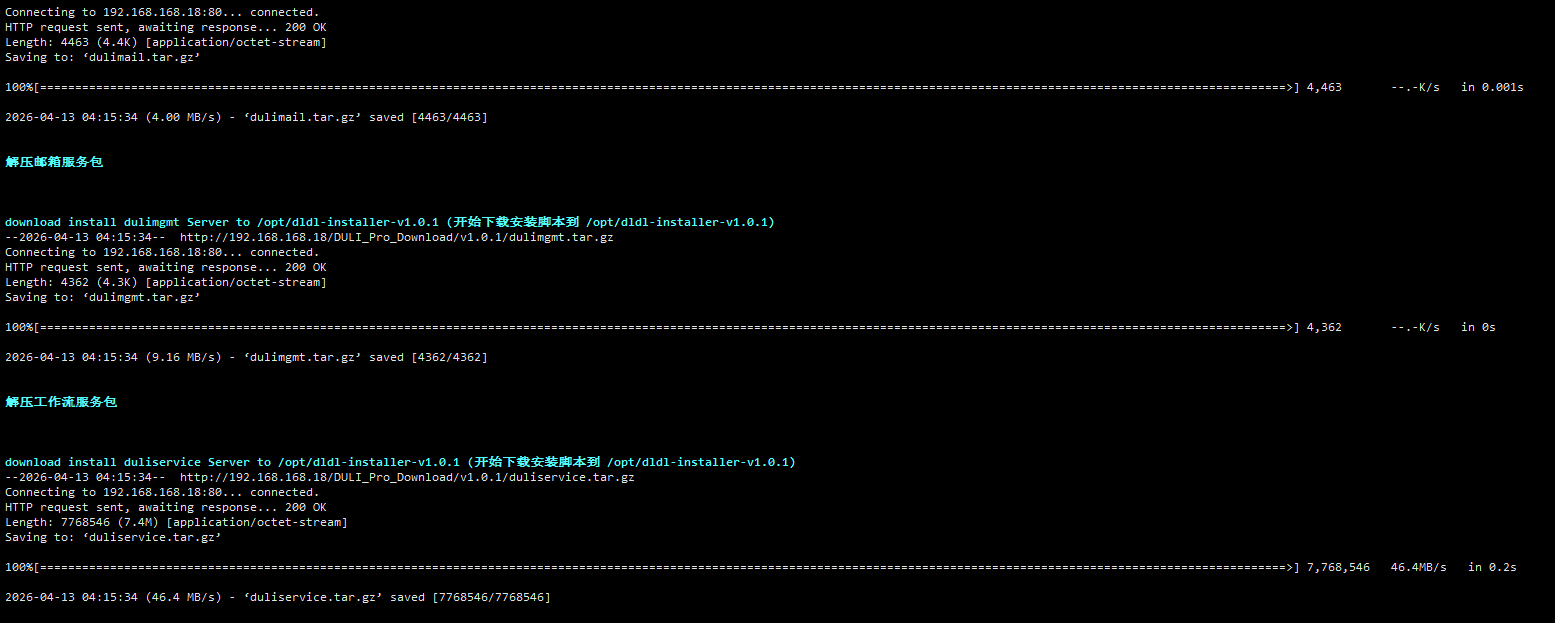
After the package is downloaded, the script installs Docker, assigns Docker virtual IP addresses, and connects to the image repository:

After Docker is installed, service containers are pulled. The images are large, so please wait patiently:


After the related images are pulled, service containers start first and initialize the MySQL database:

Then the remaining server-side images continue to be pulled:



After installation is complete, the terminal outputs the DULI-related access addresses:

Check containers with docker ps:
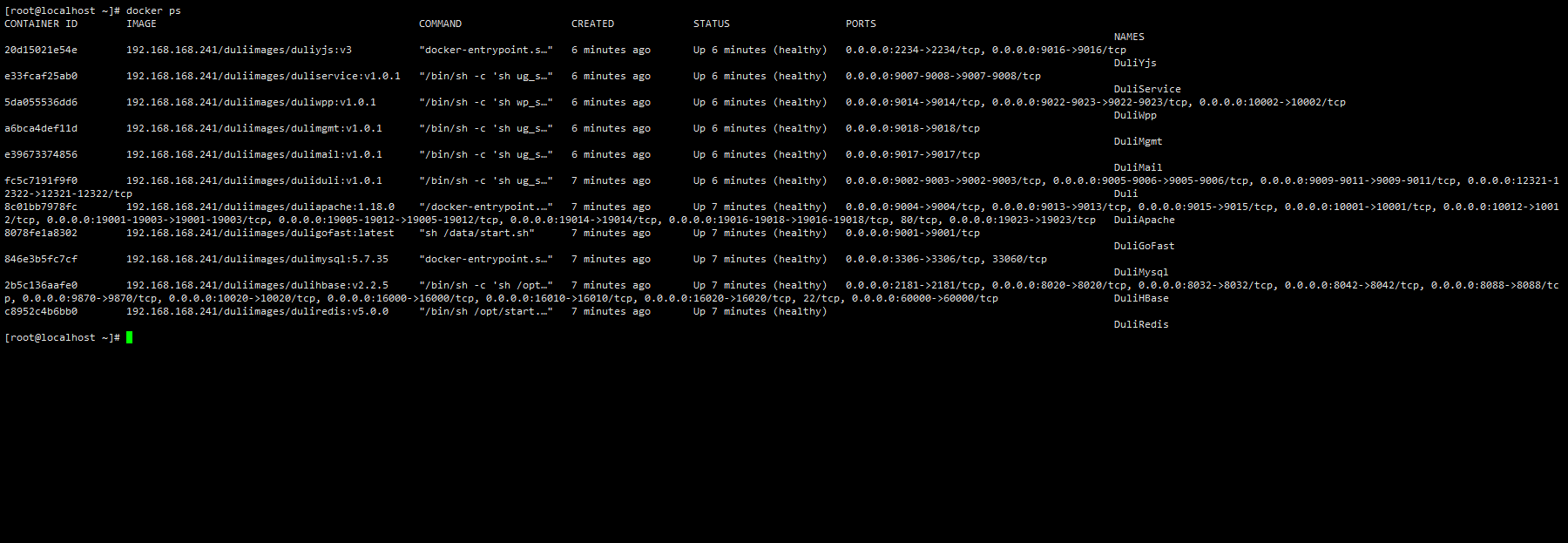
After logging into the management console, apply for authorization and activate the service.
3.2.3 Uninstall and reinstall
# Delete Docker container resources.
# If there are containers unrelated to DULI, identify them manually to avoid accidental deletion.
# Note: the reinstall command clears historical DULI data. Confirm before executing.
docker stop $(docker ps | egrep -i duli | awk '{print $NF}')
docker rm -f $(docker ps -aq)
docker rmi -f $(docker images | egrep -i duli | awk '{print $3}')
docker network ls | egrep compose | awk '{print $1}' | xargs docker network rm
rm -rf /opt/dldl-installer-*
rm -f ~/quick-install.sh
clear
cd /opt/ && echo yes | /bin/bash -c "$(curl -fsSL https://download.duliduli.com/download/Linux/main/v1.0.1/install.sh )"
3.3 Version update
3.3.1 Single-node upgrade
# Enter the script root directory
cd /opt/dldl-installer-v1.0.1

# Run the upgrade command
sh quick-install.sh update
The script automatically retrieves the official version number and prompts for the target version. Press Enter after input and the upgrade continues automatically.

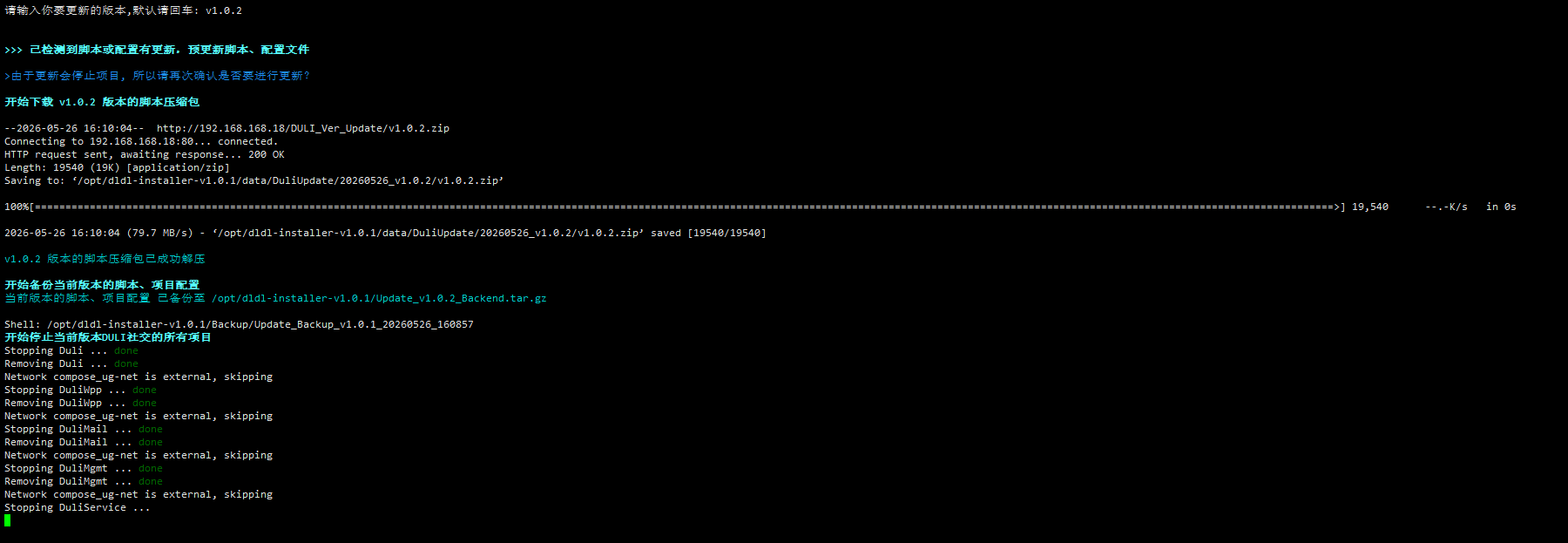


After the upgrade, confirm that the version has been updated to the target release, for example v1.0.2.
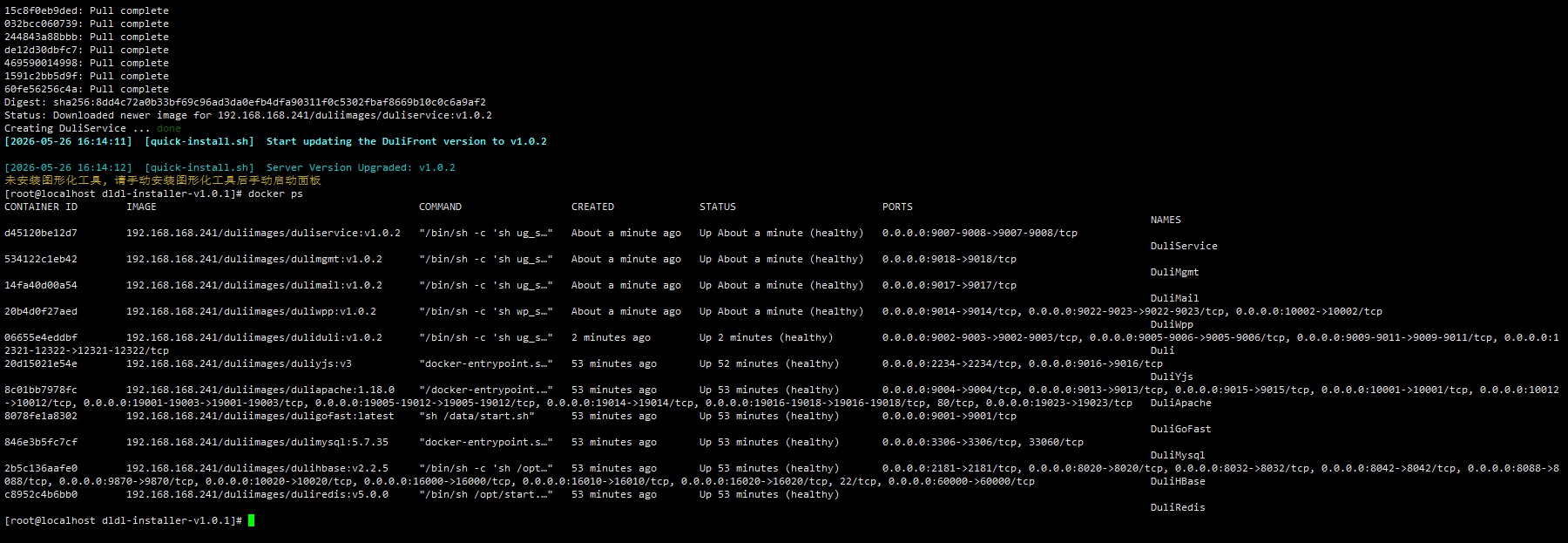
3.4 Services and images
After installation, the following services are available:
| Container name | Image | Description |
|---|---|---|
| DuliApache | 192.168.168.241/duliimages/duliapache | Proxy service |
| DuliMysql | 192.168.168.241/duliimages/dulimysql | Database |
| DuliRedis | 192.168.168.241/duliimages/duliredis | Cache service |
| DuliHBase | 192.168.168.241/duliimages/dulihbase | Message database |
| DuliGoFast | 192.168.168.241/duliimages/duligofast | File service |
| Duli | 192.168.168.241/duliimages/duli | Entry, messaging, admin, and auth services |
| DuliWpp | 192.168.168.241/duliimages/duliwpp | Cloud drive service |
| DuliMail | 192.168.168.241/duliimages/dulimail | Mail service |
| DuliMgmt | 192.168.168.241/duliimages/dulimgmt | Workflow service |
| DuliYjs | 192.168.168.241/duliimages/duliyjs | Document collaboration service |
Image versions may differ from the examples.
3.4.1 Service management
docker [start|stop|restart] container_name3.4.2 Service logs
docker logs -f container_name| Type | Service | Identifier | Current log | Historical log |
|---|---|---|---|---|
| Installer | Install script | Install script | /var/log/duliduli/duliduli.log | - |
| DULI project | Cloud drive service | DuliWpp | logs/DuliWpp/DuliWpp.out | logs/DuliWpp/DuliWpp.out-20240715.gz |
| DULI project | Mail service | DuliMail | logs/DuliMail/DuliMail.out | logs/DuliMail/DuliMail.out-20240715.gz |
| DULI project | Workflow service | DuliMgmt | logs/DuliMgmt/DuliMgmt.out | logs/DuliMgmt/DuliMgmt.out-20240715.gz |
| DULI project | Message service | DuliFront | logs/DuliFront/DuliFront.out | logs/DuliFront/DuliFront.out-20240715.gz |
| DULI project | Backend service | DuliBackend | logs/DuliBackend/DuliBackend.out | logs/DuliBackend/DuliBackend.out-20240715.gz |
| DULI project | Entry service | DuliRoute | logs/DuliRoute/DuliRoute.log | logs/DuliRoute/7z/2024-07/2024-07-13-1.DuliRoute.gz |
| DULI project | Auth service | DuliAuth | logs/DuliAuth/DuliAuth.out | logs/DuliAuth/DuliAuth.out-20240715.gz |
| Infrastructure | Proxy service | DuliApache | logs/DuliApache/access.log | logs/DuliApache/log/access.log-20240714.gz |
| Infrastructure | Database | DuliMysql | logs/DuliMysql/logs/mysqld.log | - |
| Infrastructure | Message database | DuliHBase | logs/DuliHBase/hbase-root-master-hbase-server.log | - |
| Infrastructure | File service | DuliGoFast | logs/DuliGoFast/log/fileserver.log | - |
3.4.3 Port information
| Type | Side | Service / Project | Proxy Port | Internal Port |
|---|---|---|---|---|
| Proxy | Proxy service | DuliApache | 80/443 | 80/443 |
| Database | Database | DuliMysql | 3306 | 3306 |
| Database | Cache service | DuliRedis | 7001-7006 | 7001-7006 |
| Database | Message database | DuliZookeeper | 2181 | 2181 |
| Database | Message database | DuliHadoop | 50010 | 50010 |
| Database | Message database | DuliHBase | 16010 | 16010 |
| File service | File service | DuliGoFast | 19001 | 9001 |
| DULI | Entry service | DuliRoute | 19002 | 9002 |
| DULI | Messaging service | DuliFront | 19003 | 9003 |
| DULI | Backend service | DuliBackend | 19005 | 9005 |
| DULI | Auth service | DuliAuth | 19006 | 9006 |
| DULI | DuliRoute Socket | streamPort Socket | 29002 | 9002 |
| DULI | DuliFront Socket | wsPort Socket | 19009 | 9009 |
| DULI | DuliFront Socket | nettyPort Socket | 19010 | 9010 |
| DULI | DuliFront Socket | androidPort Socket | 19011 | 9011 |
| DULI | DuliFront Socket | natcrossPort WsSocket | 19012 | 9012 |
| DULI | DuliFront Socket | natcrossTransferPort WsSocket | 19015 | 9015 |
| Cloud drive | Drive service | ClooudDisk | 19014 | 9014 |
| Cloud drive | Drive service | Disk Socket | 29014 | 9014 |
| Cloud drive | Drive service | uploadPort | 19004 | 9004 |
| Collaboration | Document collaboration service | yjs | 12234 | 2234 |
| Mail service | DuliMail | 19017 | 9017 | |
| Workflow | Workflow service | DuliMgmt | 19018 | 9018 |
| Online preview | Preview service | openoffice | 18085 | 8085 |
3.5 Data maintenance
All service data is mapped under /app in the installation directory.
| Directory | Description |
|---|---|
/opt/dldl-installer-v1.0.1 | Service installation root |
quick-install.sh | Main server management script |
soft | Server installation archives |
scripts | Sub-scripts |
conf | Address, port, and database configuration |
compose | Docker Compose files for services and projects |
log | Project and service log directory |
data | Project and service data directory |
data/DuliDataBackup | HBase and Hadoop backup path |
data/DuliApache/cert | SSL certificate path |
3.5.1 HBase maintenance
docker exec -it DuliHBase sh -c "hbase shell"Example: list HBase tables
docker exec -it DuliHBase sh -c "echo 'list' | hbase shell"Backup scripts:
# Snapshot backup for 1 day of data
docker exec -it DuliHBase sh -c 'sh /opt/hbase_backup.sh SnapExport 1'

# Physical backup for 1 day of data
docker exec -it DuliHBase sh -c 'sh /opt/hbase_backup.sh Export 1'
3.5.2 MySQL maintenance
docker exec -ti DuliMysql sh -c 'mysql -h${MysqlAddress} -uroot -P${MysqlPort}'
Manual backup:
docker exec -ti DuliMysql sh -c 'mysqldump -uroot -h"$MysqlAddress" -P"$MysqlPort" --all-databases -ER' > /path/to/backup-file
Scripted backup:
# Enter the installation directory
cd /opt/dldl-installer-v1.0.1

# Load environment variables
. quick-install.sh

# Execute the backup script
sh scripts/mysql.sh Export
4. Domain configuration
4.1 Switch to HTTPS
4.1.1 Preparation
| Domain | Certificate file | Private key file |
|---|---|---|
| Primary / secondary domain | CRT or PEM | KEY |
Example:
| Domain | Certificate file | Private key file |
|---|---|---|
example.com | cert.crt | cert.key |
4.1.2 Modify SSL configuration
Before changing the protocol, back up the related files first to avoid service interruption caused by configuration mistakes.
Enter the installation directory:
cd /opt/dldl-installer-v1.0.1Upload the certificate:
# You can upload with sftp or use rz
# Install rz if needed:
yum install -y lrzsz

# Copy the certificate to the nginx cert directory
cp cert.crt cert.key data/DuliApache/cert/
Run the HTTPS enable script:
sh scripts/enable_nginx_https.sh
Choose to enable HTTPS by entering 1:

Enter the prepared domain name:

5. Start using it
5.1 Access the admin console
https://example.com:9005/html/login.html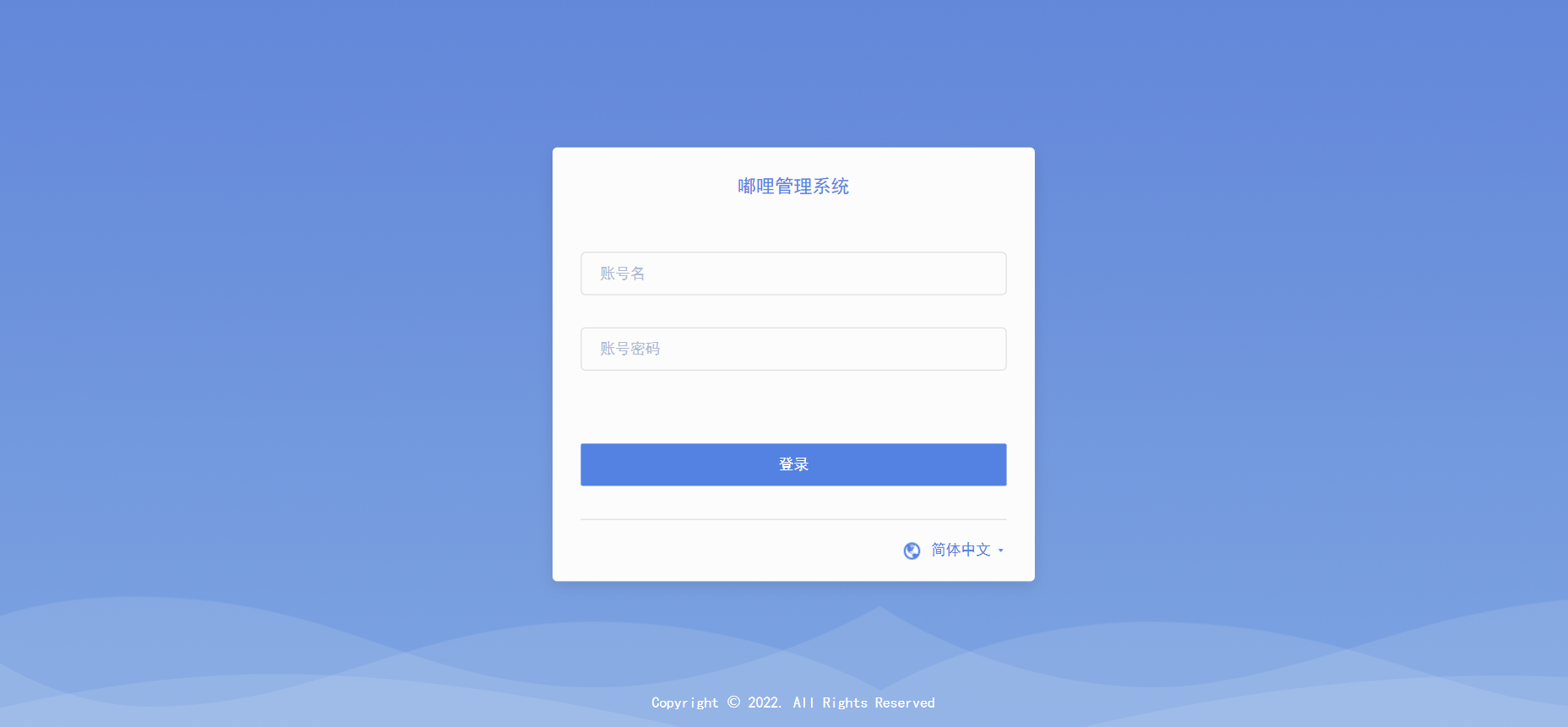
5.2 License activation
After registering on the DULI official website and completing enterprise verification, you can obtain a free License file.
After purchasing the Enterprise or VIP edition, use the machine code to obtain the License file and import it.
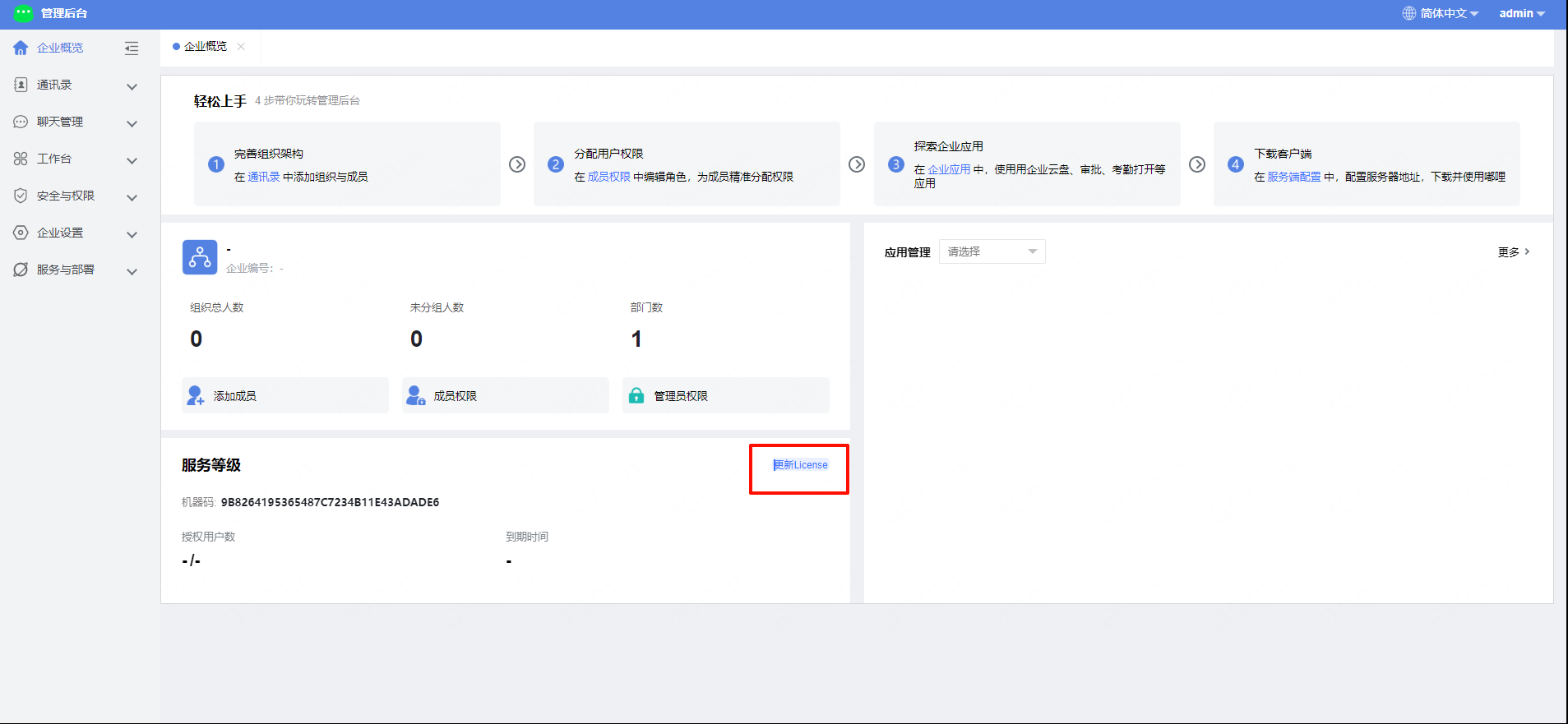
Importing a License requires online verification. Please ensure that the
duliduli.comdomain is accessible.
6. Client download
DULI supports Mac, Windows, iOS, and Android clients.
You can download installers from the official website. For Android and iOS, it is recommended to search for “嘟哩” in the app store.
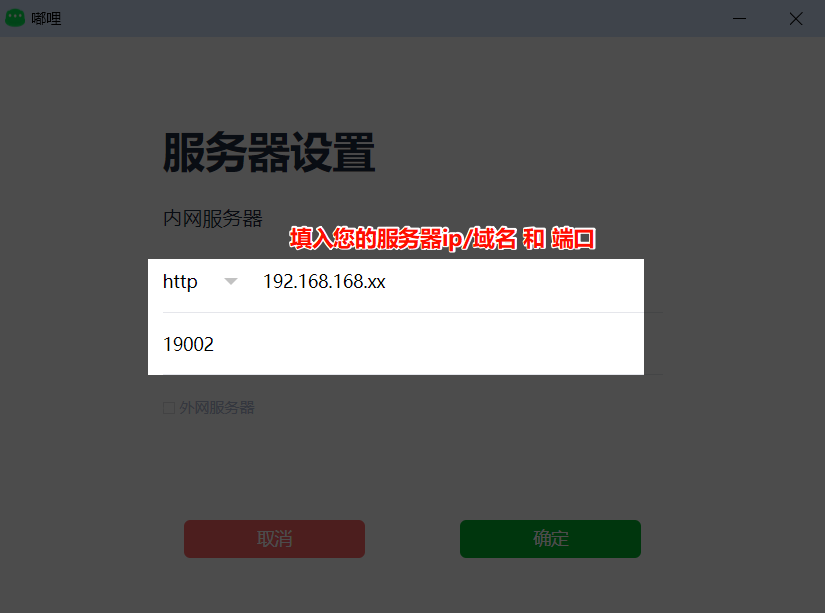
- Copy the IP and port from
嘟哩管理地址.txt. If a public domain is configured, use the domain and port instead, then configure the client.
- Accept the agreement and click Log In. Accounts can be created in the admin console. If SMS services are already integrated, users can also register directly from the client.
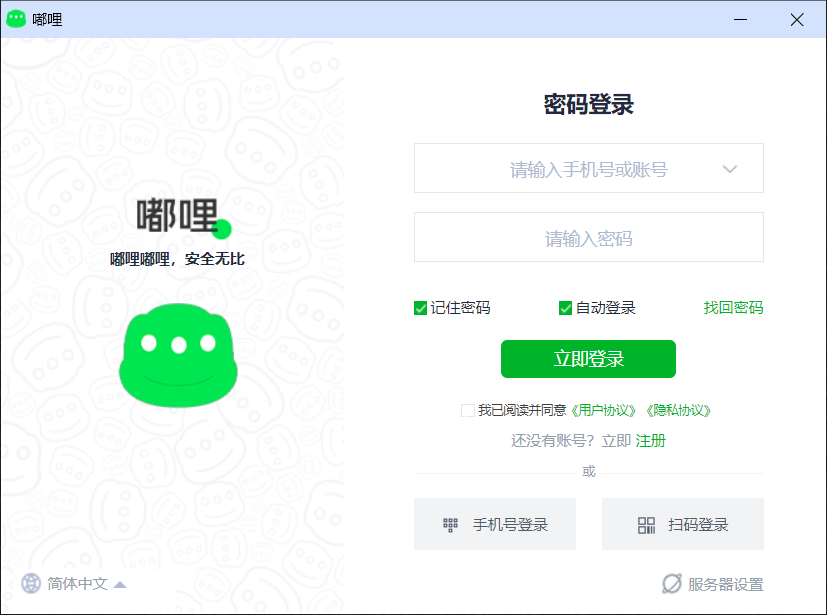
You can start using DULI after logging in.
7. Common commands
7.1 View containers and images
docker ps
docker images
7.2 Start and stop containers
docker start ImagesName
# or
sh quick-install.sh start ImagesNamedocker stop ImagesName
# or
sh quick-install.sh stop ImagesNamedocker restart ImagesName
# or
sh quick-install.sh restart ImagesName7.3 Reload service configuration
. quick-install.sh
docker-compose -f compose/docker-compose-service.yml create ServerName
# or
sh quick-install.sh create ImagesName
7.4 Example of configuration change
# 1. Enter the installation root
cd /opt/dldl-installer-v1.0.1

# 2. Load environment variables
. quick-install.sh

# 3. Edit the compose file
vim compose/docker-compose-service.yml

# 4. Add configuration items
# Example: add port mapping 9004:9004 for the proxy service

# 5. Reload the proxy service configuration
docker-compose -f compose/docker-compose-service.yml create DuliApache
# or
sh quick-install.sh create DuliApache

# 6. Restart the service
docker restart DuliApache
# or
sh quick-install.sh restart DuliApache
7.5 Enter common services
Enter HBase:
. quick-install.sh
docker exec -it DuliHBase sh -c "hbase shell"
Enter Redis:
. quick-install.sh
docker exec -it DuliRedis sh -c "redis-cli -h \"$RedisAddress\" -a \"$REDIS_PASSWORD\" -p 7001"