
1. Apply for a Trial
The trial edition is suitable for enterprise users who want to learn about Duli product features, client usage, and deployment flows before official activation.
1.1 Go to the Application Page
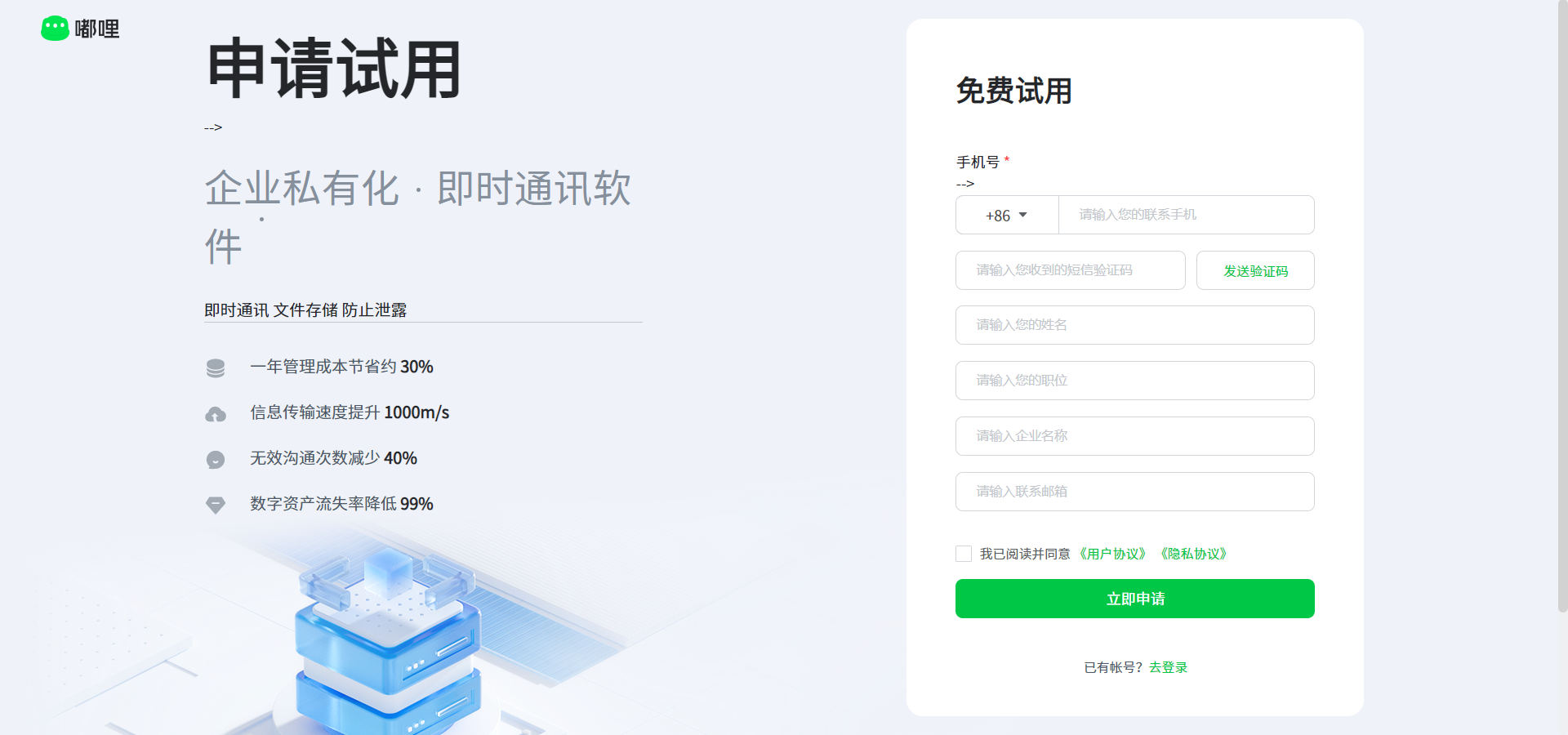
Click Apply for Trial in the upper-right corner of the official website homepage to open the trial application page.
1.2 Fill in Application Information
Fill in the application information according to the page prompts.
Required information includes: mobile number, SMS verification code, name, position, enterprise name, and contact email.
1.3 Read the Agreements
Before submitting, read the User Agreement and Privacy Policy on the page, then confirm before submission.
1.4 Submit the Application
After confirming the information is correct, click Apply Now.
If the enterprise or mobile number has already been registered, sign in with the existing account or contact the enterprise administrator/support team.
1.5 View Trial Environment Configuration
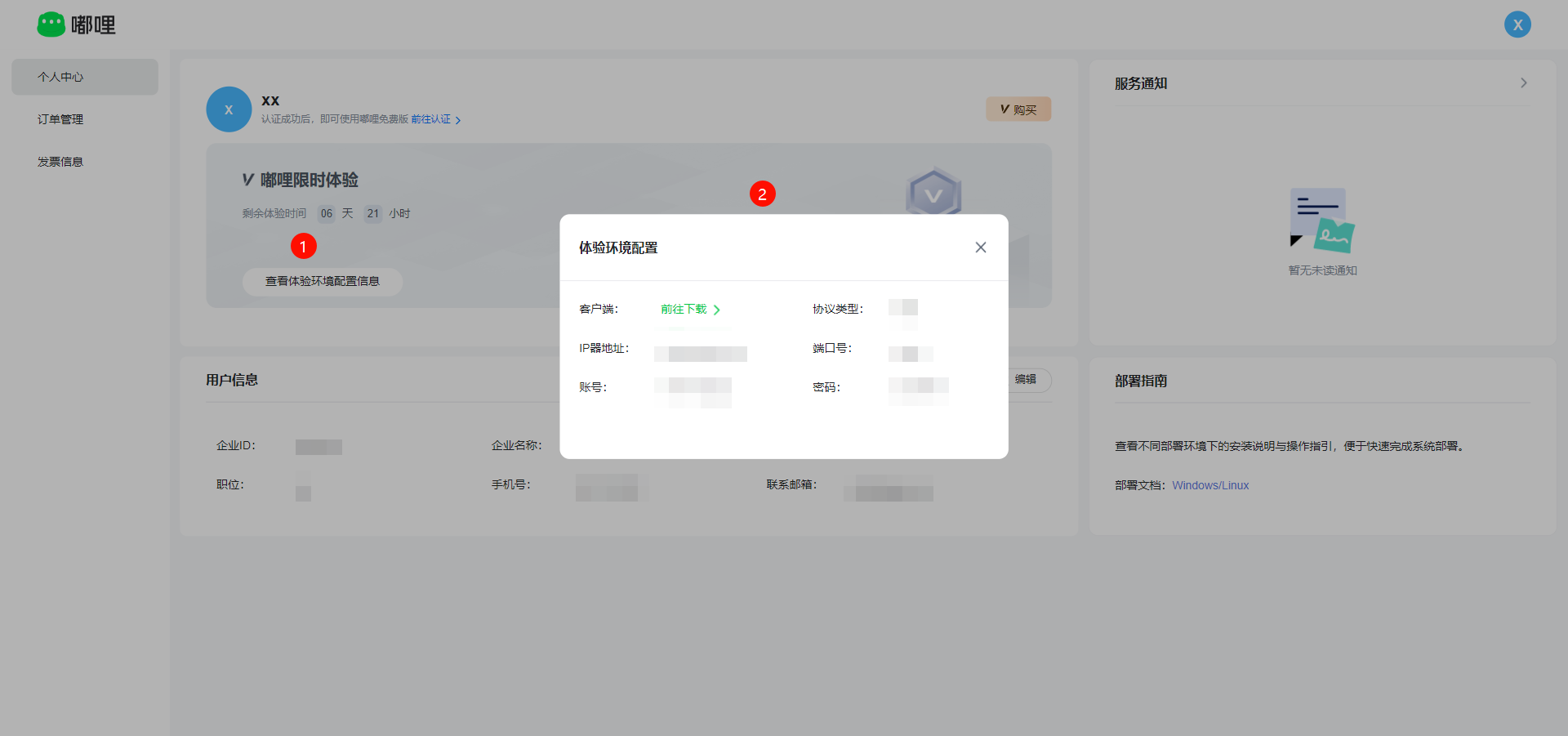
After the application succeeds and you sign in to the personal center, you can view the trial environment configuration in Personal Center.
The trial environment configuration usually includes:
- Client download entry
- Server address
- Port number
- Sign-in account
- Sign-in password
- Deployment document entry
If the client cannot connect, check the server address, port number, and network environment first.
2. Free Edition
The free edition is suitable for enterprise trials or basic feature usage.
The free edition does not require online purchase. After account registration and enterprise verification are completed, the system automatically creates a free-edition order for the current enterprise. After review, you can view the order status in the personal center.
2.1 Complete Enterprise Verification
When using Duli for the first time, register an account and submit enterprise verification information according to the page guide.
After enterprise verification is approved, the system automatically creates a free-edition order for the current enterprise. No separate purchase order is required.
2.2 View the Free-Edition Order
Open Order Management in the left menu to view the free-edition order generated by the system.
2.3 Enter the Machine Code
If the page asks you to enter a machine code, submit it according to the page guide.
The machine code binds the current enterprise deployment environment. After review, the corresponding License can be generated.
2.4 View the License
Open the personal center or order management page to view the License status for the free edition.
3. Purchase the Enterprise Edition
The Enterprise edition is suitable for enterprise users with clear long-term usage needs who want to enable more enterprise-grade capabilities.
3.1 Go to the Enterprise Purchase Page
After signing in to the official website, open the Enterprise purchase page from the Pricing page or the Purchase entry in the personal center.
3.2 Select Enterprise Edition
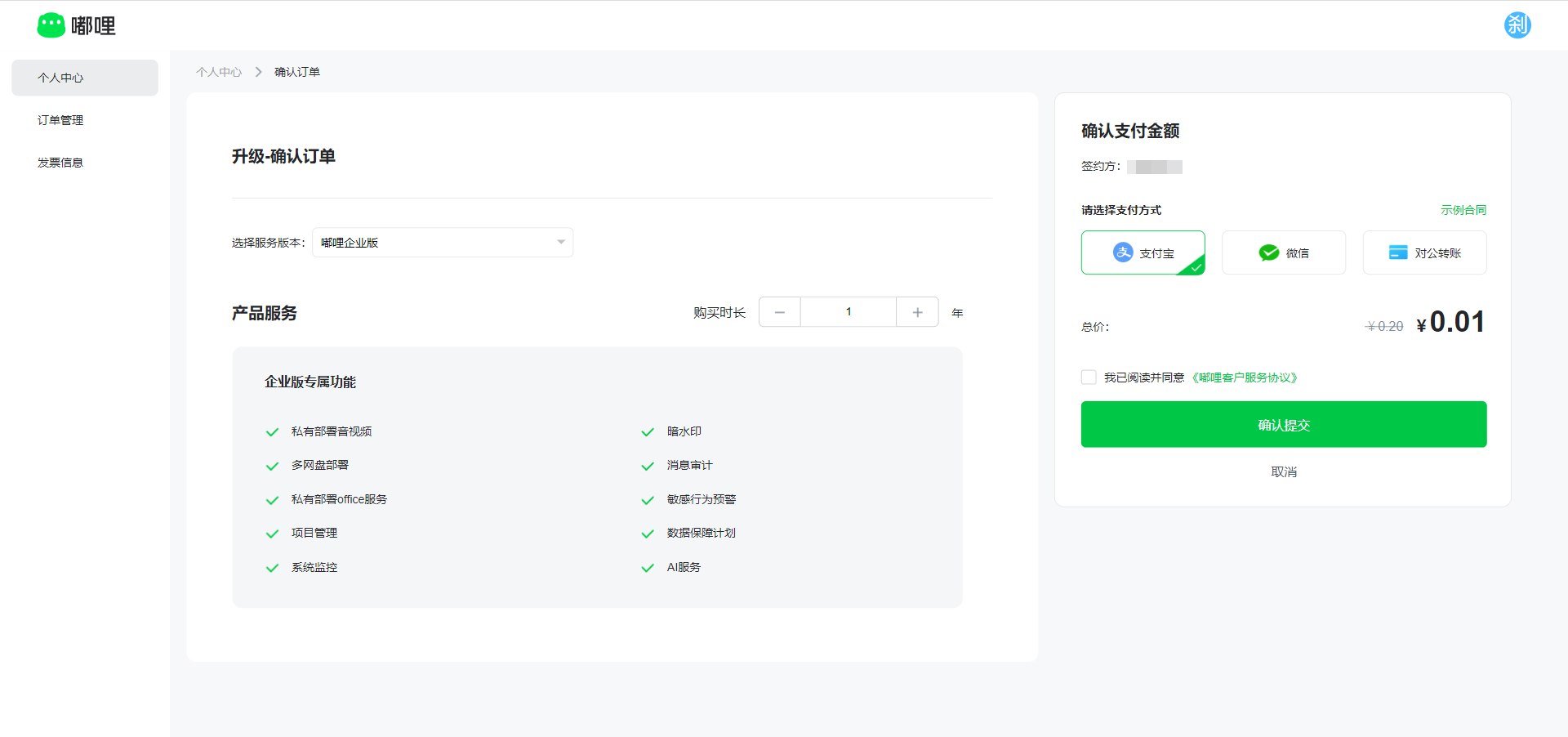
Select Enterprise Edition in the version selection area.
The Enterprise edition includes the basic capabilities of the free edition and can enable License capabilities according to the purchased service content.
Common Enterprise capabilities include:
- Private audio/video deployment
- Multi-drive deployment
- Private Office service deployment
- Project management
- System monitoring
- Dark watermark
- Message audit
- Sensitive behavior alerts
- Data protection plan
- AI service
3.3 Select Purchase Duration
Select the service purchase duration on the purchase page.
The page automatically calculates the total order price based on the selected edition and duration.
3.4 Confirm the Signing Entity
The signing entity is based on the company subject after enterprise verification.
3.5 Select Payment Method
Enterprise edition supports the following payment methods:
- Alipay
- WeChat Pay
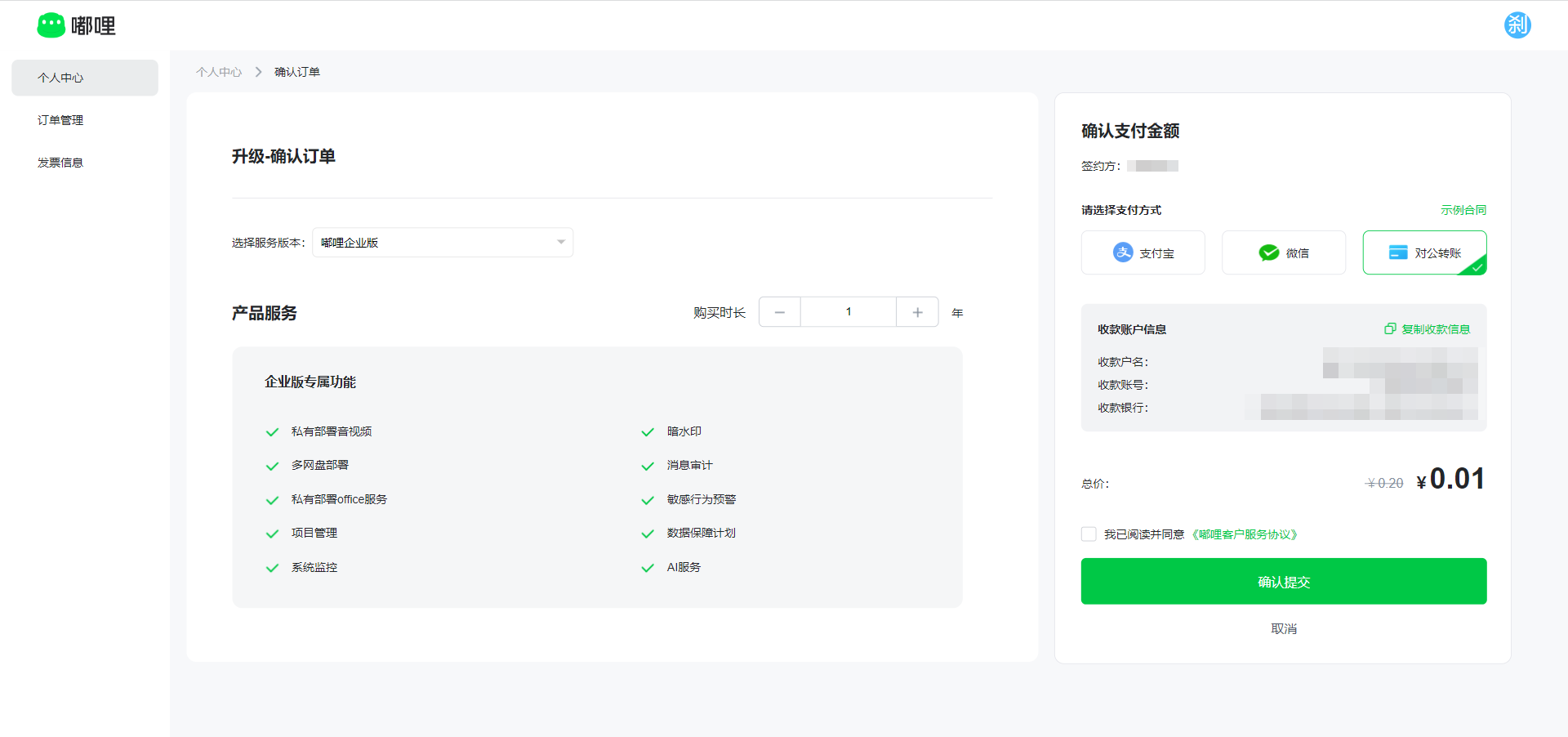
- Corporate bank transfer
If you select corporate bank transfer, the page displays the receiving account information.
3.6 Submit the Order
Before submitting, confirm the following information:
- Service edition
- Purchase duration
- Product service content
- Signing entity
- Payment method
- Order amount
- Service agreement
3.7 Complete Payment
After selecting Alipay or WeChat Pay, the system generates a payment QR code. Use the corresponding app to scan and complete payment.
If the QR code expires, refresh the page or regenerate the QR code before paying.
If you select corporate bank transfer, complete the transfer according to the receiving account information shown on the page. To confirm arrival or handle the order, contact official website support.
3.8 Enter the Machine Code
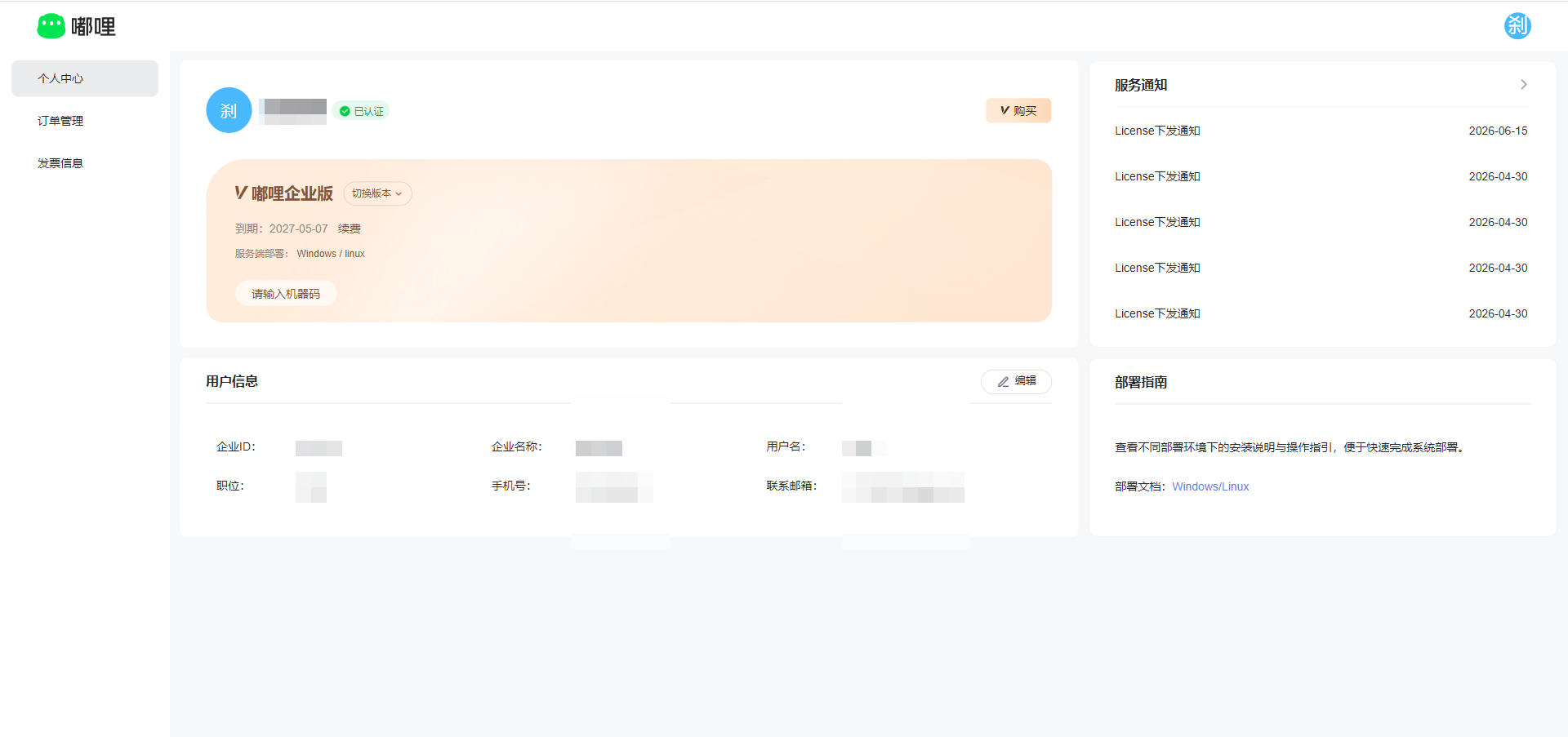
After payment succeeds, the system reviews the order. After approval, you can download or submit the machine code as prompted by the page.
3.9 Download the License
After submitting the machine code, License operations are displayed according to the order status.
Use the License status shown on the order page as the source of truth.
4. VIP Edition Consultation
The VIP edition is suitable for enterprises with private deployment, dedicated services, deep customization, or complex organization management needs.
The VIP edition usually is not paid online directly. The page displays a Customer Service or Book Consultation entry.
4.1 View VIP Service Capabilities
VIP edition usually supports:
- Online customer service
- Private push service
- Multi-project management system
- Multi-organization
- AI service
- Dedicated consultant connection
- Remote or on-site deployment
- Private deployment planning
- Professional R&D team support
- Custom requirement support
Specific service content is subject to the plan confirmed with the business team.
4.2 Contact Support or Sales
You can contact us through:
- Scanning the QR code on the page
- Clicking the customer service entry
- Submitting a consultation appointment
To help evaluate the plan quickly, prepare the following information in advance:
- Enterprise name
- Contact person and contact information
- Estimated number of users
- Whether private deployment is required
- Whether servers or deployment environments are already available
- Core capabilities to enable
- Whether there are custom requirements
4.3 Confirm Plan and Quotation
The business team confirms the plan and quotation based on enterprise size, deployment method, service content, and custom requirements.
The final price, service period, delivery content, and deployment method of the VIP edition are subject to the contract or quotation confirmed by both parties.
4.4 Subsequent Activation
After the plan is confirmed, complete contract signing, payment, deployment, and service activation according to the business agreement.
VIP edition may involve dedicated deployment, manual delivery, or custom development. The specific activation time depends on project scheduling.
5. View Orders
After signing in to the personal center, click Order Management in the left menu to view all orders.
The order list usually includes:
- Order number
- Service content
- Order amount
- Payment status
- Payment method
- Payment time
- Expiration time
- License status
- Operation entry
5.1 Unpaid Orders
Unpaid orders are retained for a period of time. If payment is not completed before the order expires, the order becomes timed out and can no longer be paid. You need to submit a new order.
5.2 Paid Orders
Paid orders can be viewed in order details. Depending on order status, you can download the contract, apply for an invoice, or download the License.
5.3 Timed-Out Orders
Timed-out orders cannot continue payment. Please create a new order.
6. View Order Details
Click Details in the order list to view order details.
Order details usually include:
- Order number
- Service content
- Order creation time
- Order amount
- Payment status
- Payment method
- Payment time
- Expiration time
- Machine code
- Contract
- Invoice
- License
If the order has not submitted a machine code, the machine code field does not display a specific value. After a machine code is submitted, the order details show the corresponding machine code.
7. Download Contract
After order payment succeeds, the system generates a contract download entry.
If the enterprise has not completed enterprise verification, complete enterprise verification before downloading the contract.
After enterprise verification is complete, return to the order details page to download the contract.
8. Apply for an Invoice
If you need an invoice, open Invoice Information in the left menu of the personal center to maintain invoice information.
8.1 General Invoice
A general invoice requires:
- Enterprise name
- Taxpayer identification number
- Email address
8.2 Special Invoice
A special invoice requires all required information according to the page prompts.
8.3 Invoice Information After Enterprise Verification
After enterprise verification is approved, the enterprise name and taxpayer identification number are based on the verified information. The system usually writes them into invoice information automatically and they cannot be manually modified.
8.4 Submit Invoice Application
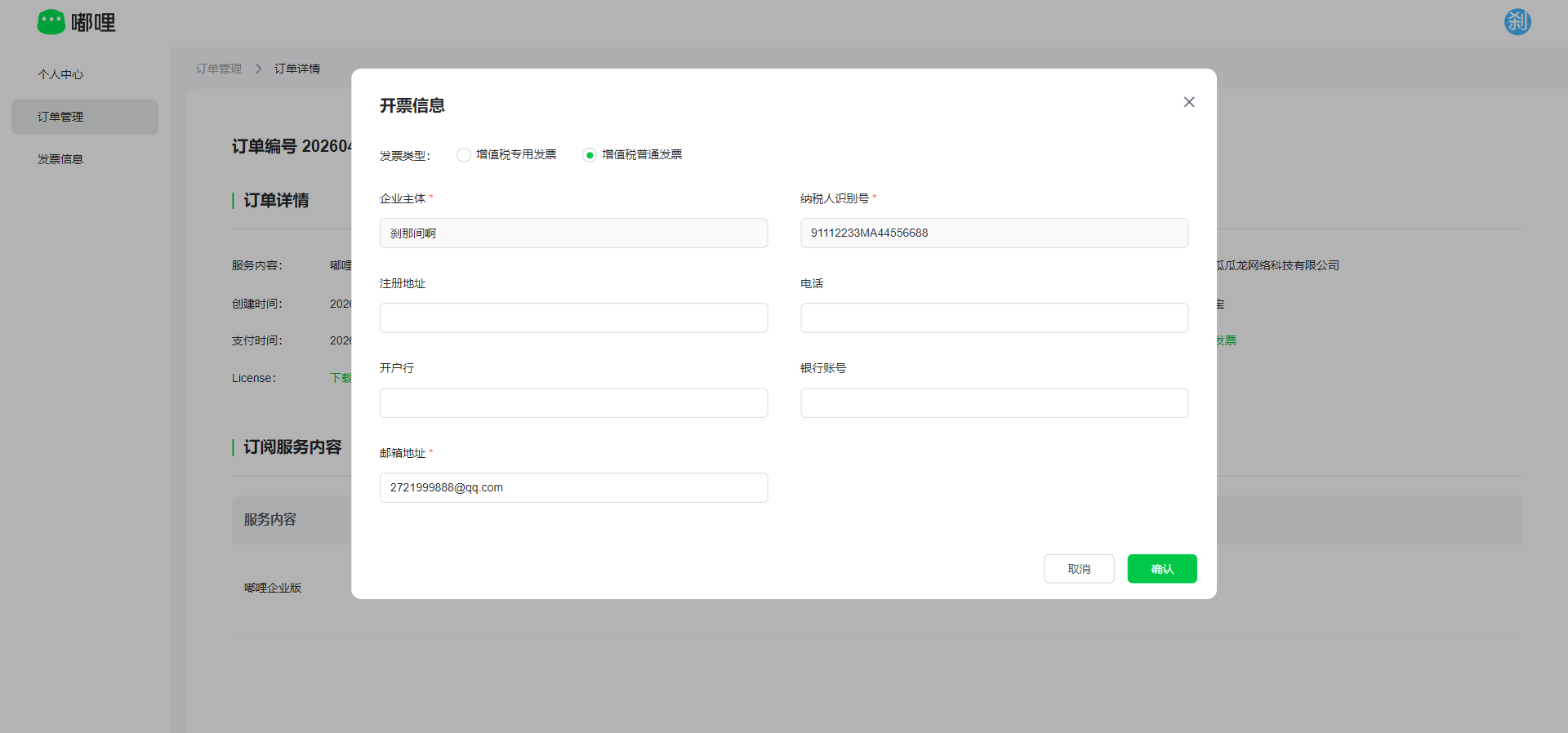
After order payment succeeds, click Apply for Invoice in order details.
After invoicing is complete, you can download the invoice from the order.
9. Renewal and Upgrade
9.1 Renewal
If the current service is about to expire, you can initiate renewal in the personal center.
During renewal, you can view the current edition and expiration time. After renewal succeeds, the service period continues from the current expiration time.
9.2 Upgrade
If the current edition cannot meet your needs, you can initiate an edition upgrade.
During upgrade, confirm the upgraded edition, product services, payment amount, and service agreement.
After the upgrade order is paid successfully, the system updates the corresponding service capabilities based on the order content. If a License needs to be regenerated, enter or confirm the machine code according to page prompts.
10. FAQ
10.1 What if the payment QR code expires?
Refresh the page or regenerate the QR code before paying.
10.2 Why can I not download the License after payment?
First confirm whether the machine code has been submitted.
If the page shows Under Review, the machine code is being processed. Please wait until processing is complete before downloading.
10.3 Why is enterprise verification required before downloading the contract?
The contract needs to be generated using enterprise verification information. Complete enterprise verification first, then return to order details to download the contract.
10.4 Why can invoice information not be modified?
After enterprise verification is approved, the enterprise name and taxpayer identification number are based on the verified information. The system usually writes them into invoice information automatically and they cannot be manually modified.
10.5 What if the order status does not change after corporate bank transfer?
Corporate bank transfer requires arrival confirmation or manual processing. Please contact staff through the customer service entry on the page.