
Windows Installation Guide
This guide explains how to install the Duli AI desktop client on a Windows computer. Before installation, make sure your organization has enabled Duli AI and that you have obtained the installer from the official website, your enterprise download page, or an address provided by your administrator.
Requirements
- Windows 10 or later.
- A 64-bit system is recommended.
- Access to your enterprise Duli service or public sign-in address.
Download the Installer
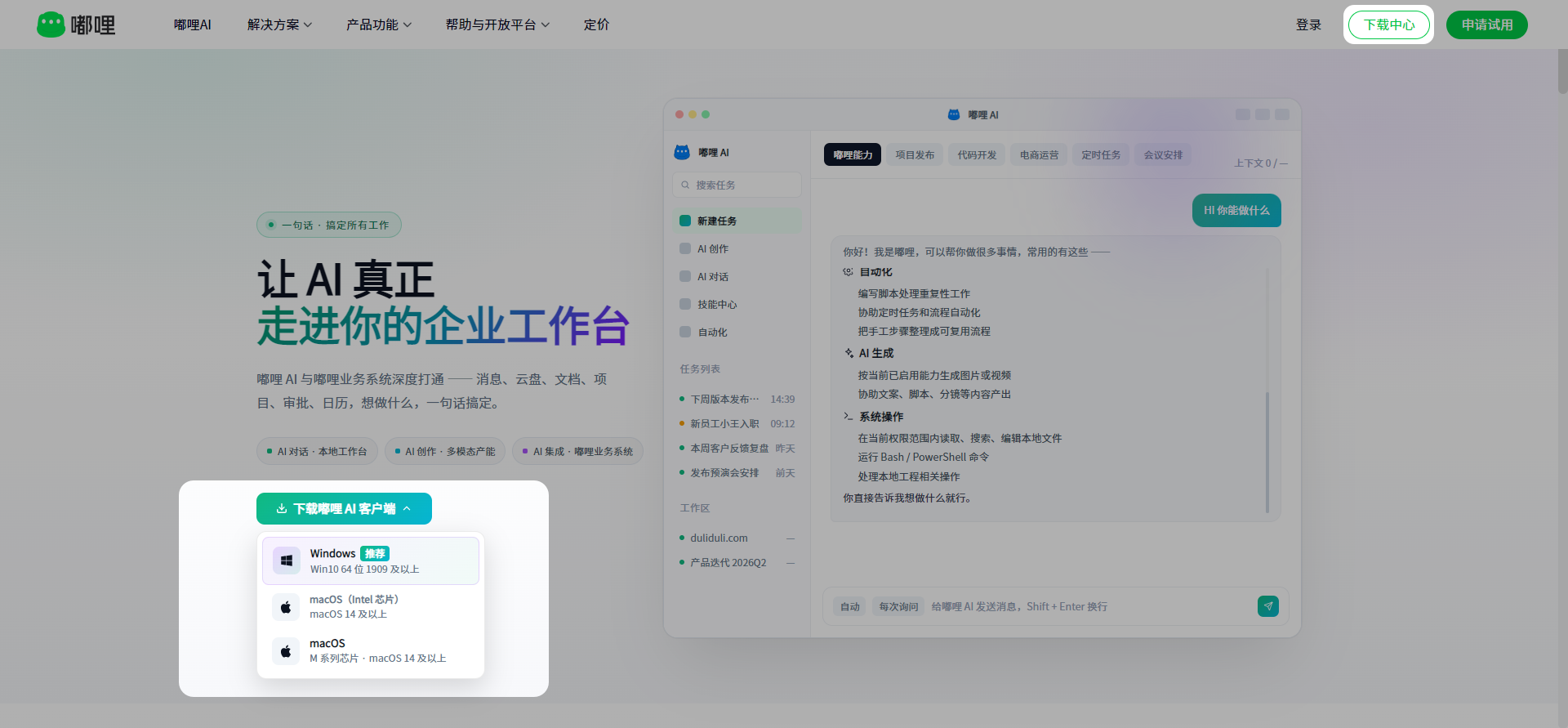
- Open the Duli AI download page or your internal enterprise download page.
- Select the Windows installer.
- Wait for the download to complete. Do not download installers from unknown sources.
Install the Client
- Double-click the downloaded installer.
- Follow the installation wizard, read the agreement, and continue.
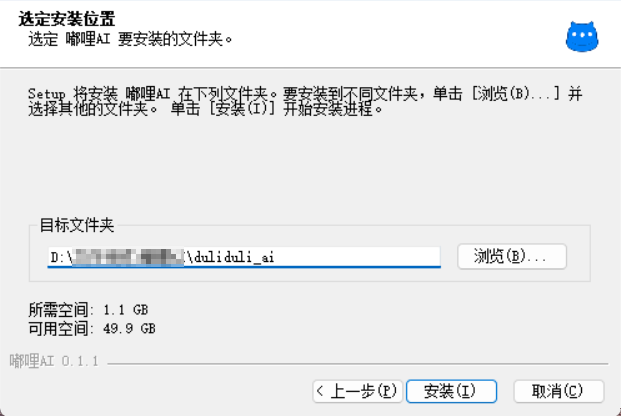
- Select an installation path. If there are no special requirements, use the default path.
- It is recommended to create a desktop shortcut.
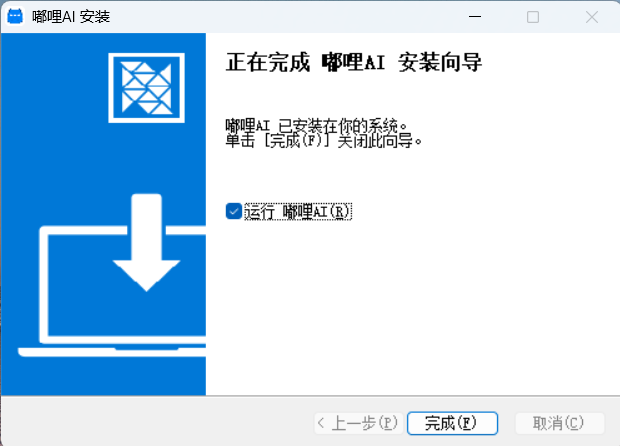
- Click install and wait for the installation to finish.
- After installation, click finish and launch Duli AI.
Sign in to Duli AI
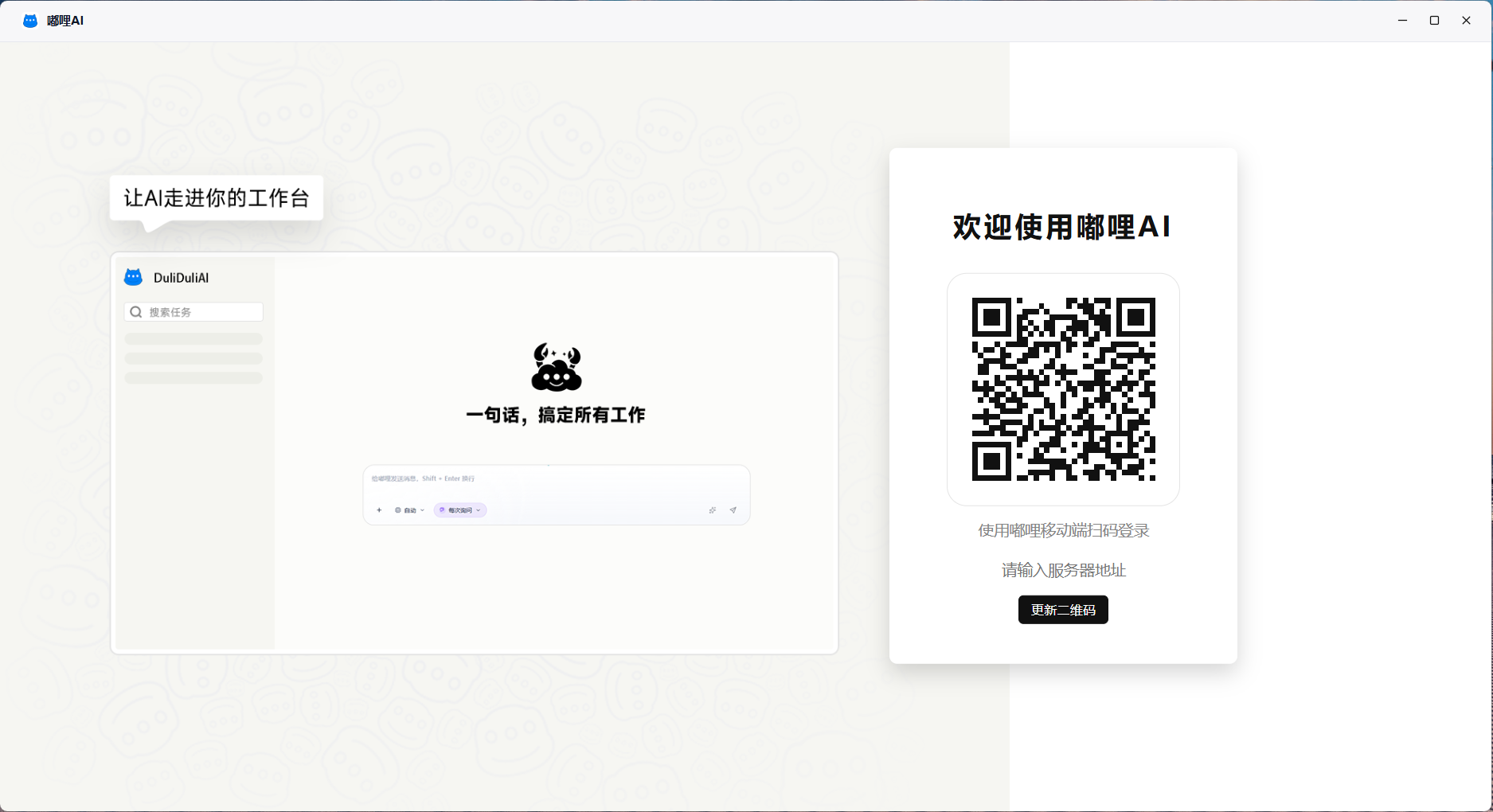
- Open the Duli AI client.
- Enter your enterprise account, or sign in using QR code, mobile number, or unified identity authentication according to your organization settings.
- If the system asks for a server address, use the enterprise service address provided by your administrator.
- After signing in, you can enter the Duli AI workspace.
FAQ
What should I do if the installer cannot be opened?
Make sure the installer was fully downloaded and check whether it was blocked by system security software. If it still cannot be opened, download the installer again or contact your administrator.
What should I do if I cannot see the AI entry after signing in?
Make sure your organization has enabled Duli AI and that your account has permission to use it. Some organizations allocate AI capabilities by department or member.
How do I update the client?
Open About or Check for updates in the client and follow the prompts. If your organization distributes versions centrally, follow the administrator's notice.