
Usage
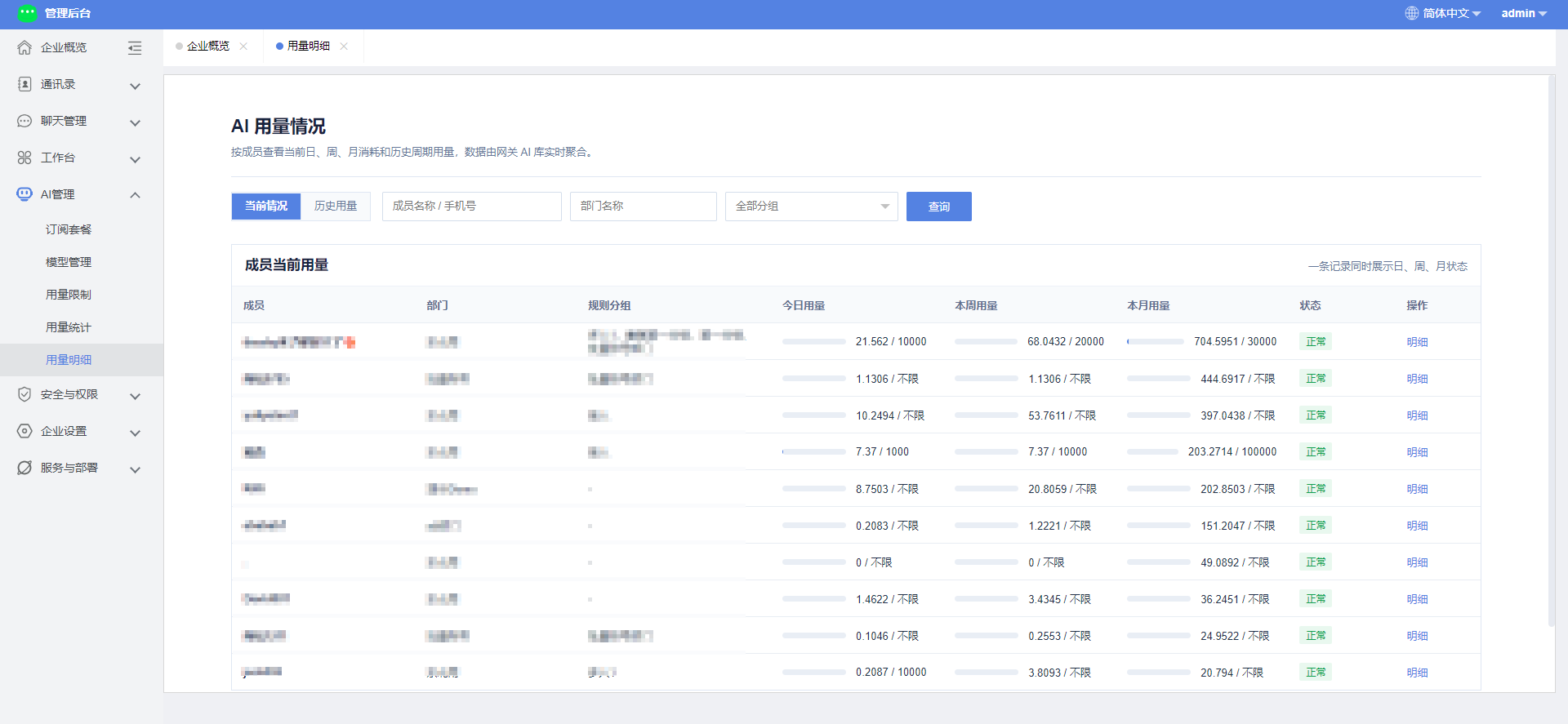
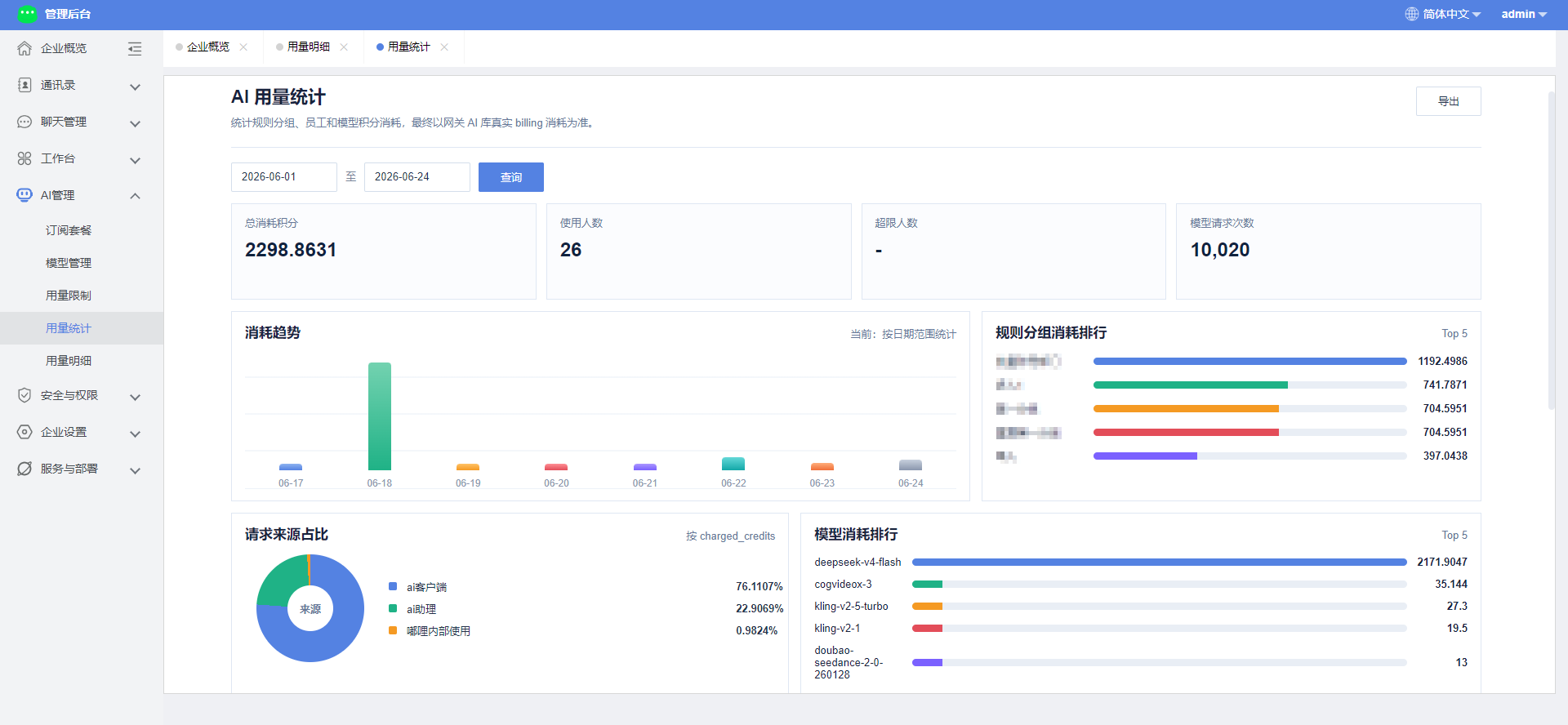
Usage is used to view point consumption by an enterprise or member in Duli AI. Administrators can use the usage page to understand who used how much, which features were used, and whether any limits are close to being reached.
Who Can View Usage
- Regular members: usually can only view their own AI usage.
- Enterprise administrators: can view usage by enterprise, department, member, model, and source.
- Finance or procurement staff: can view orders, balances, and consumption trends based on enterprise permissions.
The exact visible scope depends on enterprise backend permission settings.
Common Usage Metrics
| Metric | Description |
|---|---|
| Today's usage | Points consumed on the current calendar day |
| This week's usage | Points consumed in the current calendar week |
| This month's usage | Points consumed in the current calendar month |
| Request count | Number of AI model or AI task requests |
| Model consumption | Points consumed by each model |
| Source distribution | Share by AI Assistant, AI Creation, Knowledge Base, Automation, and more |
| Members near limit | Members who have reached or are close to quota limits |
How Administrators View Usage
- Sign in to the merchant backend.
- Go to Duli AI or AI Management.
- Open Usage Statistics to view enterprise-level trends.
- Open Usage Status to view current and historical member usage.
- Click details to view model, source, date, and point consumption.
Common Management Actions
- Filter by department to see which department consumes the most.
- Query by member to locate unusually frequent users.
- View the model ranking to determine whether high-cost models are frequently used.
- View source distribution to determine whether AI Creation, Knowledge Base, or Automation is the main source of consumption.
- Adjust quota rules to avoid exceeding budget.
FAQ
Is usage data real-time?
Some records may have a short delay. Billing and deductions are ultimately based on actual system records.
Why is there consumption when a member says they did not use AI?
It may come from automation tasks, app assistants, knowledge base Q&A, AI creation, or continued execution of historical sessions. Check source and time in usage details.
What happens after a limit is reached?
After a daily, weekly, or monthly quota set by the enterprise is reached, related members may not be able to continue using restricted AI capabilities until the quota resets or an administrator adjusts the rule.