
Explore
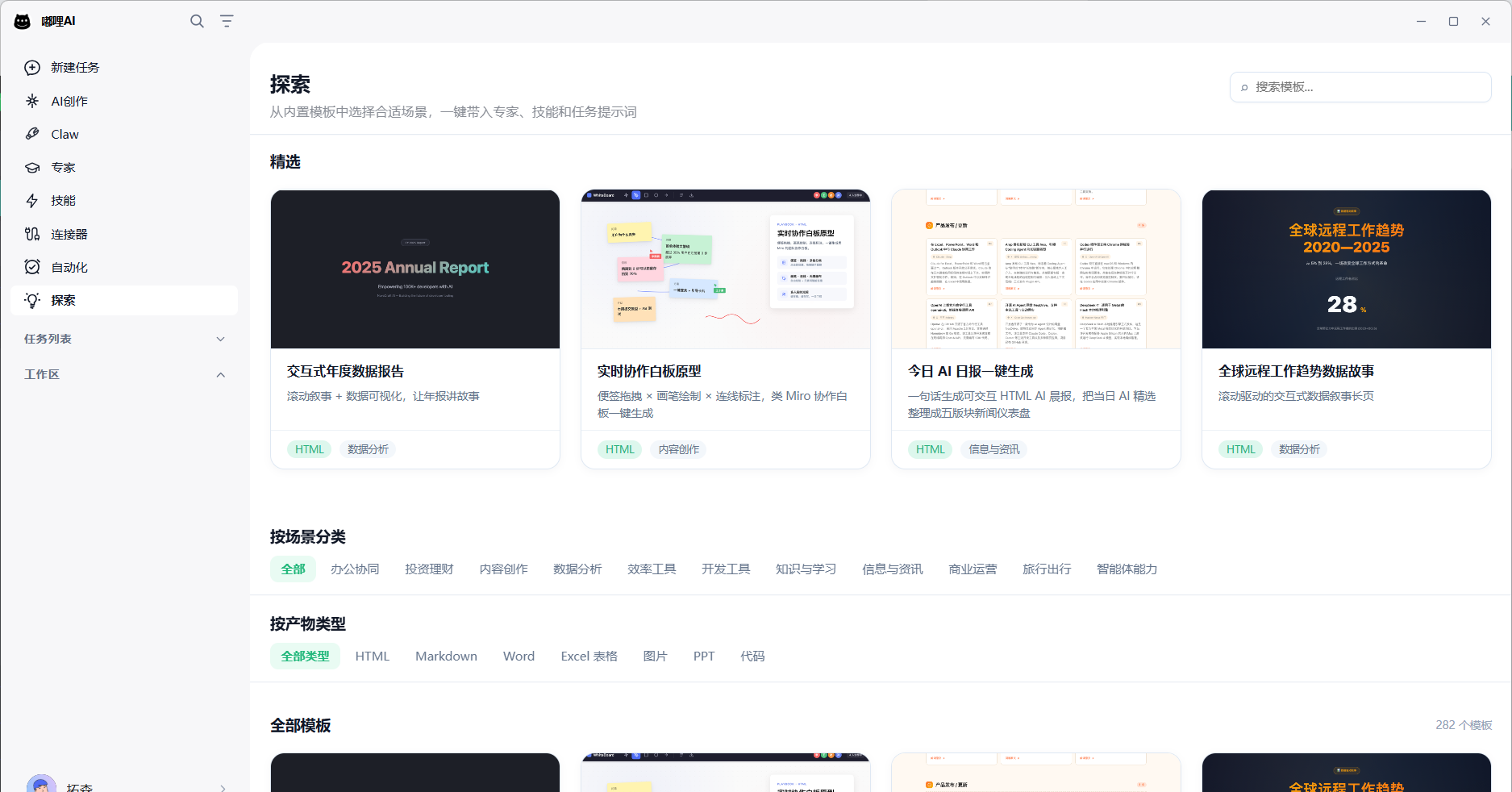
Explore is the template discovery entry for Duli AI. Here you can browse official scenario templates, preview example outputs, and bring in experts, skills, and prompts with one click to quickly start your own task.
Who Explore Is For
- New users who are not sure what Duli AI can do.
- Users who have a goal but do not want to write prompts from scratch.
- Users who want to reference example output formats.
- Users who want to quickly reuse experts, skills, and task templates.
What You Can Do in Explore
- Browse templates by scenarios such as office collaboration, content creation, data analysis, and productivity tools.
- Filter by output type such as HTML, Markdown, Word, Excel, image, PPT, and code.
- Search template names, tags, or use cases.
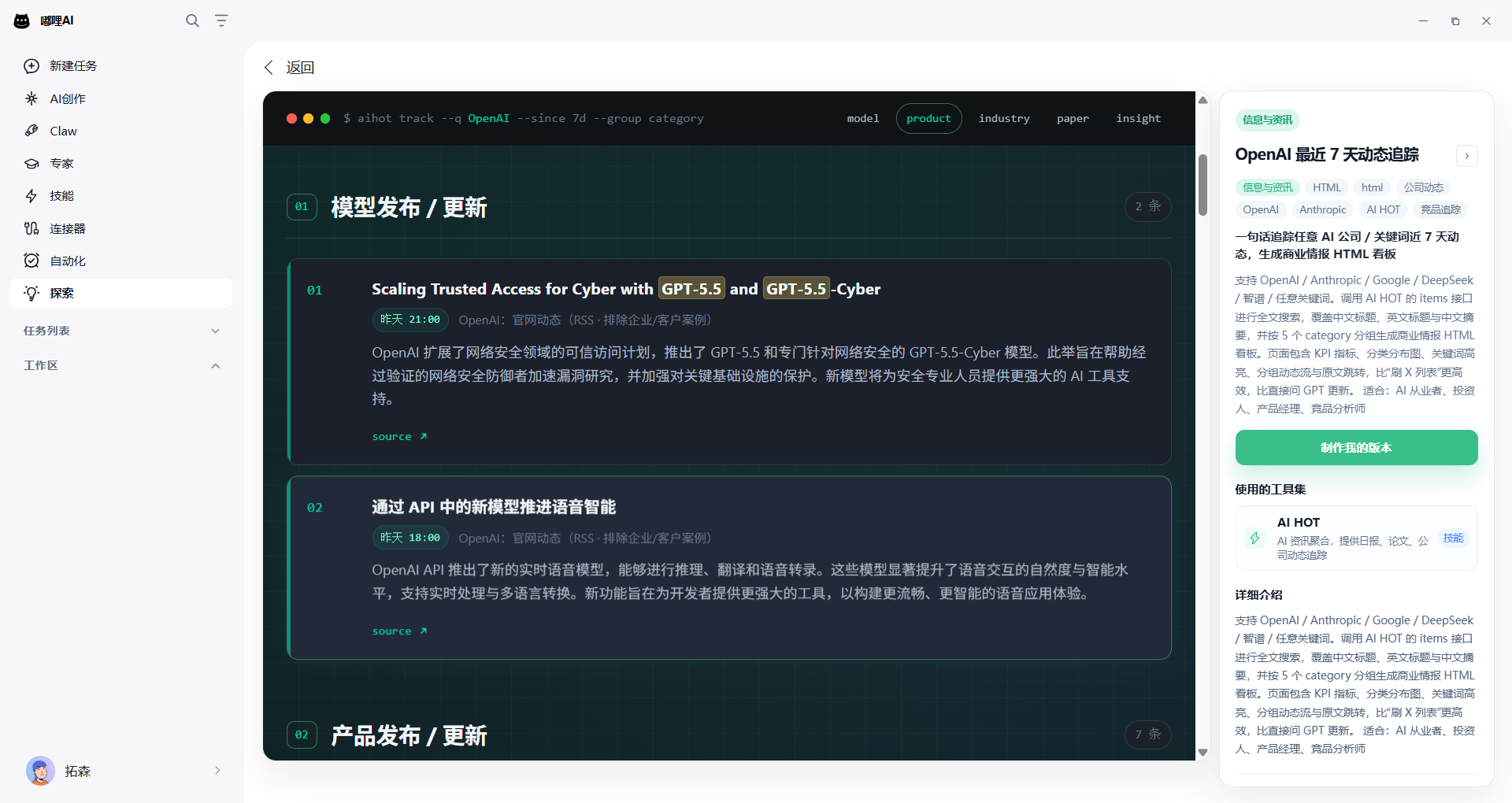
- View template details and output previews.
- Click Make my version to bring the template into a new task.
Steps
- Open the Explore entry on the left side of the Duli AI client.
- Find a template by category, output type, or keyword.
- Click the template card to view details and example output.
- If it fits your needs, click Make my version.
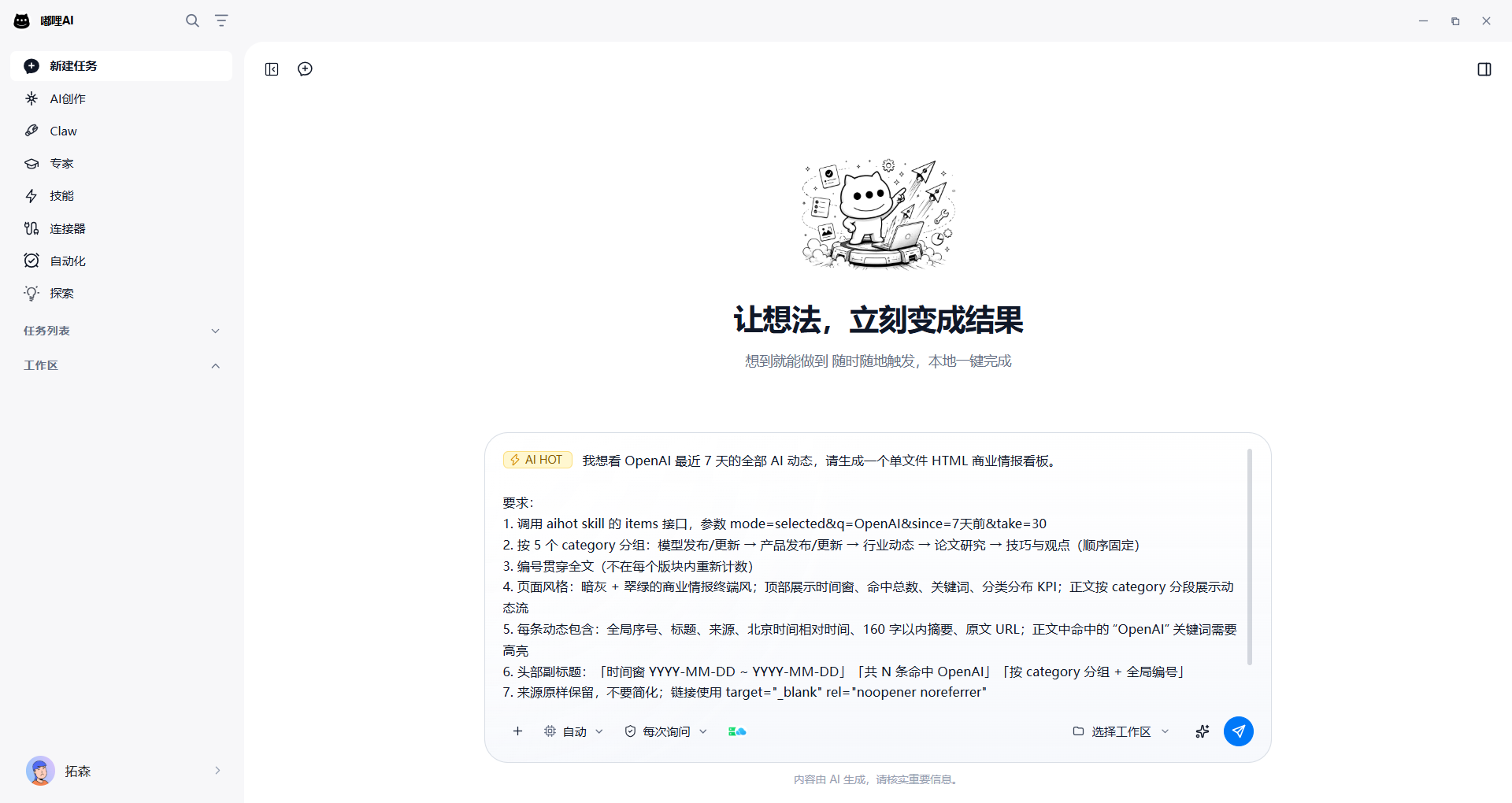
- The system brings related experts, skills, and prompts into the chat workspace.
- You can continue editing the content and then send the task.
What a Template May Bring In
Depending on the template configuration, it may bring in:
- Recommended experts.
- Recommended skills.
- Task prompts.
- Output format instructions.
- Example scenario descriptions.
You can still edit these before sending.
Usage Tips
- When you want to get started quickly, look for a template in Explore first.
- When you need a fixed output format, filter by output type.
- If a template is close to your scenario, make your version first, then add enterprise background and specific requirements.
- If a template lacks the materials you need, continue adding attachments or a workspace in the chat area.
FAQ
Will clicking a template execute the task immediately?
No. Clicking a template first opens the detail page. The task starts only after you click Make my version and send it in chat.
Can I replace the experts or skills in a template?
Yes. After the template is brought into chat, you can continue editing the prompt and change experts or skills as needed.
Why can't some template previews be opened?
The preview resource may be missing or restricted in the current environment. You can still read the template description or switch to another template.