
Mac Installation Guide
This guide explains how to install the Duli AI desktop client on a Mac. Before installation, make sure your organization has enabled Duli AI and that you have obtained the installer from the official website, your enterprise download page, or an address provided by your administrator.
Requirements
- macOS 12 or later.
- Apple Silicon and Intel devices can both be installed using the corresponding installer.
- Access to your enterprise Duli service or public sign-in address.
Download the Installer
- Open the Duli AI download page or your internal enterprise download page.
- Select the correct version based on your device chip:
- Choose the ARM version for Apple Silicon devices.
- Choose the X64 version for Intel devices.
- Wait for the
.dmginstaller to finish downloading.

Install the Client
- Double-click the downloaded
.dmgfile. - Drag the Duli AI icon into the Applications folder.
- Wait for the copy process to complete.
- Open Duli AI from Launchpad or Applications.
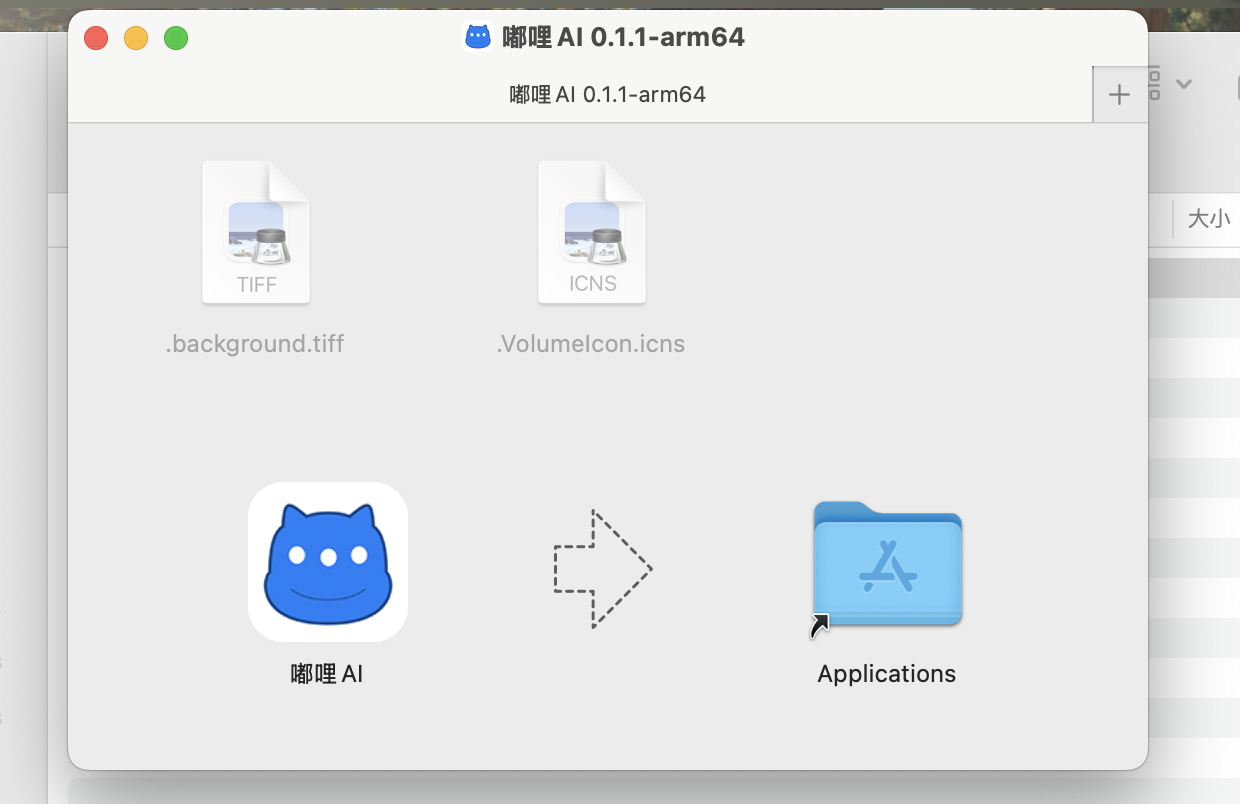
First Launch Prompt
If macOS says it cannot verify the developer or asks for security confirmation, follow these steps:
- Open System Settings.
- Go to Privacy & Security.
- Find the prompt for Duli AI and choose to open it anyway.
- Launch the client again.
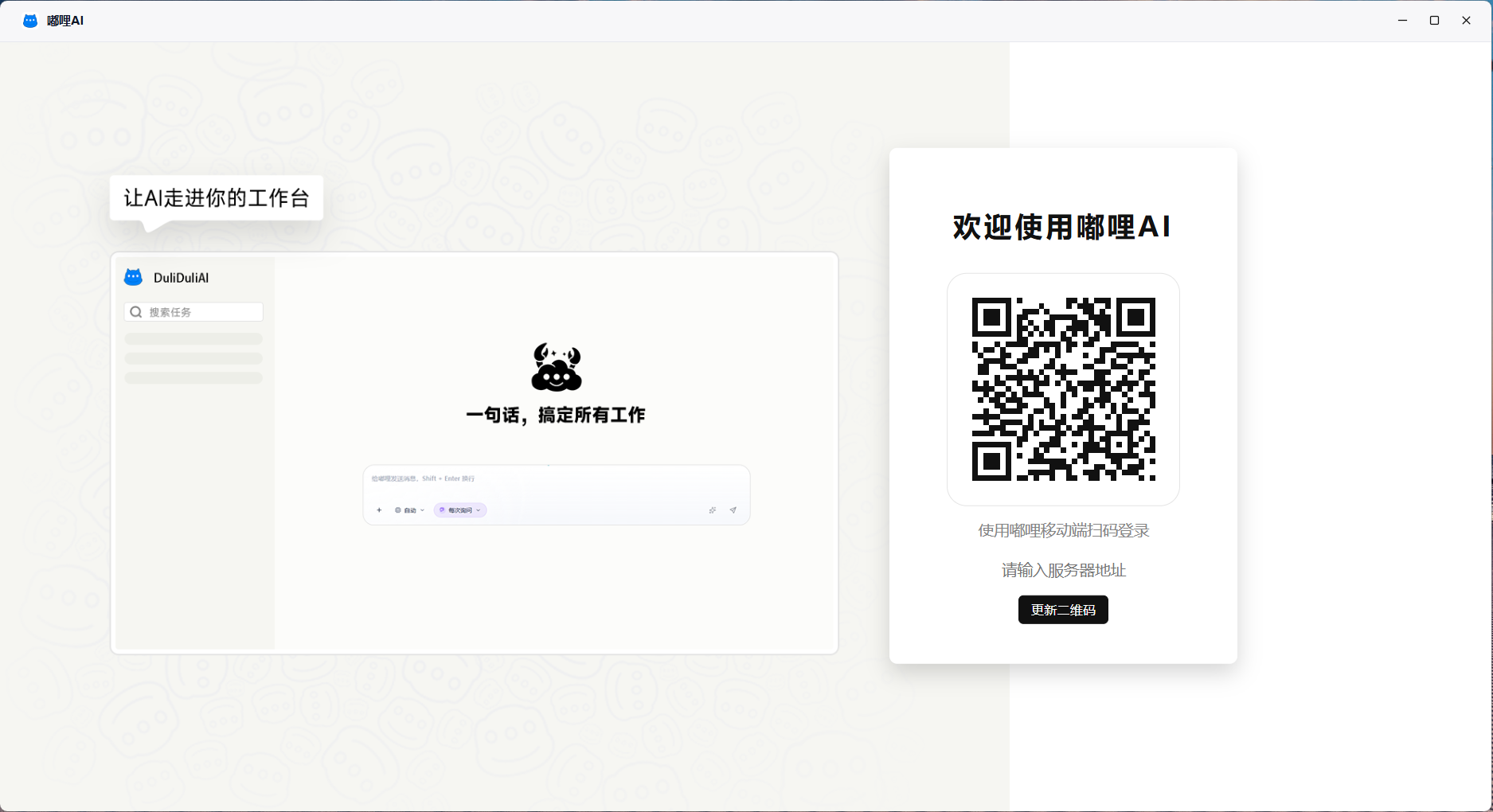
Sign in to Duli AI
- Open the Duli AI client.
- Enter your enterprise account, or sign in using QR code, mobile number, or unified identity authentication according to your organization settings.
- If the system asks for a server address, use the enterprise service address provided by your administrator.
- After signing in, you can start using Duli AI.
FAQ
How do I check which chip my Mac uses?
Click the Apple icon in the upper-left corner of the screen, select About This Mac, and check the chip information.
What should I do if the app does not respond after opening?
Make sure your system version meets the requirements and try reinstalling the client. In an enterprise intranet environment, also confirm that the network can access your enterprise Duli service.
How do I update the client?
Open About or Check for updates in the client and follow the prompts. If your organization distributes versions centrally, follow the administrator's notice.