Getting Started
1. Before you begin
Before using DULI AI for the first time, it is recommended to complete the following preparation:
- Install and launch the DULI AI client.
- Follow the on-screen guidance to sign in and enter your organization or work environment.
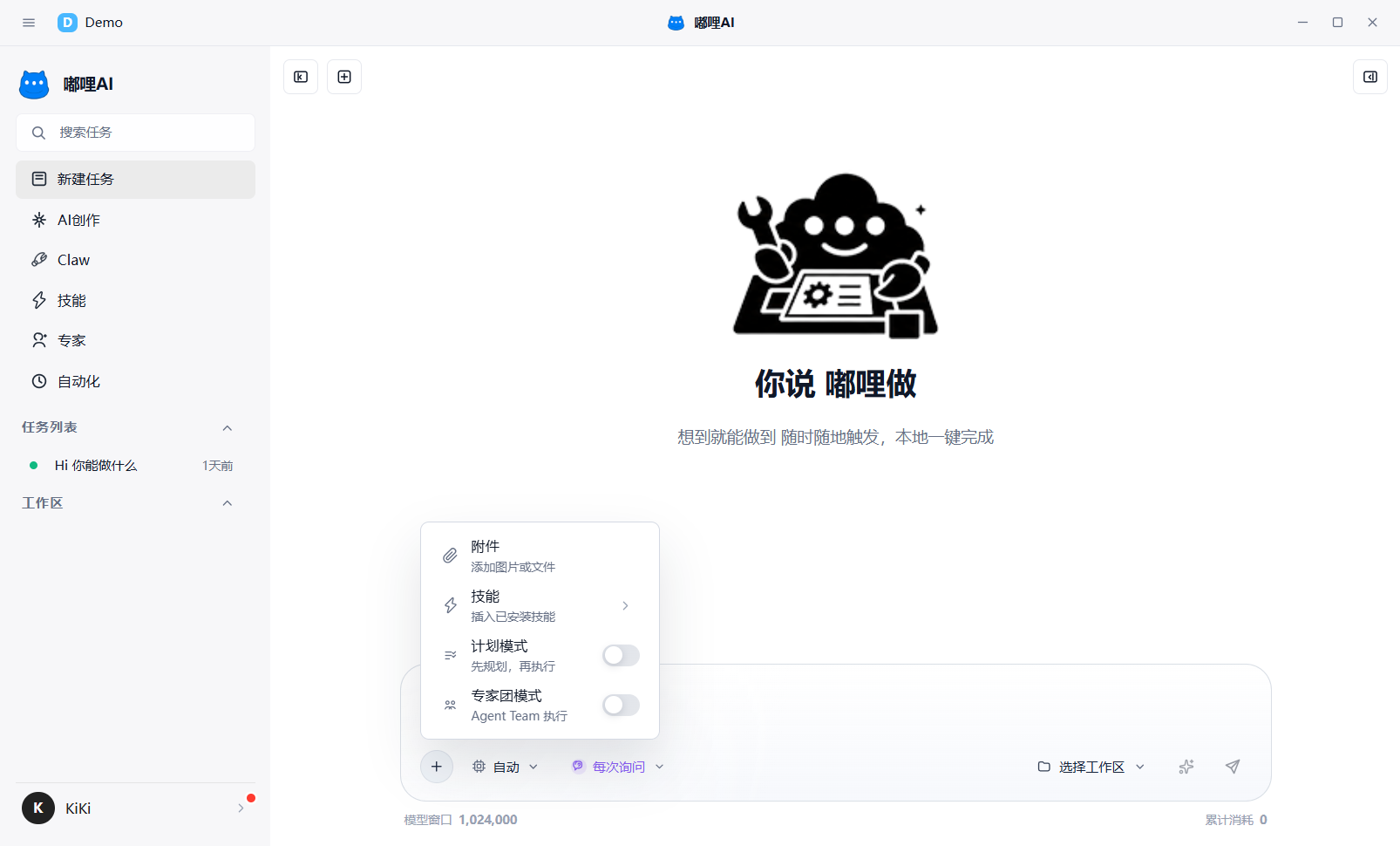
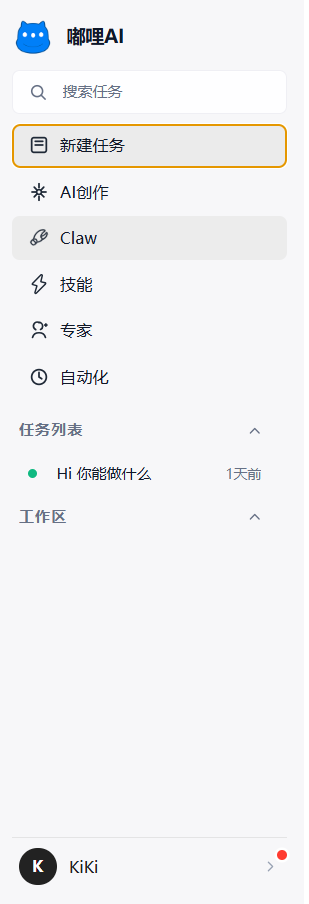
- Confirm that you can see the left navigation, task list, and input area.
- If you plan to work with local files, confirm that a workspace is already available.
2. Quick-start path
If you want to get started as fast as possible, follow this order:
- Open
New Taskand complete one simple request. - Then try uploading an attachment or binding a workspace.
- Depending on the task type, continue with
Skills,Experts,AI Creation, orAutomation.
3. First recognize the main entry points
After entering the client, spend one minute recognizing the most common entry points:
New Task: Start a regular AI task.Claw: Enter your dedicated assistant workspace.Skills: View, install, and manage skills.Experts: View available experts and choose the right role.AI Creation: Enter image, video, and short-drama creation scenarios.Automation: Create recurring tasks.
4. Complete your first task
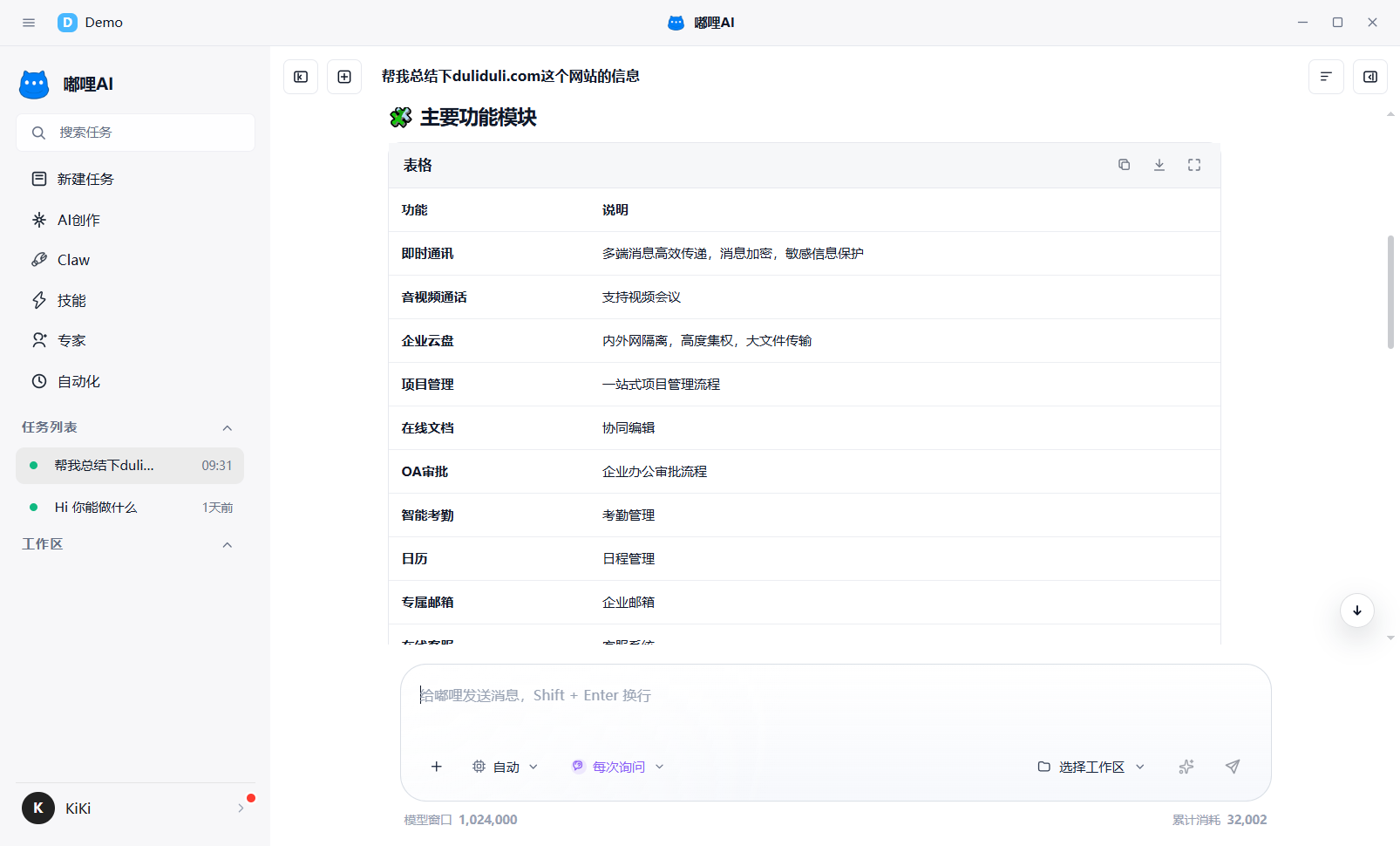
If this is your first use, start with a simple task such as organizing meeting notes, polishing a paragraph, or summarizing a document.
- Click
New Taskon the left. - Enter your requirement in the input area.
- Choose a model, permission mode, workspace, attachment, or skill if needed.
- Click Send.
- Review the reply in the center conversation area, and view preview, outputs, or execution details in the right-side panel.
5. Connect tasks with a workspace
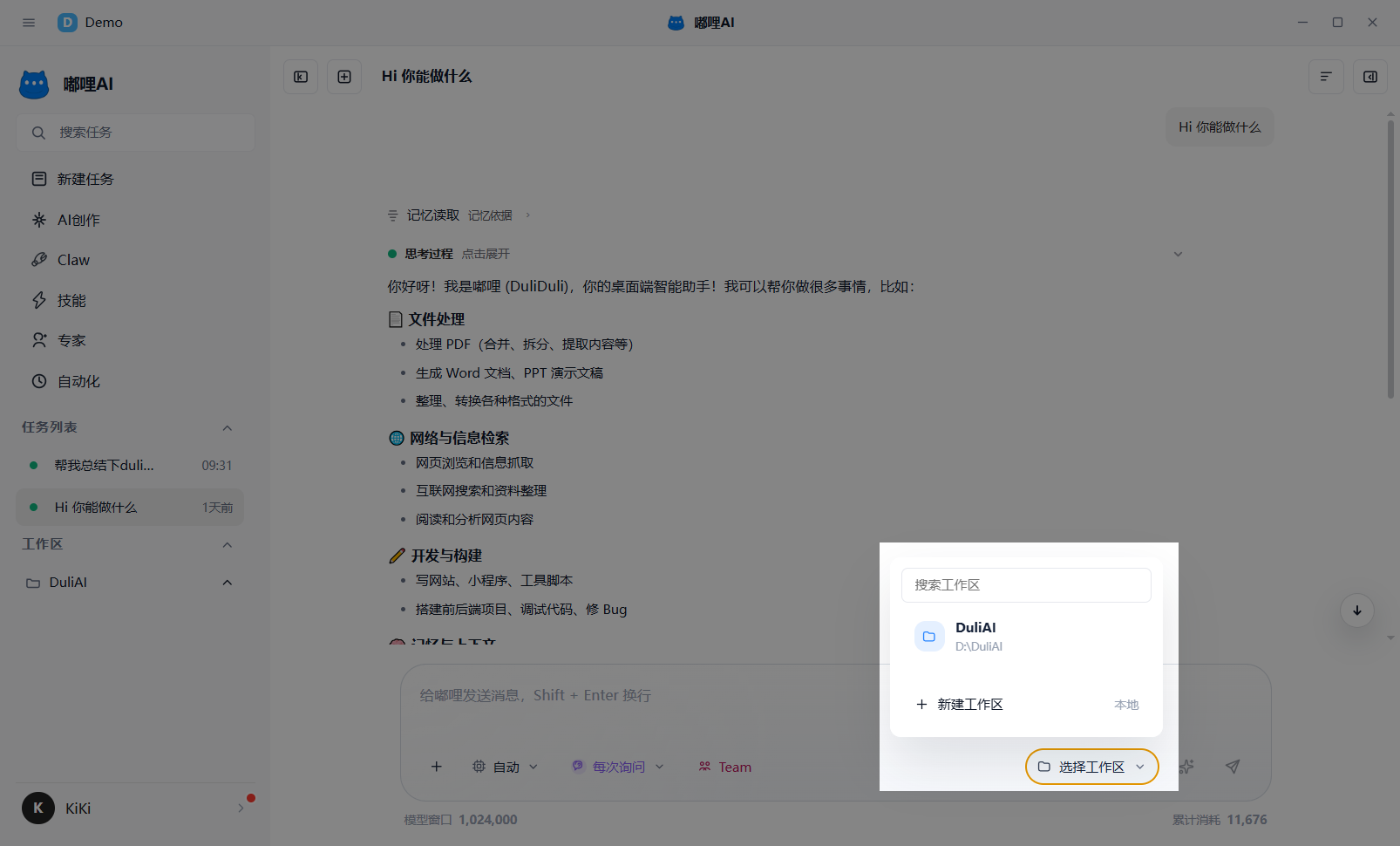
If your task is related to a local project, document, or folder, select a workspace before sending.
- Choose a workspace in the input area.
- Confirm that the current task is bound to that workspace.
- Then enter your question and send it.
After binding a workspace, it becomes easier to:
- Reference files inside the workspace
- Continue asking questions within the same project context
- Keep the task attached to the relevant workspace for later work
6. Common input capabilities
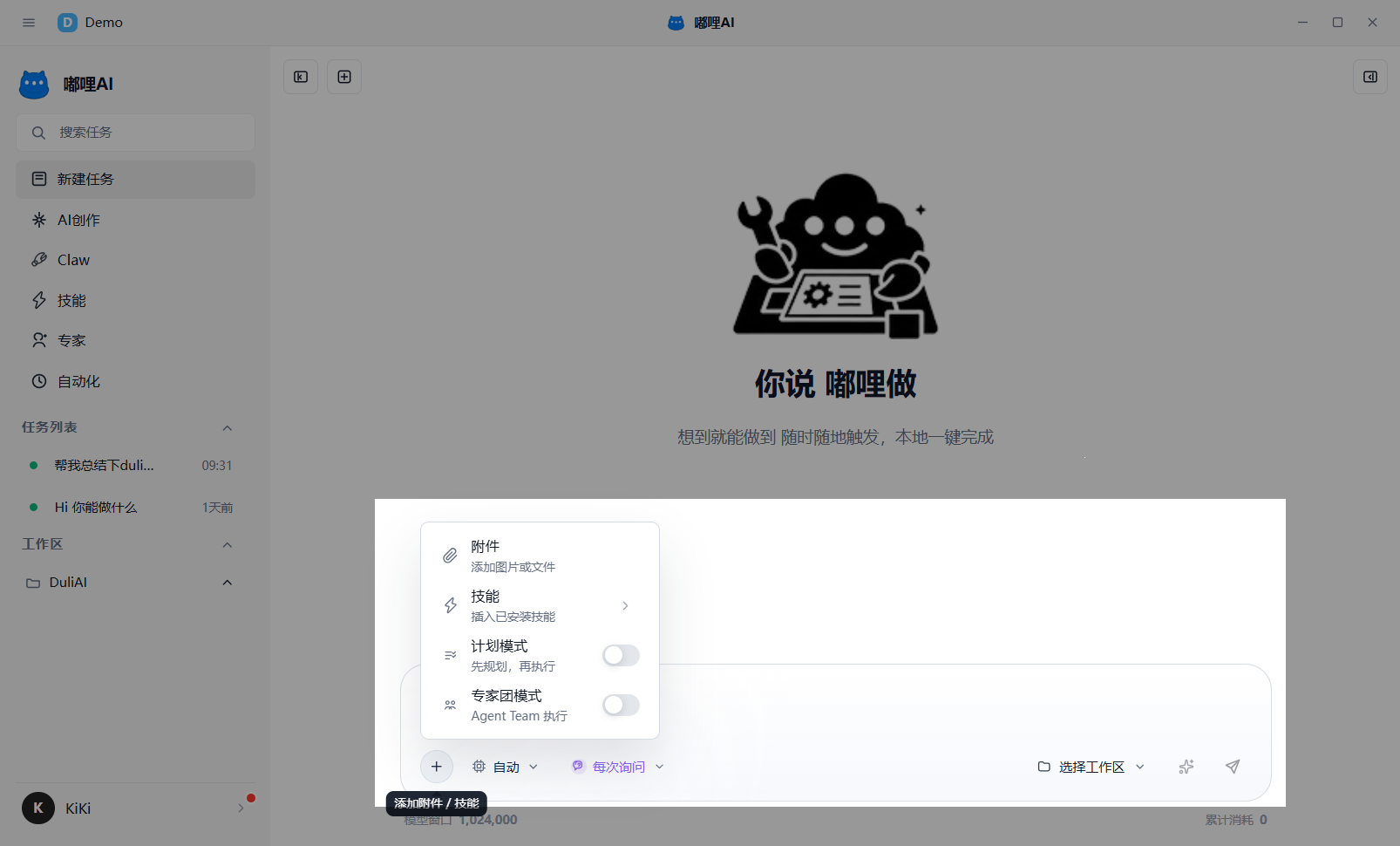
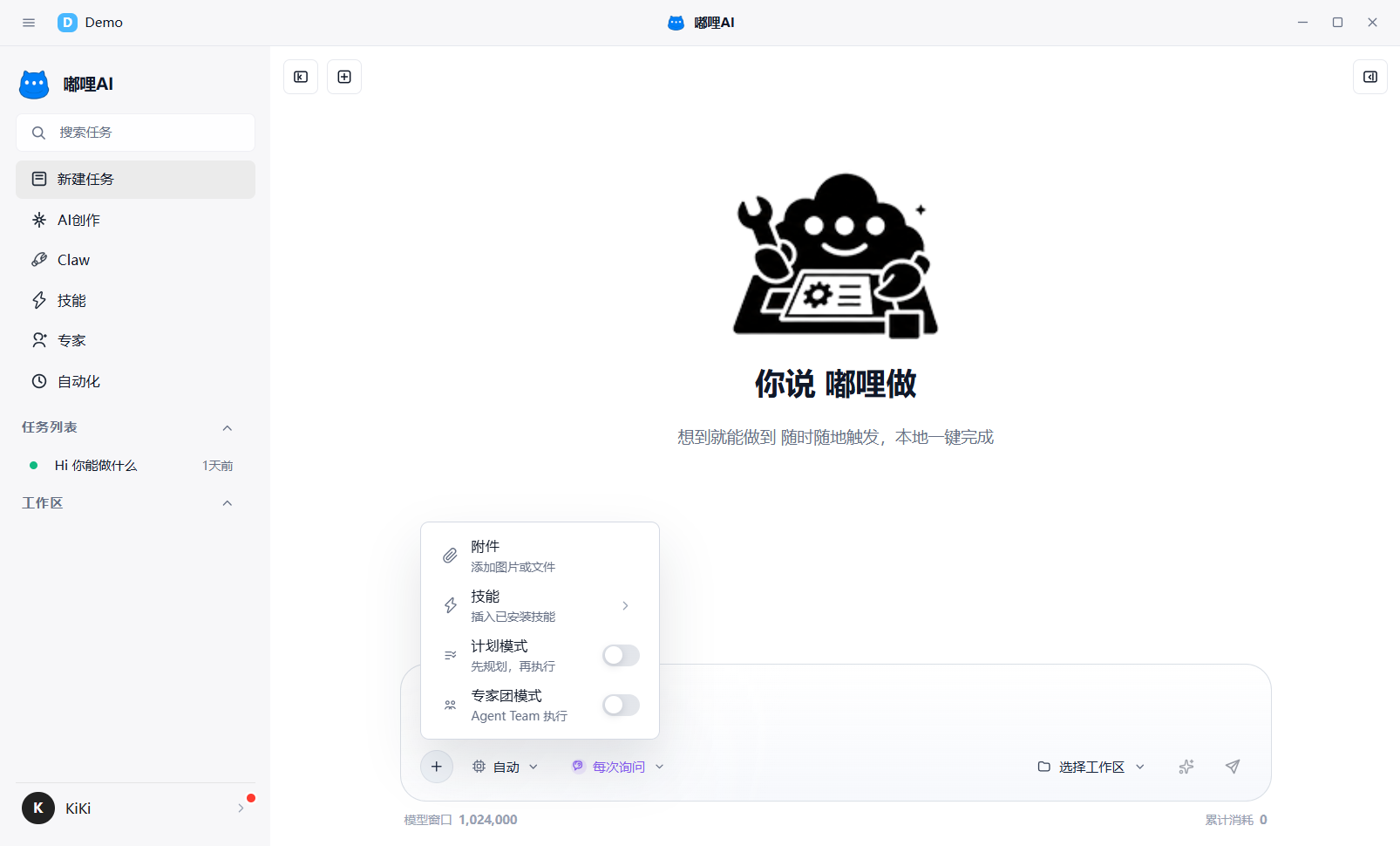
The input area is not just a chat box. It is also a lightweight task orchestration area. Common capabilities include:
- Attachment upload
- Skill insertion
- Prompt optimization
- Plan mode
- Expert Team mode
- Model selection
- Permission mode
- Workspace selection
7. Common settings
Before formal use, it is recommended to review Settings, especially:
- General settings: theme and interface experience
- Memory & Profile: view and maintain long-term preferences
- Claw settings: configure Claw's identity and tone
- About: view version information
8. Historical tasks and archive
DULI AI supports restoring historical conversations and archiving infrequently used tasks.
- Open historical tasks from the left-side task list.
- Open project-related tasks from a workspace.
- Restore older tasks from the archive.
Archive means storage, not deletion. Archived tasks can still be reopened and continued.