
Automation
The Automation workspace is suitable for tasks that repeat on a schedule. It helps you turn fixed actions from manual execution into rule-based automatic execution.
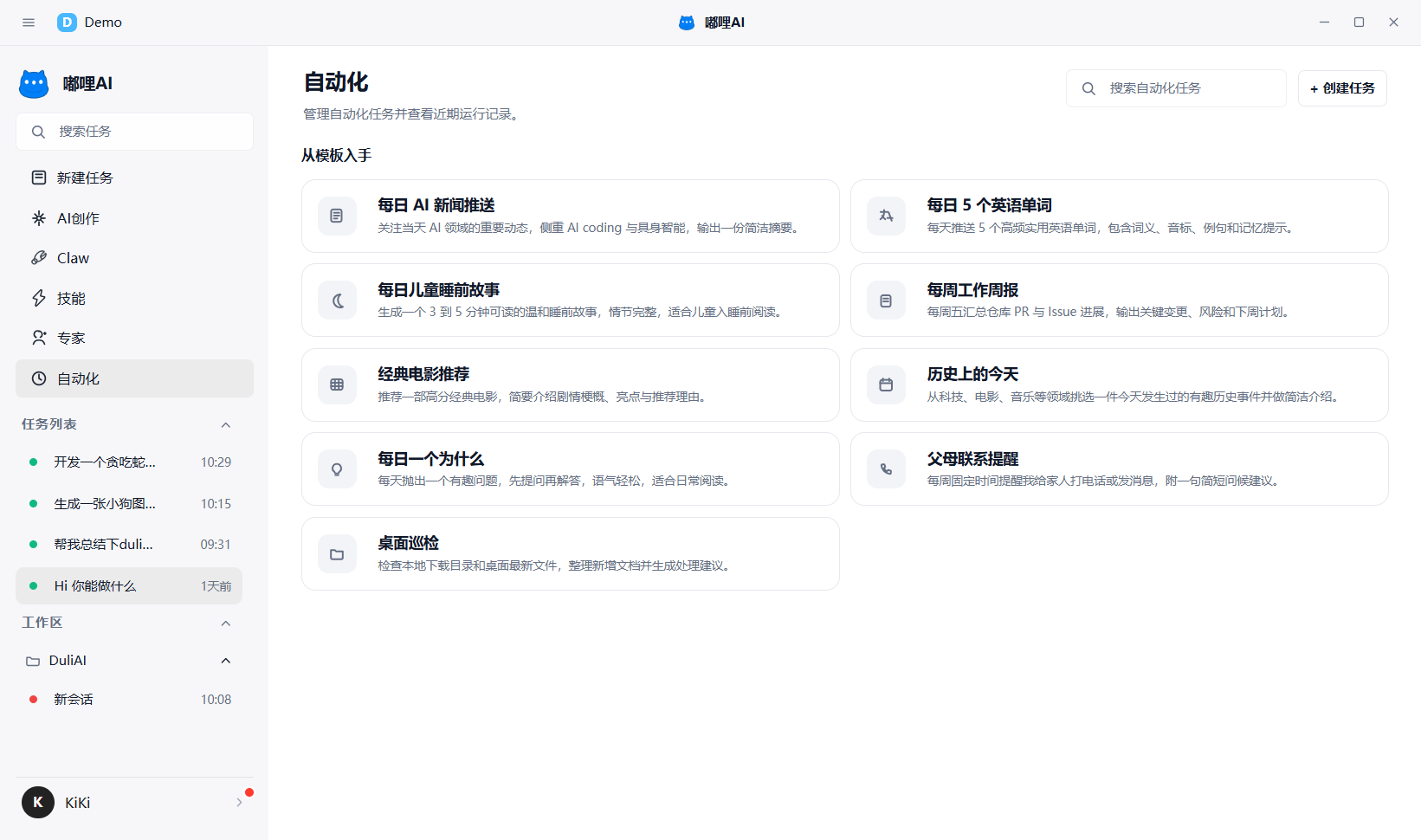
1. Common usage methods
Currently there are three common ways to use automation:
- Create a task manually in the Automation workspace
- Create a task quickly from a template
- Convert the current request into an automation task directly from a conversation
2. What should you pay attention to when creating automation tasks
When creating an automation task, you usually need to care about:
- Task title
- Workspace
- Prompt
- Execution frequency
- Execution time
3. Manual creation
If you already know exactly what should be executed automatically, create the task directly in the Automation workspace and fill in the required information.
4. Template creation
If you are still unsure how to phrase the task, choose a template first and then adapt it.
5. Convert conversation to automation
If you have already described the goal clearly in chat, you can convert the current requirement directly into an automation task and avoid repeated form filling.
6. What you can do after creation
After creation, you can review the following in the Automation workspace:
- Task list
- Execution history
- Task details
7. Recommendations
- Best for scheduled, repetitive work
- Write the prompt clearly before setting a schedule
- If the automation is project-related, bind the related workspace
- Test it manually once before putting it into regular use
8. Frequently asked questions
8.1 What kinds of tasks are suitable for automation?
Tasks with stable goals, fixed execution frequency, and relatively clear logic are suitable, such as scheduled organization, recurring reminders, and fixed-format outputs.
8.2 Can I modify an automation task after creation?
Usually yes. It is recommended to complete one test run first, then adjust the title, prompt, schedule, or workspace based on the result.