
Advanced Input Capabilities
1. Attachments and file references
You can add images and documents by dragging, pasting, or uploading them. You can also search for files in a workspace and insert them into the current task.
2. Skills
If the current task needs a specific capability, insert an installed skill directly into the input area so the task runs with that capability.
3. Prompt optimization
If your input is still too conversational, fragmented, or incomplete, click Prompt Optimization first. The system will reorganize it into a form that is easier to execute.
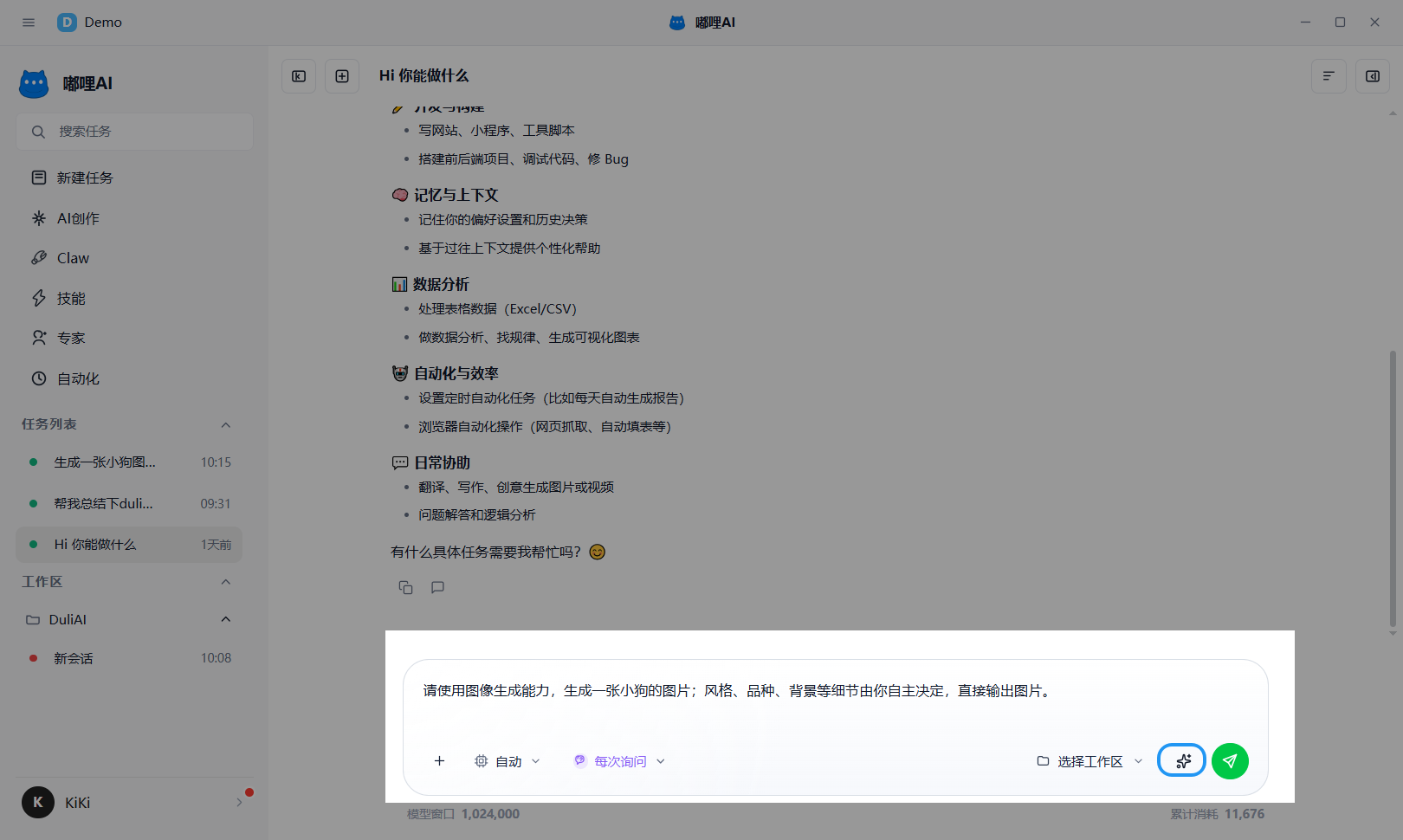
4. Plan mode
Plan mode is suitable for tasks where you want to organize a plan before execution. After turning it on, the system tends to output steps, decomposition, and route suggestions first.
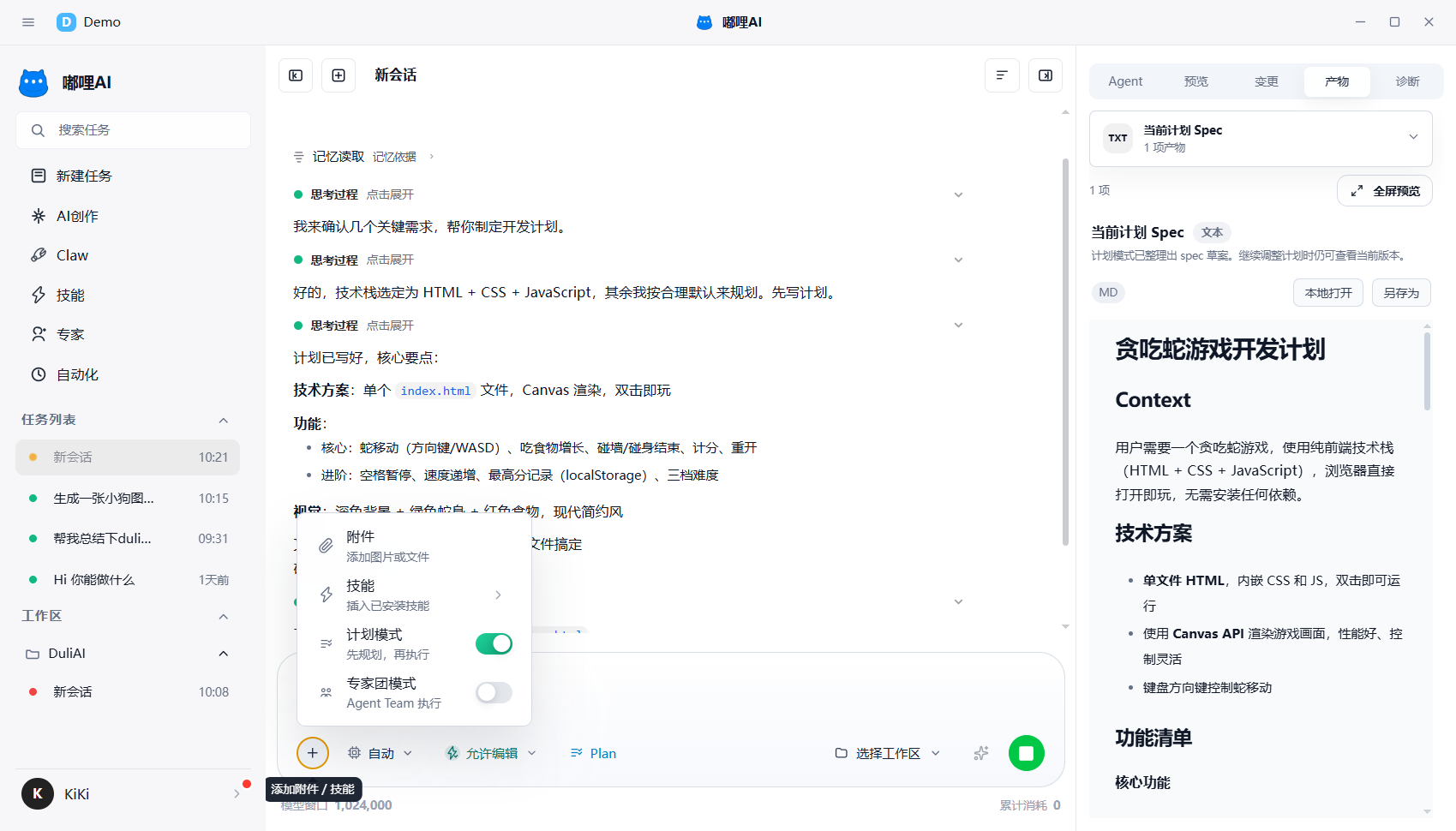
5. Expert Team mode
Expert Team mode is suitable for complex tasks. It is documented separately in detail, so this page keeps only the entry-level explanation.
When a task involves research, analysis, execution, and review at the same time, you can enable Expert Team mode in the input area and then refer to the related guide for details.
6. Model selection
Models are generally used in two ways:
Auto: The system automatically matches a model based on the taskManual: You choose the current model yourself
If you are not sure which to pick, start with Auto.
7. Permission mode
Permission mode controls whether certain operations require your confirmation during execution. When the task needs network access, command line actions, or other sensitive capabilities, you can choose an appropriate permission level here.
8. When to use each capability
- If the task description is unclear: use Prompt Optimization first
- If you need to think through the approach first: turn on Plan mode
- If the task spans multiple roles: turn on Expert Team mode
- If you need specialized extended capabilities: insert a skill
- If the task is related to files: bind a workspace and reference files